Recipe List
The recipe list is the central management view for all recipes in OpSee. It provides a DataGrid with search, filtering, status management, versioning, and CRUD operations.
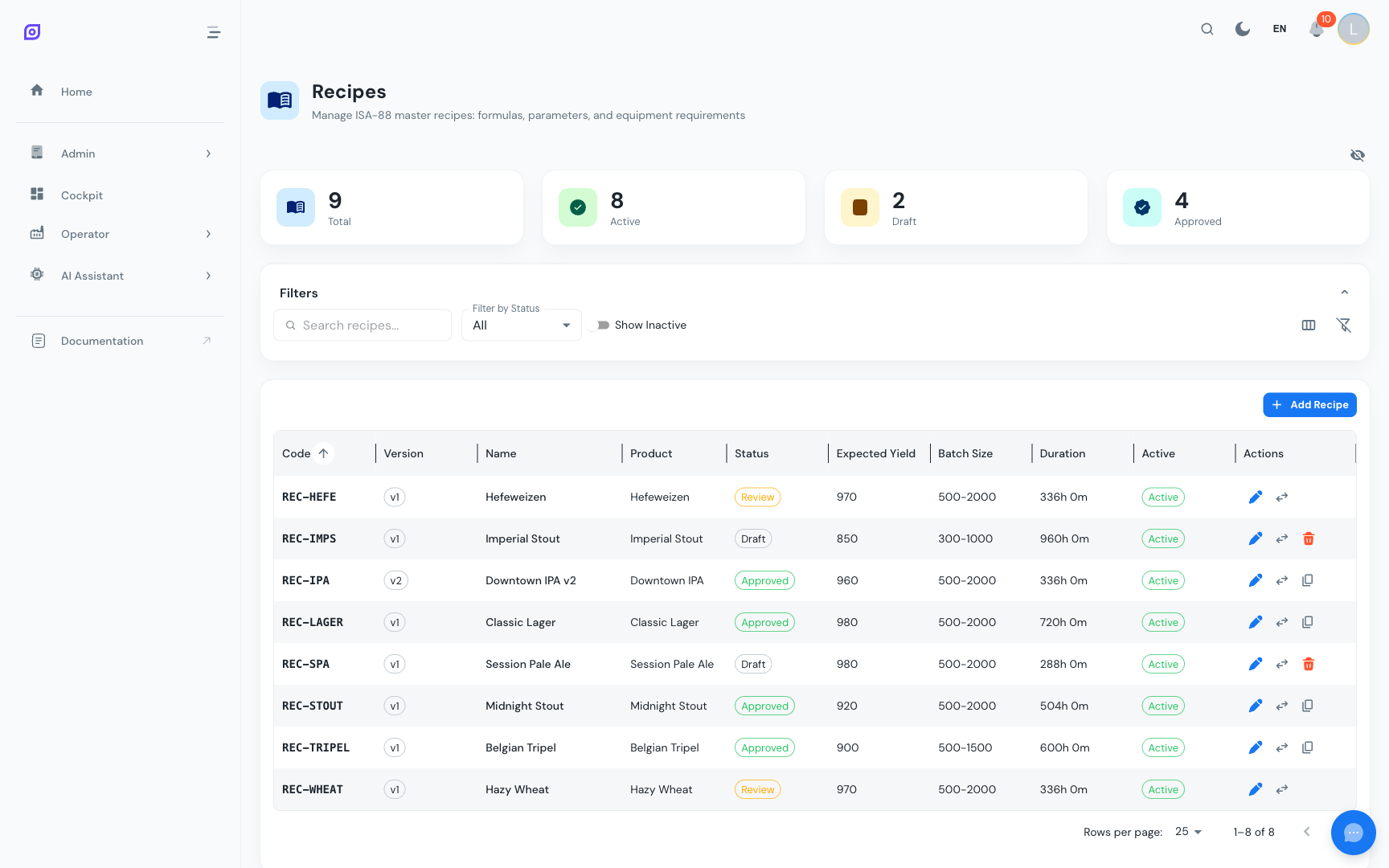
Dashboard summary
At the top of the page, four KPI cards give you an at-a-glance summary:
| Card | Description |
|---|---|
| Total | Total number of recipes in the system |
| Active | Recipes with the active flag enabled |
| Draft | Active recipes currently in Draft status |
| Approved | Active recipes that are approved for production |
Grid columns
The recipe list DataGrid displays the following columns:
| Column | Description | Compact View | Full View |
|---|---|---|---|
| Code | Recipe identifier (monospace) | Visible | Visible |
| Version | Version number badge (e.g. v1, v2) | Visible | Visible |
| Name | Recipe display name | Visible | Visible |
| Description | Optional description text | Hidden | Visible |
| Product | Output material/product name | Visible | Visible |
| Status | Lifecycle status chip (Draft/Review/Approved/Obsolete) | Visible | Visible |
| Procedure | Linked batch procedure name | Hidden | Visible |
| Created | Creation timestamp | Hidden | Visible |
| Active | Active/Inactive chip | Visible | Visible |
| Actions | Edit, delete, status change, new version buttons | Visible | Visible |
Toggle between compact and full column views using the column visibility icon in the filter bar. You can also use the DataGrid's built-in "Manage Columns" panel to show/hide individual columns.
Searching and Filtering
The filter bar provides these controls:
| Control | Behavior |
|---|---|
| Search | Filters by recipe name, code, or product name (case-insensitive) |
| Status | Dropdown to filter by status: All, Draft, Review, Approved, Obsolete |
| Show Inactive | Toggle to include recipes with active = false |
| Column Toggle | Switch between compact and full column visibility |
| Clear Filters | Reset all filters, search text, and column widths to defaults |
Status management
Each recipe follows a controlled lifecycle. You can change a recipe's status directly from the list:
- Click the status chip in the Status column
- A context menu shows the available transitions for the current status
- Click the desired transition
Status transitions
| Current Status | Available Actions |
|---|---|
| Draft | Submit for Review |
| Review | Approve, Return to Draft |
| Approved | Mark Obsolete |
| Obsolete | (no transitions) |
When a recipe is approved, the approving user's name is recorded automatically. This information is stored for traceability and is visible in the audit trail.
Editing restrictions
Only recipes in Draft status can be edited or deleted. This includes:
- Modifying the recipe name, code, description, or any field
- Adding, editing, or removing formula items
- Adding, editing, or removing phase parameters
- Adding, editing, or removing equipment requirements
If you need to change an approved or obsolete recipe, create a new version instead.
Creating a New Version
Versioning allows you to iterate on recipes while preserving the history of previous versions.
- Click the version action button (copy icon) on any recipe in the list
- A confirmation dialog appears showing the recipe name and current version
- Click Confirm to create the new version
What happens when you create a new version:
- A new recipe record is created with the same code but an incremented version number
- All child records are copied from the source recipe:
- Formula items (bill of materials)
- Phase parameters (setpoint overrides)
- Equipment requirements
- The new version starts in Draft status, regardless of the source version's status
- The new version is marked as
active = true
You can view all versions of a recipe that share the same code. Use the search field to filter by code and see the complete version history side by side.
Creating a Recipe
- Click the Add Recipe button above the DataGrid
- Fill in the form fields on the General tab (see Getting Started for field descriptions)
- Click Create
- The recipe is created with version
v1in Draft status
Editing a Recipe
- Click the edit button (blue pencil icon) on a Draft recipe row
- The edit dialog opens with tabs:
- Make your changes and click Update
The Formula, Parameters, and Equipment tabs are only shown when editing an existing recipe (not during creation). Create the recipe first, then edit it to add sub-resources.
Deleting a Recipe
- Click the delete button (red trash icon) on a Draft recipe row
- Confirm the deletion in the dialog
Only Draft recipes can be deleted. Approved recipes must first be marked as obsolete -- but they cannot be deleted, only archived for traceability.
Related Pages
- Formulas -- Manage the bill of materials
- Parameters -- Configure phase setpoints
- Equipment Requirements -- Map recipes to equipment
- Changeover Rules -- Product-switch rules
- Batch Model (ISA-88) -- Conceptual overview
Prerequisites
- Recipes Overview
- Introduction — get the overall picture of OpSee