Getting Started with Recipes
This tutorial walks you through creating a complete recipe from scratch. By the end, you will have a recipe with a formula (bill of materials), phase parameters, and equipment requirements -- ready to be submitted for review and eventually used in production orders.
Prerequisites
Before creating a recipe, make sure you have:
- Procedures -- At least one batch procedure with operations and phases configured
- Materials -- Raw materials and finished products defined in the material master
- Equipment -- Equipment hierarchy with equipment classes configured
Recipes reference procedures, materials, and equipment. If these are not set up yet, complete those configurations first.
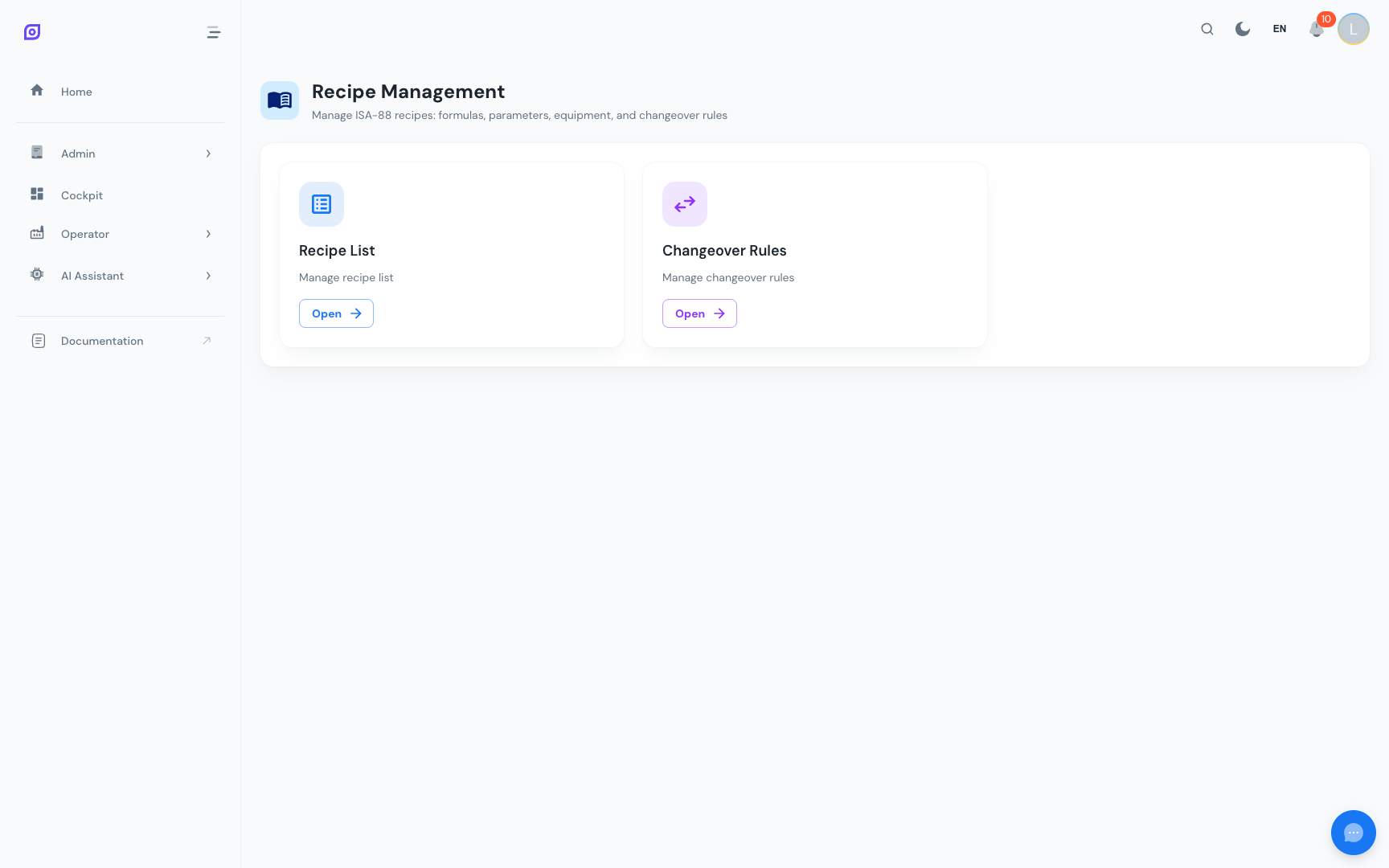
Step 1: Navigate to Recipe List
- Open the Admin menu from the main navigation
- Click Recipes to open the recipes navigation page
- Click Recipe List to open the recipe management view
Step 2: Create a New Recipe
- Click the Add Recipe button (top-right of the content card)
- Fill in the General tab of the recipe form:
| Field | Description | Required |
|---|---|---|
| Name | Display name for the recipe | Yes |
| Code | Unique identifier (combined with version) | Yes |
| Description | Optional text describing the recipe | No |
| Product | Output material (finished product) | No |
| Batch Procedure | The procedure this recipe follows | No |
| Expected Yield | Quantity of output product expected | No |
| Yield UOM | Unit of measure for the yield | No |
| Expected Duration | How long one batch should take (seconds) | No |
| Min/Max Batch Size | Allowed batch size range | No |
| Batch Size UOM | Unit of measure for batch size | No |
| Active | Whether the recipe is enabled | Yes (default: on) |
- Click Create to save the recipe
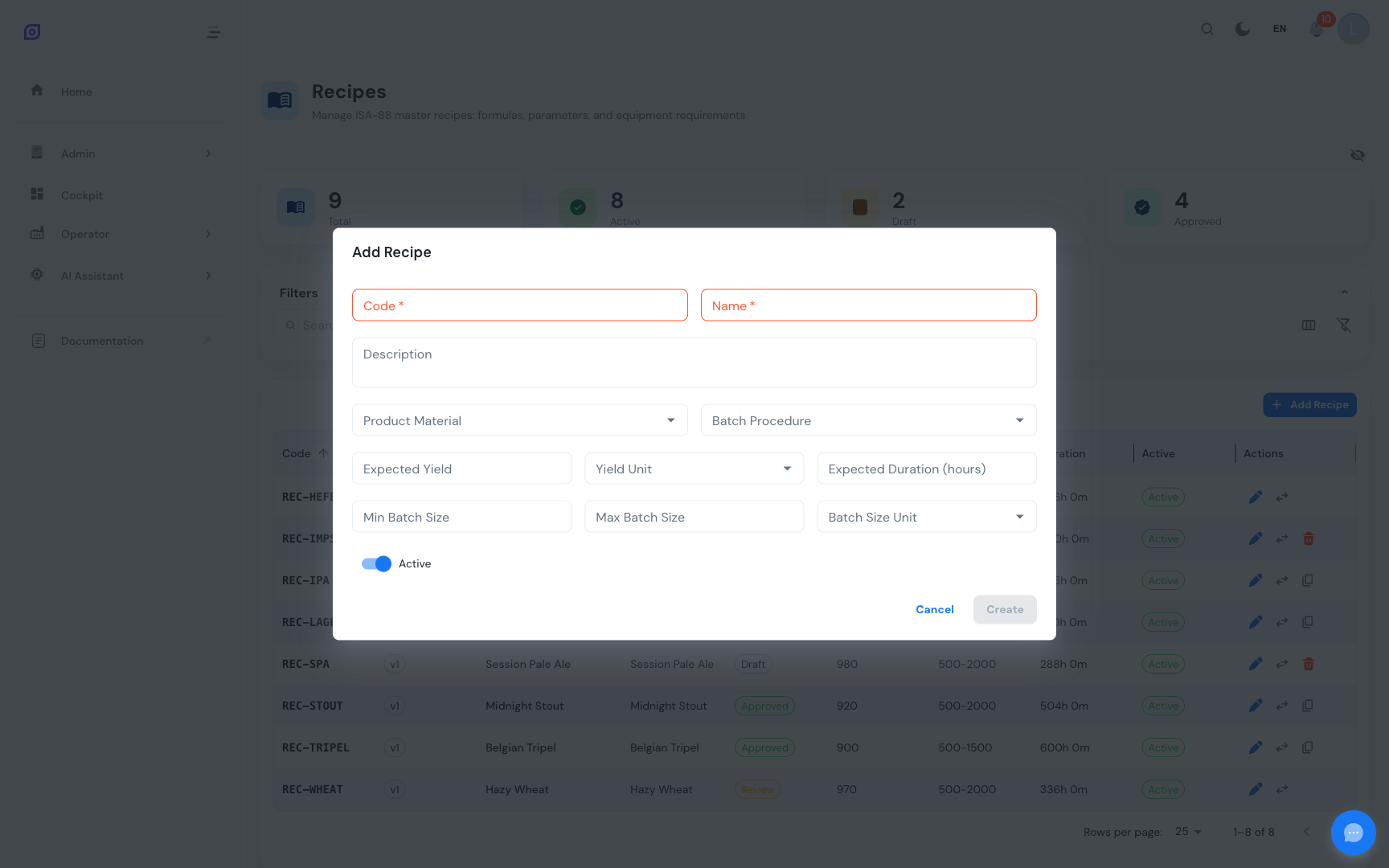
The recipe code does not need to be globally unique -- OpSee uses the combination of code + version as the unique identifier. The first version is always v1.
Step 3: Add Formula Items
The formula defines the bill of materials -- which ingredients go into the recipe and in what quantities.
- Click the edit button on your newly created recipe to open the edit dialog
- Switch to the Formula tab
- Click Add Item and fill in:
| Field | Description | Required |
|---|---|---|
| Material | The input material (searchable dropdown) | Yes |
| Quantity | Amount required | Yes |
| Unit | Unit of measure (kg, L, pcs, etc.) | Yes |
| Critical | Flag for critical ingredients | No |
| Tolerance % | Allowed deviation percentage | No |
- Repeat for each material in the recipe
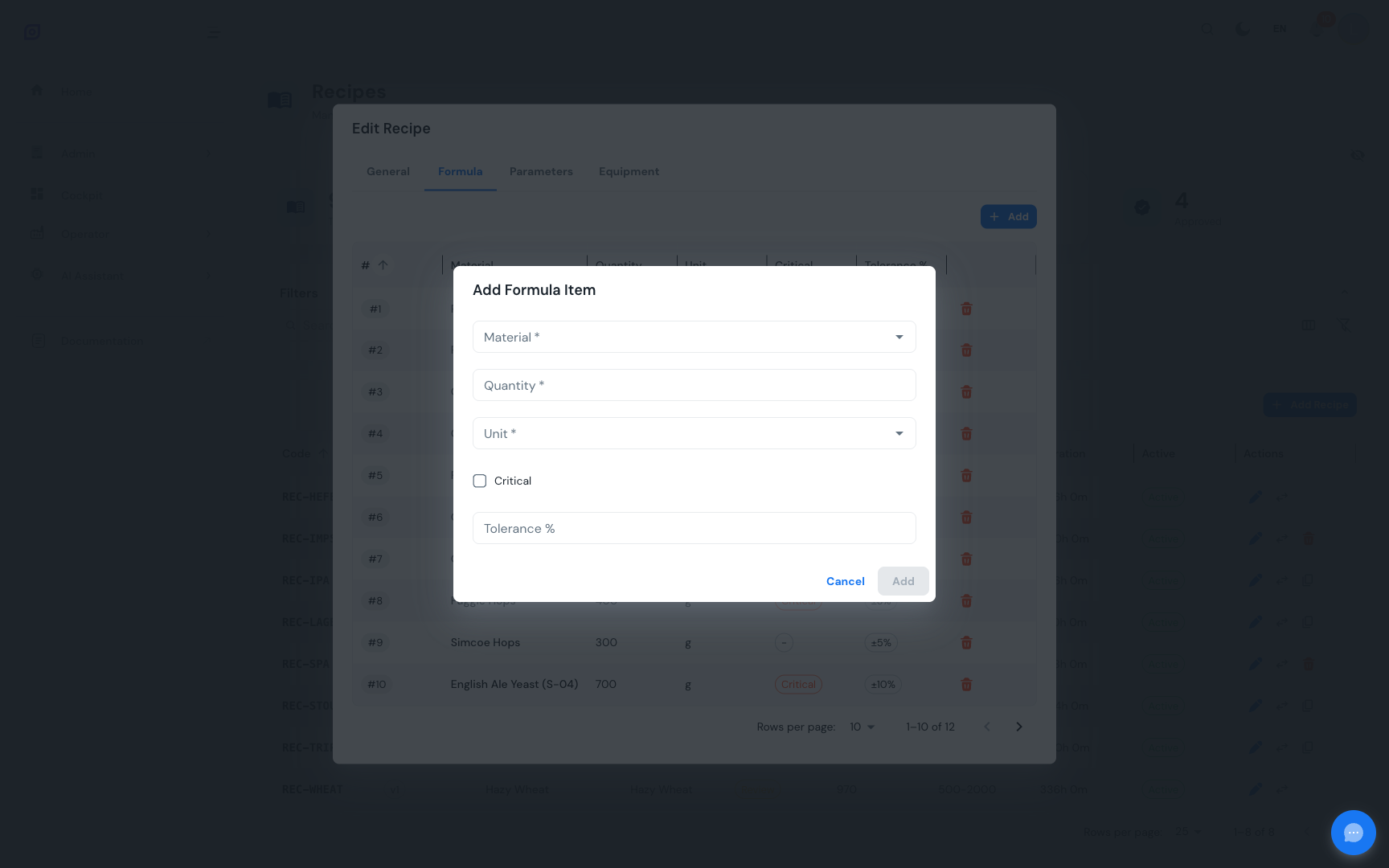
Critical ingredients are flagged with a red chip in the formula grid. This helps operators identify ingredients that require extra attention during production.
Step 4: Set Phase Parameters
Phase parameters override the default setpoints defined in the procedure's phases. For example, if the procedure has a "Set Temperature" phase, the recipe specifies which temperature to use for this particular product.
- Switch to the Parameters tab
- Click Add Item
- Use the cascading dropdowns:
- Select an Operation from the linked procedure
- Select an Operation Phase within that operation
- Select a Phase Parameter defined on that phase
- Enter the Target Value, and optionally the Min and Max acceptable values
- Click Add Item to save
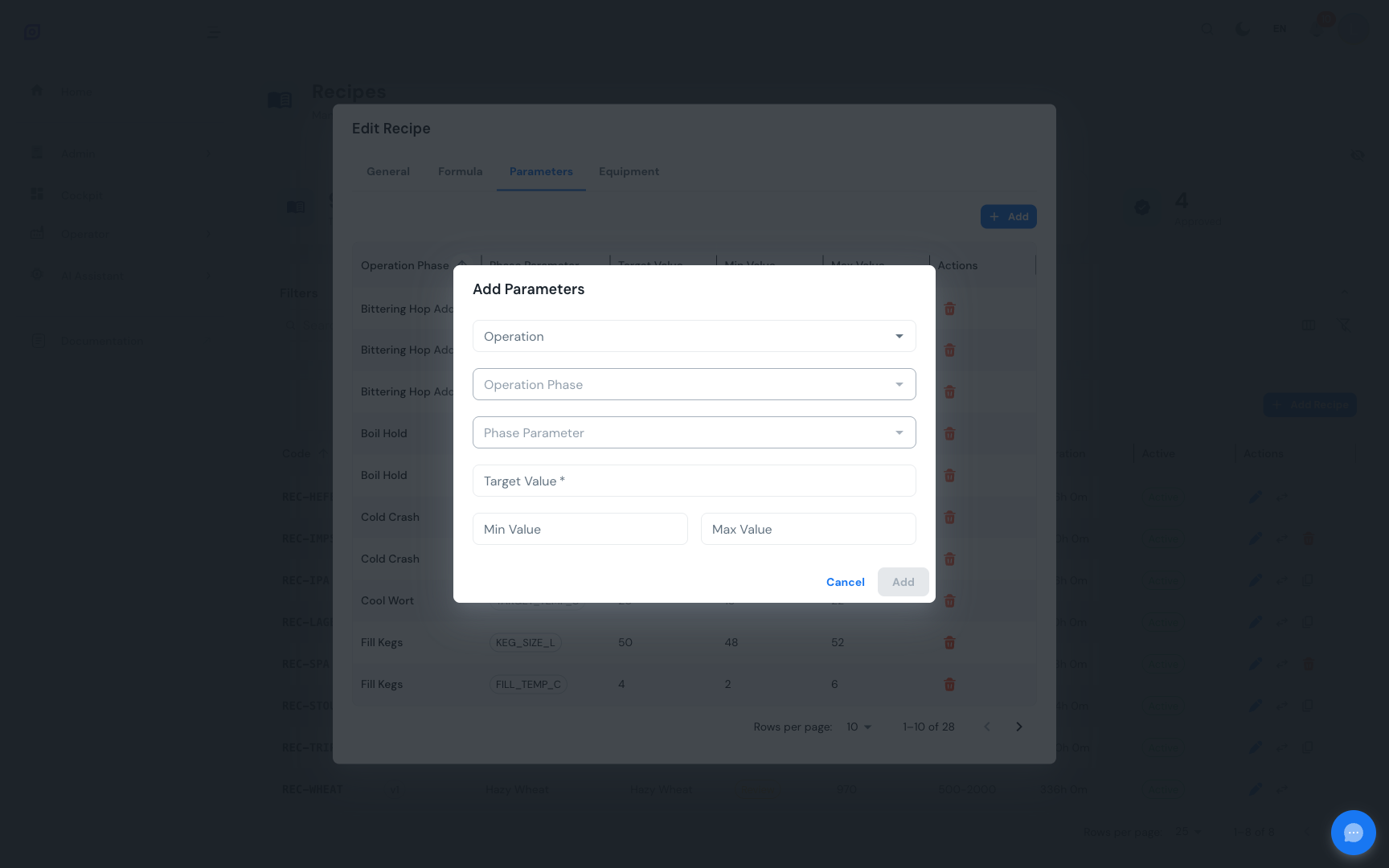
If the Parameters tab shows a message like "Select a procedure first", go back to the General tab and assign a batch procedure to the recipe.
Step 5: Define Equipment Requirements
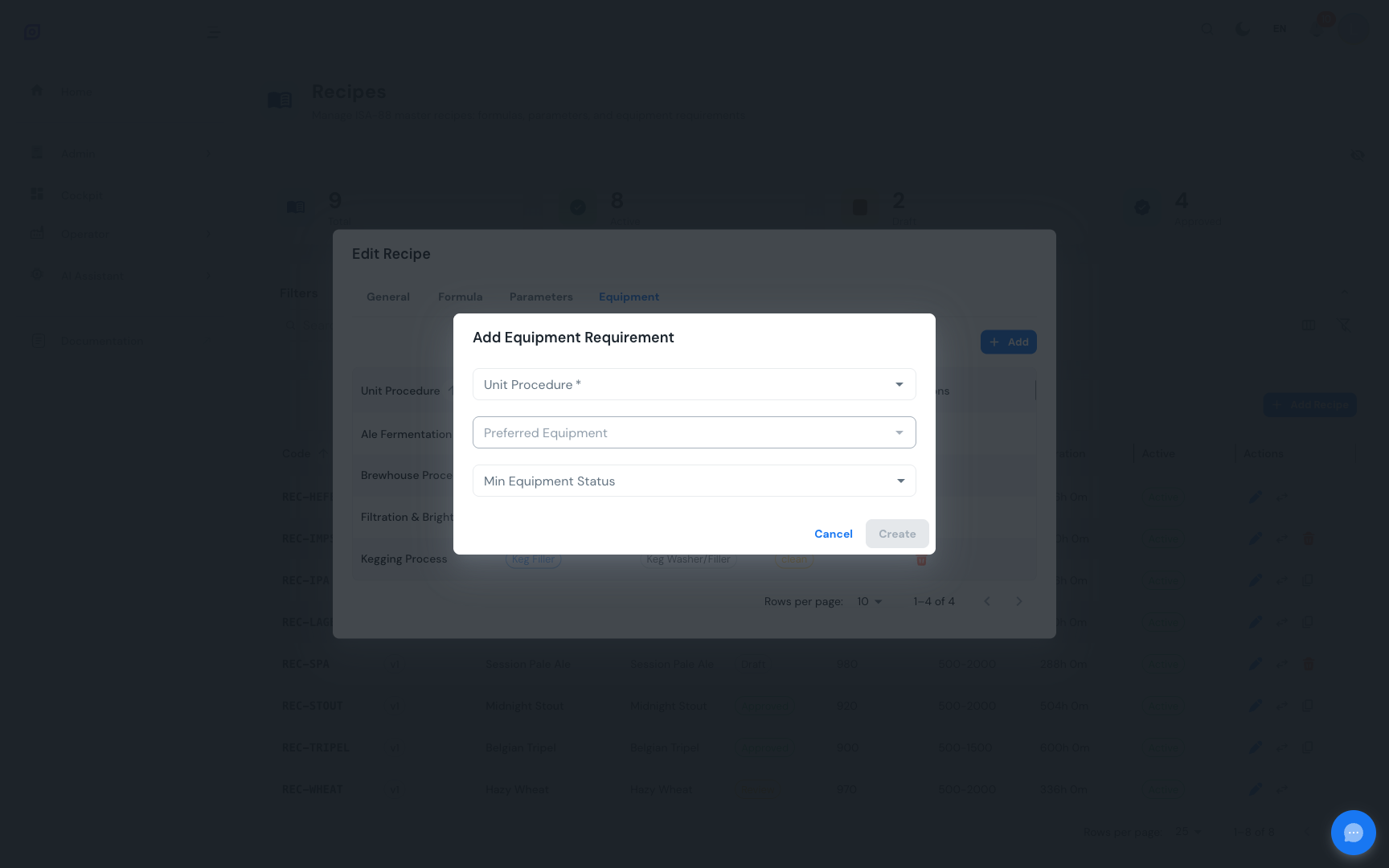
Equipment requirements specify which equipment class and optionally which specific equipment unit is needed for each unit procedure in the batch.
- Switch to the Equipment tab
- Click Add Item
- Select a Unit Procedure (the equipment dropdown auto-filters based on the unit procedure's equipment class)
- Optionally select a Preferred Equipment unit
- Optionally set a Minimum Equipment Status (dirty, clean, disinfected, sterile, qc_ok)
- Click Create
Step 6: Submit for Review
Once your recipe is complete:
- Close the edit dialog
- In the recipe list, find the Status column for your recipe (it shows "Draft")
- Click the status chip to open the status transition menu
- Select Submit for Review
- The status changes to Review -- the recipe is now locked for editing
Step 7: Approve for Production
An authorized user can then:
- Click the Review status chip
- Select Approve
- The recipe is now Approved and available for production orders
The approving user's name is recorded automatically for traceability. All status transitions are logged in the audit trail.
Next steps
- Recipe List -- Learn about search, filtering, versioning, and bulk management
- Formulas -- Deep dive into formula item management
- Parameters -- Advanced parameter configuration
- Equipment Requirements -- Equipment class and status constraints
- Changeover Rules -- Define product-switch rules for OEE tracking
Related
- Batch Model (ISA-88)
- Procedures — complementary module