Formulas (Bill of Materials)
The formula defines the bill of materials for a recipe -- which input materials are needed, in what quantities, and with what tolerances. Each formula item links to a material from the material master and specifies the required quantity with its unit of measure.
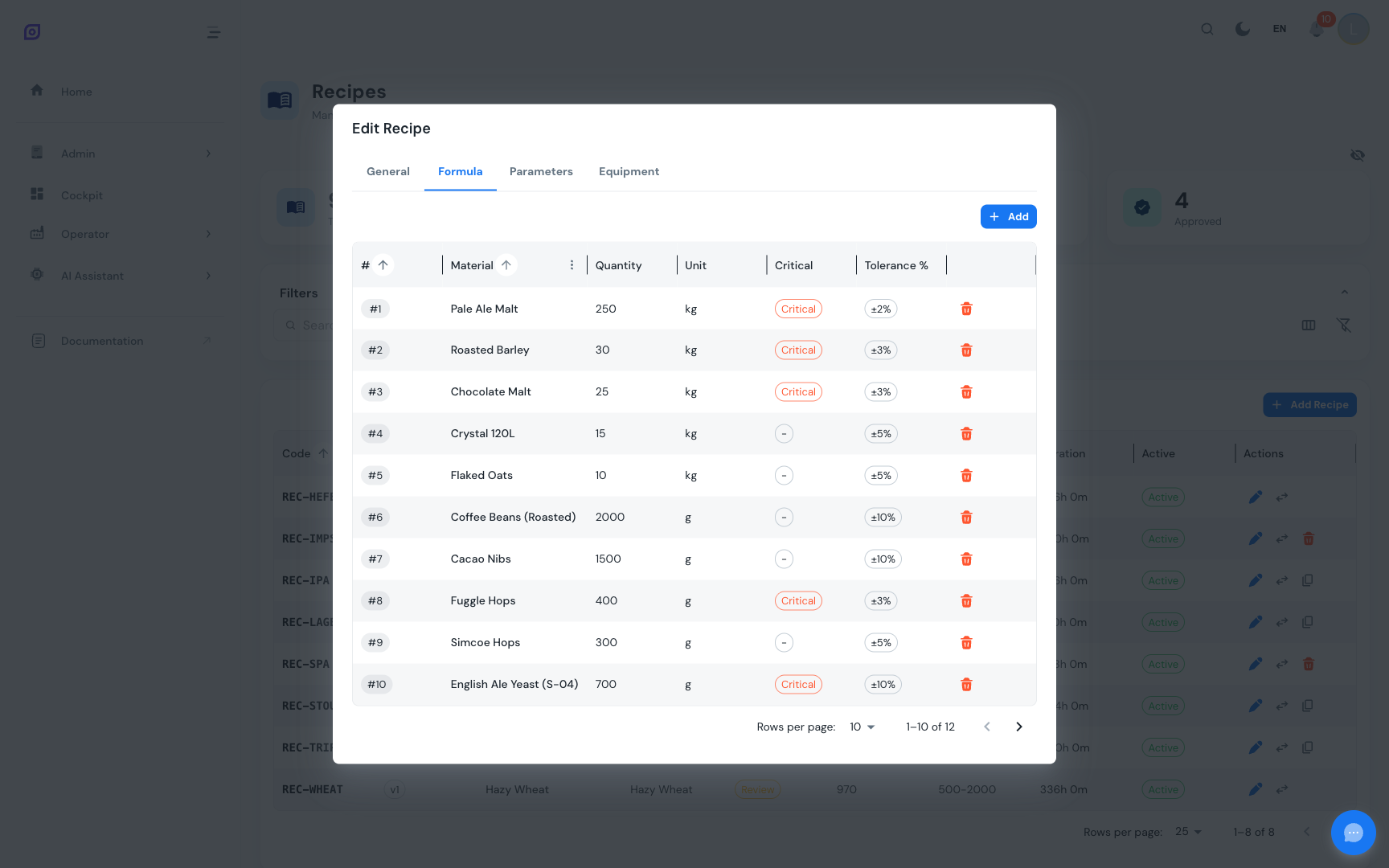
Accessing the Formula
The formula is managed through the Formula tab in the recipe edit dialog:
- Navigate to the Recipe List
- Click the edit button on a Draft recipe
- Switch to the Formula tab
The Formula tab is only available when editing an existing recipe. Create the recipe first, then open it for editing to manage formula items.
Formula grid
The formula DataGrid displays the following columns:
| Column | Description |
|---|---|
| # | Sequence order (determines the display order of ingredients) |
| Material | Material name from the material master |
| Quantity | Required quantity for one batch |
| Unit | Unit of measure (kg, L, pcs, etc.) |
| Critical | Red chip if the ingredient is marked as critical; dash otherwise |
| Tolerance % | Allowed deviation as a percentage (e.g. +/-5%); dash if not set |
| Actions | Delete button (only visible for Draft recipes) |
Items are sorted by sequence order by default.
Adding a Formula Item
- Click Add Item above the formula grid
- Fill in the dialog fields:
| Field | Description | Required |
|---|---|---|
| Material | Searchable dropdown of all materials (shows name and code) | Yes |
| Quantity | Numeric value, must be greater than 0 | Yes |
| Unit | Searchable dropdown of all units of measure | Yes |
| Critical | Checkbox to flag this ingredient as critical | No (default: off) |
| Tolerance % | Allowed deviation percentage (e.g. 5 means +/-5%) | No |
- Click Add Item to save
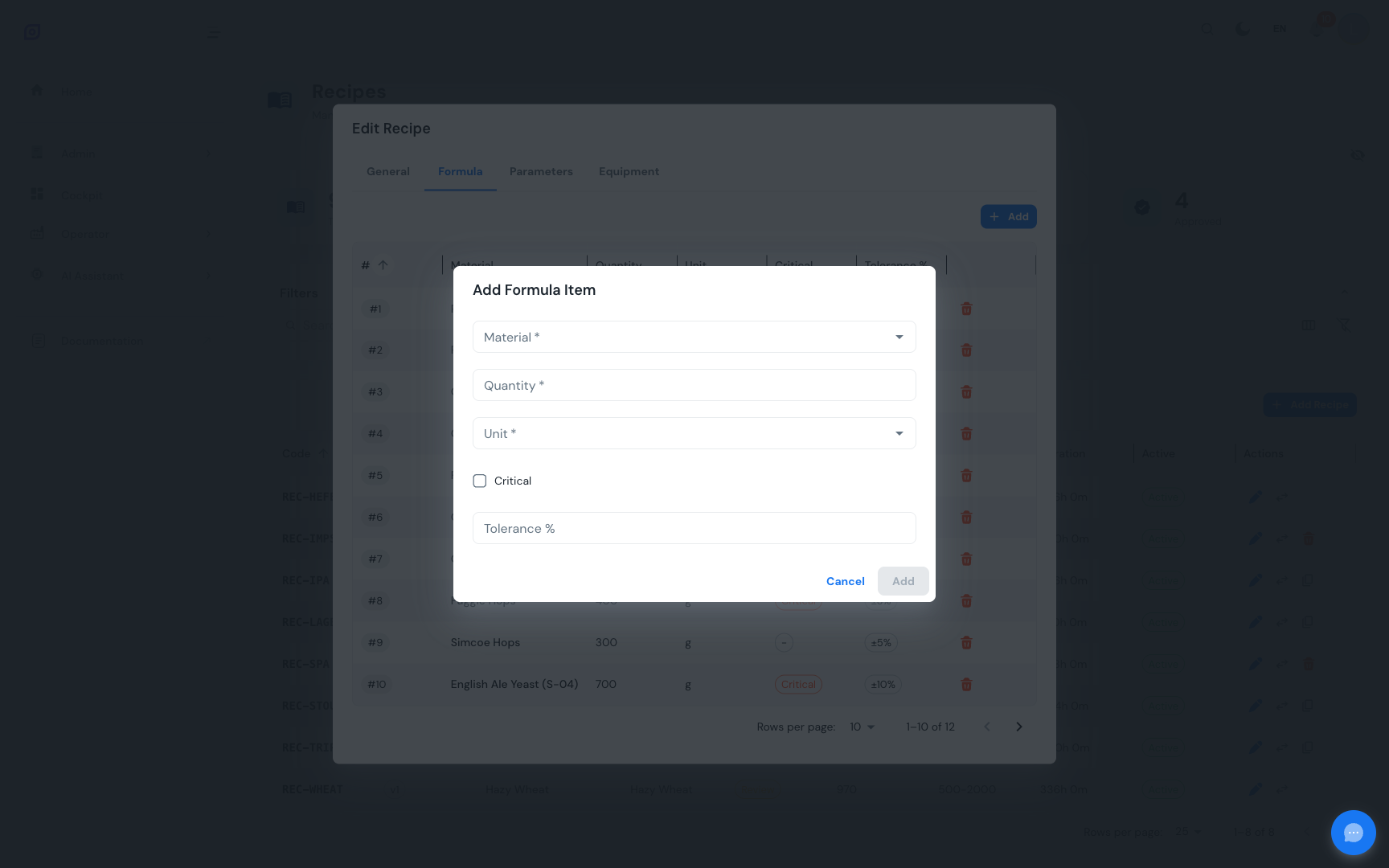
The sequence order is automatically assigned based on the current number of items. The new item appears at the end of the list.
Critical ingredients
Marking an ingredient as critical serves two purposes:
- Visual indicator -- a red chip appears in the formula grid, making it immediately visible
- Production awareness -- operators can quickly identify ingredients that require extra verification during production
Use the critical flag for allergens, active pharmaceutical ingredients, or any material where deviation from the specified quantity could impact product quality or safety.
Tolerance
The tolerance percentage defines the acceptable range around the specified quantity. For example:
| Quantity | Tolerance | Acceptable Range |
|---|---|---|
| 500 kg | 5% | 475 -- 525 kg |
| 200 L | 2% | 196 -- 204 L |
| 50 kg | 10% | 45 -- 55 kg |
When no tolerance is set, the column displays --.
Removing a Formula Item
- Click the delete button (red trash icon) on the formula item row
- Confirm the removal in the dialog (shows the material name and quantity)
- The item is removed immediately
Only Draft recipes allow formula modifications. If the recipe is in Review, Approved, or Obsolete status, the delete buttons are hidden and the Add Item button is not shown. To make changes, either return the recipe to Draft or create a new version.
Example formula
Here is an example formula for an "Orange Juice" recipe:
| # | Material | Quantity | Unit | Critical | Tolerance |
|---|---|---|---|---|---|
| 1 | Water | 500 | L | - | +/-2% |
| 2 | Orange Concentrate | 200 | L | Critical | +/-5% |
| 3 | Sugar | 50 | kg | - | +/-3% |
| 4 | Citric Acid | 2 | kg | Critical | +/-1% |
Related pages
- Recipe List -- Browse and manage recipes
- Parameters -- Phase-specific setpoints
- Material Management -- Configure the material master
- Batch Model (ISA-88) -- Conceptual overview of formulas in ISA-88
Prerequisites
- Recipes Overview
- Introduction — get the overall picture of OpSee