Changeover Rules
Changeover rules define the time and cleaning requirements when switching from one product to another on a piece of equipment. These rules are critical for accurate OEE calculations -- changeover time can be classified as planned downtime rather than an availability loss.
Why changeover rules matter
When a production line switches from producing Product A to Product B, there is typically:
- Cleaning time -- flushing, rinsing, or CIP (Clean-In-Place) cycles
- Setup time -- tool changes, recipe parameter adjustments
- Verification time -- quality checks before starting the new product
Without changeover rules, all of this time appears as unplanned downtime in OEE reports. By defining rules, OpSee can:
- Classify changeover as planned downtime in the OEE availability calculation
- Predict changeover duration for production scheduling
- Enforce CIP requirements based on product combinations
Accessing changeover rules
Changeover rules have their own dedicated page, separate from individual recipes:
- Open the Admin menu from the main navigation
- Click Recipes to open the recipes navigation page
- Click Changeover Rules
Dashboard summary
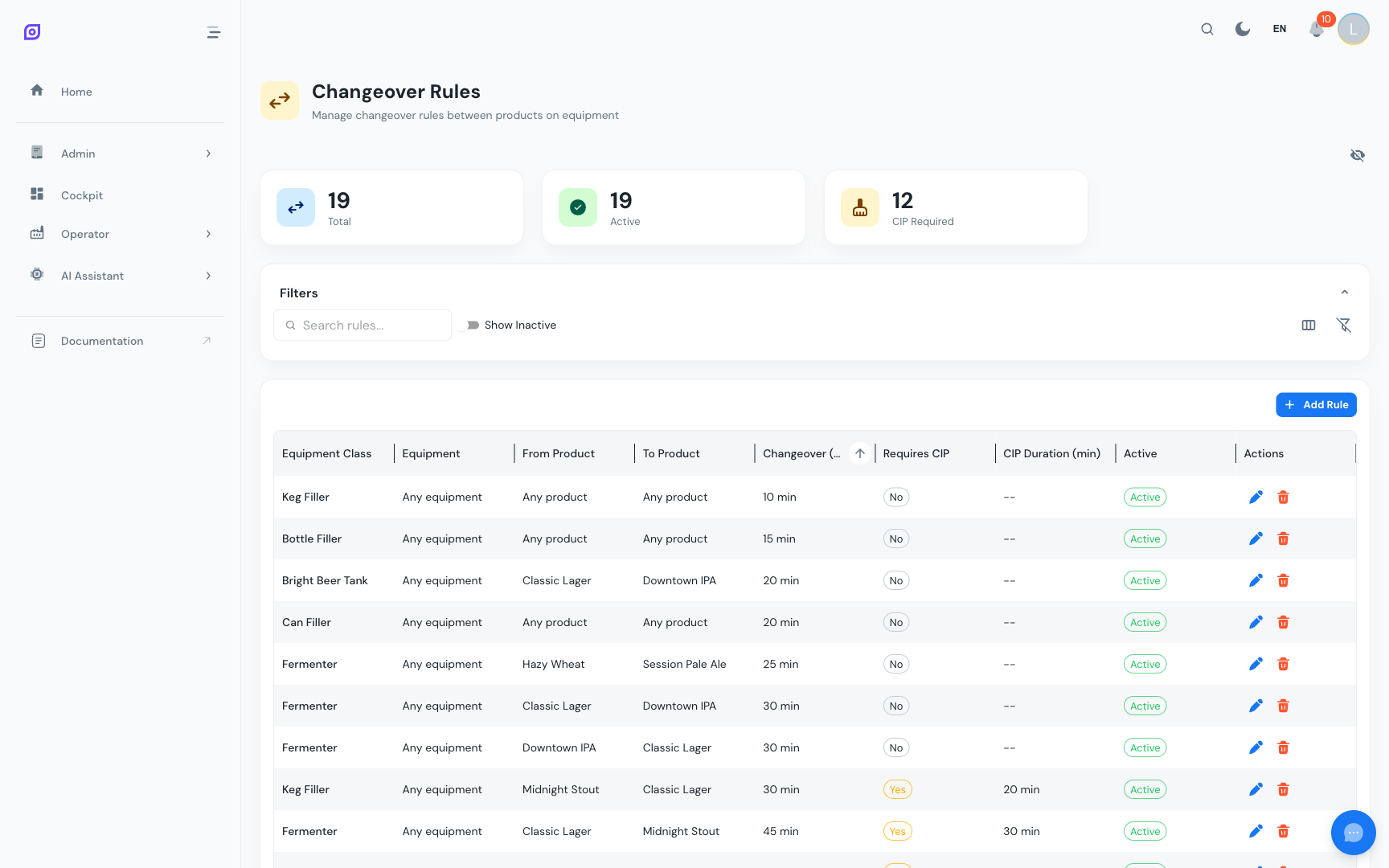
Three KPI cards at the top provide a quick overview:
| Card | Description |
|---|---|
| Total | Total number of changeover rules |
| Active | Rules with the active flag enabled |
| CIP Required | Active rules that require a CIP cycle |
Changeover rules grid
The DataGrid displays the following columns:
| Column | Description | Compact View | Full View |
|---|---|---|---|
| Equipment Class | Equipment class the rule applies to (or "Any Equipment") | Visible | Visible |
| Equipment | Specific equipment unit (or "Any Equipment") | Visible | Visible |
| From Material | Source product (or "Any Product") | Visible | Visible |
| To Material | Target product (or "Any Product") | Visible | Visible |
| Changeover (min) | Duration in minutes | Visible | Visible |
| Requires CIP | Yes/No chip | Visible | Visible |
| CIP Duration (min) | CIP cycle duration in minutes (or --) | Visible | Visible |
| Notes | Free-text notes | Hidden | Visible |
| Active | Active/Inactive status chip | Visible | Visible |
| Actions | Edit and delete buttons | Visible | Visible |
Creating a Changeover Rule
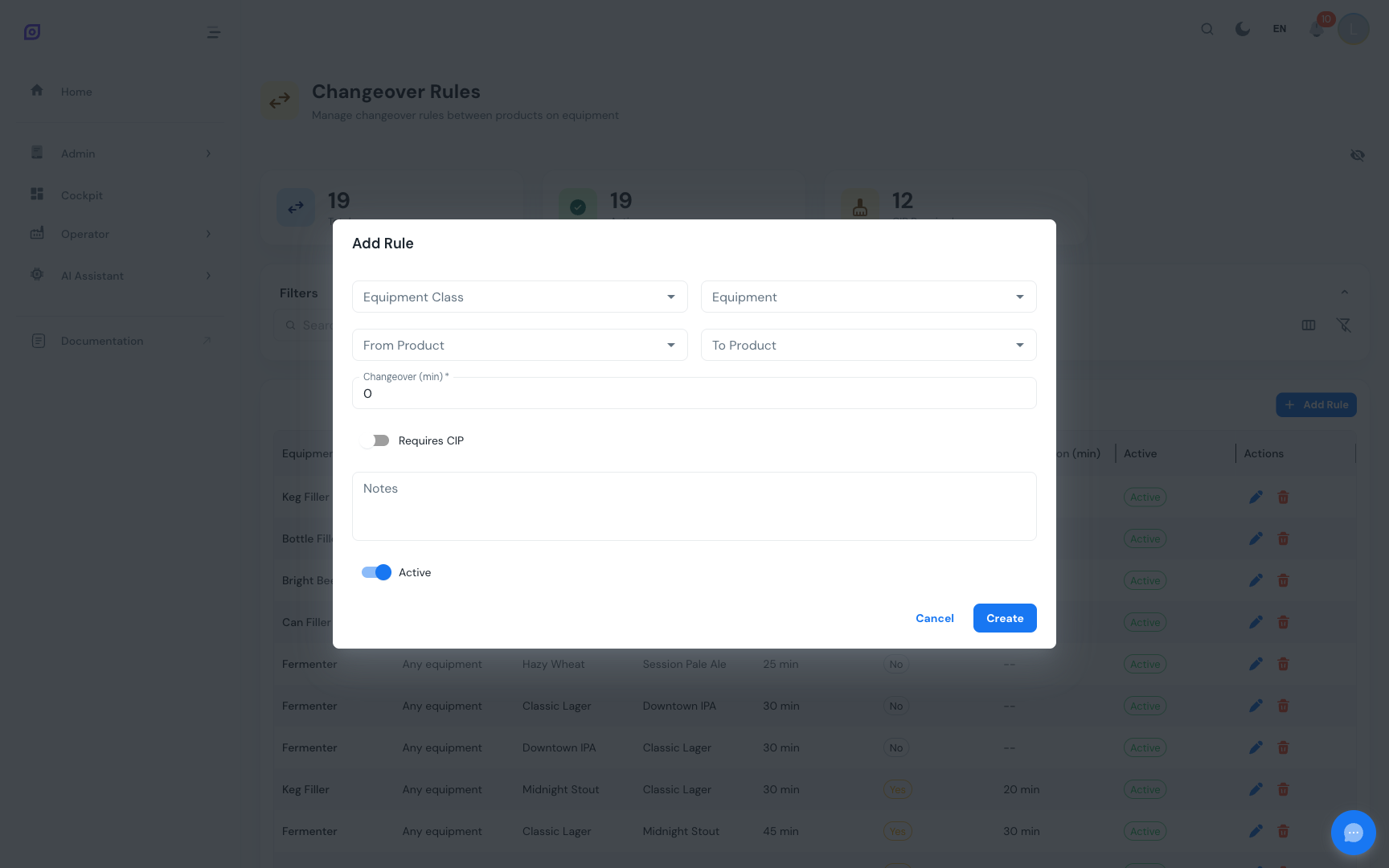
- Click the Add Rule button above the DataGrid
- Fill in the form:
| Field | Description | Required |
|---|---|---|
| Equipment Class | Searchable dropdown of equipment classes | No |
| Equipment | Searchable dropdown of specific equipment units | No |
| From Material | Source product (what was being produced) | No |
| To Material | Target product (what will be produced next) | No |
| Changeover Minutes | Total changeover duration in minutes | Yes |
| Requires CIP | Toggle for CIP requirement | No (default: off) |
| CIP Duration Minutes | Duration of the CIP cycle (only shown when CIP is required) | No |
| Notes | Free-text notes for additional context | No |
| Active | Whether this rule is enabled | Yes (default: on) |
- Click Create to save the rule
Wildcard rules
All four scope fields (equipment class, equipment, from material, to material) are optional. When left empty, they act as wildcards:
| Equipment Class | Equipment | From Material | To Material | Meaning |
|---|---|---|---|---|
| Mixing Tank | -- | Orange Juice | Apple Juice | Any mixing tank switching from OJ to AJ |
| -- | Filler Line 1 | -- | -- | Any product switch on Filler Line 1 |
| -- | -- | -- | -- | Default rule for any switch on any equipment |
| Pasteurizer | -- | Milk | -- | Any product switch FROM milk on any pasteurizer |
Create specific rules first and generic fallback rules last. When multiple rules match a changeover scenario, the most specific rule (with the most fields filled in) should take priority.
CIP (Clean-In-Place) Requirements
When the Requires CIP toggle is enabled:
- An additional CIP Duration field appears in the form
- The CIP duration is tracked separately from the general changeover duration
- In the grid, a "Yes" warning chip appears in the Requires CIP column
CIP requirements are especially important in food and pharmaceutical manufacturing where cross-contamination between products must be prevented. The CIP duration helps the scheduling system allocate the correct amount of non-productive time.
Editing a Changeover Rule
- Click the edit button (blue pencil icon) on the rule row
- Modify any fields in the edit dialog
- Click Update to save changes
Deleting a Changeover Rule
- Click the delete button (red trash icon) on the rule row
- Confirm the deletion in the dialog
- The rule is permanently removed
Searching and Filtering
The filter bar provides:
| Control | Behavior |
|---|---|
| Search | Filters by equipment class name, equipment name, material names, and notes |
| Show Inactive | Toggle to include rules with active = false |
| Column Toggle | Switch between compact and full column visibility |
| Clear Filters | Reset all filters and column widths |
Integration with OEE
Changeover rules feed into the OEE system in two ways:
- Availability calculation -- Changeover time defined by rules is classified as planned downtime, which reduces the planned production time rather than appearing as an availability loss
- Downtime categorization -- When a downtime event is tagged as a changeover, OpSee can look up the applicable rule and compare the actual duration against the expected duration
For more details on how changeover time impacts OEE, see the Production Overview.
Related Pages
- Recipe List -- Browse and manage recipes
- Formulas -- Bill of materials management
- Equipment Requirements -- Equipment mapping per recipe
- Equipment -- Equipment hierarchy
- Material -- Material master data
- Batch Model (ISA-88) -- Changeover rules in the ISA-88 context
Prerequisites
- Recipes Overview
- Introduction — get the overall picture of OpSee