Change Password
You can change your OpSee password directly from your profile page. The new password must meet the minimum complexity requirements configured by your administrator in Keycloak.
Steps
- Click your avatar in the top-right header
- Select Profile
- In the Security card, click Change Password
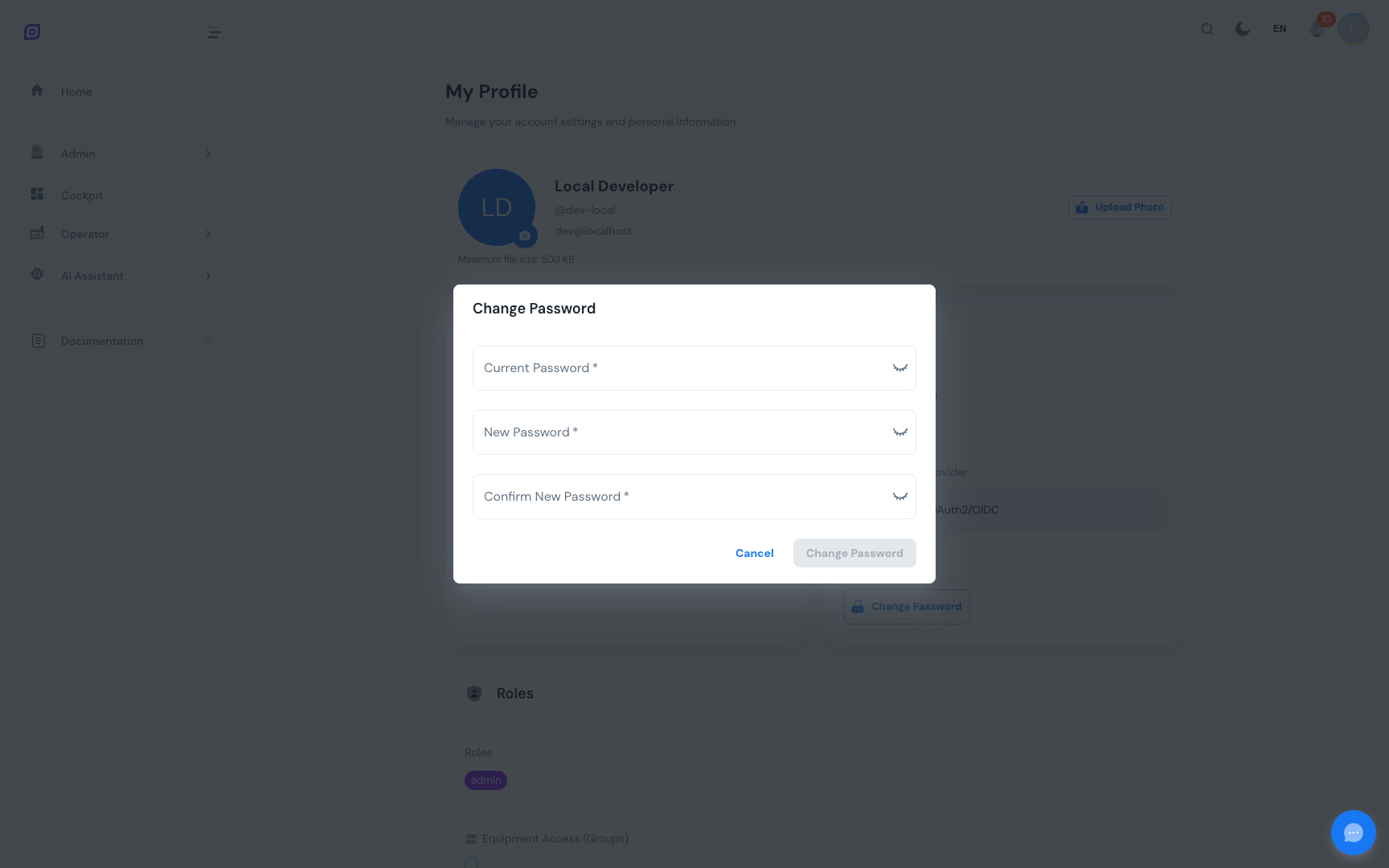
- A dialog opens. Enter:
- Current password: your existing password
- New password: your desired new password
- Confirm new password: type the new password again to verify
- Click Save
If the change is successful, a green confirmation notification appears and you can continue working with your existing session.
Password requirements
The dialog lists the rules your installation actually enforces, ticking each one off as you type, with a strength bar above them. The list is read live from Keycloak, so it always matches what the server will accept — there is no fixed list to memorise here.
OpSee ships with a minimum of 12 characters, but your administrator can configure any combination of minimum and maximum length, uppercase, lowercase, digits, special characters, and "must differ from your username / email address".
Save stays disabled until every rule is met, so you cannot be refused for a rule the dialog never mentioned.
The strength bar goes beyond the rules. A password can satisfy every
requirement and still read Weak — aaaaaaaaaaaa is twelve characters and
trivially guessable. Longer, with a mix of character types, scores higher.
Session after password change
Changing your password does not end your current session. You remain signed in. However, any other active sessions (e.g., on another device or browser) may be terminated depending on your Keycloak configuration.
Forgot your password?
If you cannot remember your current password, you cannot use this dialog. It requires your existing password for verification.
Instead:
- Sign out of OpSee
- On the Keycloak sign-in page, click Forgot password?
- Enter your email address
- Follow the reset instructions sent to your email
Or contact your IT administrator to reset your password in Keycloak.
LDAP / Active Directory Users
If your organization uses LDAP or Active Directory federated to Keycloak, OpSee cannot change your password; it is managed by your directory. Use your organization's standard password change process (Windows Active Directory, corporate IT portal, etc.).
Prerequisites
- Profile Overview — navigate to the profile page first
- Session and Login — session behavior after password change
Related
- Administration → Access Control — admin password reset (admin only)