Production Orders
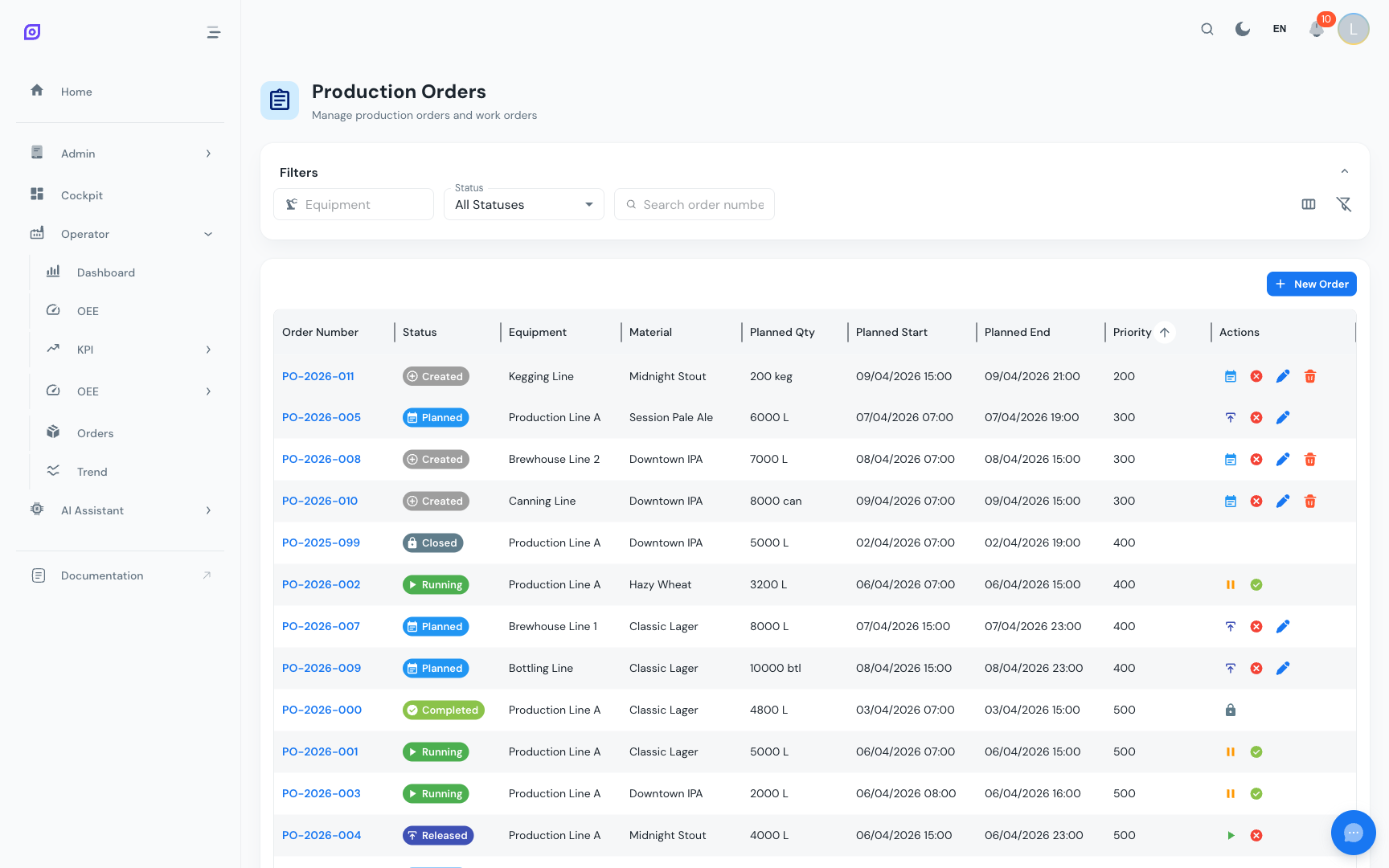
The Production Orders section allows you to track manufacturing orders from planning through completion. It connects planned production quantities with actual output data collected by OpSee, giving supervisors visibility into order progress and schedule adherence.
Core concepts
What is a production order?
A production order (also called a work order or manufacturing order) represents a planned quantity of a specific product to be produced on a specific piece of equipment within a time window. In OpSee, orders tie together:
- Equipment: which line or machine executes the order
- Product / Recipe: what is being produced (linked to Recipes)
- Planned quantity: how many pieces are expected
- Actual quantity: how many pieces were actually produced (collected automatically)
- Time window: planned start and end dates
- Status: the current lifecycle state of the order
Order lifecycle
Navigating to production orders
From the Production navigation hub, click the Orders card (if visible in your menu configuration). The orders view lists all production orders for the selected time range and equipment.
Order list
The order list displays key information at a glance:
| Column | Description |
|---|---|
| Order number | Unique identifier for the production order |
| Equipment | The production line or machine assigned |
| Product | The item being manufactured |
| Planned quantity | Target number of pieces |
| Actual quantity | Pieces produced so far |
| Completion % | Progress toward the planned quantity |
| Start time | When production began |
| End time | When production ended (or estimated end) |
| Status | Current order state (Planned, In Progress, Completed, etc.) |
Filtering orders
Use the filter controls to narrow the order list:
- Equipment filter: select one or more production lines
- Time range: choose a preset (Today, This Week, etc.) or a custom date range
- Status filter: show only active, completed, or all orders
- Search: find orders by order number or product name
Orders respect the same equipment permission system as all other Production screens. You only see orders for equipment you have access to.
Order details
Click on an order to view its details:
- Progress bar showing actual vs. planned quantity
- Production timeline showing when the order was active
- Quality summary: good pieces, rejects, and reject reasons
- OEE metrics calculated specifically for the order's time window
- Downtime events that occurred during the order
Integration with OEE
Production orders feed into the OEE calculation in several ways:
- Performance: the ideal cycle time from the order's recipe determines the theoretical maximum output
- Quality: reject counts during the order period are attributed to the order
- Availability: downtime events during the order period affect the order's availability metric
To get accurate OEE calculations per order, make sure your OEE Configuration has the correct ideal cycle time and planned production schedule for each equipment line.
Related pages
- OEE Dashboard: view OEE metrics for a specific time range
- OEE Quality: detailed reject analysis
- Recipes: product definitions and cycle times
- Equipment: equipment configuration and hierarchy
Prerequisites
- Production Overview
- Introduction: get the overall picture of OpSee