OEE Performance
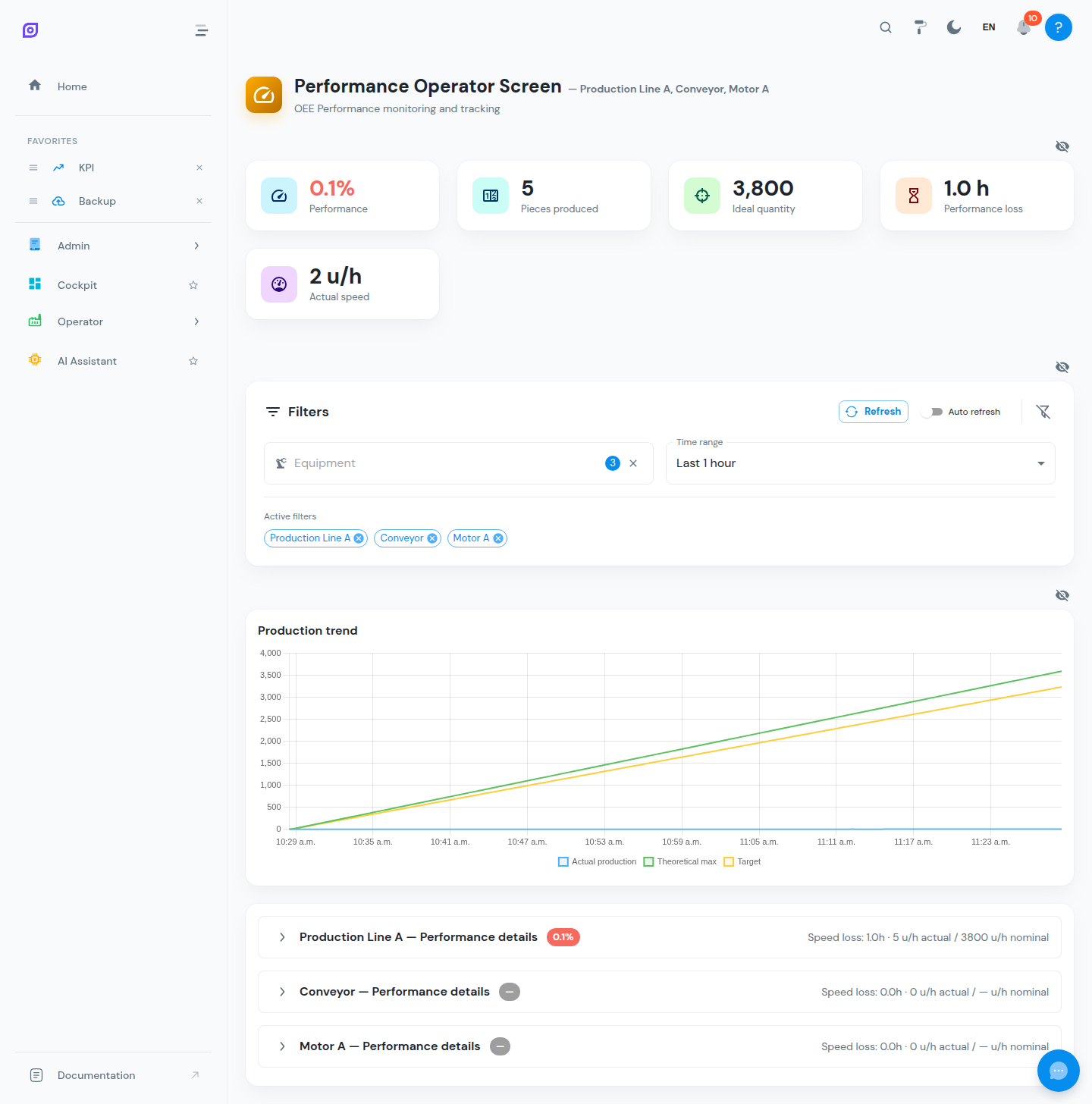
The OEE Performance screen focuses on the Performance component of the OEE equation. It helps production engineers and supervisors understand why actual production speed differs from the ideal cycle time.
What is performance?
Performance measures how fast the equipment is running compared to its theoretical maximum speed:
Performance % = (Ideal Cycle Time x Total Pieces) / Run Time x 100
A Performance of 100% means the equipment produced exactly as many pieces as theoretically possible during the time it was running. Values below 100% indicate speed losses.
Types of speed losses
Performance losses fall into two main categories:
Small stops (micro-stops)
Short interruptions (typically under 2-5 minutes depending on configuration) that are too brief to be logged as downtime events but still reduce throughput. Examples:
- Sensor triggers causing momentary stops
- Material jams that clear quickly
- Operator adjustments
Reduced speed
The equipment is running but slower than the ideal cycle time. Causes include:
- Worn tooling or components
- Suboptimal material quality
- Incorrect machine settings
- Environmental conditions (temperature, humidity)
Key metrics
The Performance screen displays several metrics:
| Metric | Description |
|---|---|
| Performance % | Overall performance ratio for the selected period |
| Total pieces produced | Count of all pieces (good + reject) |
| Ideal production quantity | Pieces that could have been produced at nominal speed |
| Performance loss (hours) | Total time lost to speed issues |
| Actual speed (units/h) | Measured average production rate while running |
| Nominal speed (units/h) | The configured nominal production rate (from OEE Configuration) |
Below the summary cards, a production trend chart plots actual production against the theoretical maximum and target for the selected window, and each equipment gets a collapsible performance details section with a speed-loss Pareto and an exportable records table.
Reading the performance data
Speed analysis
Compare the nominal speed with the actual speed:
- If actual is close to nominal, performance is good and losses come from other factors.
- If actual is significantly lower, investigate reduced speed or micro-stops.
Production count gap
The gap between total pieces produced and ideal production quantity represents the pieces lost to speed issues. This is the number of additional pieces you could have produced if the equipment had run at full speed.
A large gap between actual and ideal production is not always a speed problem. Check the Activity Trend chart on the OEE Dashboard. If you see many micro-stops (rapid on/off cycles in the running state), the issue is likely small stops rather than reduced speed.
Improving performance
Common actions to improve performance:
- Review ideal cycle time: ensure it is realistic and reflects actual machine capability, not a theoretical maximum that was never achieved.
- Analyze micro-stops: use the Downtime Operator Screen with the "Show short stops" filter enabled to see brief events.
- Check recipe parameters: verify that the Recipe for the current product has the correct speed settings.
- Monitor trends: compare performance across shifts and days to identify patterns (e.g., performance drops after changeovers or on certain products).
Configuration
Performance targets and nominal production rates are configured in OEE Configuration:
- Nominal production rate: the target units per hour for each equipment (optionally per material, via rate segments)
- Performance objective: the target performance percentage (e.g., 95%)
- Short stop threshold: the maximum duration (in seconds) for an event to be classified as a micro-stop rather than a downtime event
If no nominal production rate is configured for an equipment, the performance calculation cannot be accurate. Make sure every production line has its rate set in the OEE Configuration.
Related pages
- OEE Dashboard: full OEE breakdown with all three metrics
- OEE Quality: quality loss analysis
- Downtime Operator Screen: investigate micro-stops and short events
- OEE Configuration: configure ideal cycle times and objectives
- Equipment Overview: compare performance across multiple lines
Prerequisites
- Production Overview
- Introduction: get the overall picture of OpSee