OEE Dashboard
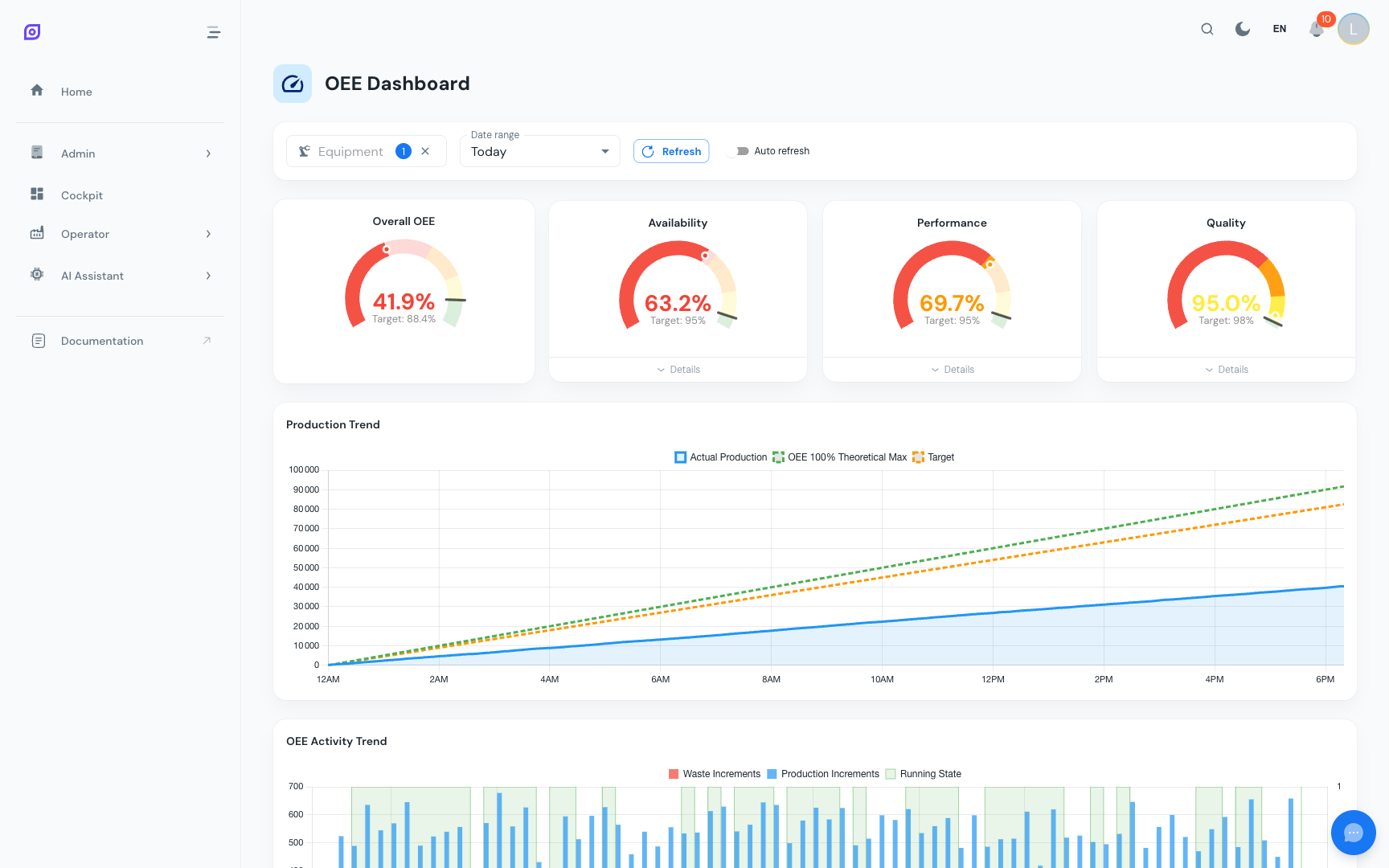
The OEE Dashboard is the primary analysis screen for production supervisors. It provides a complete OEE breakdown for a single piece of equipment over a configurable time range, combining gauges, waterfall charts, production trends, and downtime analysis in one view.
Filters
The filter bar at the top controls all data on the page.
Equipment selection
Use the Equipment dropdown to select one production line or machine. The dashboard loads data for the selected equipment only. If no equipment is selected on first load, the dashboard picks the first available one automatically.

Time range
Two modes are available:
-
Time preset: select from predefined ranges (Today, Yesterday, This Week, Last 7 Days, This Month, Last Month, etc.). Presets are stored in the database and respect your browser's timezone.
-
Custom range: enter a specific start and end date/time using the date pickers. Custom range is activated when no preset is selected, or when you manually enter dates.
The time preset dropdown shows presets from the database table m_time_preset. Your administrator can add custom presets (e.g., "Last Shift", "This Quarter") without any code change.
Auto-refresh
Toggle the Auto-refresh switch to keep the dashboard updating periodically. This is useful when displaying the dashboard on a shop floor monitor.
KPI gauges

Four gauges at the top provide an instant summary:
| Gauge | Formula | Description |
|---|---|---|
| OEE | A x P x Q | Overall Equipment Effectiveness |
| Availability | Run Time / Planned Production Time | How much of the planned time was the equipment running |
| Performance | (Ideal Cycle Time x Total Pieces) / Run Time | How close to ideal speed was production |
| Quality | Good Pieces / Total Pieces | What fraction of output met quality standards |
Dynamic thresholds
Each gauge's color zones are derived from the equipment's configured objectives in OEE Configuration:
- Green: at or above the objective (e.g., ≥ 85%)
- Yellow: between 88% and 100% of the objective
- Orange: between 70% and 88% of the objective
- Red: below 70% of the objective
If no objective is configured, default thresholds are used.
Set per-metric objectives (Availability, Performance, Quality) in the OEE Configuration section for each equipment. The OEE objective is automatically calculated as their product.
Waterfall chart
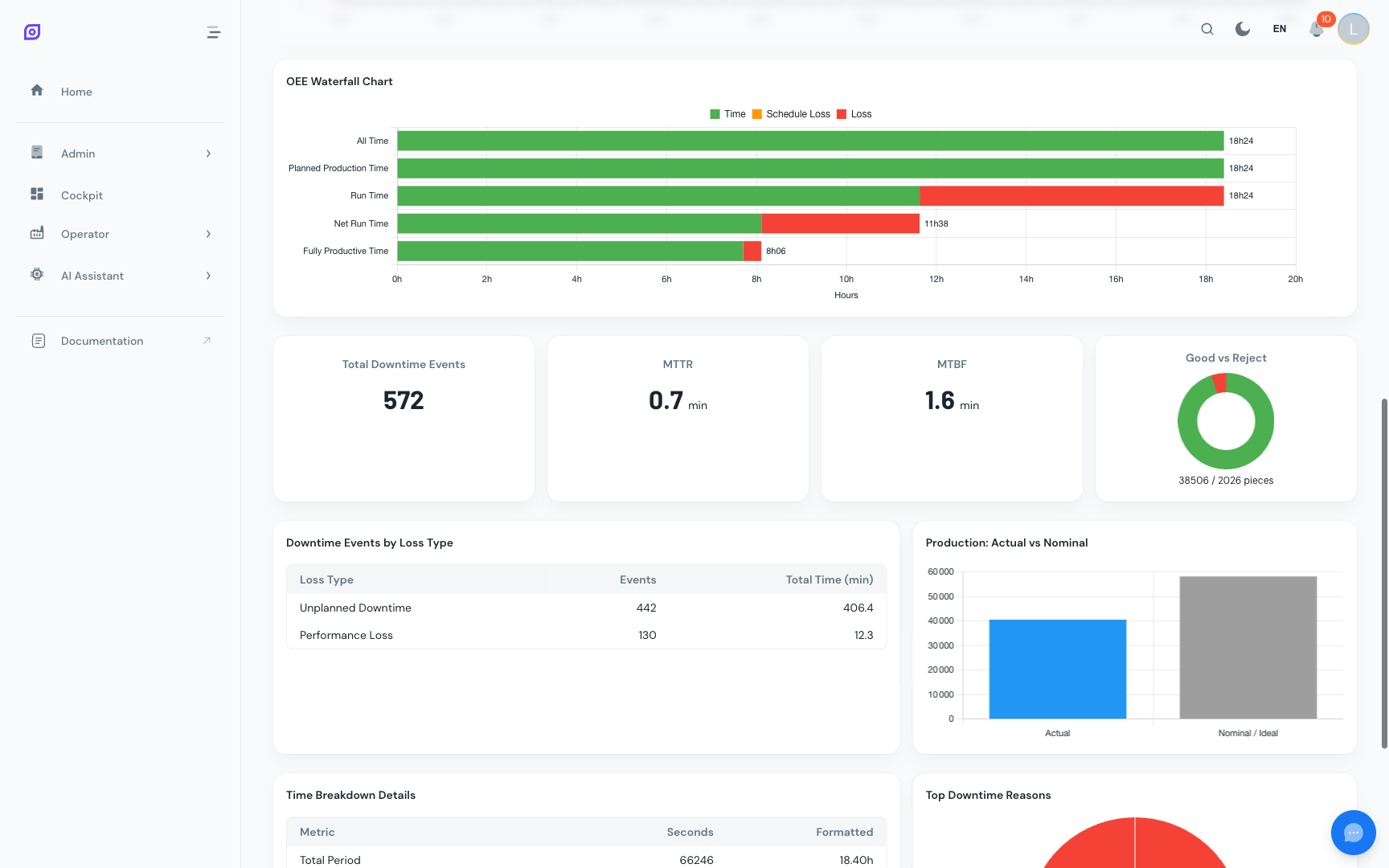
The waterfall chart visualizes how total available time is consumed, step by step:
Each bar in the waterfall represents a category of time loss. The chart uses three visual layers:
| Layer | Color | Meaning |
|---|---|---|
| Time | Blue | Actual productive or scheduled time |
| Schedule Loss | Grey | Time outside the planned production schedule |
| Loss | Red/Orange | Time lost to downtime, speed, or quality issues |
This visualization makes it immediately clear where the biggest improvement opportunities lie. If the "Unplanned Downtime" bar dominates, focus on reliability. If "Performance Loss" is largest, investigate speed losses.
Production trend
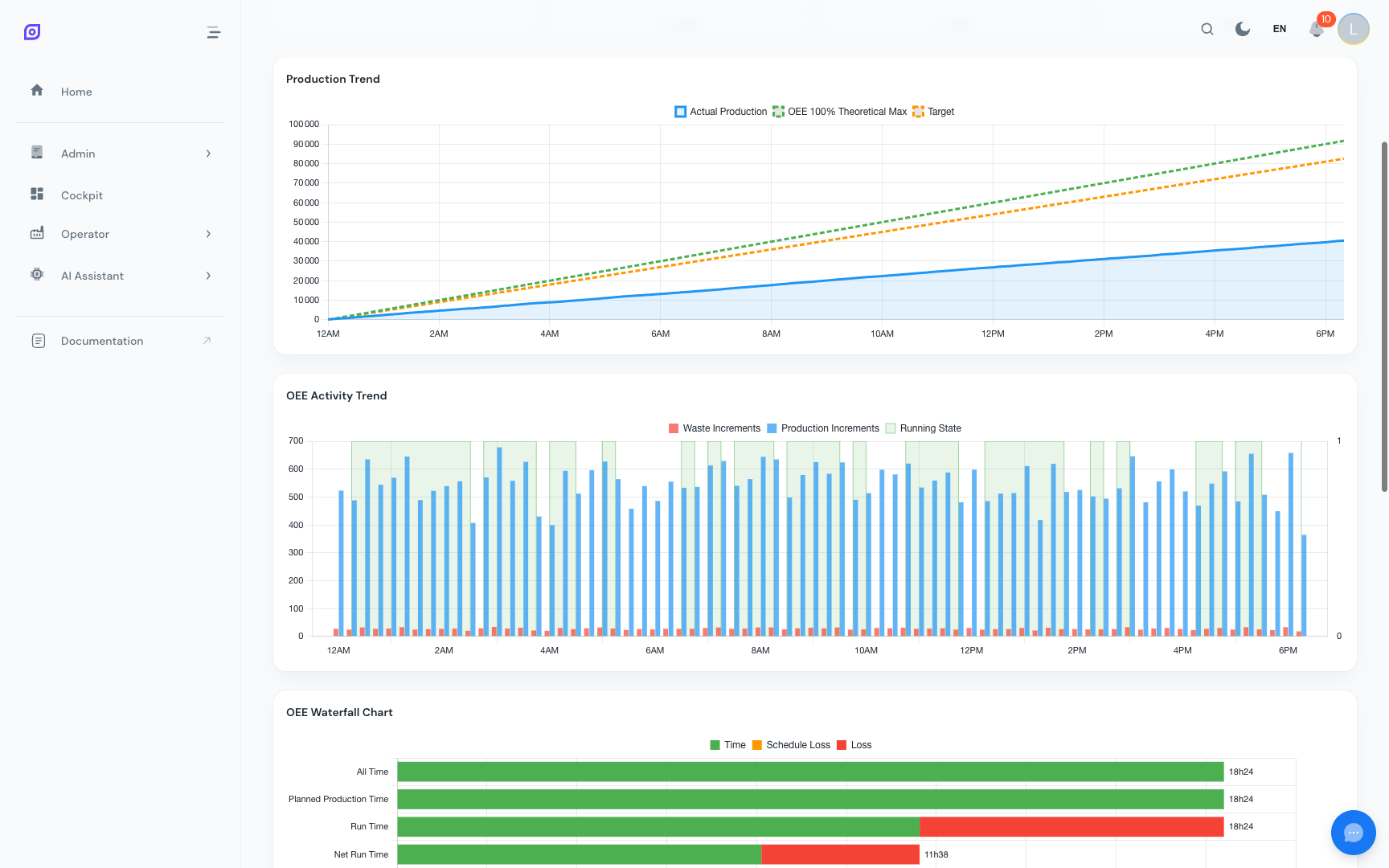
A line chart showing cumulative piece counts over the selected time range:
| Line | Description |
|---|---|
| Actual production (solid) | Pieces actually produced, accumulated over time |
| Theoretical maximum (dashed) | What could have been produced at ideal speed with zero stops |
| Objective (dotted) | The production target from the equipment's configuration |
The gap between the actual line and the theoretical maximum represents the total loss. If the actual line plateaus (goes flat), it indicates the equipment was stopped during that period.
Activity trend
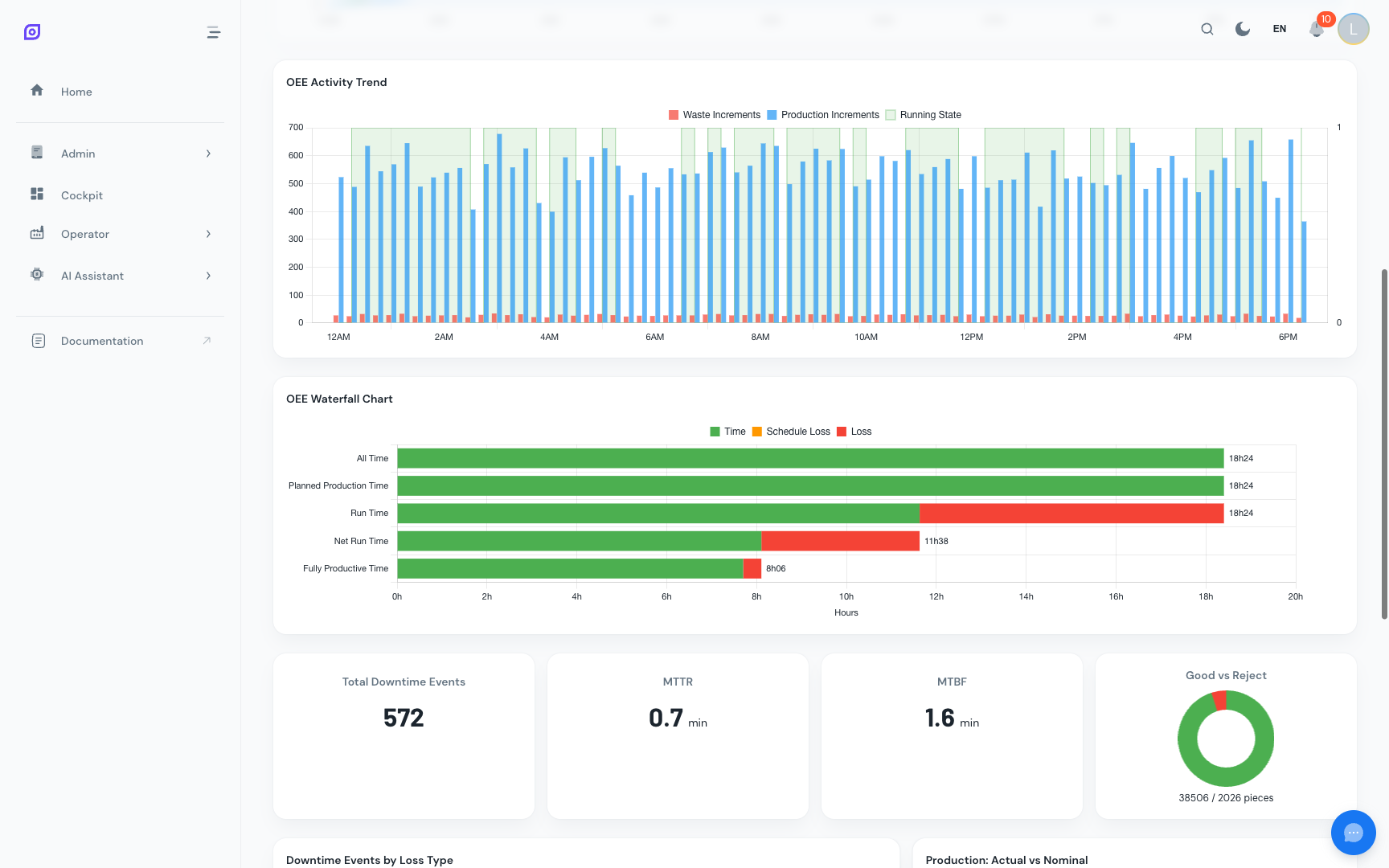
A time-series chart with three data series controlled by a bitmask:
| Series | Description |
|---|---|
| Running state | Binary signal (1 = running, 0 = stopped) shown as a step chart |
| Production increments | Piece count steps; each step up is a produced piece |
| Waste increments | Reject count steps; each step up is a rejected piece |
This chart is useful for identifying patterns: correlating production stops with reject spikes, or spotting micro-stops that are too short to appear in the downtime log.
Summary statistics
Below the charts, a statistics section shows:
| Metric | Description |
|---|---|
| Total pieces produced | Sum of all pieces in the period |
| Good pieces | Pieces that passed quality checks |
| Reject pieces | Pieces that failed quality checks |
| Total downtime events | Number of separate downtime occurrences |
| MTTR | Mean Time To Repair: average downtime event duration |
| MTBF | Mean Time Between Failures: average time between downtime events |
Downtime breakdown
Two additional views break down downtime:
Top downtime reasons
A ranked list (or bar chart) of the most significant downtime reasons by total duration. This helps prioritize which issues to address first for the biggest OEE improvement.
Events by loss type
A doughnut or bar chart showing how downtime events are distributed across loss categories:
- Planned Downtime: scheduled maintenance, changeovers
- Unplanned Downtime: breakdowns, jams, supply issues
- Outside Area: events attributed to areas outside the equipment's control
API reference
The OEE Dashboard is powered by five REST API endpoints:
| Endpoint | Purpose |
|---|---|
GET /api/production/oee/dashboard/calculate | Full OEE calculation for one equipment |
GET /api/production/oee/dashboard/waterfall | Waterfall time breakdown |
GET /api/production/oee/dashboard/production-trend | Cumulative production trend data |
GET /api/production/oee/dashboard/activity-trend | Running state, production, and waste increments |
GET /api/production/oee/dashboard/equipment-overview | Multi-equipment summary (used by Equipment Overview) |
All endpoints require equipment_id, start, and end parameters and enforce equipment permissions.
Related pages
- OEE Performance: deep dive into speed and cycle time losses
- OEE Quality: detailed reject and scrap analysis
- Downtime Operator Screen: log and validate downtime events
- Equipment Overview: compare OEE across multiple lines
- OEE Configuration: configure objectives, cycle times, and schedules
Prerequisites
- Production Overview
- Introduction: get the overall picture of OpSee