Getting Started
This tutorial walks you through the Production module in five minutes. By the end you will know how to navigate between production screens, select equipment and time ranges, and read an OEE dashboard.
Step 1: open the Production hub
Click Production in the main navigation menu. You arrive on the Production navigation page, which shows a card for each available sub-section.
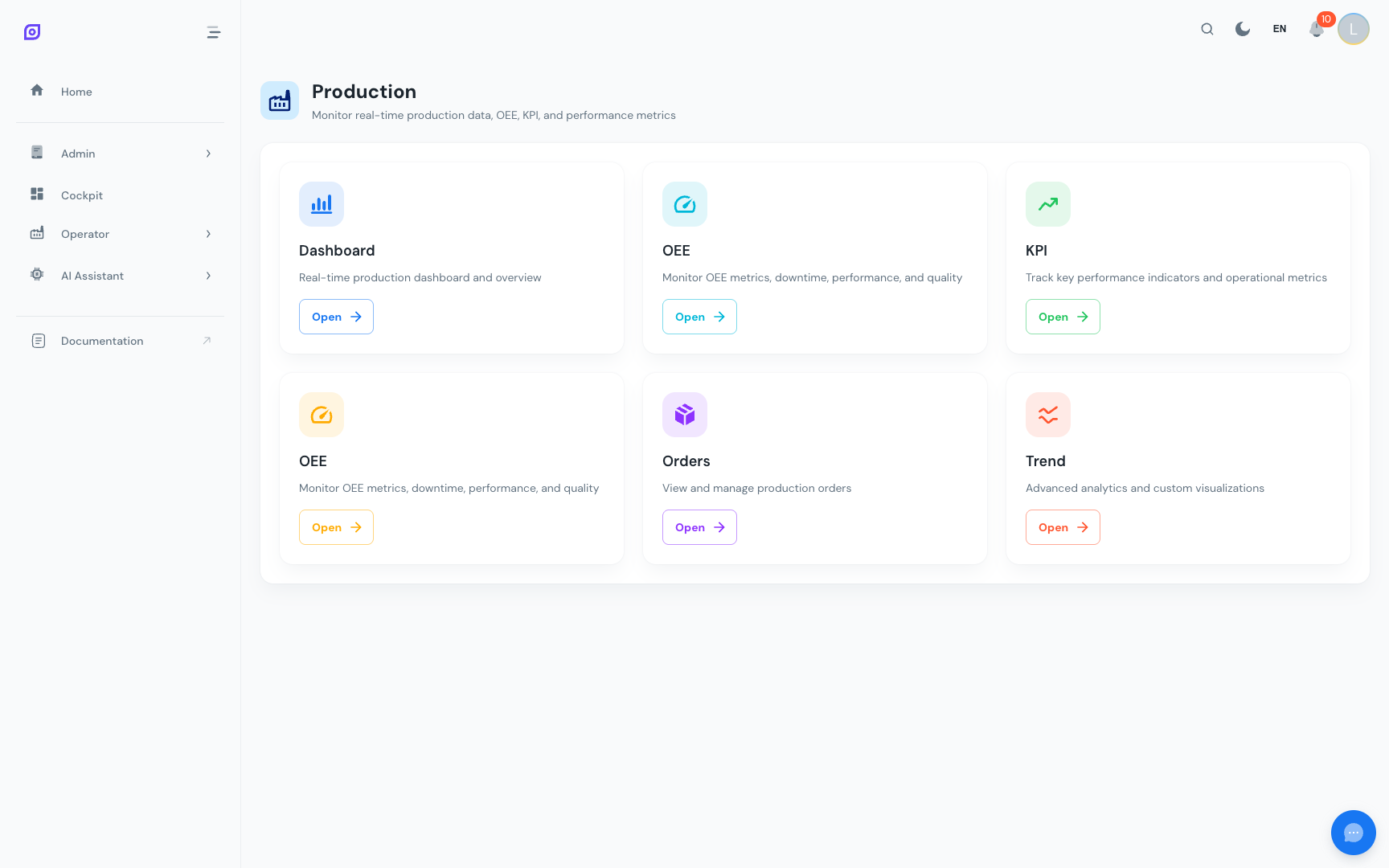
Each card has:
- An icon indicating the section type (dashboard, OEE, KPI, etc.)
- A title translated into your current language
- A short description of what the section provides
- An Open button to navigate there
The cards shown depend on your site's menu configuration and your user permissions. If a section you expect is missing, contact your administrator.
Step 2: open the OEE Dashboard
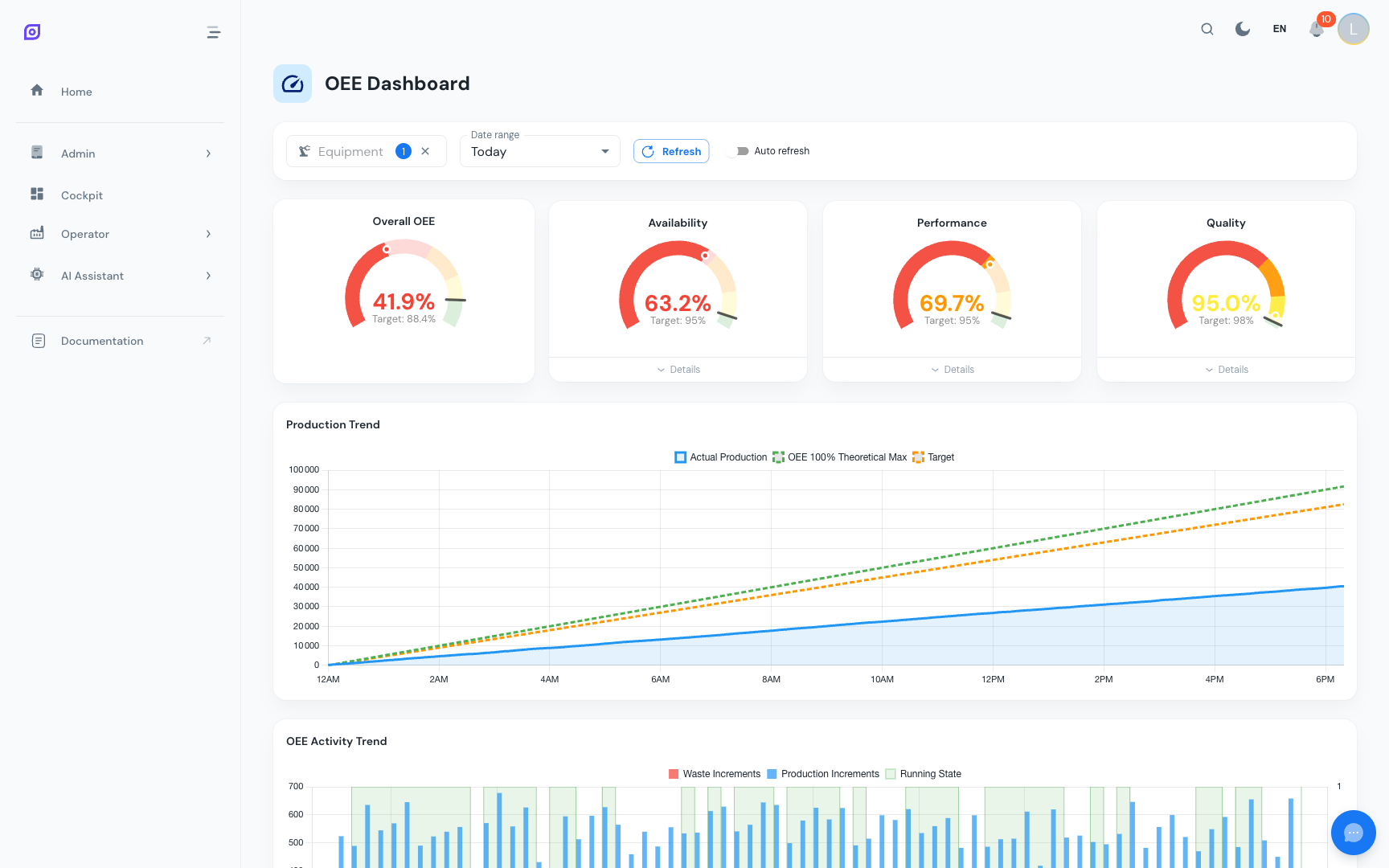
Click the OEE Dashboard card. This is the most used screen in production: it shows the full OEE calculation for a single piece of equipment over a time range.
Step 3: select your equipment
Use the Equipment filter at the top of the page. Start typing the name of your production line or machine and select it from the dropdown.

If no equipment is selected, the dashboard automatically picks the first available one. You can change it at any time and the dashboard reloads immediately.
Step 4: choose a time range
The time range controls determine which period of data is displayed. You have two options:
-
Time preset: select a predefined range from the dropdown: Today, Yesterday, This Week, Last 7 Days, This Month, etc. These presets are configured in the database and respect your browser's timezone.
-
Custom range: enter a specific start and end date/time for ad-hoc analysis.

All production screens use timezone-aware queries. The times you see on screen match your browser's local timezone, so they correspond to the wall clock on the shop floor.
Step 5: read the dashboard
Once equipment and time range are set, the OEE Dashboard displays several sections:
KPI gauges
Four semi-circular gauges at the top show:
- OEE: the overall effectiveness (product of the three metrics below)
- Availability: running time vs. planned production time
- Performance: actual speed vs. ideal cycle time
- Quality: good pieces vs. total pieces produced
Each gauge uses color thresholds derived from the equipment's configured objectives:
- Green: at or above target
- Yellow: close to target
- Orange: below target
- Red: significantly below target
Waterfall chart
The waterfall chart shows how total available time is consumed:
Each bar represents a time bucket, making it easy to see where the biggest losses occur.
Production trend
A line chart showing cumulative production over the selected period with three lines:
- Actual production: what was actually produced
- Theoretical maximum: what could have been produced at ideal speed with no stops
- Target: the production objective
Activity trend
A time-series chart showing:
- Running state: binary running/stopped signal over time
- Production increments: piece count steps
- Waste increments: reject count steps
Downtime breakdown
Tables and charts showing:
- Top downtime reasons: ranked by total duration
- Events by loss type: planned vs. unplanned vs. performance losses
- MTTR (Mean Time To Repair) and MTBF (Mean Time Between Failures)
Step 6: enable auto-refresh (optional)
Toggle the Auto-refresh switch in the filter area to keep the dashboard updating automatically. This is useful for displaying on a shop floor TV screen.
For shop floor displays, consider using the Cockpit instead. It allows you to build custom layouts with multiple OEE widgets on a single screen.
Next steps
| Page | What you will learn |
|---|---|
| OEE Dashboard | Deep dive into every chart and metric |
| Downtime Operator Screen | How to log and validate downtime events |
| Equipment Overview | Compare multiple lines at a glance |
| Production Dashboard | The Grafana-powered live dashboard |
Prerequisites
- Production Overview
- Introduction: get the overall picture of OpSee
Related
- OEE Fundamentals
- Cockpit: complementary module