Production Execution
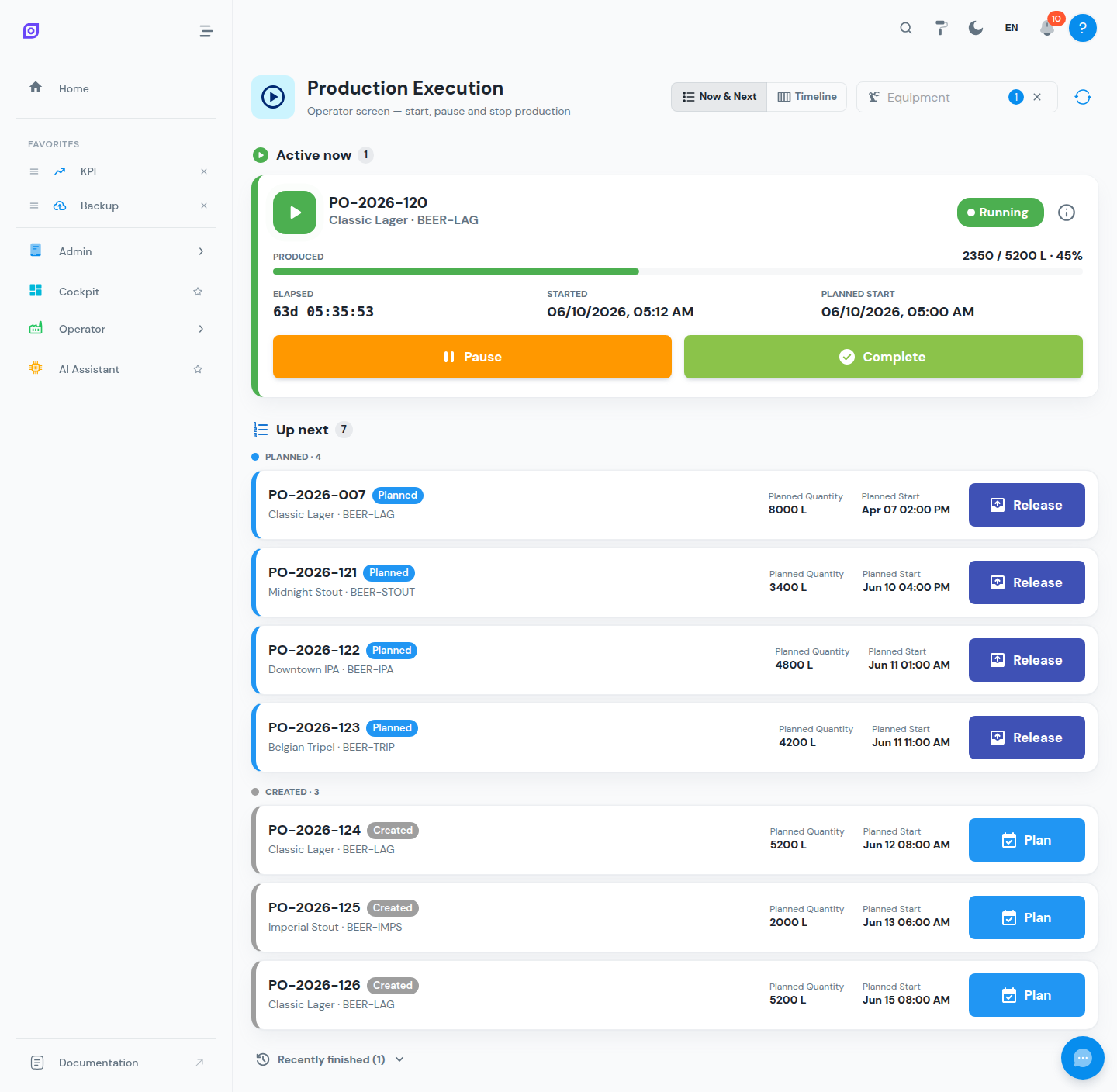
Production Execution is the operator screen for running orders on the shop floor: pick your machine, see what is active now and what is up next, and start, pause, resume or complete orders with one tap. The screen refreshes automatically (every 15 seconds), so it always reflects the current state even on a shared terminal.
Getting started
- Open Production → Execution
- Use the Equipment filter to select the machine(s) you are operating
- The screen shows the orders for that equipment in one of two views
The two views
Now & Next
The default operator view:
- Active now — the order currently running, with produced quantity, planned quantity, start time and elapsed time. Its available actions are shown as buttons.
- Up next — the queue of released, planned and created orders waiting to run. Pick one to start production when nothing is active.
- Recently finished — the last completed orders, for quick reference.
Timeline
A schedule-oriented view of the same orders over a time window (presets: Today, Next 24h, This week, Next 7 days), with zoom controls. Use it to see how the shift is laid out; switch back to Now & Next to start an order from the queue.
Order lifecycle and actions
The buttons on a card depend on the order's current status — only allowed transitions are offered:
| Action | What it does |
|---|---|
| Start / Resume | Begins (or resumes) production on this equipment; the order becomes Running |
| Pause | Temporarily stops the order without closing it |
| Complete | Ends the order — a dialog asks for the good quantity and scrap quantity |
| Release / Plan | Moves an order forward in the pre-execution lifecycle |
| Close order / Cancel | Supervisor actions that finalize or abort an order |
Start, pause, resume and complete require the dispatch-execute permission; closing and cancelling orders are supervisor-level transitions. Users only see actions their role allows.
Quantities
The Produced counter on the active order comes from the actual production data OpSee collects for the equipment. When completing an order you confirm the final good and scrap quantities, which feed the order's quality figures and the OEE Dashboard.
Permissions and licensing
- Viewing requires production read access; executing transitions requires
perm:dispatch:execute. - The equipment filter only offers machines within your equipment scope.
- Execution is part of the Production feature module of your OpSee licence, enabled per equipment (see Licensing).
Related pages
- Production Orders: the full order list and details
- Production Planning: how orders get scheduled before they reach this screen
- Downtime Operator Screen: justify stops that happen while an order runs