Equipment Overview
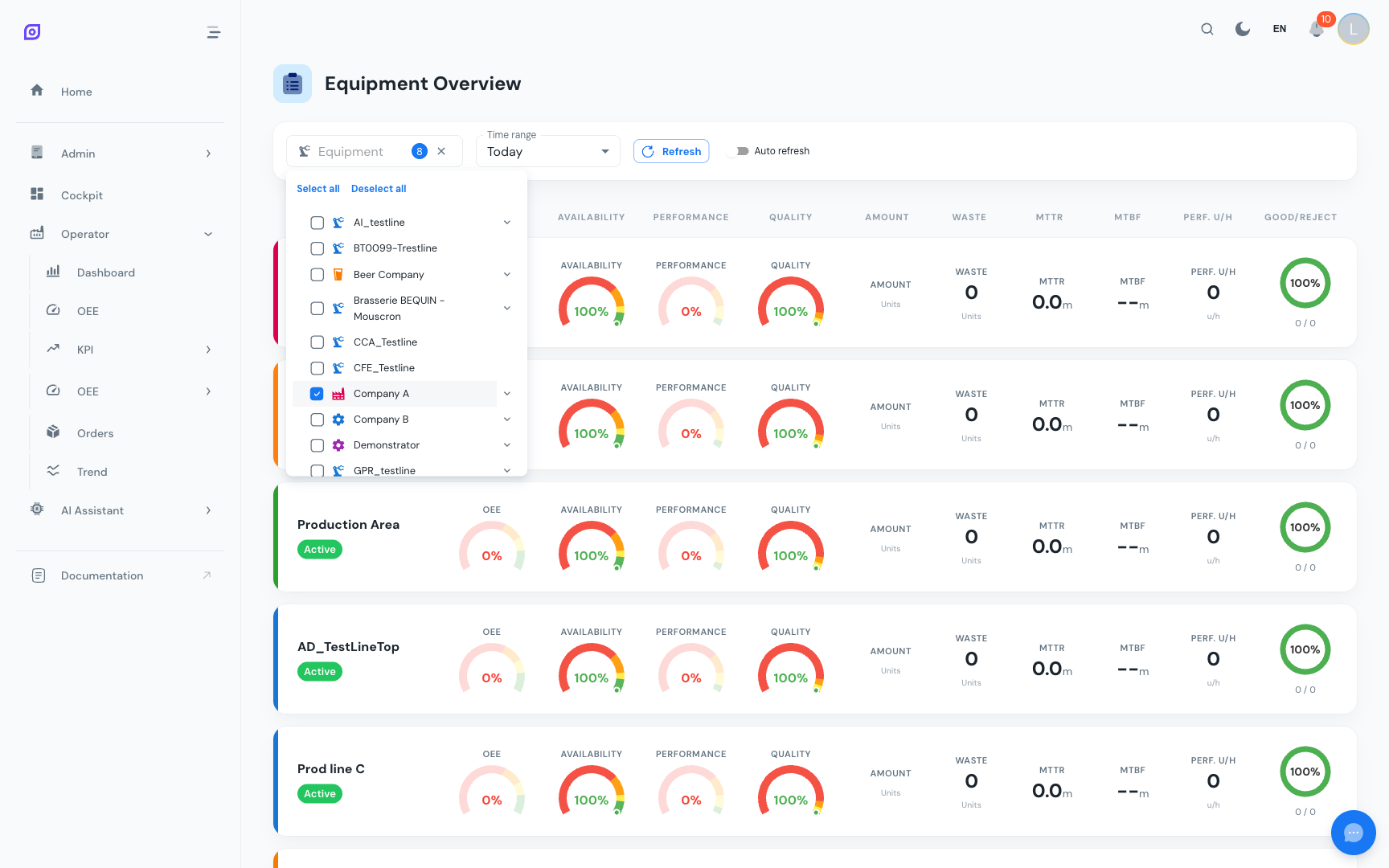
The Equipment Overview screen lets you compare OEE metrics across multiple production lines or machines simultaneously. Instead of switching between equipment on the OEE Dashboard one at a time, this view shows all selected equipment in a single grid of KPI cards.
When to use this screen
The Equipment Overview is ideal for:
- Shift supervisors overseeing multiple lines who need a quick status check
- Production managers comparing performance across their area
- Morning meetings where the team reviews yesterday's results for all lines
- Shop floor displays showing the status of an entire production area
Selecting equipment
Use the Equipment filter at the top to select which equipment to display. You can select multiple items by checking them in the dropdown.
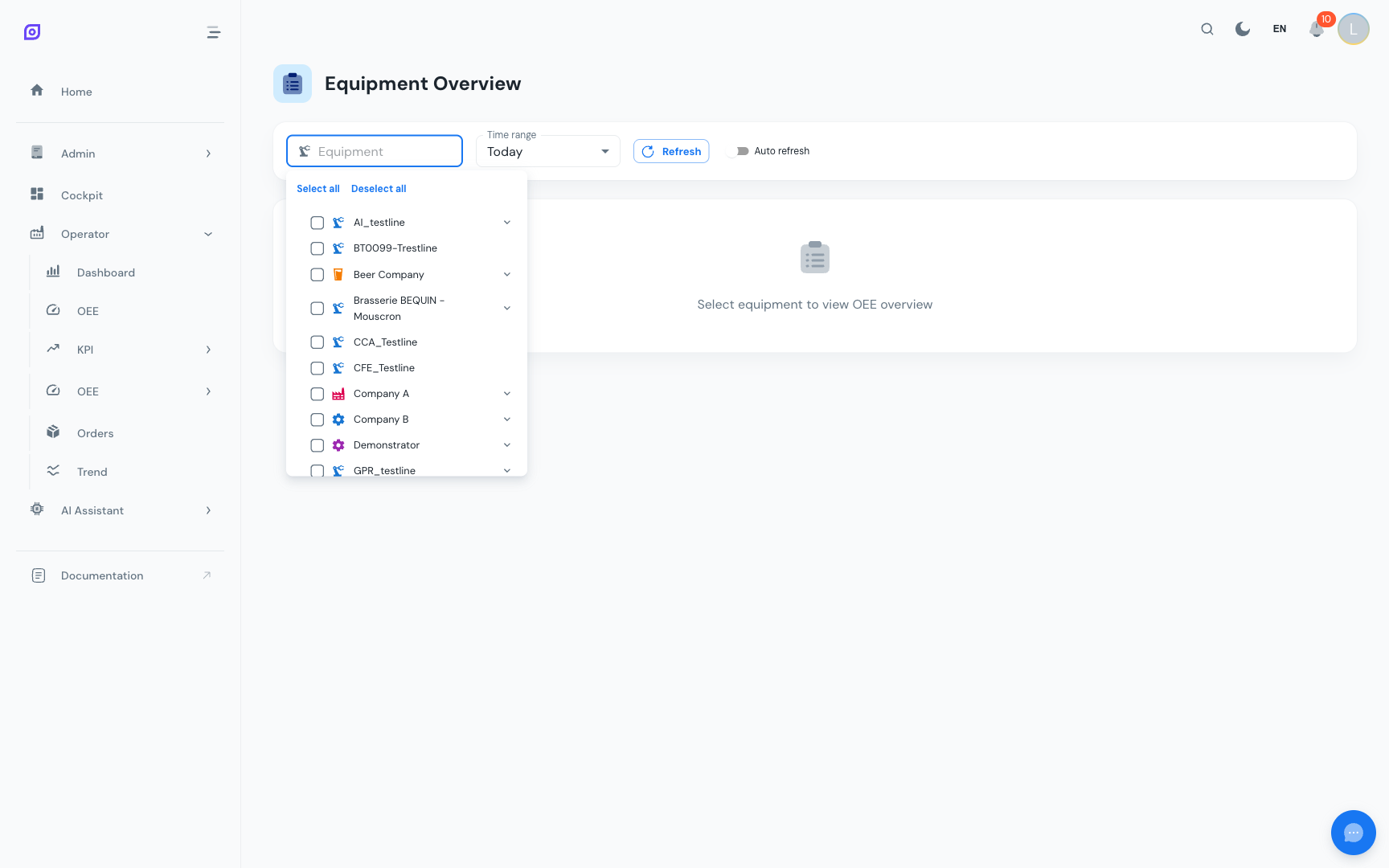
Select all equipment in your area for a complete picture, or focus on a subset for comparison. The equipment filter shows the full hierarchy, so you can select individual machines or entire production lines.
Time range
Like all production screens, the Equipment Overview uses time presets:
- Select a preset from the dropdown (Today, Yesterday, This Week, etc.)
- The default is "Today"
- All times are timezone-aware using your browser's local timezone
Equipment cards
For each selected equipment, the view displays a card with:
Mini gauges
Three compact gauges showing:
- Availability %: color-coded against the equipment's configured objective
- Performance %: color-coded against the performance objective
- Quality %: color-coded against the quality objective
The gauge colors use the same threshold system as the OEE Dashboard: green (at target), yellow (close), orange (below), red (far below).
Key metrics
| Metric | Description |
|---|---|
| OEE % | Overall OEE for the selected period |
| Running status | Current state indicator (Running/Stopped) |
| MTTR | Mean Time To Repair (in minutes) |
| MTBF | Mean Time Between Failures (in minutes) |
| Nominal rate | Configured nominal production rate (pieces/hour) |
Objectives
Each card also shows the configured objectives for availability, performance, and quality, so you can immediately see how each line compares to its targets.
Color coding
The cards use consistent color coding to indicate status at a glance:
| Condition | Color |
|---|---|
| OEE at or above target | Green accent |
| OEE between 88% and 100% of target | Yellow accent |
| OEE between 70% and 88% of target | Orange accent |
| OEE below 70% of target | Red accent |
| No data / equipment offline | Grey |
API details
The Equipment Overview uses a single API endpoint that calculates OEE for multiple equipment in one call:
GET /api/production/oee/dashboard/equipment-overview
    ?equipment_ids=4|9|30
    &start=2025-10-01T00:00:00
    &end=2025-10-01T23:59:59
The equipment_ids parameter accepts pipe-separated IDs. The API returns OEE metrics, running status, objectives, and nominal rate for each requested equipment.
The API enforces equipment permissions. If you request equipment you do not have access to, those items are excluded from the response (or a 403 error is returned).
Comparison tips
- Same time range: all cards use the same time preset, so comparisons are fair.
- Check objectives: lines with different objectives may have different gauge colors even at the same OEE percentage. A line targeted at 90% OEE will show red at 70%, while a line targeted at 75% may show yellow at 70%.
- Drill down: if a card shows poor performance, navigate to the OEE Dashboard for that specific equipment to investigate further.
- Use with Cockpit: for a permanent multi-equipment view, consider building a Cockpit configuration with OEE widgets for each line.
Related pages
- OEE Dashboard: single-equipment detailed analysis
- Downtime Operator Screen: investigate downtime events for specific equipment
- Cockpit: build custom multi-widget dashboards
- Equipment: configure equipment hierarchy and properties
- OEE Configuration: set objectives, cycle times, and schedules
Prerequisites
- Production Overview
- Introduction: get the overall picture of OpSee