Downtime Operator Screen
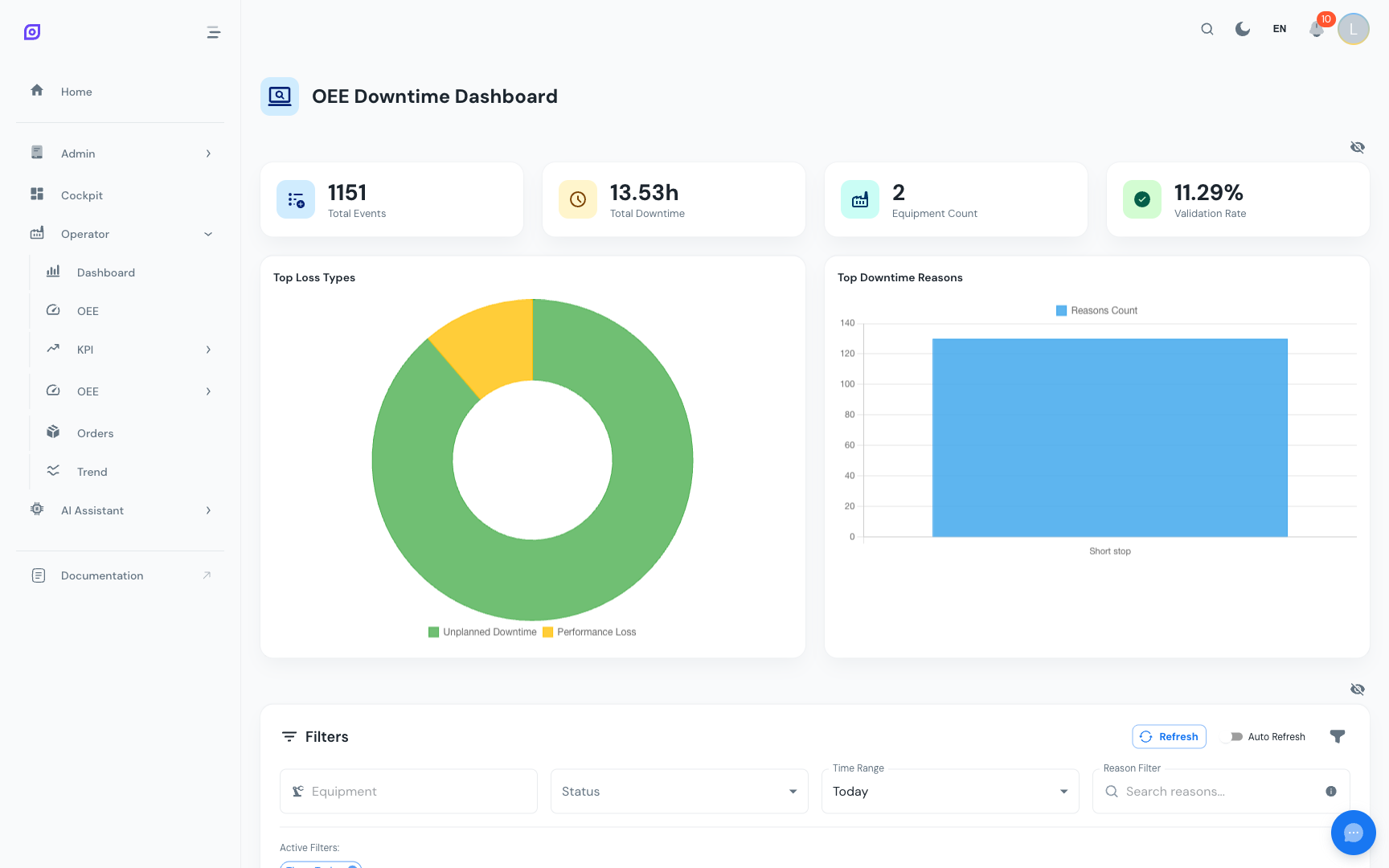
The Downtime Operator Screen is the daily workspace for production operators. It displays all downtime (availability) events for selected equipment, provides a visual timeline, and allows operators to classify events with reasons, split long events, merge related events, and add comments.
This screen directly impacts OEE Availability: every event that is properly classified helps supervisors understand where time is being lost.
Screen layout
The Downtime screen uses the standard operator screen layout with four sections from top to bottom:
- Dashboard cards: summary KPIs (total events, total downtime, validation rate, etc.)
- Filters: equipment, time range, status, reason search, and short stop toggle
- Timeline: collapsible visual timeline showing events as colored pills
- Data table: full DataGrid listing all events with inline actions
Dashboard cards
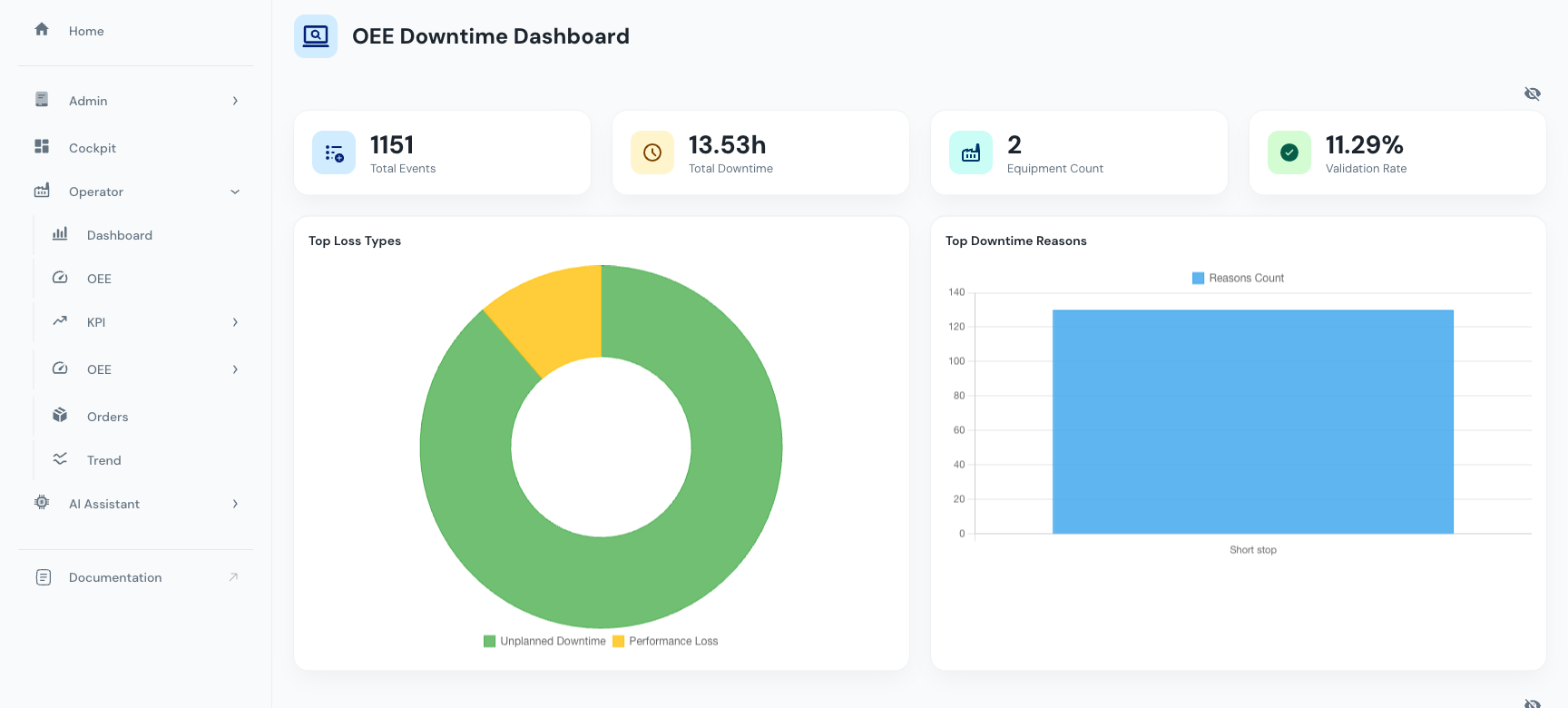
The summary cards at the top provide an instant overview:
| Card | Description |
|---|---|
| Total Events | Number of downtime events in the selected period |
| Total Downtime | Sum of all event durations (in hours and minutes) |
| Equipment Count | Number of distinct equipment with events |
| Average Duration | Mean event duration |
| Validated Events | Events that have a reason assigned |
| Validation Rate | Percentage of events with reasons (target: 100%) |
| Top Loss Types | Most frequent loss type categories |
| Top Reasons | Most frequent downtime reasons |
The Validation Rate is one of the most important KPIs for operators. A 100% validation rate means every downtime event has been classified with a reason, which is essential for accurate loss analysis.
Filters
The filter card provides comprehensive filtering:
Equipment filter
Select one or more equipment items using the multi-select dropdown with search. The hierarchical tree lets you pick individual machines or entire production lines.
Time range
Choose between:
- Time preset: predefined ranges (Today, Yesterday, This Week, etc.)
- Absolute mode: specific start and end date/time using date-time pickers
Status filter
Filter events by their operational status (e.g., Running, Stopped, Maintenance, Changeover).
Reason search
Type to search for events matching a specific reason text.
Show short stops
Toggle to include or exclude micro-stops (events shorter than the configured threshold). Short stops are hidden by default to reduce noise.
Auto-refresh
Enable auto-refresh to keep the data updating every 30 seconds. A manual Refresh button is also available for on-demand updates.
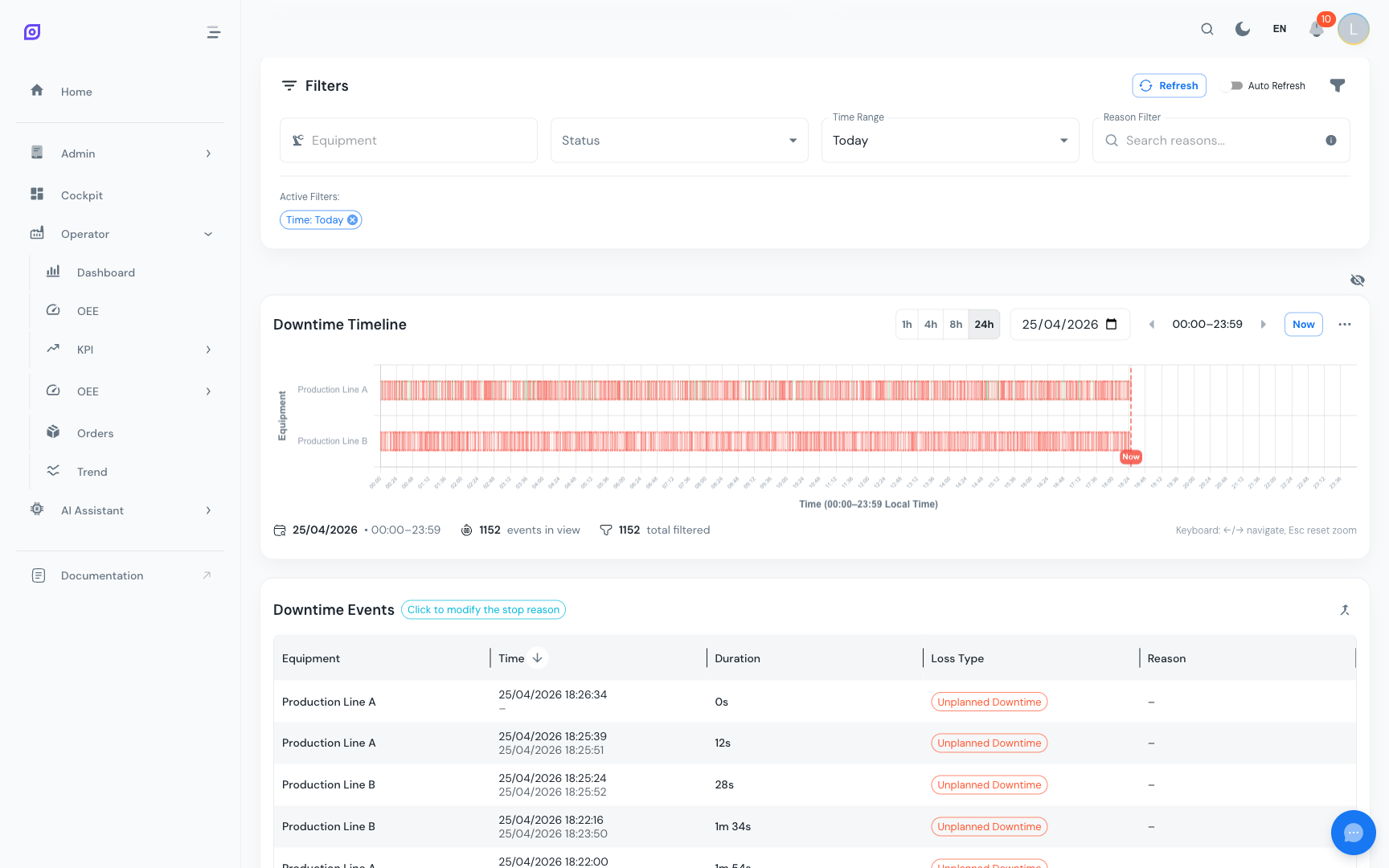
Filters apply immediately on every change; there is no "Apply" button. After the initial load, filter changes reload data silently (no loading spinner) so the view feels responsive.
Timeline
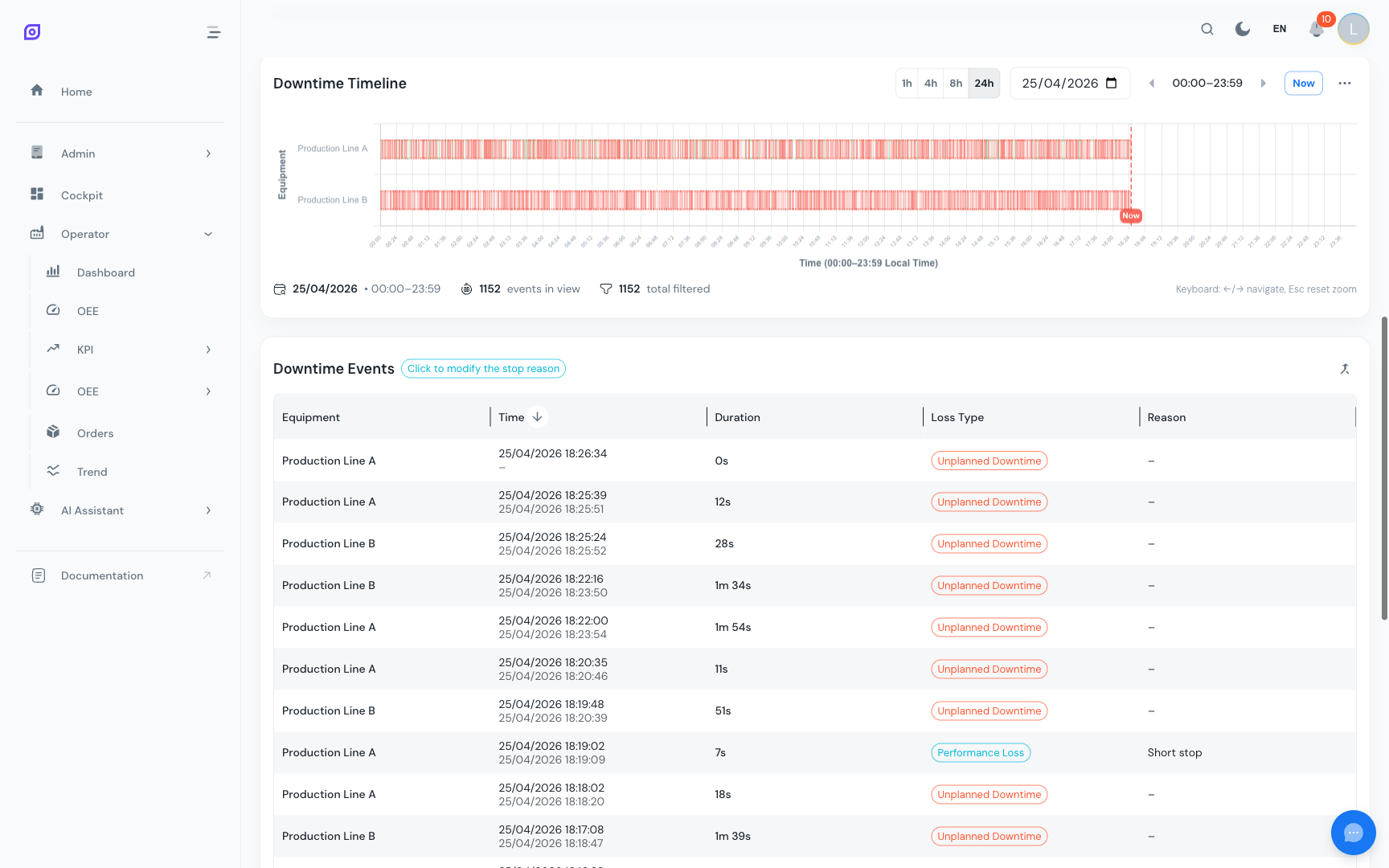
The collapsible timeline section shows downtime events as colored horizontal pills on a time axis. Each row represents one equipment line.
View modes
Control how much time the timeline shows at once:
- 1 hour: most detailed view, best for seeing individual short events
- 4 hours: good for half-shift analysis
- 8 hours: full shift overview
- 24 hours: entire day
Navigate through time using the hour slider or day selector.
Color modes
Switch between two color modes:
| Mode | Description |
|---|---|
| Validation | Green = validated (reason assigned), Red = not validated |
| Loss Type | Each loss type has its own color, matching the loss type configuration |
Timeline interactions
- Click a pill to select the event and open the reason selection panel
- Shift-click two pills to select them for a merge operation
- Hover to see a tooltip with event details (start time, end time, duration, reason, equipment)
- Zoom into a time range by brushing (click and drag) on the chart
Equipment selection
When multiple equipment are in the filter, use the equipment checkboxes above the timeline to control which lines are visible.
Data table
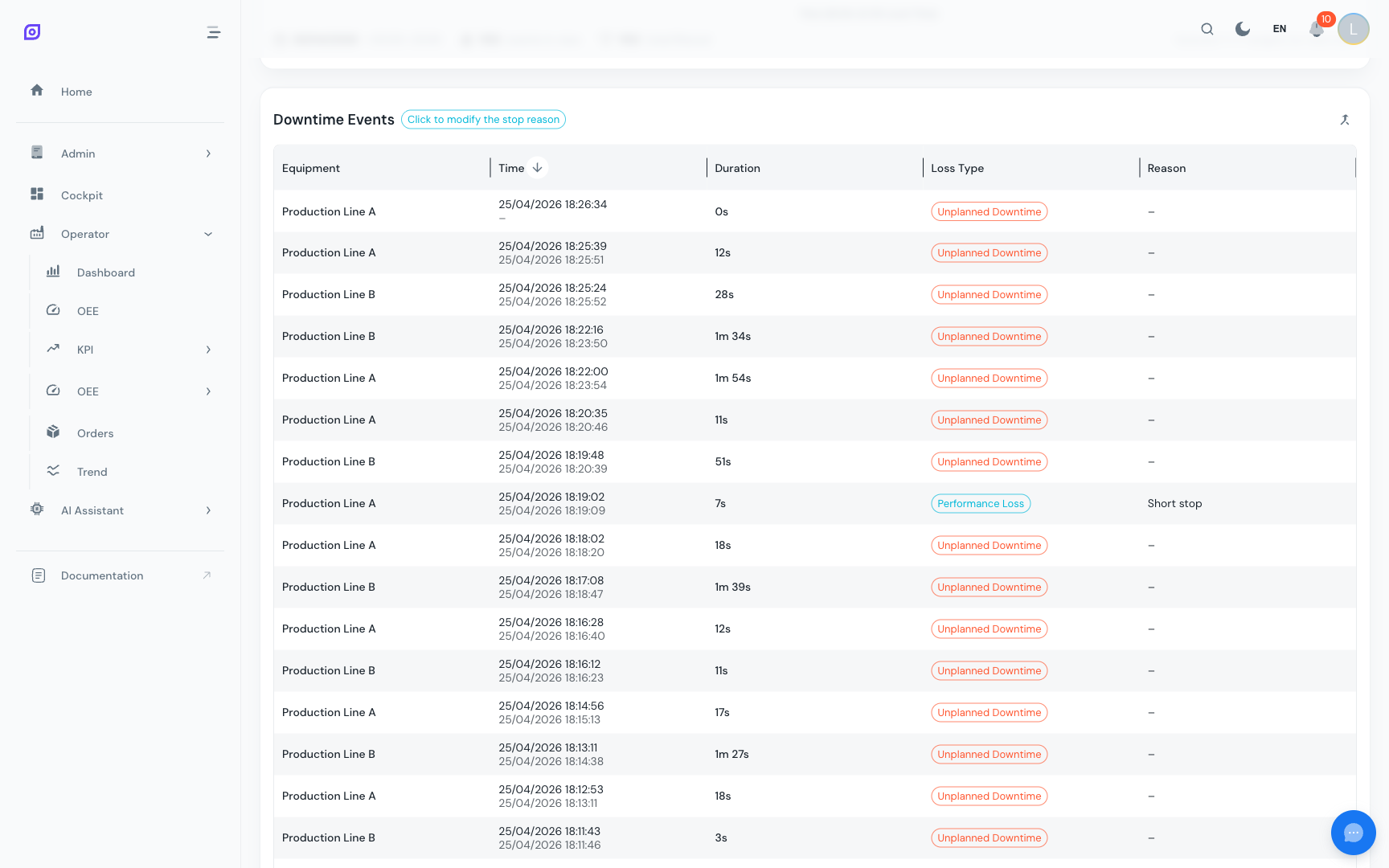
The DataGrid below the timeline lists all events with sortable, filterable columns:
| Column | Description |
|---|---|
| Equipment | Equipment name |
| Start Time | When the event began |
| End Time | When the event ended |
| Duration | Event length (formatted as hours, minutes, or seconds) |
| Reason (Level 0-3) | Hierarchical reason classification |
| Sub-Equipment | Which sub-component caused the stop (if applicable) |
| Loss Type | Category: Planned, Unplanned, Outside Area, etc. |
| Validated | Whether a reason has been assigned |
| Comment | Operator notes |
| Status | Current operational status |
| Actions | Edit, split, and other operations |
Column visibility
Use the column visibility toggle to switch between compact view (essential columns only) and full view (all columns including sub-equipment, comment, and status).
Classifying events (reason assignment)
The main operator task is assigning reasons to downtime events. Click the edit action on an event (or click a timeline pill) to open the Reason Selection Panel.
Reason selection panel
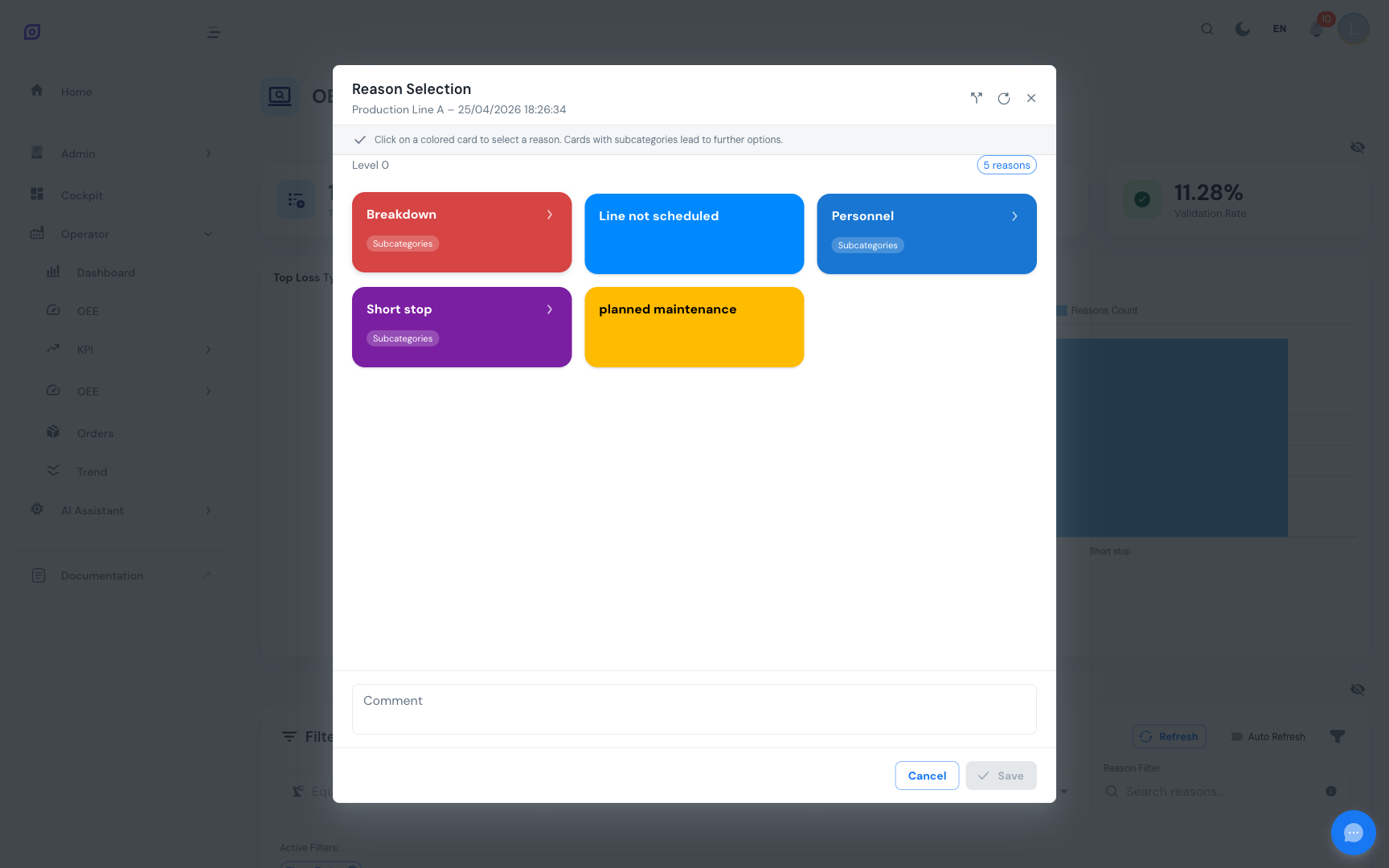
The panel shows the hierarchical reason tree configured for your site:
- Level 0: top-level category (e.g., "Mechanical", "Electrical", "Process")
- Level 1: sub-category (e.g., "Motor", "Sensor", "Material")
- Level 2: specific reason (e.g., "Bearing failure", "Proximity sensor", "Film tear")
- Level 3: detail (optional, for very granular classification)
Select the appropriate reason at each level. You can also:
- Select a sub-equipment to identify which component caused the stop
- Add a comment with free-text notes
- Change the loss type classification
After saving, the event is marked as validated and the validation rate increases.
Consistent reason classification across shifts is crucial for accurate Pareto analysis. Use the same reason for the same type of issue, even if different operators describe it differently. The hierarchical structure helps enforce this consistency.
Splitting events
Sometimes a single long downtime event actually contains multiple distinct causes. Use the Split action to divide one event into two.
How to split
- Click the Split action button on the event row.
- Enter the split point (time or duration).
- Confirm the split.
- Two new events are created. Classify each one with its own reason.
The split operation calls POST /api/production/oee/availability/{id}/split and creates two new records from the original.
Merging events
When the system detects multiple short events that are really one continuous downtime (e.g., the machine flickered on for 2 seconds between two stops), use Merge to combine them.
How to merge
From the table:
- Enable Merge mode using the toggle button.
- Select two or more events by checking their rows.
- Click Merge selected.
- Confirm the merge: a single event spanning the full time range is created.
From the timeline:
- Click the first event pill.
- Shift-click the second event pill.
- Confirm the merge in the dialog that appears.
The merge operation calls POST /api/production/oee/availability/merge with the selected event IDs.
Merging is only possible for events on the same equipment. The merged event inherits the start time of the earliest event and the end time of the latest event.
Availability record fields
Each availability record returned by the API contains:
| Field | Description |
|---|---|
id | Unique record identifier |
equipment_id / equipment_name | Equipment reference |
start_time / end_time | Event time boundaries |
delta | Duration in seconds |
adjusted_delta | Duration clipped to query window boundaries |
sub_equipment_id / sub_equipment_name | Sub-component details |
reason_id_0 through reason_id_3 | Hierarchical reason IDs |
reason_0 through reason_3 | Hierarchical reason names (translated) |
comment | Operator free-text notes |
type_id / loss_type | Loss type classification |
validated | Whether a reason has been assigned |
status_id / status_name | Operational status |
permissions | User's permission level for this record |
API endpoints
| Endpoint | Method | Purpose |
|---|---|---|
/api/production/oee/availability/ | GET | List availability events with filters |
/api/production/oee/availability/equipment/{id} | GET | Events for a specific equipment |
/api/production/oee/availability/summary | GET | Aggregate statistics |
/api/production/oee/availability/reasons | GET | Available reason codes |
/api/production/oee/availability/record/{id} | GET | Single record details |
/api/production/oee/availability/{id} | PUT | Update a record (assign reason, comment, etc.) |
/api/production/oee/availability/{id}/split | POST | Split one event into two |
/api/production/oee/availability/merge | POST | Merge multiple events into one |
Best practices for operators
- Validate events promptly: classify downtime reasons during or immediately after the event while details are fresh.
- Use the correct reason level: go as deep in the hierarchy as you can. "Mechanical > Motor > Bearing failure" is much more useful than just "Mechanical".
- Add comments for unusual situations; free text helps the maintenance team understand context.
- Split long events when the root cause changed mid-event.
- Merge flicker events: if the machine restarted briefly between two related stops, merge them into one event.
- Check validation rate at the end of your shift; aim for 100%.
Related pages
- OEE Dashboard: see how downtime events impact overall OEE
- OEE Performance: investigate speed losses vs. stop losses
- Equipment Overview: compare downtime across multiple lines
- OEE Configuration: configure loss types and reason hierarchies
- Cockpit — Downtime Timeline: the timeline widget in the Cockpit
Prerequisites
- Production Overview
- Introduction: get the overall picture of OpSee