Unit Procedures
A unit procedure is a subset of a batch procedure that runs on a single equipment unit (work center). It groups operations into an ordered sequence that represents everything happening at one piece of equipment during a batch.
Unit procedures sit at the second level of the ISA-88 procedure hierarchy:
Example: A "Mixing Process" unit procedure groups all operations that take place at the mixing tank, from ingredient preparation through heating, mixing, and holding.
Page layout
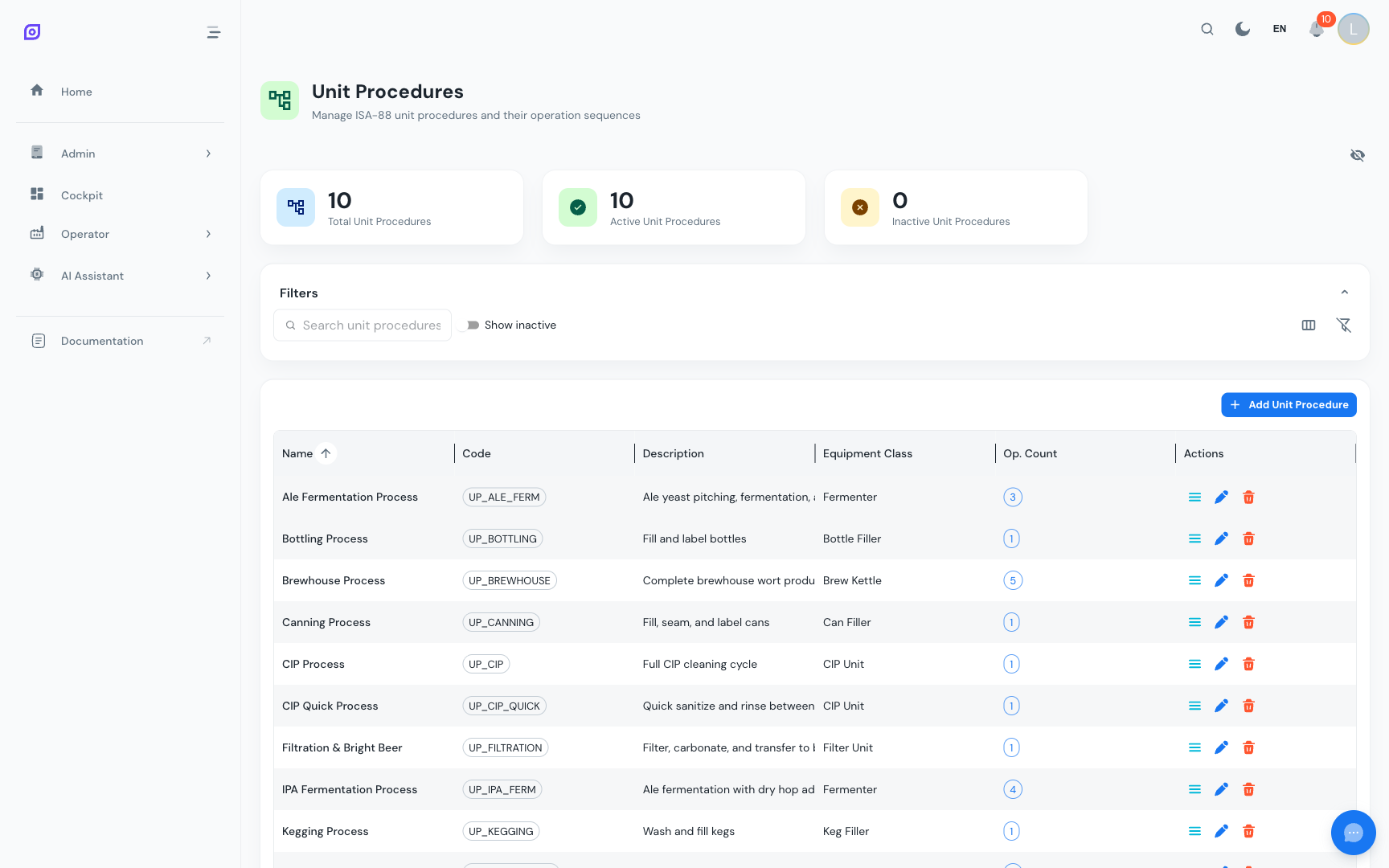
The Unit Procedures page (Admin > Procedures > Unit Procedures) displays:
- Dashboard cards: total, active, and inactive unit procedure counts
- Filter bar: search, inactive toggle, column visibility controls
- Data grid: all unit procedures with their operation counts and inline actions
Unit procedure fields
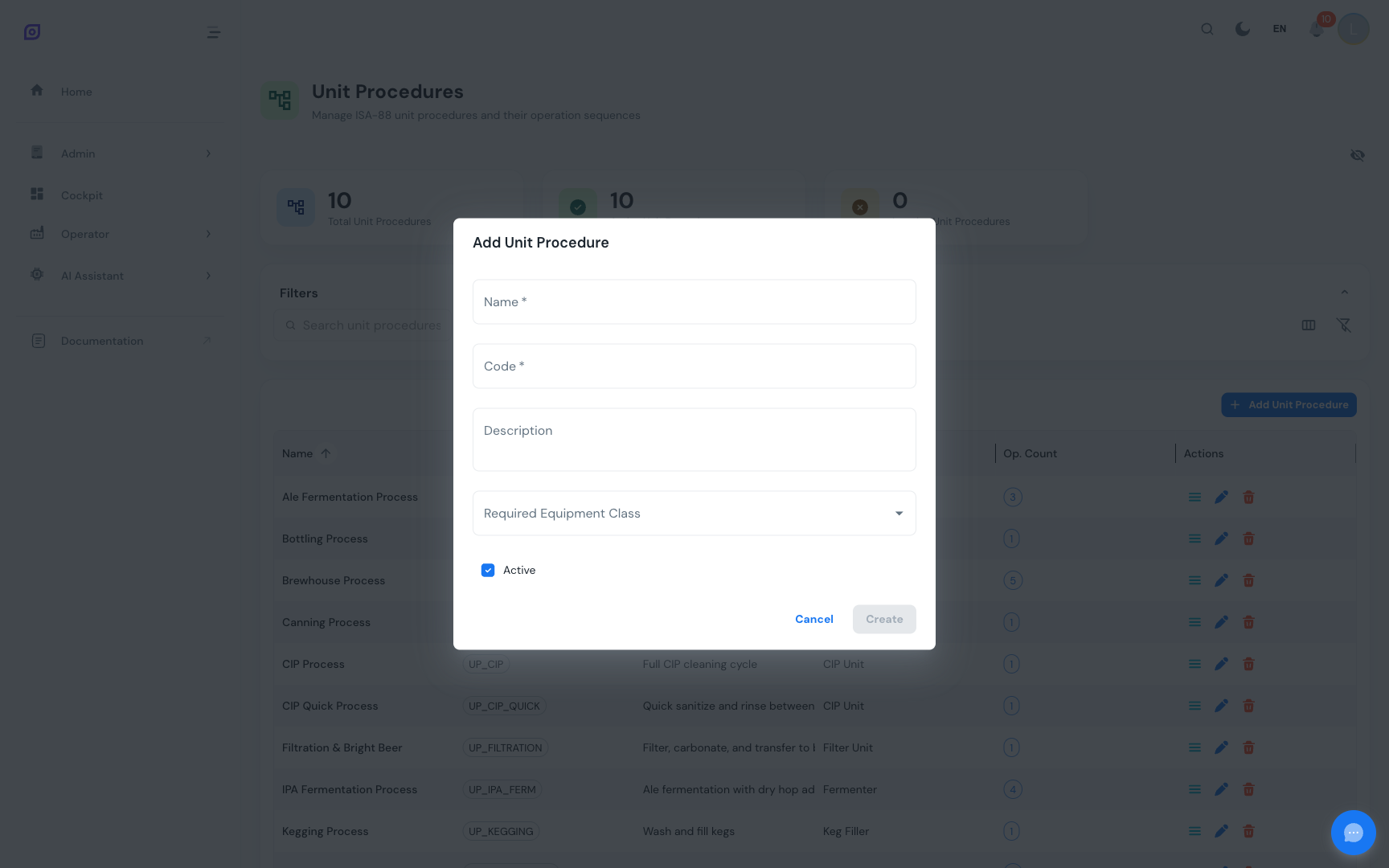
| Field | Required | Description |
|---|---|---|
| Name | Yes | Display name (max 255 characters) |
| Code | Yes | Unique short identifier (max 50 characters), e.g., MIX_PROC, PAST_PROC |
| Description | No | Longer explanation (max 1000 characters) |
| Equipment Class | No | The equipment class required to execute this unit procedure. When set, the system can validate that a production order assigns compatible equipment. |
| Active | Yes | Whether the unit procedure is available for use |
:::info Equipment classes vs. specific equipment The Equipment Class field specifies a type of equipment (e.g., "Mixing Tank"), not a specific machine. This keeps procedures generic. The actual equipment assignment happens at the production order level, where a specific mixing tank is selected from the available units of that class. :::
Creating a Unit Procedure
- Click Add Unit Procedure above the data grid
- Enter the Name and Code (both required)
- Optionally select an Equipment Class and add a description
- Click Create
Managing operations within a unit procedure
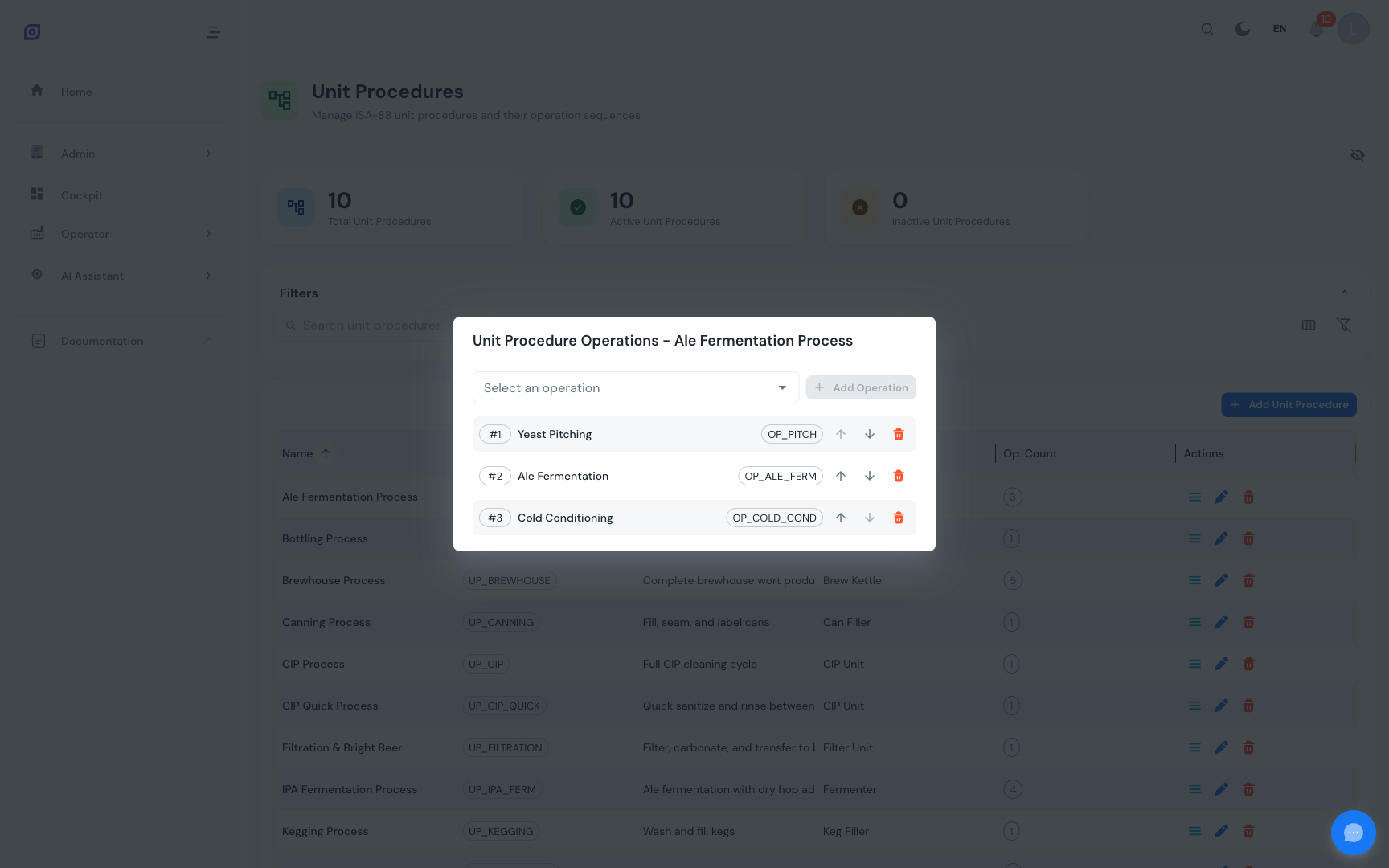
Click the list icon on a unit procedure row to open the Manage Operations dialog.
Adding an Operation
- Select an operation from the dropdown (only active operations not already linked are shown)
- Click Add
The operation is appended at the end of the sequence.
Reordering operations
Use the up arrow and down arrow buttons to change execution order. The sequence number determines which operation runs first, second, and so on.
Removing an Operation
Click the red trash icon to unlink an operation. This does not delete the operation itself.
:::tip Same operation, different contexts An operation can be linked to multiple unit procedures. For example, a "Clean In Place" operation might appear in both a "Mixing Process" and a "Filling Process" unit procedure, each with its own sequence position. :::
Editing a Unit Procedure
Click the edit button (blue pencil icon) to modify name, code, description, equipment class, or active status.
Deleting a Unit Procedure
Click the delete button (red trash icon). Deletion will fail if the unit procedure is still linked to any batch procedures.
Grid Columns
| Column | Description |
|---|---|
| Name | Unit procedure display name (bold text) |
| Code | Unique code shown as a chip |
| Description | Optional description text |
| Equipment Class | Required equipment class name, or -- if none |
| Operations | Count of linked operations (chip) |
| Status | Active/Inactive chip |
| Actions | Manage Operations, Edit, Delete buttons |
The Created At and Updated At columns are available in full-column mode.
Operation Sequence Example
Here is the "Mixing Process" unit procedure with its operation sequence:
| # | Operation | Code | Phases |
|---|---|---|---|
| 1 | Prepare Ingredients | PREP_INGR | Dose Ingredient, Agitate |
| 2 | Heat and Mix | HEAT_MIX | Set Temperature, Agitate, Hold |
The operations execute in order: first prepare ingredients, then heat and mix. Each operation in turn executes its own phases in sequence.
Best Practices
- One equipment unit per unit procedure: this is a core ISA-88 principle. If your process uses two different tanks, create two separate unit procedures, even if the steps are similar.
- Set equipment classes: linking to an equipment class enables validation at the production order level and helps with scheduling.
- Name by equipment and process: use names like "Mixing Process" or "Pasteurizer CIP" that make it clear both where and what.
- Consider the execution flow: arrange operations in the order they actually execute. Parallel operations within a unit procedure are not supported (parallelism is handled at the batch procedure level between different unit procedures).
Related Pages
- Operations — the building blocks that unit procedures compose
- Batch Procedures — the next level up, composing unit procedures with parallel execution support
- Equipment — configure equipment classes that unit procedures reference
- Batch Model (ISA-88) — the complete hierarchy explained
Prerequisites
- Procedures Overview
- Introduction — get the overall picture of OpSee