Phases
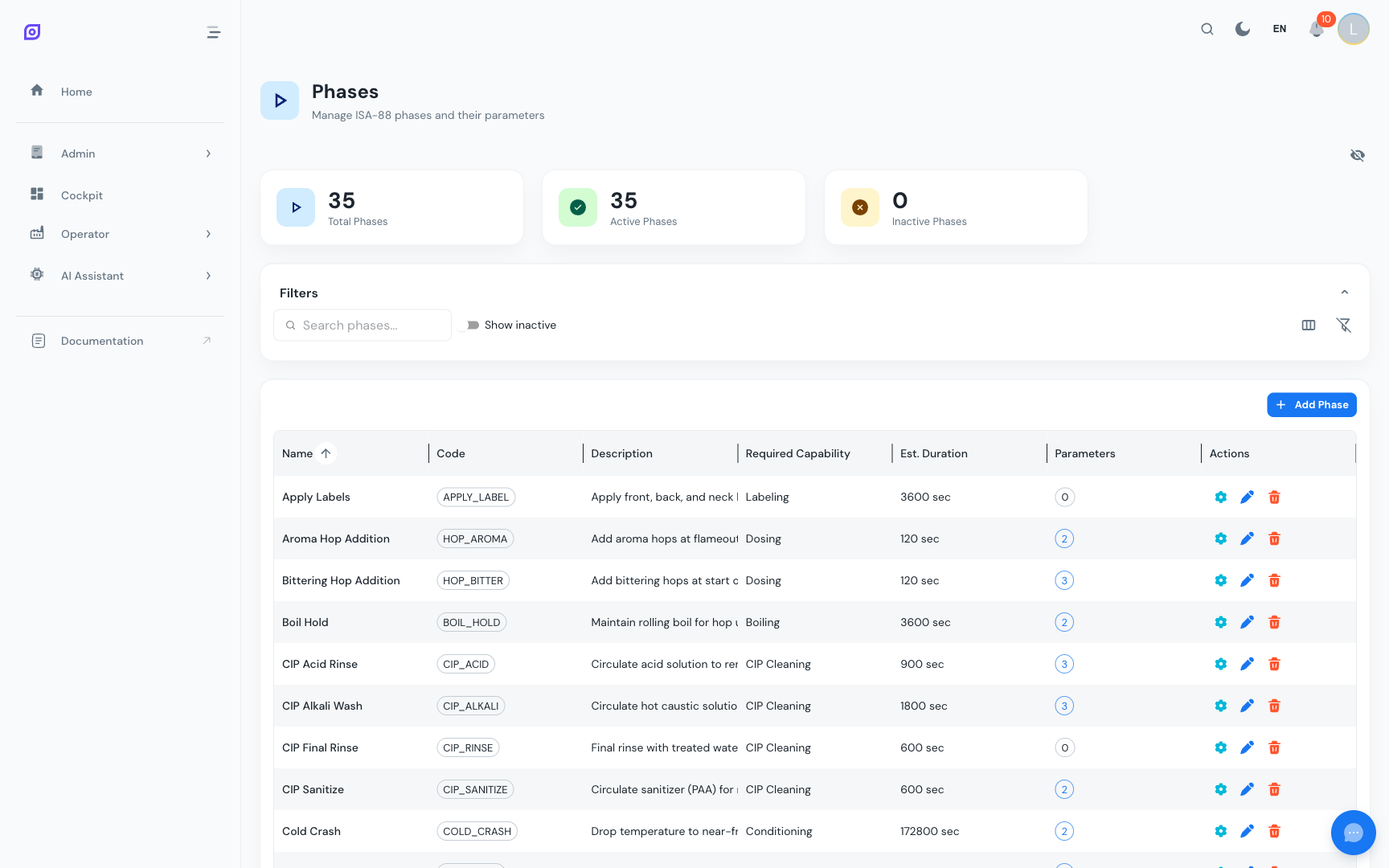
Phases are the smallest controllable elements in the ISA-88 procedure hierarchy. Each phase represents a single action or control instruction, such as heating to a target temperature, agitating for a set duration, or dosing an ingredient.
Phases are the foundation of all procedures. They are composed into Operations, which in turn build up to Unit Procedures and Batch Procedures.
Page layout
The Phases page (Admin > Procedures > Phases) displays:
- Dashboard cards: total, active, and inactive phase counts
- Filter bar: search by name/code/description, toggle inactive visibility, column visibility controls
- Data grid: sortable, filterable table of all phases with inline actions
Phase fields
| Field | Required | Description |
|---|---|---|
| Name | Yes | Display name (max 255 characters). Shown in the grid and when selecting phases in operations. |
| Code | Yes | Unique short identifier (max 50 characters), e.g., HEAT, MIX, DOSE. Used for programmatic references and recipe mappings. |
| Description | No | Longer explanation of what the phase does (max 1000 characters). |
| Estimated Duration | No | Expected duration in seconds. Used for scheduling and planning estimates. |
| Required Capability | No | An equipment capability that the equipment must have to execute this phase (e.g., "Heating", "Agitation"). |
| Active | Yes | Whether the phase is available for use. Inactive phases are hidden by default but preserved for traceability. |
Creating a Phase
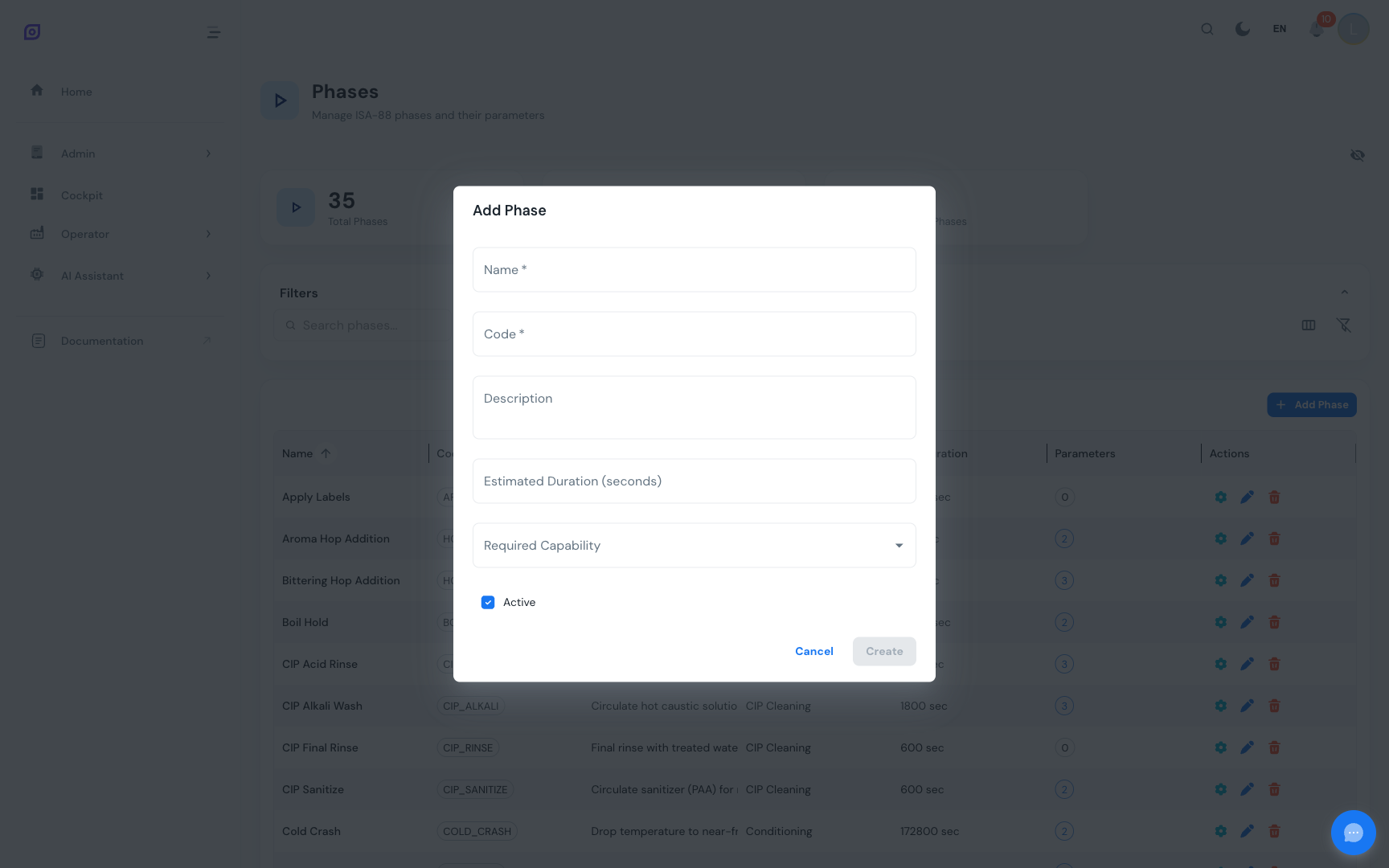
- Click the Add Phase button above the data grid
- Fill in the required fields (Name and Code)
- Optionally set the duration, required capability, and description
- Click Create
:::tip Naming convention
Use short, descriptive codes that are easy to identify across the system. Common patterns: HEAT, MIX, HOLD, DOSE, DRAIN, RINSE, FILL. The code must be unique across all phases.
:::
Editing a Phase
Click the edit button (blue pencil icon) on any phase row. The same form opens pre-filled with the current values. Modify the fields you need and click Update.
Deleting a Phase
Click the delete button (red trash icon) on a phase row. A confirmation dialog appears. Deleting a phase will fail if it is still linked to any operations.
:::info Soft delete vs. hard delete If you want to retire a phase without removing it from the system, uncheck the Active checkbox instead of deleting it. Inactive phases remain in the database and preserve historical references, but they cannot be added to new operations. :::
Phase parameters
Parameters make phases configurable. Instead of hardcoding "heat to 85 degrees", you define a "Target Temperature" parameter with a default value, min/max constraints, and a unit of measure. Recipes then override these defaults for each specific product.
Managing parameters
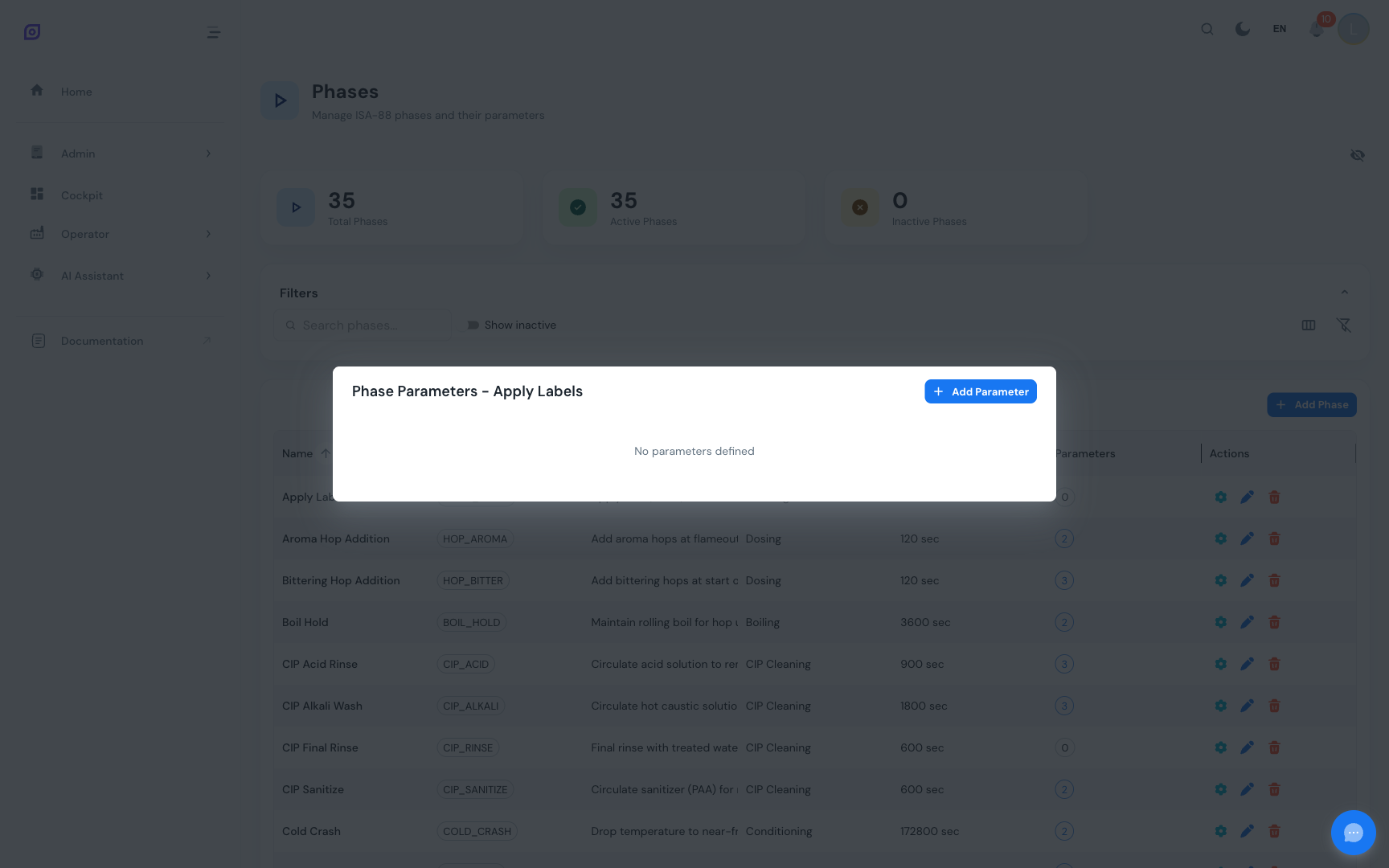
- Click the settings icon (gear) on a phase row to open the Parameters dialog
- The dialog shows all existing parameters for that phase in a data grid
- Click Add Parameter to create a new one, or use the edit/delete icons on existing parameters
Parameter Fields
| Field | Required | Description |
|---|---|---|
| Name | Yes | Display name (max 255 characters), e.g., "Target Temperature" |
| Code | Yes | Unique code within this phase (max 50 characters), e.g., target_temp |
| Data Type | Yes | One of: numeric, text, boolean, enum |
| Unit | No | Unit of measure from the UOM configuration, e.g., degC, RPM, seconds |
| Default Value | No | The value used when no recipe override is provided |
| Min Value | No | Minimum allowed value (applies to numeric types) |
| Max Value | No | Maximum allowed value (applies to numeric types) |
| Required | Yes | Whether a value must always be provided (default: true) |
Data Types
| Type | Use case | Example |
|---|---|---|
numeric | Temperatures, speeds, durations, quantities | Target Temperature = 85 |
text | Free-form instructions or labels | Operator Note = "Check seal before starting" |
boolean | On/off toggles | Pre-rinse Required = true |
enum | Fixed set of choices | Agitation Mode = "Low" / "Medium" / "High" |
:::tip Constraints prevent errors Always set min and max values for numeric parameters. This prevents operators or recipe authors from accidentally entering out-of-range values that could damage equipment or produce defective products. :::
Filtering and Search
- Search: type in the search field to filter by name, code, or description
- Show Inactive: toggle the switch to include inactive phases in the grid
- Column Visibility: click the column icon to toggle between compact view (fewer columns) and full view (all columns including created/updated dates and active status)
- Clear Filters: click the filter-off icon to reset all filters and column settings
Grid Columns
| Column | Description |
|---|---|
| Name | Phase display name (bold text) |
| Code | Unique code shown as a chip |
| Description | Optional description text |
| Capability | Required equipment capability name |
| Duration | Estimated duration in seconds |
| Parameters | Count of defined parameters (chip with count) |
| Status | Active/Inactive status chip |
| Actions | Settings (parameters), Edit, Delete buttons |
The Created At and Updated At columns are available in full-column mode.
Best Practices
- Keep phases atomic: each phase should represent a single controllable action. If a phase does two things (e.g., "heat and mix"), consider splitting it into two separate phases.
- Use parameters generously: any value that might change between products or batches should be a parameter rather than part of the phase definition.
- Set capabilities: linking phases to equipment capabilities ensures that when a recipe is executed, the system can validate that the selected equipment supports all required phases.
- Estimate durations: even rough duration estimates help with production scheduling and planning.
Related Pages
- Operations — compose phases into ordered operation sequences
- Batch Model (ISA-88) — understand the full ISA-88 hierarchy
- Recipes — override phase parameters with product-specific values
- Equipment — configure equipment capabilities that phases reference
Prerequisites
- Procedures Overview
- Introduction — get the overall picture of OpSee