Operations
An operation is an ordered set of phases that accomplishes a specific task within a unit procedure. Operations represent the major steps in a process, such as "Heat and Mix", "Prepare Ingredients", or "Clean In Place".
Operations sit at the third level of the ISA-88 procedure hierarchy:
Page layout
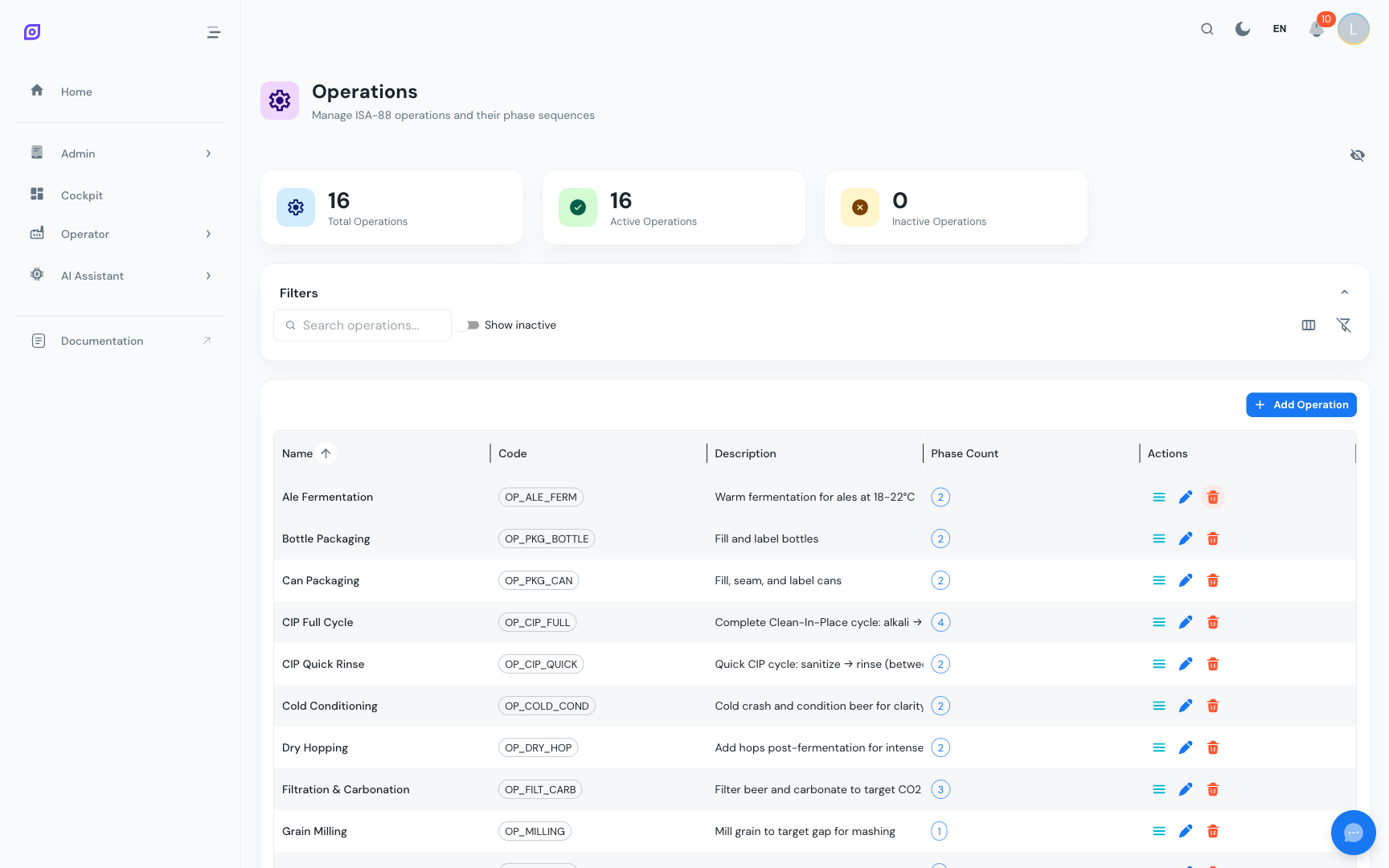
The Operations page (Admin > Procedures > Operations) displays:
- Dashboard cards: total, active, and inactive operation counts
- Filter bar: search, inactive toggle, column visibility controls
- Data grid: all operations with their phase counts and inline actions
Operation fields
| Field | Required | Description |
|---|---|---|
| Name | Yes | Display name (max 255 characters) |
| Code | Yes | Unique short identifier (max 50 characters), e.g., HEAT_MIX, CIP_RINSE |
| Description | No | Longer explanation of what the operation accomplishes (max 1000 characters) |
| Active | Yes | Whether the operation is available for use in unit procedures |
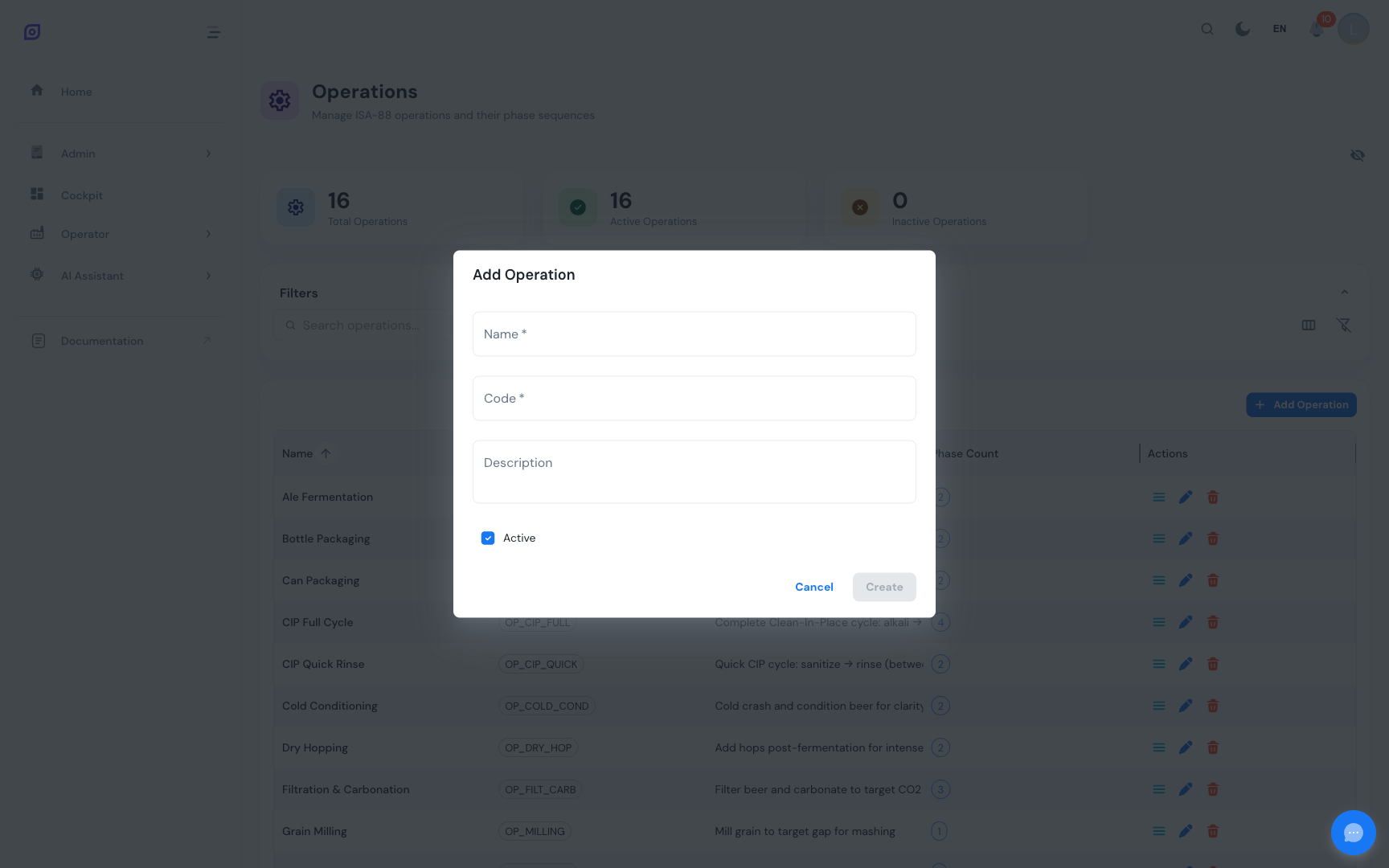
Creating an Operation
- Click Add Operation above the data grid
- Enter the Name and Code (both required)
- Optionally add a description
- Click Create
Managing phases within an operation
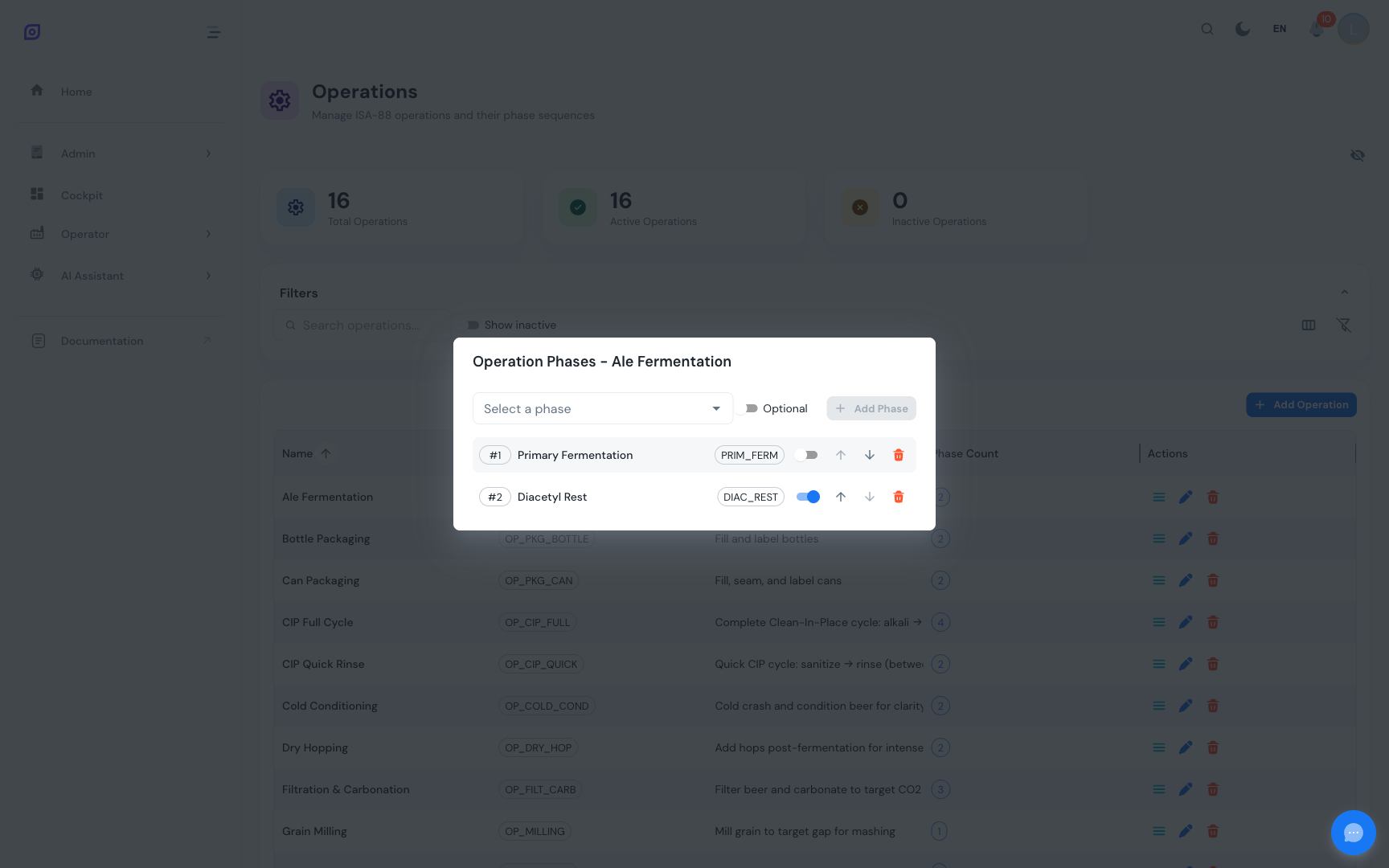
The core purpose of an operation is to arrange phases in a specific sequence. Click the list icon on an operation row to open the Manage Phases dialog.
Adding a Phase
- Select a phase from the dropdown (only active phases not already linked are shown)
- Optionally toggle the Optional switch if the phase is not mandatory
- Click Add
The phase is appended at the end of the sequence with the next available sequence number.
Reordering phases
Use the up arrow and down arrow buttons on each phase row to change its position in the sequence. The sequence order determines the execution order of phases within the operation.
Removing a Phase
Click the red trash icon on a phase row to remove it from the operation. This does not delete the phase itself; it only removes the link.
Optional Phases
Toggle the switch on a phase row to mark it as optional or required. Optional phases may be skipped during execution depending on the recipe or production order configuration.
:::tip Reusable phases The same phase can be used in multiple operations. For example, a "Rinse" phase might appear in both "Pre-Clean" and "Post-Clean" operations. Each operation maintains its own sequence order independently. :::
Editing an Operation
Click the edit button (blue pencil icon) on any operation row. Update the name, code, description, or active status and click Update.
Deleting an Operation
Click the delete button (red trash icon). A confirmation dialog appears. Deleting will fail if the operation is still linked to any unit procedures.
:::info Prefer deactivation over deletion If an operation is no longer needed but has historical references, set it to inactive instead of deleting it. Inactive operations are preserved in the system but hidden from selection dropdowns. :::
Grid Columns
| Column | Description |
|---|---|
| Name | Operation display name (bold text) |
| Code | Unique code shown as a chip |
| Description | Optional description text |
| Phases | Count of linked phases (chip) |
| Status | Active/Inactive chip |
| Actions | Manage Phases, Edit, Delete buttons |
The Created At and Updated At columns are available in full-column mode.
Phase Sequence Example
Here is an example of the "Heat and Mix" operation with its phase sequence:
| # | Phase | Code | Optional |
|---|---|---|---|
| 1 | Set Temperature | HEAT | No |
| 2 | Agitate | MIX | No |
| 3 | Hold | HOLD | Yes |
The sequence order (1, 2, 3) defines the execution order. Phase #3 (Hold) is marked as optional, meaning it can be skipped in certain recipe configurations.
Best Practices
- Name operations by purpose: use names that describe the goal (e.g., "Heat and Mix") rather than the mechanism (e.g., "Step 3").
- Keep operations focused: each operation should accomplish one meaningful task. If an operation has more than 6-8 phases, consider splitting it.
- Use optional phases sparingly: optional phases add flexibility but also complexity. Only mark a phase as optional if it genuinely varies between product runs.
- Use descriptive codes: codes like
HEAT_MIX,CIP_RINSE,FILLare easier to work with thanOP001,OP002.
Related Pages
- Phases — the building blocks that operations compose
- Unit Procedures — the next level up, grouping operations by equipment unit
- Batch Model (ISA-88) — the complete hierarchy explained
Prerequisites
- Procedures Overview
- Introduction — get the overall picture of OpSee