Getting Started with Procedures
This tutorial walks you through creating a complete procedure hierarchy for a simple example: pasteurized juice production. By the end, you will have built all four ISA-88 levels.
Prerequisites
Before you begin, make sure you have:
- Access to the Admin > Procedures section in OpSee
- (Optional) Equipment classes configured, if you want to link unit procedures to specific equipment types
- (Optional) Equipment capabilities configured, if you want to link phases to required capabilities
- (Optional) Units of measure configured, if you want to assign units to phase parameters
Step 1 — Create Phases
Phases are the smallest building blocks. Start by creating the individual actions your process needs.
- Navigate to Admin > Procedures > Phases
- Click the Add Phase button
- Fill in the form:
| Field | Example value | Description |
|---|---|---|
| Name | Set Temperature | Display name for the phase |
| Code | HEAT | Unique short code (used for identification) |
| Description | Heat the tank to target temperature | Optional longer description |
| Duration (seconds) | 300 | Estimated duration (optional) |
| Required Capability | Heating | Equipment capability needed (optional) |
| Active | Checked | Whether the phase is available for use |
- Click Create
Repeat this to create a few more phases for our example:
| Name | Code | Duration |
|---|---|---|
| Set Temperature | HEAT | 300s |
| Agitate | MIX | 600s |
| Hold | HOLD | 120s |
| Dose Ingredient | DOSE | 60s |
| Drain | DRAIN | 180s |
Add Parameters to a Phase
Phases become powerful when you add configurable parameters. For example, the "Set Temperature" phase needs a target temperature value.
- In the phases list, click the settings icon (gear) on the "Set Temperature" row
- The Parameters dialog opens. Click Add Parameter
- Fill in the parameter form:
| Field | Example value | Description |
|---|---|---|
| Name | Target Temperature | Display name |
| Code | target_temp | Unique code within this phase |
| Data Type | numeric | One of: numeric, text, boolean, enum |
| Unit | degC | Unit of measure (from UOM configuration) |
| Default Value | 85 | Default when no recipe override is provided |
| Min Value | 20 | Minimum allowed value |
| Max Value | 150 | Maximum allowed value |
| Required | Checked | Whether a value must be provided |
- Click Create
:::tip Add parameters to each phase
Add an "Agitation Speed" parameter (code: agit_speed, unit: RPM) to the Agitate phase, and a "Hold Duration" parameter (code: hold_time, unit: seconds) to the Hold phase. These parameters will later be overridden by recipes for specific products.
:::
Step 2 — Create Operations
Operations group phases into meaningful steps. An operation defines an ordered sequence of phases.
- Navigate to Admin > Procedures > Operations
- Click Add Operation
- Fill in the form:
| Field | Example value |
|---|---|
| Name | Heat and Mix |
| Code | HEAT_MIX |
| Description | Heat the tank and agitate until homogeneous |
- Click Create
Link Phases to the Operation
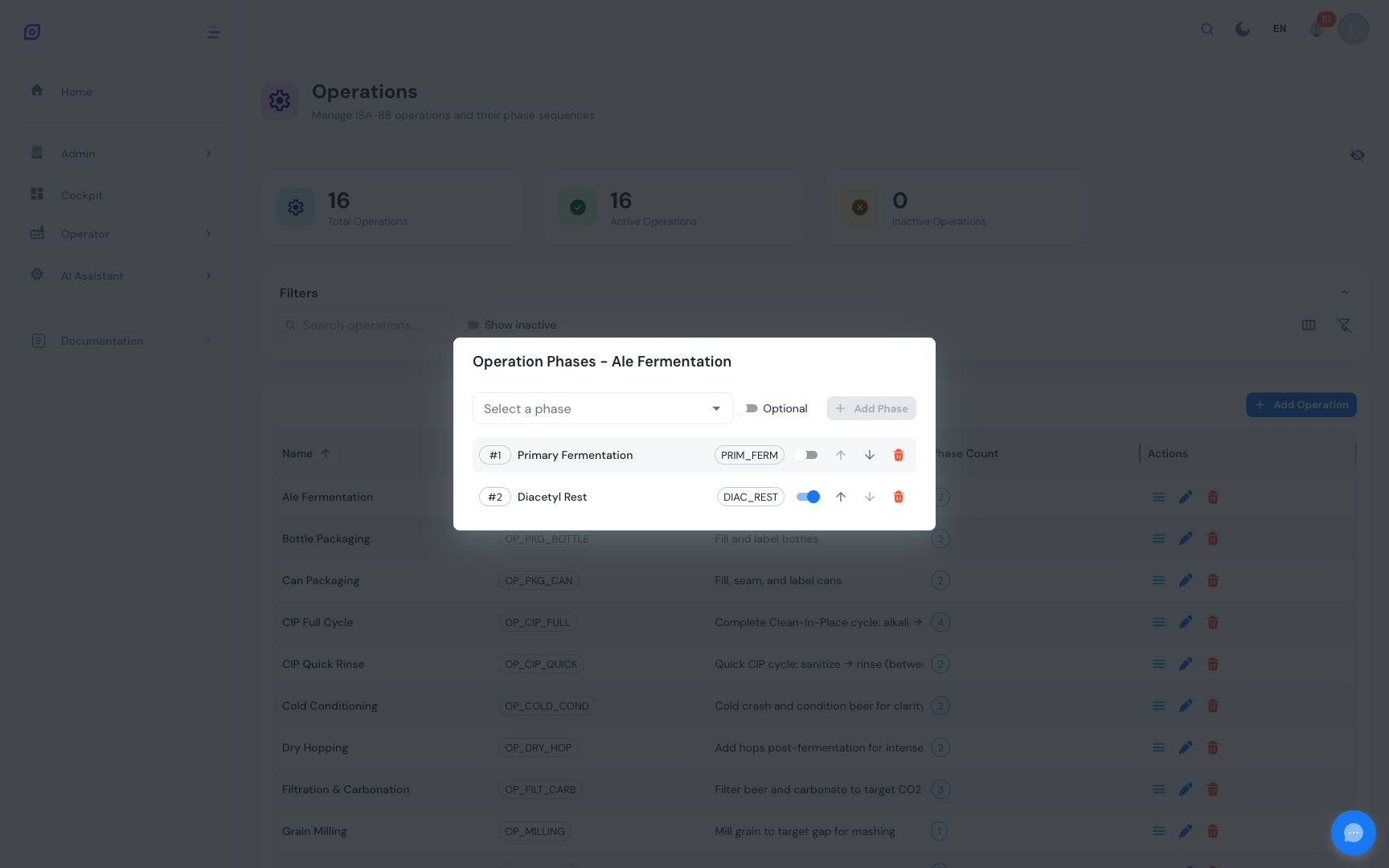
- Click the list icon on the "Heat and Mix" row to open the Manage Phases dialog
- Select "Set Temperature" from the dropdown and click Add
- Select "Agitate" and click Add
- Select "Hold" and click Add
The phases appear in sequence order. Use the arrow buttons to reorder them if needed. You can also toggle phases as optional using the switch.
Create a second operation for our example:
| Name | Code | Phases |
|---|---|---|
| Heat and Mix | HEAT_MIX | Set Temperature > Agitate > Hold |
| Prepare Ingredients | PREP_INGR | Dose Ingredient > Agitate |
Step 3 — Create Unit Procedures
Unit procedures group operations that run on a single equipment unit. They can optionally be linked to an equipment class.
- Navigate to Admin > Procedures > Unit Procedures
- Click Add Unit Procedure
- Fill in the form:
| Field | Example value |
|---|---|
| Name | Mixing Process |
| Code | MIX_PROC |
| Description | Complete mixing process on the mixing tank |
| Equipment Class | Mixing Tank (optional) |
- Click Create
Link Operations to the Unit Procedure
- Click the list icon on the "Mixing Process" row
- Add "Prepare Ingredients" first, then "Heat and Mix"
- Reorder with arrow buttons if needed
Create the unit procedures for our full example:
| Name | Code | Equipment Class | Operations |
|---|---|---|---|
| Mixing Process | MIX_PROC | Mixing Tank | Prepare Ingredients > Heat and Mix |
| Filling Process | FILL_PROC | Filler | (add filling operations) |
Step 4 — Create the Batch Procedure
The batch procedure ties everything together as the top-level process.
- Navigate to Admin > Procedures > Batch Procedures
- Click Add Batch Procedure
- Fill in the form:
| Field | Example value |
|---|---|
| Name | Juice Production |
| Code | JUICE_PROD |
| Description | Complete juice production process from mixing to filling |
- Click Create
Link Unit Procedures
- Click the list icon on the "Juice Production" row
- Add "Mixing Process" first, then "Filling Process"
- Use the parallel execution toggle if unit procedures can run simultaneously on different equipment
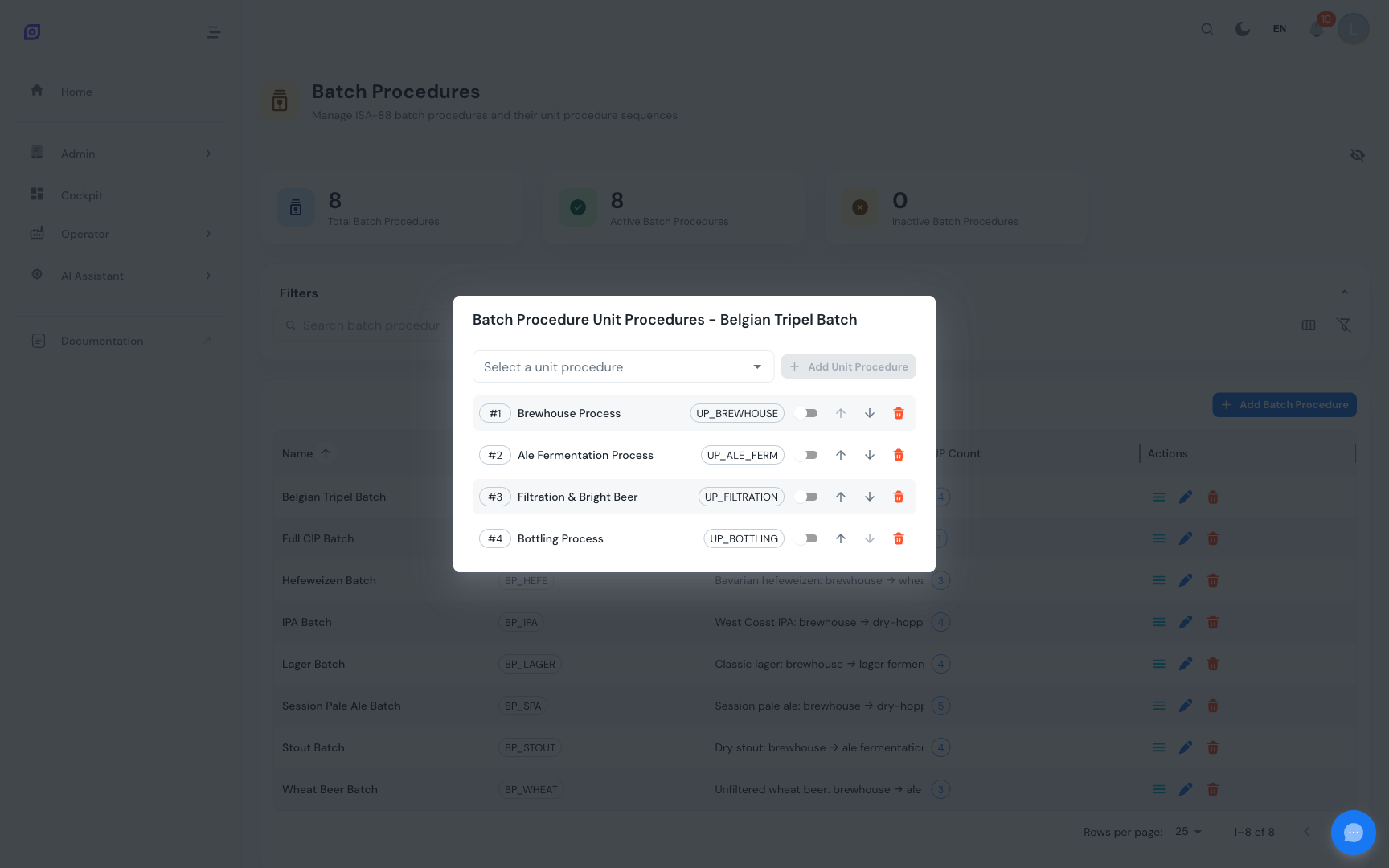
:::info Parallel execution The "Can Run Parallel" toggle on each unit procedure link indicates whether it can execute at the same time as other unit procedures in the batch. This is useful when different equipment units can operate independently (e.g., mixing and pasteurizing on separate tanks). :::
The Complete Hierarchy
Here is what we built:
Next steps
- Add parameters to all your phases so recipes can override specific setpoints
- Create recipes that reference this batch procedure and provide product-specific values — see Recipes
- Link to equipment by setting equipment classes on unit procedures and capabilities on phases — see Equipment
- Read the detailed reference pages for each level: Phases, Operations, Unit Procedures, Batch Procedures
Related
- Batch Model (ISA-88)
- Recipes — complementary module