Batch Procedures
A batch procedure is the top-level process definition in the ISA-88 procedure hierarchy. It represents the complete set of steps required to produce a batch or product, composed of unit procedures that may run sequentially or in parallel.
Example: A "Juice Production" batch procedure includes unit procedures for mixing, pasteurizing, and filling, each running on its own equipment unit.
Batch procedures are referenced by Recipes, which provide product-specific parameter values and material formulas. A Production Order then executes a recipe on specific equipment.
Page layout
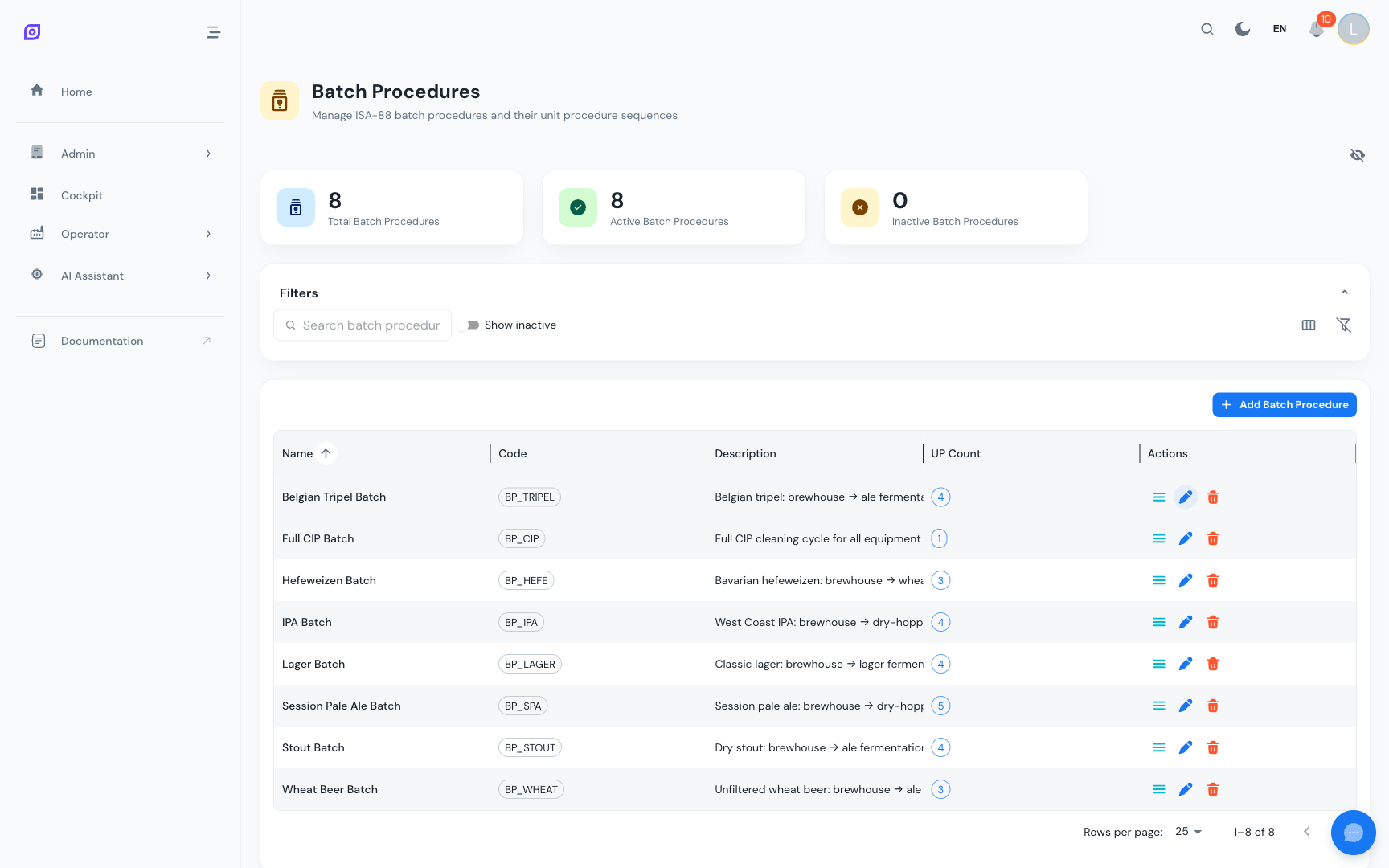
The Batch Procedures page (Admin > Procedures > Batch Procedures) displays:
- Dashboard cards: total, active, and inactive batch procedure counts
- Filter bar: search, inactive toggle, column visibility controls
- Data grid: all batch procedures with their unit procedure counts and inline actions
Batch procedure fields
| Field | Required | Description |
|---|---|---|
| Name | Yes | Display name (max 255 characters) |
| Code | Yes | Unique short identifier (max 50 characters), e.g., JUICE_PROD, BEER_BREW |
| Description | No | Longer explanation of the overall process (max 1000 characters) |
| Active | Yes | Whether the batch procedure is available for use in recipes |
Creating a Batch Procedure
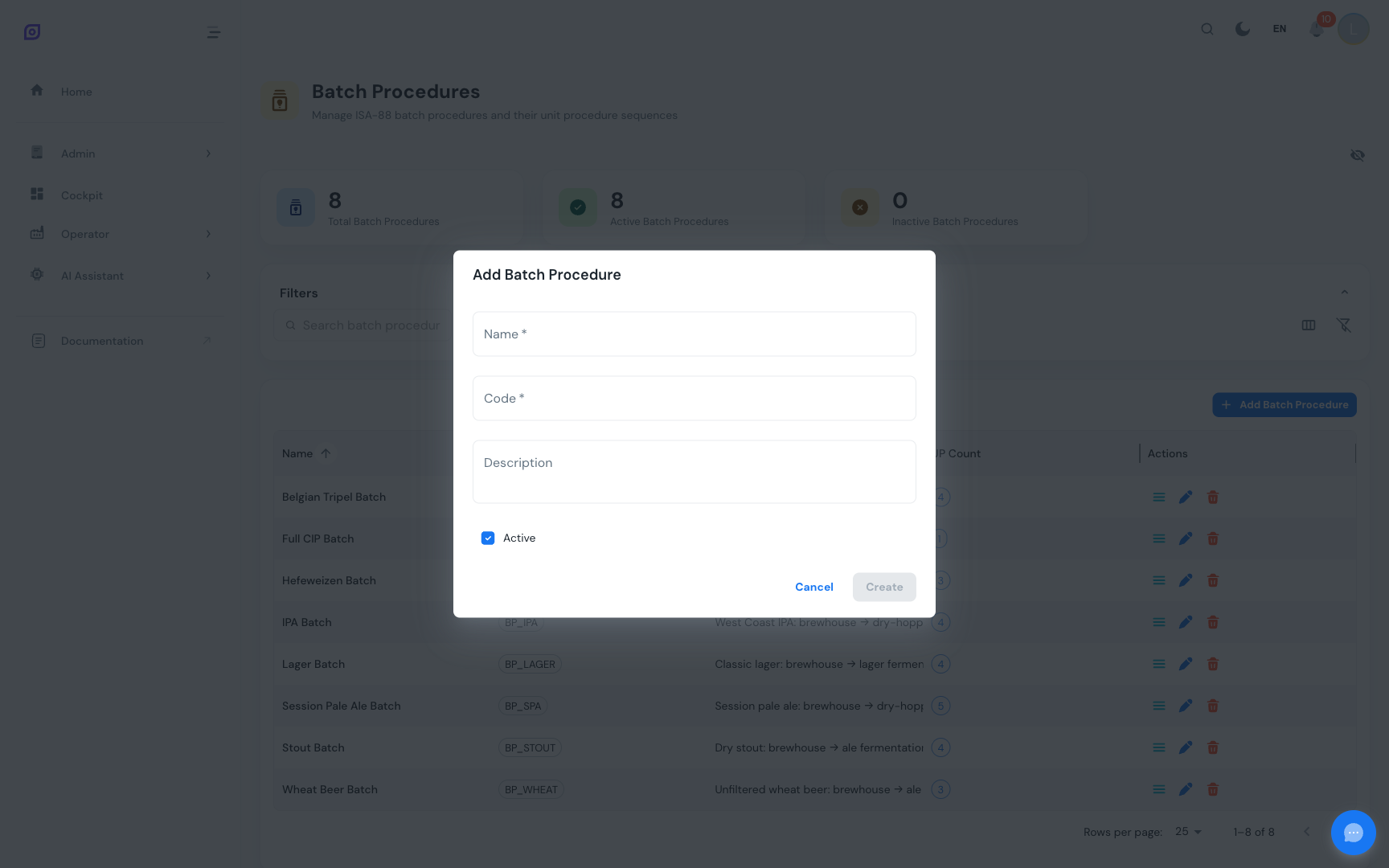
- Click Add Batch Procedure above the data grid
- Enter the Name and Code (both required)
- Optionally add a description
- Click Create
Managing unit procedures
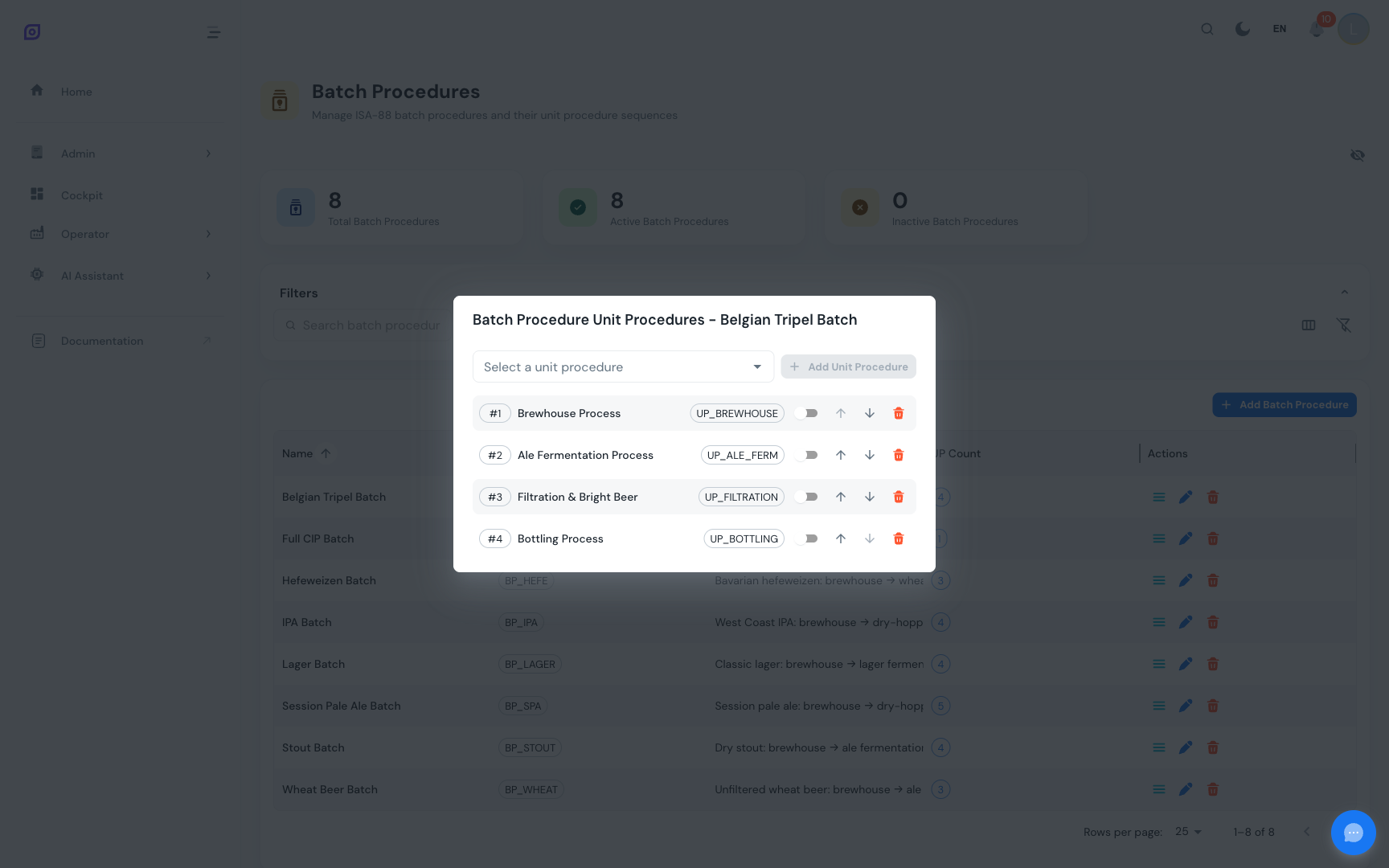
Click the list icon on a batch procedure row to open the Manage Unit Procedures dialog. This is where you assemble the complete process from unit procedures.
Adding a Unit Procedure
- Select a unit procedure from the dropdown (only active unit procedures not already linked are shown)
- Click Add
The unit procedure is appended at the end of the sequence.
Reordering unit procedures
Use the up arrow and down arrow buttons to change the execution order.
Parallel Execution
Each unit procedure link has a "Can Run Parallel" toggle (switch). When enabled, the unit procedure may execute simultaneously with other unit procedures in the batch, rather than waiting for the previous one to complete.
| Scenario | Parallel Setting | Behavior |
|---|---|---|
| Mixing then Filling | Both off | Filling waits until Mixing completes |
| Mixing + Pasteurizing | Both on | Both start at the same time on different equipment |
| Mixing, then Filling + Labeling | Mixing off, Filling + Labeling on | Filling and Labeling start together after Mixing finishes |
:::tip When to use parallel execution Enable parallel execution when unit procedures run on different equipment units and have no material dependency between them. For example, preparing packaging materials can run in parallel with the main mixing process. :::
Removing a Unit Procedure
Click the red trash icon to unlink a unit procedure. This does not delete the unit procedure itself.
Editing a Batch Procedure
Click the edit button (blue pencil icon) to modify name, code, description, or active status.
Deleting a Batch Procedure
Click the delete button (red trash icon). A confirmation dialog appears.
:::info Impact of deletion Deleting a batch procedure may fail if it is referenced by existing recipes. Deactivate the batch procedure instead if you want to retire it while preserving recipe history. :::
Grid Columns
| Column | Description |
|---|---|
| Name | Batch procedure display name (bold text) |
| Code | Unique code shown as a chip |
| Description | Optional description text |
| Unit Procedures | Count of linked unit procedures (chip) |
| Status | Active/Inactive chip |
| Actions | Manage Unit Procedures, Edit, Delete buttons |
The Created At and Updated At columns are available in full-column mode.
Complete Example
Here is a "Juice Production" batch procedure with its full hierarchy:
Connecting to Recipes
Once your batch procedure is complete, the next step is to create a Recipe that references it. The recipe provides:
- Formula: the bill of materials (quantities of each ingredient)
- Parameter overrides: product-specific values for phase parameters (e.g., temperature = 85 degrees C for orange juice, 72 degrees C for apple juice)
- Equipment requirements: which specific equipment to use
This separation means you can use the same "Juice Production" batch procedure for multiple juice recipes, only changing the parameters and materials.
Best Practices
- One batch procedure per process type: create separate batch procedures for fundamentally different processes (e.g., "Juice Production" vs. "Cleaning Process") rather than trying to make one procedure handle everything with optional steps.
- Use parallel execution wisely: only enable it when unit procedures are truly independent. Dependencies between units (e.g., mixing must finish before filling can start) should be enforced by sequential ordering.
- Keep the hierarchy manageable: a typical batch procedure has 2-5 unit procedures. If you need more, consider whether some can be grouped.
- Version through naming: if a process fundamentally changes, consider creating a new batch procedure (e.g.,
JUICE_PROD_V2) rather than modifying the existing one, especially if recipes already reference it.
Related Pages
- Unit Procedures — the building blocks that batch procedures compose
- Operations — the steps within each unit procedure
- Phases — the lowest-level actions with configurable parameters
- Recipes — product-specific configurations that reference batch procedures
- Batch Model (ISA-88) — the complete hierarchy explained
- Equipment — the physical model that procedures run on
Prerequisites
- Procedures Overview
- Introduction — get the overall picture of OpSee