Users
The Users page provides a built-in interface to manage Keycloak user accounts without leaving OpSee. From here, administrators can create accounts, assign roles and groups, reset passwords, and enable or disable users.
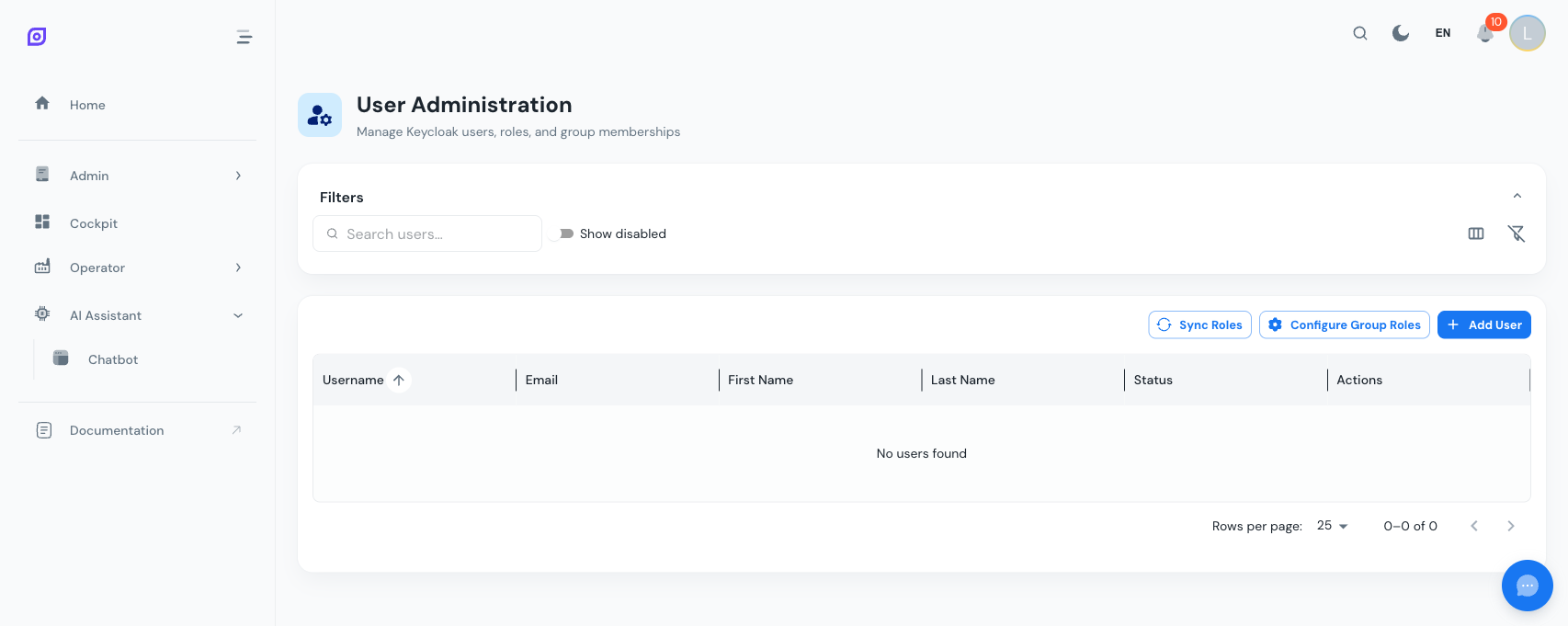
:::info Keycloak Integration OpSee delegates authentication and authorization to Keycloak. The Users page is a management frontend that communicates with Keycloak's Admin REST API through the OpSee backend. All changes made here are reflected immediately in Keycloak. :::
User grid
The Users page displays a DataGrid with the following columns:
| Column | Description |
|---|---|
| Username | The Keycloak login name |
| First name | User's first name |
| Last name | User's last name |
| Email address | |
| Enabled | Whether the account is active |
| Created | Account creation timestamp (hidden in compact view) |
Each row has action buttons for: Edit, Manage Roles, Manage Groups, Reset Password, and Delete.
Creating a User
- Click Add User
- Fill in the required fields:
- Username (must be unique)
- First name and Last name
- Password (with optional "Temporary" flag -- forces password change on first login)
- Click Create
The user is created in Keycloak and can immediately log in to OpSee (subject to role permissions).
Editing a User
Click the edit button (blue pencil) to modify a user's profile: username, name, email, and enabled status.
Managing roles
Roles control what a user can access in OpSee. Click the shield icon to open the roles dialog.
- View the user's currently assigned roles
- Add roles from the list of all available Keycloak realm roles
- Remove roles by deselecting them
:::tip Role Hierarchy OpSee uses Keycloak's role model. Roles can be simple (flat) or composite (a role that includes other roles). Check with your Keycloak administrator for the role structure specific to your deployment. :::
Group roles
Click the Configure Group Roles button in the toolbar to manage which roles are assigned to entire groups at once. This is more efficient than assigning roles user by user.
Managing groups
Groups let you organize users and assign roles at the group level. Click the group icon to open the groups dialog for a user.
- View the user's current group memberships
- Add the user to additional groups
- Remove the user from groups
Resetting passwords
Click the lock icon to reset a user's password:
- Enter the new password
- Check Temporary if the user should be forced to change the password on next login
- Click Reset Password
Enabling and Disabling Users
- Disable a user by editing their profile and toggling the Enabled switch off. Disabled users cannot log in but their account data is preserved.
- Enable a user by toggling the switch back on. Use the Show Disabled filter to see disabled accounts.
Deleting a User
Click the delete button (red trash icon) and confirm. This permanently removes the Keycloak account. The deletion cannot be undone.
Deleting a Keycloak user does not automatically delete the linked operator in OpSee. The operator record remains but its Keycloak link becomes stale. Clean up operator records separately in the Operators page if needed.
Filtering
- Search bar -- filter by username, name, or email
- Show Disabled toggle -- include disabled accounts in the list
- Column visibility -- switch between compact and full column views
Users vs. Operators
It is important to understand the distinction:
| Concept | Purpose | Where managed |
|---|---|---|
| User (Keycloak) | Application login, role-based access control | Users page |
| Operator | Shop-floor identity, production data attribution | Operators page |
An operator can be linked to a user account, but they are separate entities. You might have:
- Operators without user accounts (shop-floor workers using shared terminals)
- User accounts without operators (managers who view dashboards but do not operate machines)
- Linked operator+user (an operator who also logs in to OpSee with their own account)
Related Pages
- Operators -- link operators to Keycloak user accounts
- Getting Started -- personnel setup tutorial
Prerequisites
- Personnel Overview
- Introduction — get the overall picture of OpSee