Shifts
Shifts define the time windows during which your factory operates. They are the building blocks of schedules -- each schedule entry references a shift to set its start and end times.
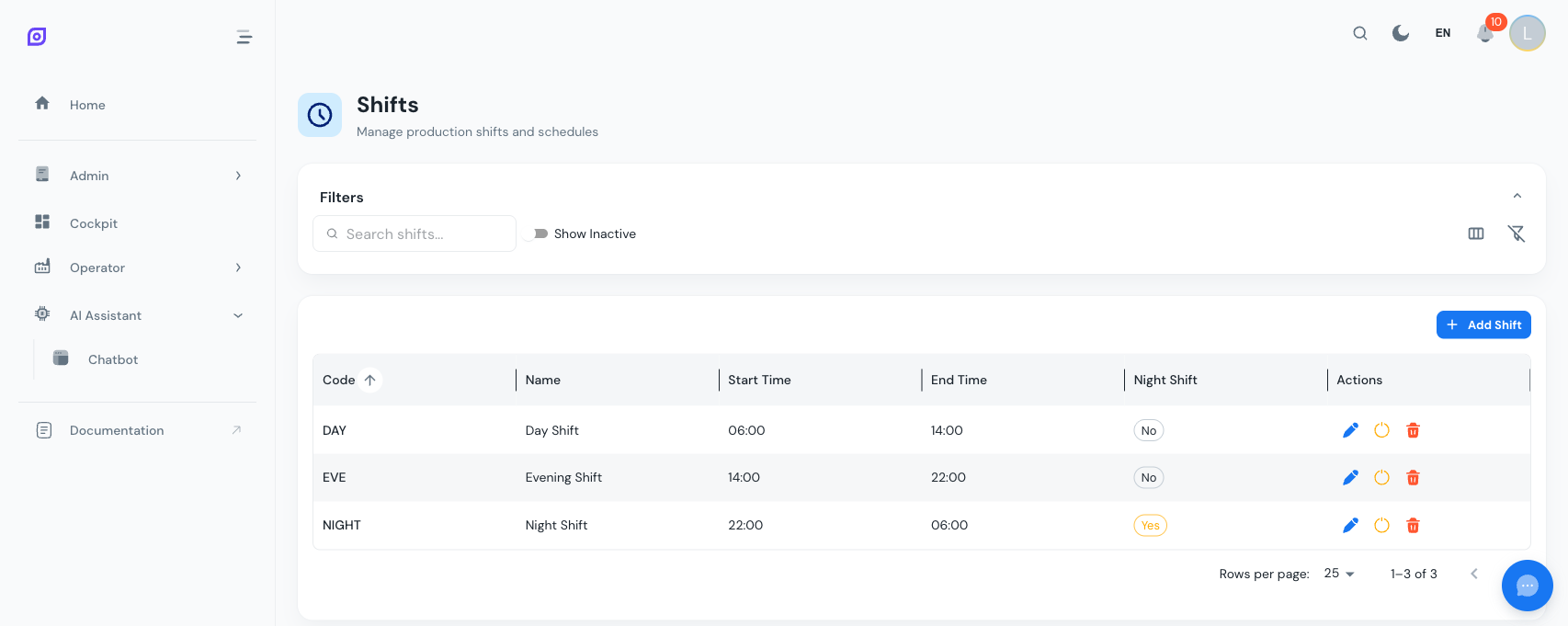
Shift fields
| Field | Required | Description |
|---|---|---|
| Code | Yes | Short unique identifier (e.g., MOR, AFT, NGT) |
| Name | No | Human-readable label, translatable across languages |
| Start time | Yes | Time the shift begins (HH:mm format) |
| End time | Yes | Time the shift ends (HH:mm format) |
| Color | No | Hex color for visual identification in calendars and charts |
Creating a Shift
- Navigate to Admin > Personnel > Shifts
- Click Add Shift
- Enter a Code and optionally a Name
- Set the Start time and End time
- Pick a Color (defaults to the OpSee primary blue
#1877F2) - Click Create
Common shift patterns
| Shift | Code | Start | End | Color suggestion |
|---|---|---|---|---|
| Morning | MOR | 06:00 | 14:00 | Green #4caf50 |
| Afternoon | AFT | 14:00 | 22:00 | Blue #1877F2 |
| Night | NGT | 22:00 | 06:00 | Purple #7b1fa2 |
| Day (2-shift) | DAY | 06:00 | 18:00 | Amber #ff9800 |
| Night (2-shift) | NGT | 18:00 | 06:00 | Indigo #3f51b5 |
Midnight-Crossing Shifts
When the end time is earlier than the start time (e.g., 22:00 to 06:00), OpSee automatically marks the shift as crosses midnight. This affects:
- Calendar display -- the shift entry spans two calendar days, showing correctly on both
- Active shift detection -- the system correctly identifies the shift as active past midnight
- Schedule entries -- when you select such a shift in a schedule entry, the end date is automatically set to the next day
The "Crosses Midnight" indicator is read-only -- it is computed automatically from the start and end times. You do not need to set it manually.
Shift colors in the UI
Shift colors appear in:
- The Shifts grid as a colored circle
- The Schedule calendar as the left border and background tint of each entry
- OEE dashboards and downtime timelines for visual shift identification
Choose distinct colors for each shift so they are easy to tell apart at a glance.
Deactivate vs. Delete
| Action | Effect |
|---|---|
| Deactivate | Hides the shift from selection dropdowns in schedule entries. Existing schedule entries referencing this shift are not affected. |
| Delete | Permanently removes the shift. Use with caution if schedule entries reference it. |
Prefer deactivating over deleting. Deactivated shifts can be restored, and historical schedule data remains intact.
Translations
Shift names support OpSee's multi-language system. When you create or edit a shift, the name is stored in the current UI language. Users viewing OpSee in a different language will see the translated name if a translation exists, or fall back to the English name.
Related pages
- Schedules -- shifts are used as building blocks for schedule entries
- Getting Started -- tutorial covering shift creation as the first setup step
Prerequisites
- Personnel Overview
- Introduction — get the overall picture of OpSee