Schedules
Schedules are weekly calendars that combine shifts and crews into a timetable. Once a schedule is linked to an equipment item, OpSee can automatically determine which shift and crew are active at any moment -- powering OEE dashboards, downtime attribution, and production reports.
A schedule works at crew level. It says which crew is on which shift for a group of equipment; it never places an individual person on a specific machine. That happens on the Operator Assignment board, which uses the schedule to show the crew on duty as the starting point.
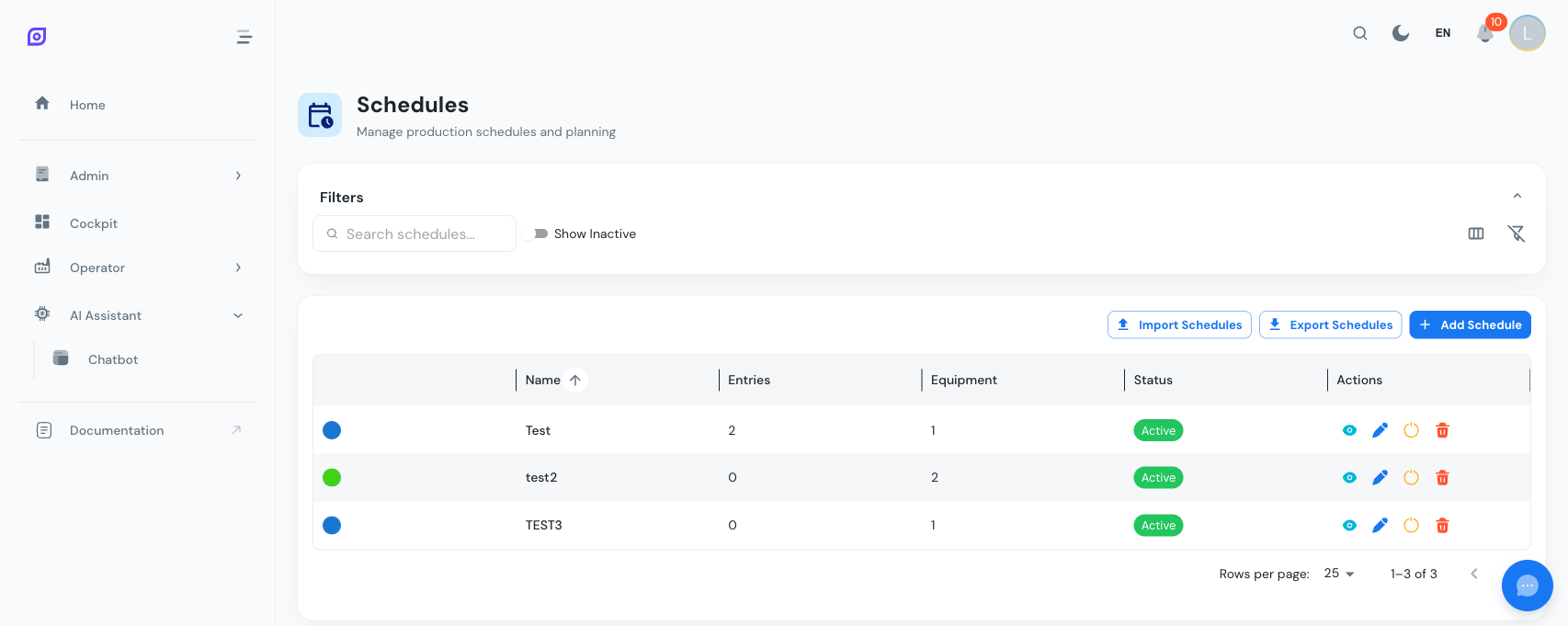
Schedule fields
| Field | Required | Description |
|---|---|---|
| Name | Yes | Descriptive name (e.g., Line 1 -- 3-Shift Rotation) |
| Description | No | Free-text notes |
| Color | No | Hex color for visual identification |
The grid also shows:
- Entry Count -- total number of shift entries in the schedule
- Equipment Count -- number of equipment items linked to this schedule
Creating a Schedule
- Navigate to Admin > Personnel > Schedules
- Click Add Schedule
- Enter a Name, pick a Color, and optionally add a Description
- Click Create
The schedule detail view
Click the eye icon on any schedule row to open the detail view. This page has three sections:
Header card
Edit the schedule's name, description, color, and active status directly. Click Save Changes to persist edits.
Weekly calendar
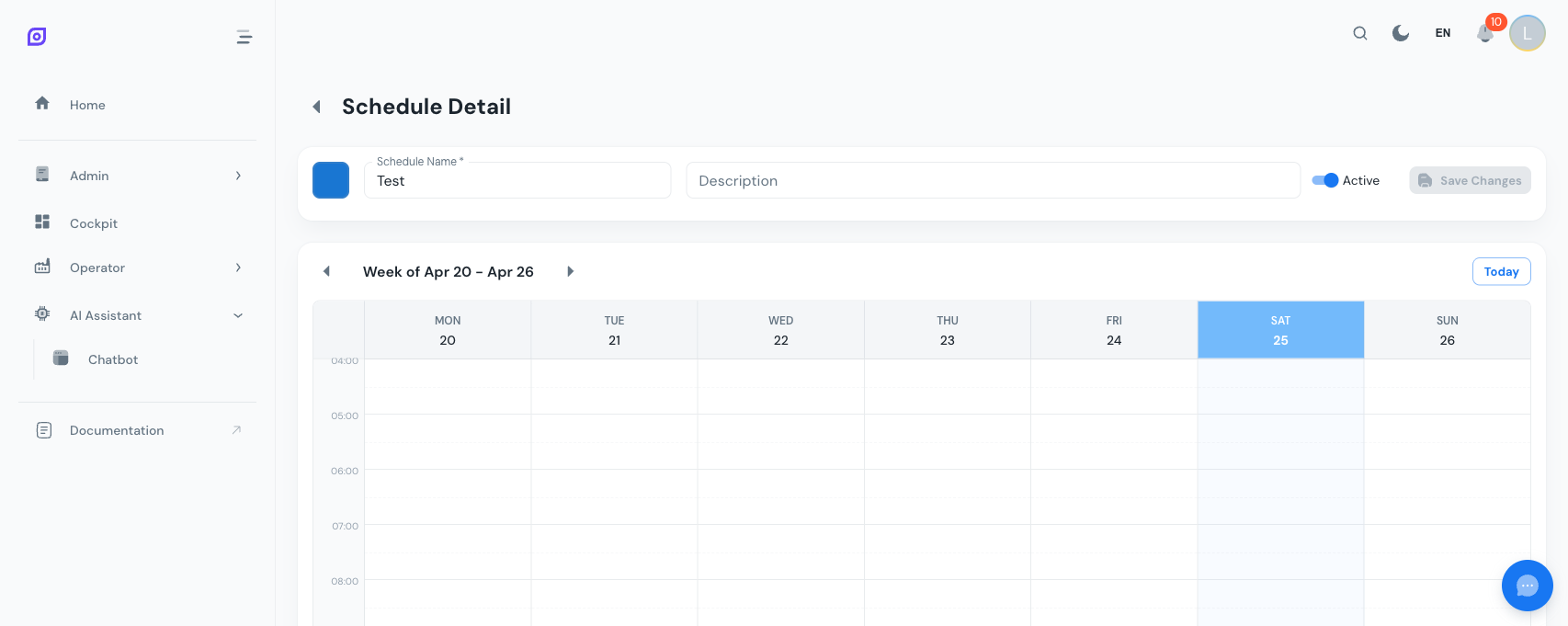
The calendar displays a full week (Monday to Sunday) with a 24-hour time grid. Features include:
- Hour grid lines with dashed half-hour markers
- Shift entries shown as colored blocks with the shift name, time range, and crew name
- Current time indicator (red line with dot) on today's column
- Week navigation with Previous/Next arrows and a Today button
- Auto-scroll to the earliest entry on page load
Adding an Entry
- Click on a day column in the calendar
- The entry editor dialog opens with the clicked date pre-filled
- Select a Shift -- the start and end times auto-fill from the shift definition
- Select a Crew (optional)
- Adjust the start/end datetimes if needed
- Click Create
:::info Time Mismatch Warning If you manually change the entry times to differ from the shift's defined times, an informational alert appears. This is fine for exceptions (e.g., a shortened shift) but worth noting for regular entries. :::
Editing an Entry
Click on any existing entry block in the calendar. The entry editor opens pre-filled with the current values. Make changes and click Update.
Stand-ins and trainees
An entry names a crew, never an individual. To bring in someone who is not a crew member for a shift, place them directly on the Operator Assignment board from the "Other operators" group. If the change lasts, add the person to the crew with validity dates instead (see Crews).
Deleting an Entry
In the entry editor dialog (when editing an existing entry), click the red Delete Entry button at the bottom-left, then confirm. Placements made on the Operator Assignment board for a shift that has not started yet are removed with it. A shift that has already started and has operators placed on it cannot be deleted; remove the placements first. Changing an entry's times trims the placements inside it to the new window.
Planning several weeks
Entries are real dates, not a repeating pattern, so a plant that plans crews for real would otherwise create them one by one. Copy week does it in bulk.
Open the week you want to use as the template and click Copy week in the calendar header. The button is disabled while the week on screen is empty -- there is nothing to copy. The dialog then asks two things:
- Repeat for how many weeks, between 1 and 52. The first copy lands on the week straight after the one you are viewing, and each further copy one week after the last.
- Crew rotation. Keep the same crews, or rotate them one week at a time. Rotation takes the crews of the template week in the order they first appear and moves each entry one place along that order every week, wrapping around at the end. In the usual three-crew, three-shift week -- one crew per shift, mornings first -- that is exactly the familiar rotation: the crew on mornings this week is on the next shift the week after. If a crew works more than one shift in the template week, it holds a single place in that order, so all of its entries move together.
A preview line shows at most how many entries will be created and the first and last week they land in. It is an upper bound: anything that would land on top of an entry you already have is skipped, so the result can be lower.
Unless you ask for a replace, a copy that would overlap an existing entry is skipped, never overwritten, and the result tells you how many were created and how many were skipped. Any overlap in time counts, whatever shift or crew it belongs to, so a single stray entry in a target week suppresses the copy that would have covered it.
Running the same copy twice therefore creates nothing the second time, which makes it safe to repeat if you are unsure whether it already ran. To copy over weeks that are already planned, tick Replace what is already planned in the dialog: the entries in the target weeks are removed first, so the copy has room to land. That is how you correct a copy made with the wrong rotation -- tick the box and copy again, rather than clearing the weeks by hand.
The checkbox is off every time the dialog opens, and while it is on the preview says that existing entries will be replaced instead of skipped. Entries that have already started and still carry operators are never removed; those weeks keep them and the copy skips over them as usual. A shift that starts before a target week but runs into it is not removed either, so it can still cause a skip.
Copy week copies the plan, not the people. Operator Assignment placements are not carried along; place operators on the new weeks from the Operator Assignment board once the entries exist.
Clearing a week
Clear week in the calendar header removes every entry of the week on screen in one action. It is disabled while the week is empty, and it asks for confirmation first, naming the week and how many entries it holds. The result says how many were actually removed, which is fewer when some were kept.
Two things survive a clear, and the result tells you when they did:
- An entry that has already started and still has operators placed on it is kept. The same rule protects it from a single delete in the entry editor, and for the same reason: removing it would erase a record of who actually worked. Remove the placements from the Operator Assignment board first if you really mean to delete it.
- Nothing outside the displayed week is touched, whatever it overlaps.
Clearing a future week removes the placements planned on it along with the entries, exactly as deleting those entries one by one would.
Linked equipment
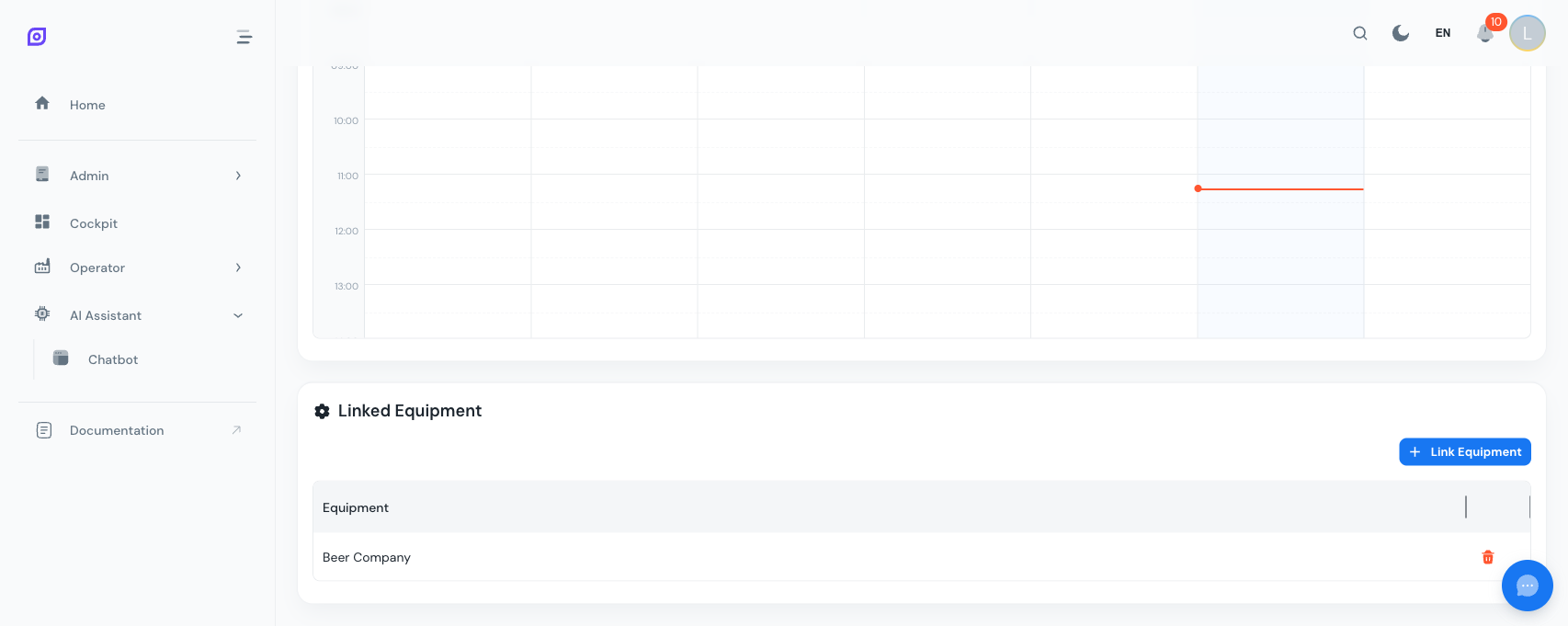
This section shows which equipment items use this schedule.
Linking Equipment
- Click Link Equipment
- Search for the equipment by name in the autocomplete
- Select the equipment -- it is linked immediately
Unlinking Equipment
Click the red trash icon next to the equipment you want to remove from this schedule.
Which schedule applies to a machine
You do not have to link every line one by one. A schedule linked to an area or a site covers everything below it. When several schedules could apply, the nearest one wins:
- A schedule linked to the machine itself.
- Otherwise, the schedule linked to the closest parent (line, area, site, enterprise).
- Otherwise, a plant-wide schedule (one with no linked equipment at all).
OEE shift and crew attribution, downtime classification, the window chips and the "On duty" group on the Operator Assignment board all use this same rule, so they never disagree.
Link only one schedule per equipment item. If you link a second one at the same level, OpSee warns you but does not block it. Both then count as covering the machine: active shift detection picks the one with the lowest id, and the Operator Assignment board flags the affected shift windows with a warning icon. Keep it unambiguous.
:::info Schedules without linked equipment A schedule with no linked equipment at all is treated as plant-wide: it applies to every equipment item that has no schedule of its own. An explicitly linked schedule always wins over a plant-wide one. :::
Active Shift Detection
This is the key feature powered by schedules. The API endpoint:
GET /api/personnel/schedules/active-shift?equipment_id=123×tamp=2024-03-15T10:30:00
Returns the shift and crew that are active for the given equipment at the specified timestamp (or now if omitted). This is used internally by:
- OEE dashboards to show shift-level breakdowns
- Downtime events to attribute downtime to the correct shift
- Production reports for per-shift/per-crew analysis
- Operator Assignment to offer the shift windows and the crew on duty for the selected equipment
Import and Export
The schedules list page includes Import and Export buttons for bulk operations:
- Export -- download schedule data for backup or transfer to another site
- Import -- upload schedule data from a file to populate entries in bulk
This is useful for multi-site deployments or seasonal schedule rotations.
Deactivate vs. Delete
| Action | Effect |
|---|---|
| Deactivate | Hides the schedule from active use. Equipment links remain but the schedule is no longer used for shift detection. |
| Delete | Permanently removes the schedule and all its entries. A dependency check shows the number of entries that will be cascade-deleted before you confirm. |
Example: 3-Shift Rotation
Here is a typical setup for a production line running three shifts, five days a week:
| Day | Morning (06--14) | Afternoon (14--22) | Night (22--06) |
|---|---|---|---|
| Monday | Team Alpha | Team Bravo | Team Charlie |
| Tuesday | Team Alpha | Team Bravo | Team Charlie |
| Wednesday | Team Alpha | Team Bravo | Team Charlie |
| Thursday | Team Alpha | Team Bravo | Team Charlie |
| Friday | Team Alpha | Team Bravo | Team Charlie |
Each cell represents one schedule entry with a shift and a crew assignment.
Related Pages
- Shifts -- define the time windows used in schedule entries
- Crews -- define the teams assigned to schedule entries
- Operator Assignment -- place the crew on duty on specific machines
- Getting Started -- full setup tutorial from shifts to schedule linking
Prerequisites
- Personnel Overview
- Introduction — get the overall picture of OpSee