Personnel
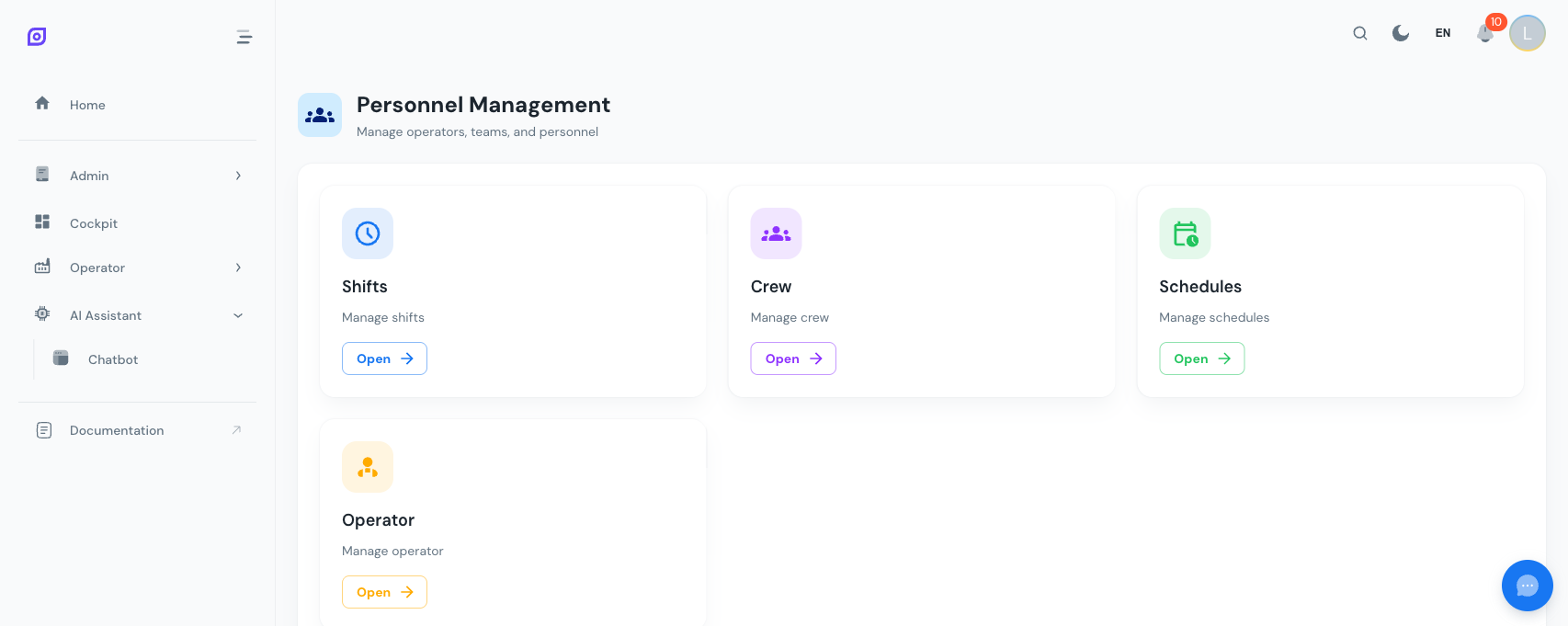 The Personnel hub with navigation cards for Operators, Shifts, Crews, Schedules, and Users.
The Personnel module is your central place to define who works, when they work, and what they have access to. It ties operators and crews to shifts and schedules, which OpSee then uses to attribute production data, downtime events, and OEE results to the right people at the right time.
Key features
- Operator management with badge numbers, skills, contact details, and Keycloak account linking
- Shift definitions with start/end times, color coding, and automatic midnight-crossing detection
- Crew composition by assigning operators to crews with configurable roles
- Schedule calendars with a weekly calendar view, shift+crew entries, and equipment assignment
- User administration for Keycloak accounts: create users, assign roles and groups, reset passwords
- Import/Export of schedule data for bulk planning across sites
- Active shift detection that automatically determines which shift is running on a given equipment at any point in time
- Operator Assignment board to place the operators on duty on the machines they work on, per shift
How it all fits together
- Operators are the individual people working on your shop floor.
- Shifts define time windows (e.g., Morning 06:00--14:00, Afternoon 14:00--22:00).
- Crews group operators together (e.g., "Team Alpha" with a lead and three operators).
- Schedules combine shifts and crews into a weekly calendar, then get linked to equipment.
- Operator Assignment places the individual people of the crew on duty on specific machines for a shift.
- Users are the Keycloak accounts that grant application access and permissions.
Three layers, one job each
| Layer | Question it answers | Granularity |
|---|---|---|
| Schedules (planning) | Which crew is on which shift, on which group of equipment? | Crew, per equipment group |
| Operator Assignment | Which person is at which machine during this shift? | Person, per machine |
| Qualified operators | Who is allowed to run this machine? | Person, per machine, no time |
Planning stays coarse on purpose. A schedule can be linked to many equipment items and never names a person or a machine. The Operator Assignment board is where people meet machines, and the qualified operator list only warns when someone unexpected is placed there.
Start with Shifts, then create Operators and Crews, and finally build Schedules. This bottom-up approach ensures every reference exists before you need it.
Quick start
- Navigate to Admin > Personnel from the sidebar
- Define shifts (Morning, Afternoon, Night) in the Shifts page
- Create operators with badge numbers and optional Keycloak links
- Build crews and add operators as members with roles
- Create a schedule, add shift+crew entries on the calendar, and link it to your equipment
Related modules
- Equipment — Assign personnel and schedules to equipment
- Production — See operator-level KPIs and shift performance
- Administration > Access Control — Manage Keycloak user accounts and roles
Learn more
| Page | What you will find |
|---|---|
| Getting Started | Step-by-step tutorial to set up personnel for a production line |
| Operators | Creating, editing, deactivating operators and linking Keycloak accounts |
| Shifts | Defining shift time ranges, colors, and midnight-crossing shifts |
| Crews | Grouping operators into crews with roles |
| Schedules | Building weekly calendars, managing entries, and linking equipment |
| Operator Assignment | Placing the operators on duty on specific machines, shift by shift |
| Users | Keycloak user administration: accounts, roles, groups, and passwords |
Prerequisites
- Introduction — get the overall picture of OpSee