Operators
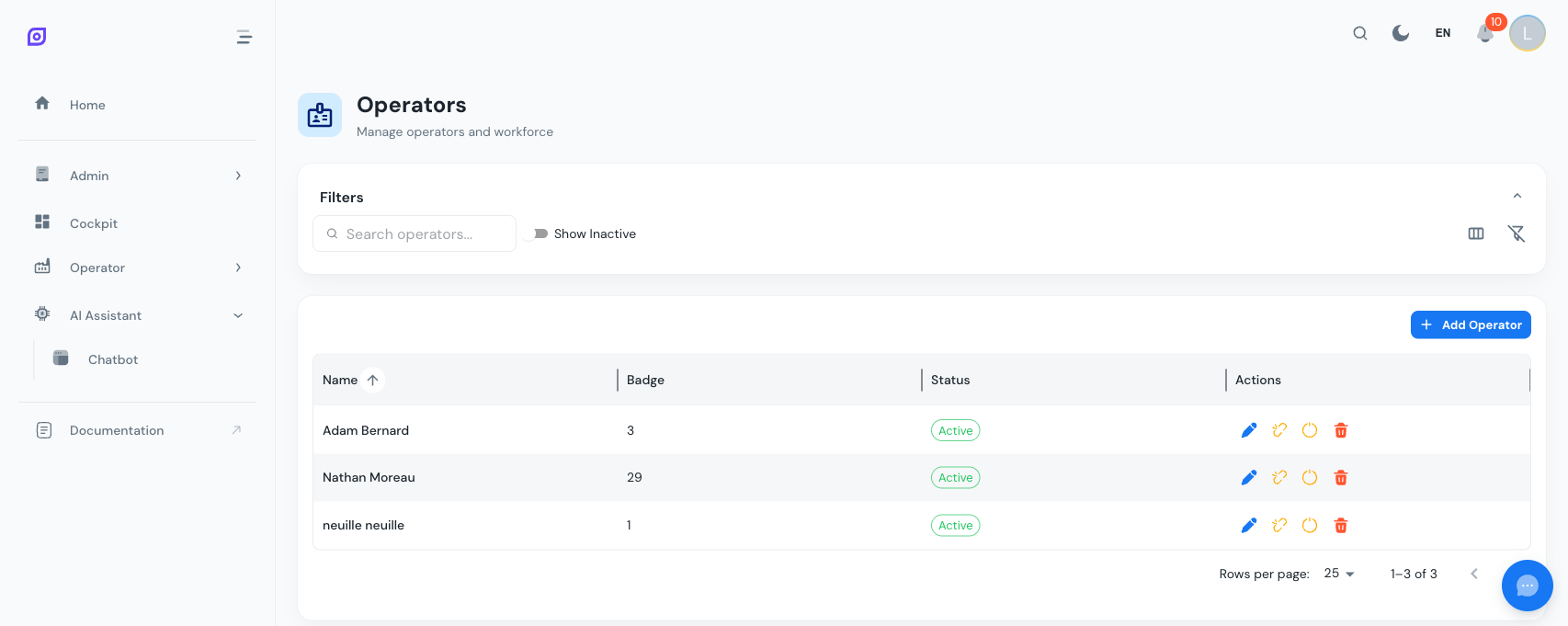
Operators represent the individual people who work on your production equipment. Each operator has a profile with contact details, skills, and an optional link to a Keycloak user account for application login.
Operator fields
| Field | Required | Description |
|---|---|---|
| First name | Yes | Operator's first name |
| Last name | Yes | Operator's last name |
| Badge number | No | Unique identifier (e.g., employee ID, badge barcode) |
| No | Email address | |
| Phone | No | Phone number |
| Skills | No | Comma-separated list of skills (e.g., Welding, CNC, Assembly) |
| Notes | No | Free-text notes |
| Keycloak link | No | Link to a Keycloak user account for application access |
Creating an Operator
- Navigate to Admin > Personnel > Operators
- Click Add Operator
- Fill in at least the first and last name
- Click Create
Import from Keycloak
When creating a new operator, you can pre-fill the form from an existing Keycloak user:
- In the create dialog, click Import from Keycloak
- Search for the user by name or email
- Click on the user -- the first name, last name, and email auto-fill
- Complete any remaining fields and click Create
The operator is automatically linked to that Keycloak account.
Editing an Operator
Click the edit button (blue pencil icon) in the operator's row to open the edit dialog. All fields except the Keycloak link can be changed. The Keycloak link is managed separately (see below).
Keycloak account linking
Linking an operator to a Keycloak account connects a shop-floor identity to an application login. This is useful for:
- Tracking which logged-in user performed an action
- Filtering dashboards by the currently logged-in operator
- Audit trail attribution
Link an Account
- Click the link icon (chain icon) in the operator's row
- Search for the Keycloak user
- Select the user and click Link User
Unlink an Account
- Click the unlink icon (broken chain, orange) in the operator's row
- Confirm the unlinking
An operator can exist without a Keycloak link. This is common for shop-floor workers who interact with OpSee through a shared terminal rather than individual logins.
Deactivate vs. Delete
OpSee supports two levels of removal:
| Action | What happens | Reversible? |
|---|---|---|
| Deactivate | Sets the operator to inactive. Hidden by default but can be shown with the "Show Inactive" toggle. | Yes -- click the activate button to restore. |
| Delete | Permanently removes the operator and cascades to crew memberships and equipment links. | No |
Before deleting, OpSee shows a dependency check listing:
- Crew memberships the operator belongs to
- Equipment links where the operator is on a qualified operator list
This helps you understand the impact before confirming.
Filtering and Search
- Search bar -- filter by name, badge number, or email
- Show Inactive toggle -- include deactivated operators in the list
- Column visibility -- toggle between compact and full column views
Skills display
Skills are stored as a comma-separated list and displayed as chips in the grid. If an operator has more than three skills, additional ones are collapsed with a +N badge.
Related pages
- Crews -- add operators to crew teams
- Schedules -- assign crews (with operators) to shift entries
- Operator Assignment -- place operators on specific machines for a shift
- Users -- manage the Keycloak accounts that operators can be linked to
- Qualified operators -- declare who is allowed to run an equipment item
Prerequisites
- Personnel Overview
- Introduction — get the overall picture of OpSee