Getting Started with Personnel
This tutorial walks you through setting up personnel for a single production line. By the end, you will have shifts, operators, a crew, and a schedule linked to your equipment.
Prerequisites
Before you begin, make sure you have:
- At least one equipment item created in the system
- Admin access to the Personnel section (check with your system administrator)
Step 1 -- Create Shifts
Shifts define the time blocks your factory operates in. Most sites use 2 or 3 shifts.
- Go to Admin > Personnel > Shifts
- Click Add Shift
- Fill in the form:
| Field | Example | Description |
|---|---|---|
| Code | MOR | Short unique identifier |
| Name | Morning | Human-readable label (translatable) |
| Start time | 06:00 | Shift begins |
| End time | 14:00 | Shift ends |
| Color | #4caf50 | Visual color for calendar and charts |
- Click Create
- Repeat for Afternoon (
14:00--22:00) and Night (22:00--06:00)
:::info Midnight-Crossing Shifts
When a shift's end time is earlier than its start time (e.g., 22:00--06:00), OpSee automatically detects it as a midnight-crossing shift. No extra configuration needed.
:::
Step 2 -- Create Operators
Operators represent the people working on your shop floor.
- Go to Admin > Personnel > Operators
- Click Add Operator
- Fill in at minimum:
- First name and Last name (required)
- Badge number (recommended -- used for identification)
- Optionally add email, phone, and skills (comma-separated)
- Click Create
:::tip Import from Keycloak When creating an operator, click Import from Keycloak to search existing user accounts. Selecting a Keycloak user auto-fills the name and email, and links the operator to that account in one step. :::
Repeat for each person who will work on the line.
Step 3 -- Create a Crew
Crews group operators for a specific shift assignment.
- Go to Admin > Personnel > Crews
- Click Add Crew
- Enter a Code (e.g.,
ALPHA) and Name (e.g.,Team Alpha) - Click Create
- In the crew row, click the members icon (group icon)
- In the members dialog:
- Select an operator from the dropdown
- Optionally assign a role (e.g.,
Lead,Operator,Trainee) -- you can type a new role name and it will be created automatically - Click Add Member
- Repeat for all team members
Step 4 -- Create a Schedule and Add Entries
Schedules are weekly calendars that combine shifts and crews.
- Go to Admin > Personnel > Schedules
- Click Add Schedule
- Enter a Name (e.g.,
Line 1 -- Week Schedule), pick a Color, and click Create - Click the eye icon on the new schedule row to open the detail view
- On the weekly calendar:
- Click on a day column to create a new entry
- Select a Shift (time slots auto-fill from the shift definition)
- Select a Crew to assign
- Adjust start/end times if needed
- Click Create
- Repeat to fill the entire week
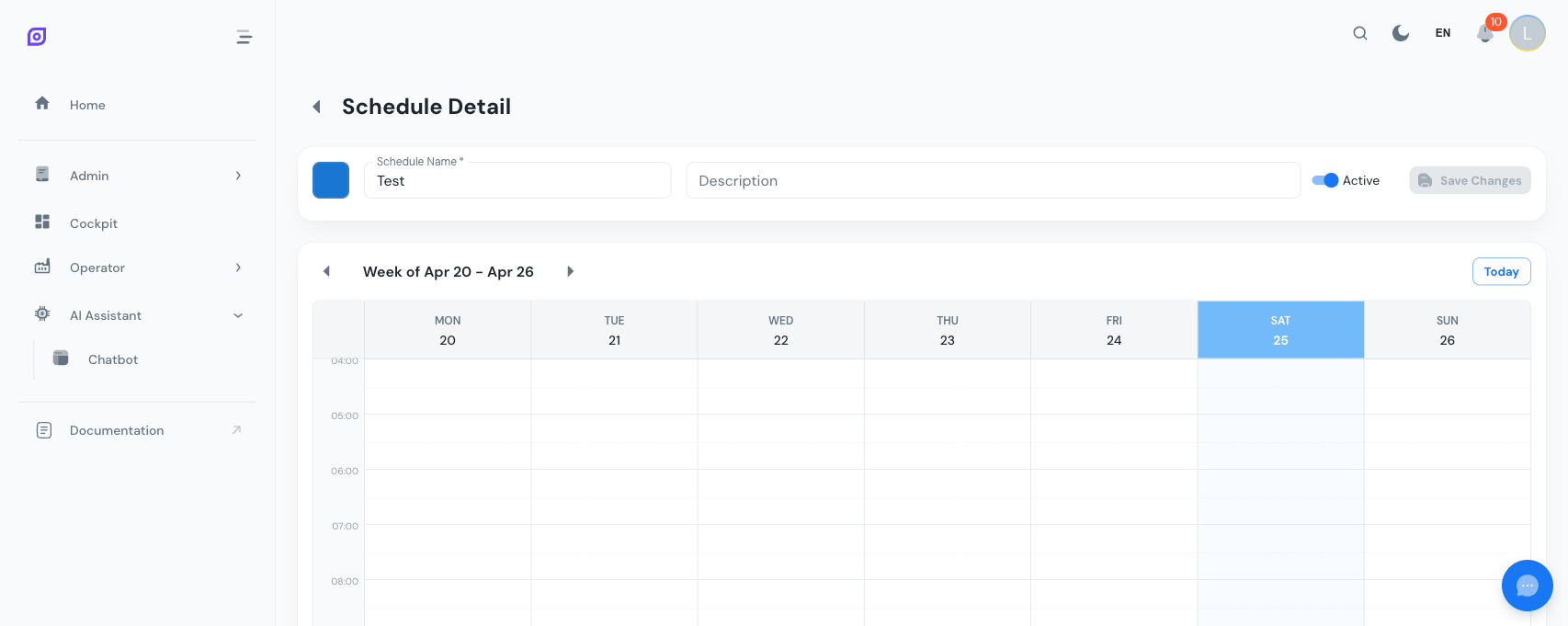 The weekly calendar with shift entries shown as colored blocks.
Step 5 -- Link the Schedule to Equipment
A schedule only takes effect once it is linked to equipment.
- In the schedule detail view, scroll to Linked Equipment
- Click Link Equipment
- Search for your equipment item and select it
- The equipment now appears in the linked list
:::info Active Shift Detection Once a schedule is linked to equipment, OpSee can automatically determine which shift and crew are active at any given moment. This powers the OEE dashboards, downtime attribution, and production reports. :::
What is Next?
Your personnel setup is complete. Here is what you can explore next:
- OEE Dashboards -- see shift-level OEE breakdowns
- Users -- manage Keycloak accounts for application access
- Equipment Personnel -- assign operators directly to equipment items with roles
Next steps
Related
- Equipment Model (ISA-95)
- Equipment — complementary module