Crews
Crews are named groups of operators that work together. When you build a schedule, you assign a crew to each shift entry -- this tells OpSee which team of people is on duty during that time window.
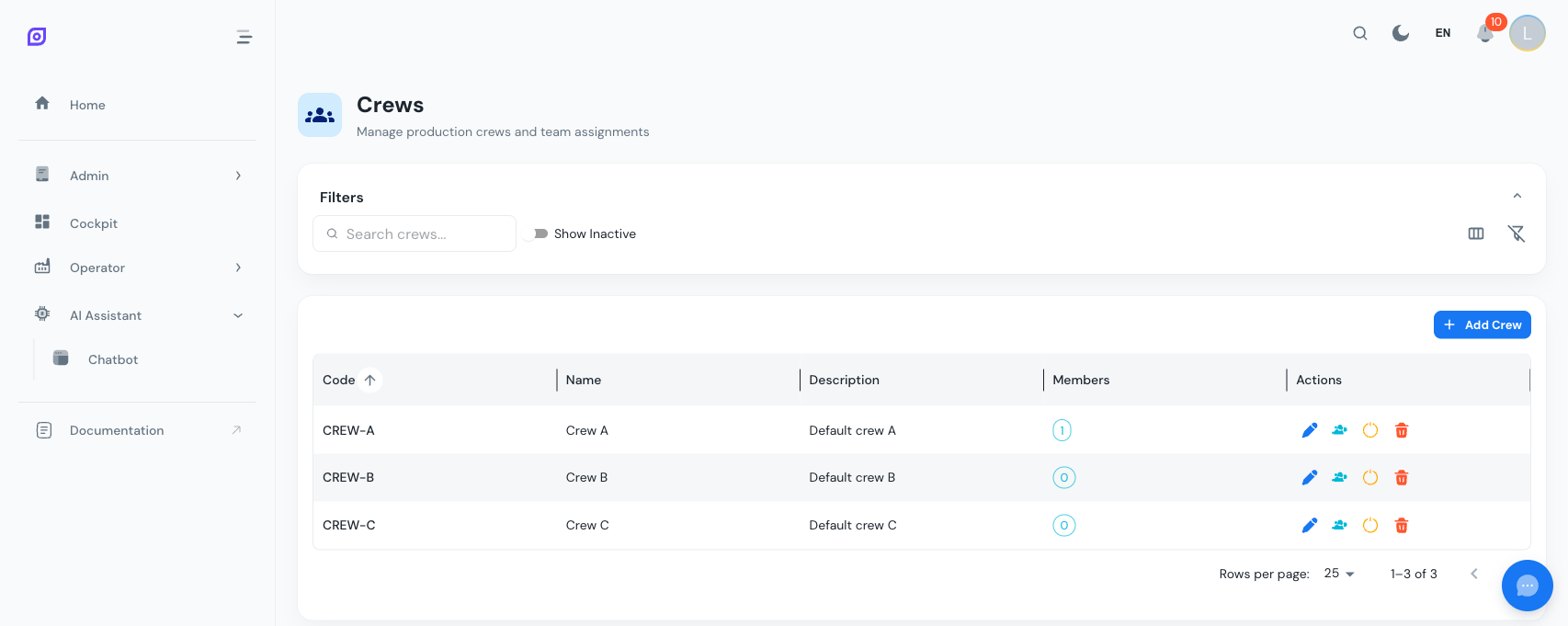
Crew fields
| Field | Required | Description |
|---|---|---|
| Code | Yes | Short unique identifier (e.g., ALPHA, BRAVO, TEAM-1) |
| Name | No | Human-readable label, translatable |
| Description | No | Free-text description of the crew |
The grid also shows a Member Count badge indicating how many operators belong to each crew.
Creating a Crew
- Navigate to Admin > Personnel > Crews
- Click Add Crew
- Enter a Code and optionally a Name and Description
- Click Create
Managing crew members
Each crew can have any number of operators as members, each with an optional role.
Adding members
- Click the members icon (group icon, blue) in the crew's row
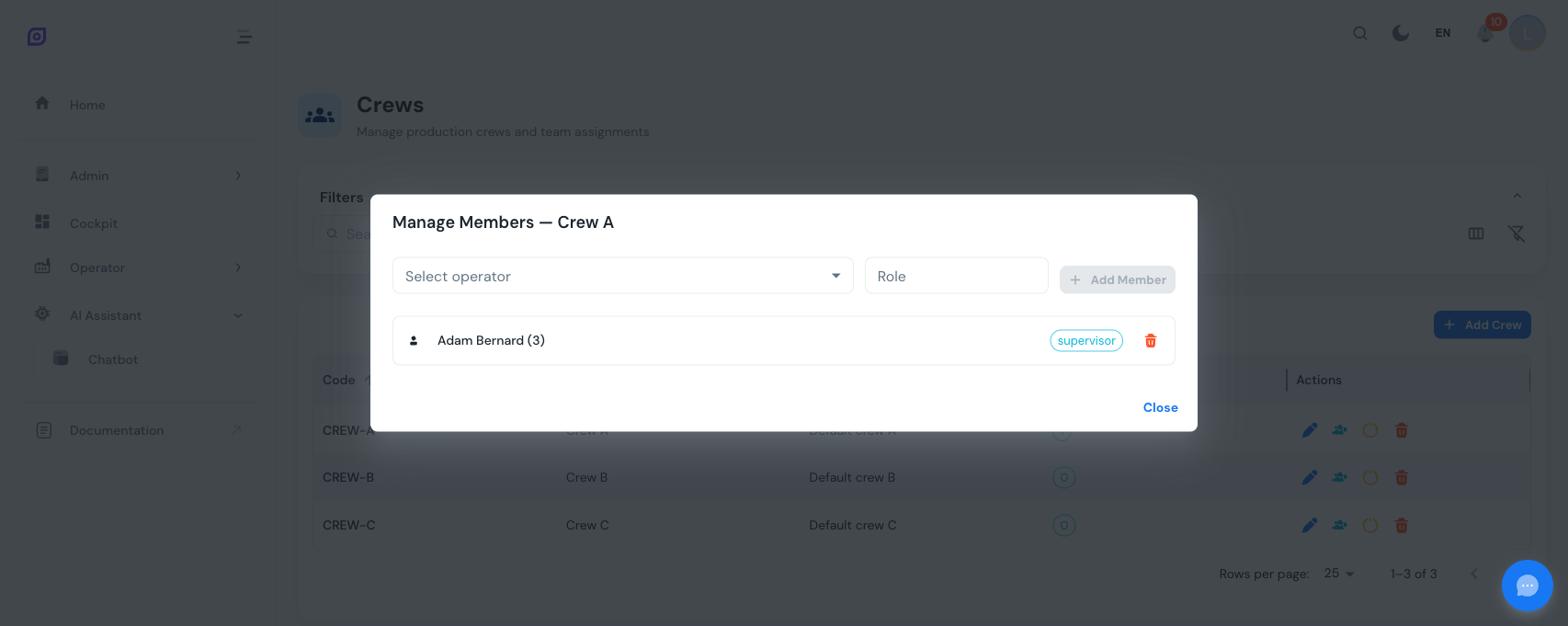
- The Manage Members dialog opens showing current members
- Select an Operator from the dropdown (only operators not already in the crew are listed)
- Optionally assign a Role -- you can:
- Pick an existing role from the dropdown
- Type a new role name to create it on the fly
- Click Add Member
Removing members
In the members dialog, click the red trash icon next to the operator you want to remove. The removal takes effect immediately.
Operator roles
Roles describe what function an operator serves within a crew. Common examples:
| Role | Description |
|---|---|
| Lead | Team leader / shift supervisor |
| Operator | Machine operator |
| Technician | Maintenance / technical support |
| Trainee | Operator in training |
| Quality | Quality control inspector |
Roles are shared across all crews. When you type a new role name in the members dialog, it is persisted in the m_operator_role table and becomes available for all crews. This keeps role names consistent across the entire system.
Deactivate vs. Delete
| Action | Effect |
|---|---|
| Deactivate | Hides the crew from selection dropdowns in schedule entries. Existing schedule entries referencing this crew are not affected. |
| Delete | Permanently removes the crew and all its member associations. |
Crew in Schedules
Once a crew exists and has members, it can be assigned to schedule entries:
When OpSee detects the active shift for an equipment, it also knows which crew (and therefore which operators) are working.
Related Pages
- Operators -- the individual people that make up crews
- Schedules -- where crews are assigned to shift entries
- Getting Started -- step-by-step setup tutorial
Prerequisites
- Personnel Overview
- Introduction — get the overall picture of OpSee