Reason Selection
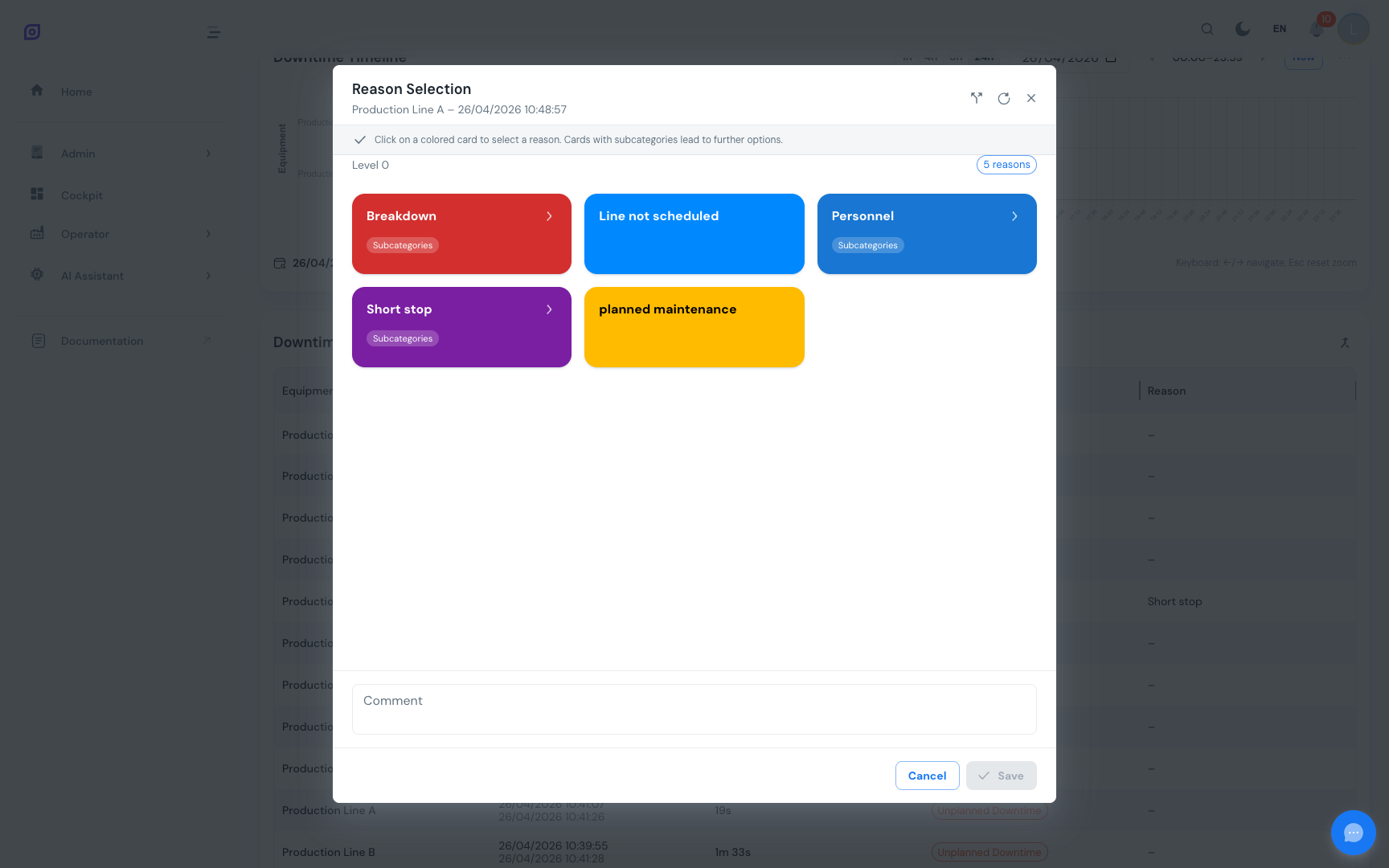
When you click a downtime event in the Downtime Screen, the Reason Selection Panel opens. This is where you classify why the machine stopped.
Understanding the Reason Tree
Reasons in OpSee are organized as a hierarchical tree built by the administrator. A typical tree has 2 to 3 levels:
Category branch (e.g. Mechanical, Electrical, Changeover)
  └── Sub-category (e.g. Motor, Sensor, Material)
        └── Specific reason (e.g. Bearing failure, Sensor fault, Material shortage)
              └── Sub-reason (optional, deeper detail)
Each branch is linked to a loss type (Equipment Failure, Setup & Changeover, Reduced Speed, etc.), which itself maps to one of the six OEE categories (Unscheduled, Planned, Unplanned, Performance, Quality, Outside Area). So when you pick a leaf reason, OpSee automatically classifies the event by loss type and OEE category.
Your administrator has configured the tree for your plant, so it reflects your actual downtime causes. The labels above are illustrative.
See OEE Configuration → Reason Trees for how trees are set up.
Navigating the Tree
- The panel shows the top-level branches configured by your administrator (e.g. Mechanical, Electrical, Changeover, Quality)
- Tap or click a branch to expand it
- Keep drilling down until you reach the specific reason
- Click the reason to select it; it is highlighted
- Click Save to confirm your selection
You can navigate back up by clicking the breadcrumb at the top of the panel.
:::tip Look for color coding Branches in the tree carry a color assigned in OEE Configuration → Reason Trees. The colors are site-specific and help you quickly recognize which category you are in. :::
Event details
The panel also shows details about the event you are classifying:
| Field | Description |
|---|---|
| Equipment | Which machine stopped |
| Start time | When the stop began |
| End time | When the machine resumed (or "ongoing" if still stopped) |
| Duration | Total stop duration |
| Current reason | The reason already assigned (if any) |
Comment field
Below the reason tree, there is an optional comment field. Use it to describe what happened in plain language. Comments are visible to supervisors and appear in audit reports.
Good comments: "Bearing replacement on head 3", "Waiting for material from warehouse A", "Sensor drift: recalibrated"
Recording who did the work
When the equipment has an action tree bound to it, the panel shows an Actions tab where you record the corrective action taken and who carried it out.
The operator list is grouped, so you can tell at a glance where each name comes from:
- On this machine -- the people who were actually assigned to this equipment while it was down, taken from the Operator Assignment board. These come first, because they are the only record of who was really there.
- Qualified -- people allowed to run the machine who were not placed on it during the stop. A fallback for stops with no placement recorded, such as older data or an unplanned line.
- Other operators -- everyone else, shown only when you tick Show all operators, for the case where someone stood in without being planned.
The grouping is information, not a restriction: you can pick anyone from any group. If the person who did the work is missing, tick Show all operators and search by name.
Being qualified for a machine is not the same as having worked on it. The qualification list says who may run a machine; only the Operator Assignment board records who actually did.
Splitting an Event
If a stop had two separate causes (for example, a technical fault followed by waiting for a spare part), you can split it:
- Click Split in the panel header
- A slider appears showing the timeline of the event
- Drag the split point to the moment the cause changed
- Assign a different reason to each segment
- Click Save
Both segments appear as separate rows in the event table, each with their own reason and duration.
Validation status
After saving a reason, the event changes from Unvalidated (grey) to Validated (colored). The validation rate shown in the summary cards updates accordingly.
Supervisors and managers can see the validation rate in real time — a high rate means operators are keeping up with classification. A low rate signals a backlog of unclassified events.
Prerequisites
- Downtime Screen — how to open the reason panel
- OEE Configuration → Reason Trees — understanding the tree structure
Next steps
- Mobile Usage — classifying reasons on a tablet
Related
- Production → Downtime — supervisor view of classified events
- OEE Fundamentals — the theory behind loss categories