Mobile Usage
OpSee is fully responsive and works on tablets and phones. Operator screens in particular are optimized for touch interaction, making it possible to classify downtime events directly on the shop floor without a desktop computer.
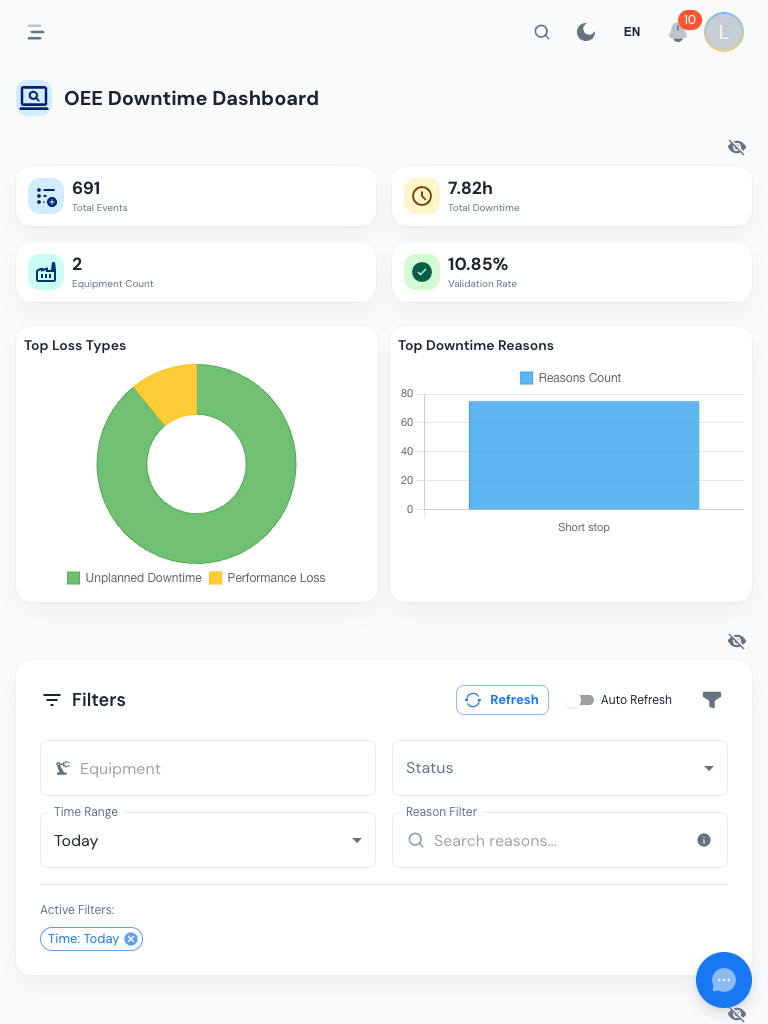
Recommended devices
Any modern tablet or phone with a web browser works. Recommended:
- Tablet (10" or larger): best for the Downtime Screen; enough screen space to see the event table and reason panel side-by-side in landscape mode
- Phone (6"+): usable for quick lookups; reason panels open as bottom sheets
Standard browsers (Chrome, Firefox, Safari, Edge) are all supported. No app installation is needed; OpSee is a web application.
Layout differences on mobile
| Feature | Desktop | Mobile |
|---|---|---|
| Navigation sidebar | Always visible on the left | Collapses to hamburger menu |
| Reason selection panel | Slides in from the right | Opens as a bottom sheet (swipe up to close) |
| Event table | Full columns with sorting | Simplified columns, tap row for details |
| Three-dot action menu | Popover next to the row | Bottom sheet from the full screen edge |
| Summary cards | Horizontal row | Stacked vertically |
Using the Downtime Screen on a Tablet
- Open the browser and navigate to your OpSee URL
- Go to Production → OEE → Downtime
- Tap an event row: the reason selection sheet slides up from the bottom
- Navigate the reason tree by tapping categories, then specific reasons
- Add a comment if needed, then tap Save
- Swipe down or tap the handle at the top of the sheet to close it
Tip: Add OpSee to the Home Screen
To make OpSee behave like a native app:
On Android (Chrome):
- Open OpSee in Chrome
- Tap the three-dot menu → Add to Home screen
- Confirm — an icon appears on your home screen
On iOS (Safari):
- Open OpSee in Safari
- Tap the Share button (box with arrow)
- Select Add to Home Screen
- Confirm — an icon appears on your home screen
When launched from the home screen, OpSee opens in a standalone window (no browser address bar), giving a clean fullscreen experience.
Shop-Floor Device Tips
- Use portrait mode for the navigation sidebar experience; landscape mode is better for viewing the event table
- Brightness: increase screen brightness for readability in brightly lit factory environments
- Session: OpSee sessions are long-lived (set by your administrator). You typically won't need to re-login during a shift. See Session and Login
- Cleaning: the interface works with gloves that support capacitive touch (most modern touchscreen gloves)
Prerequisites
- Operator Overview — context for operator screens
- Downtime Screen — the main mobile workflow
Next steps
- Reason Selection — understanding the reason tree
Related
- Interface Overview — full desktop interface anatomy