KPI Screen
Route: Production → KPI → Operator (/production/kpi/operator)
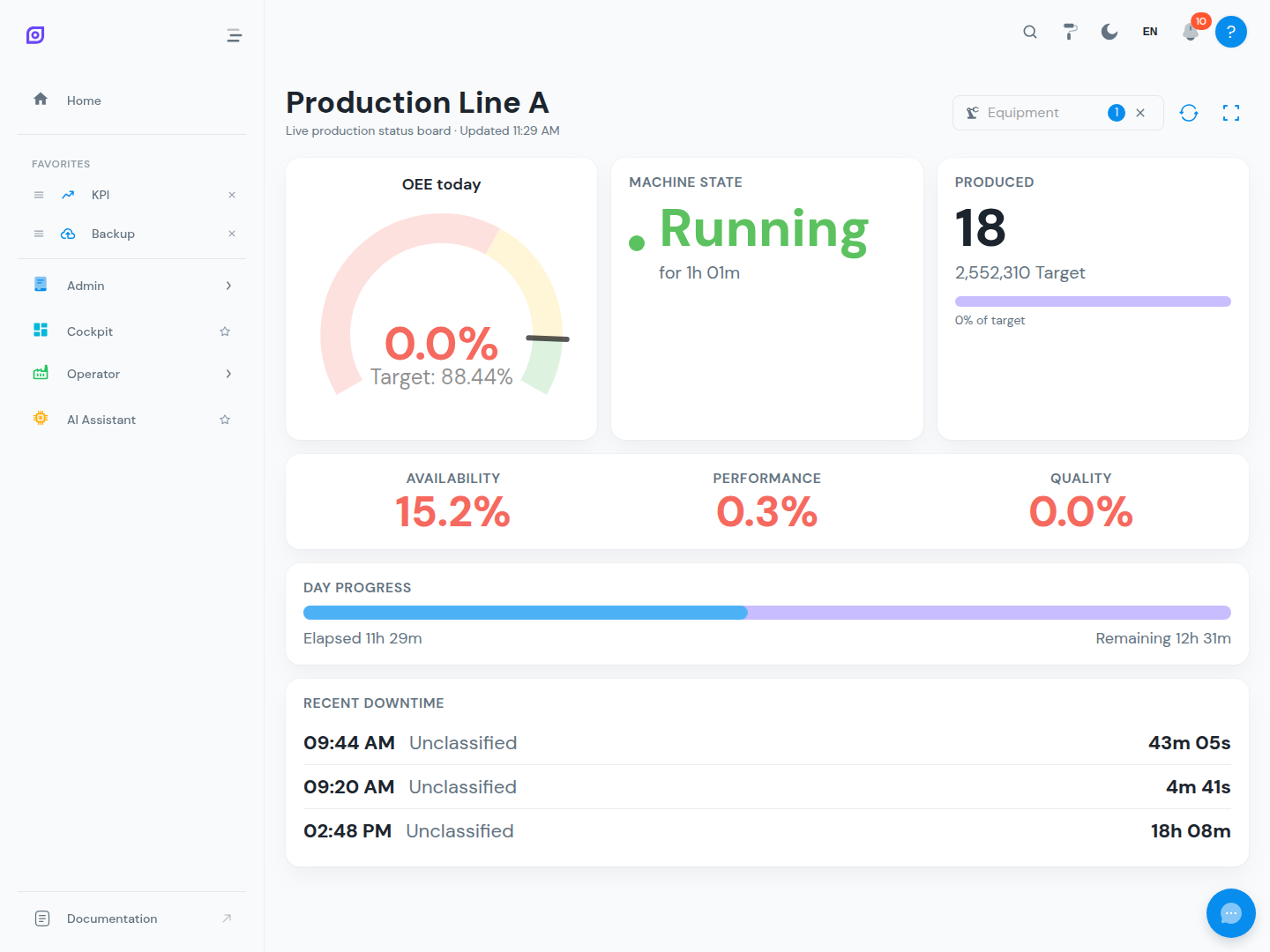
The Operator KPI screen is a real-time production status board designed to be displayed on a large monitor or TV at the workstation. It gives a live view of today's performance without requiring interaction.
What it shows
- OEE today: a large gauge with the equipment's OEE target, plus the Availability / Performance / Quality breakdown
- Machine state: whether the machine is running or stopped right now, and for how long
- Produced: pieces produced today, with the target and progress bar when a production target is configured
- Day progress: time elapsed vs. remaining in the current day
- Recent downtime: the latest downtime events with their reason and duration
All values refresh automatically every 20 seconds; the elapsed counters tick live.
How to Display It
The KPI screen is designed to run full-screen on a dedicated monitor:
- Navigate to
/production/kpi/operatorand pick the equipment — the choice is stored in the URL (e.g.?equipment=4), so a kiosk bookmark reopens the same board - Press F11, or use the fullscreen button next to the equipment selector on touch-only devices
- Leave the browser open; the screen refreshes automatically
For kiosk-mode setup on a dedicated device, configure the browser to:
- Start in fullscreen on boot
- Disable the screen saver
- Set the home page to the KPI screen URL
Equipment scoping
Like all Production screens, the KPI screen only shows data for equipment within your equipment role scope. If you are scoped to Line 2 only, the screen shows Line 2's KPIs.
Prerequisites
- Operator Overview — context for this screen
- Roles and Permissions — equipment scope affects what you see
Next steps
- Downtime Screen — classify downtime events that appear in the KPI view
Related
- Production → OEE Dashboard — the supervisor-level OEE dashboard with historical data
- Cockpit — fully customizable dashboards for any KPI