Downtime Screen
Route: Production → OEE → Downtime (/production/oee/downtime_op_screen)
The Downtime Screen is the main working screen for shop-floor operators. It lists all availability events (machine stops) for your equipment and lets you classify each one with a reason from the configured reason tree.
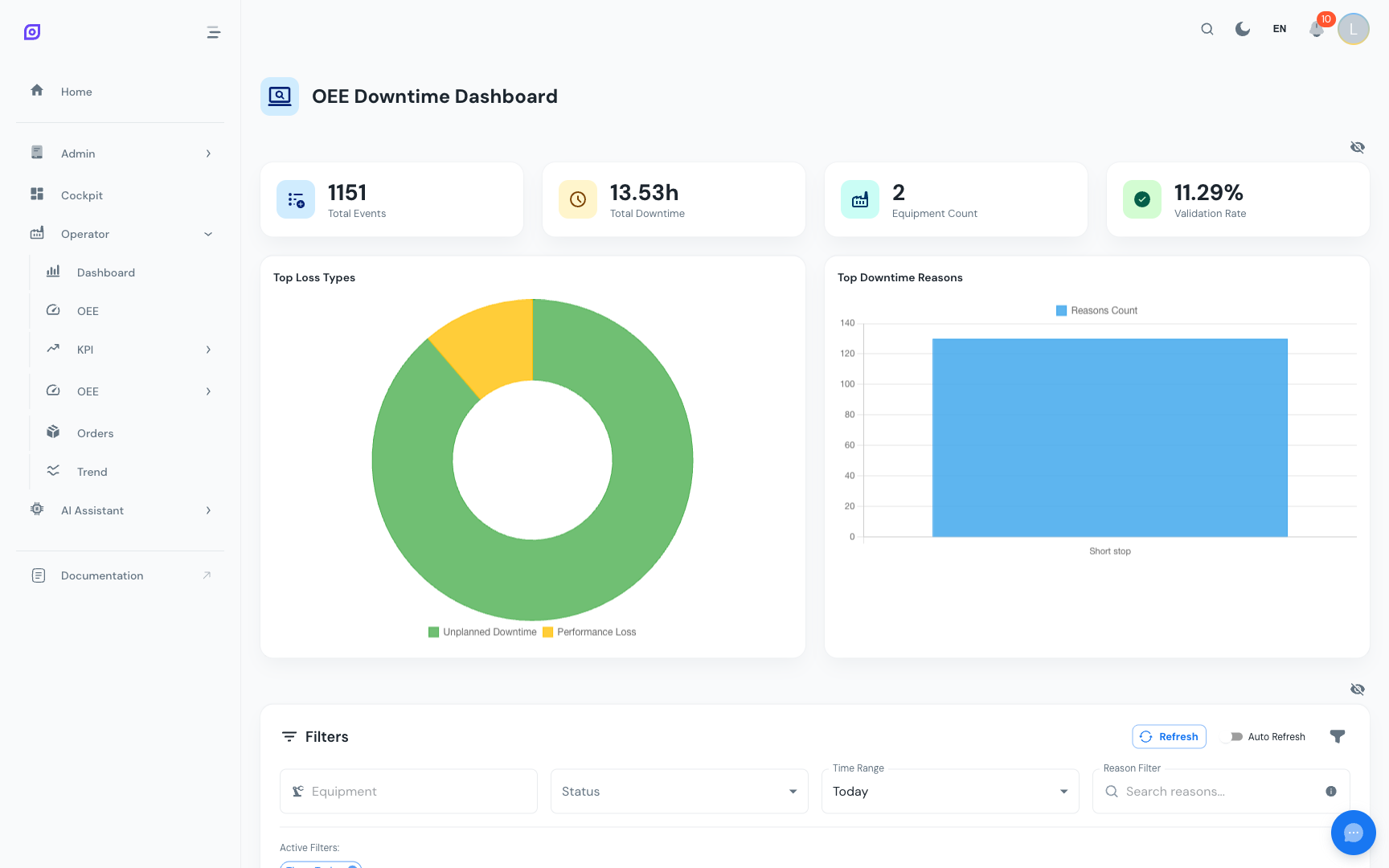
What you see
The screen is divided into several areas:
| Area | Purpose |
|---|---|
| Summary cards | Total events, total downtime duration, validation rate |
| Filters | Date range, equipment selector, status filter (All / Unvalidated) |
| Timeline | Visual bar chart showing when stops occurred |
| Events table | List of all availability records with duration, reason, and status |
| Reason panel | Slides in when you click an event: lets you set the reason |
Classifying a Downtime Event
This is the core operator workflow:
- Find unvalidated events: use the Unvalidated filter to show only events that need classification
- Click an event in the table: the Reason Selection Panel slides in from the right (desktop) or from the bottom (mobile)
- Select the reason: navigate the reason tree to find the specific cause
- Add a comment (optional): describe what happened in your own words
- Save: click Save to validate the event
Once saved, the event status changes to Validated and the validation rate counter updates.
:::tip Classify events promptly Events are easier to classify shortly after they happen. The reason tree may have dozens of entries, and finding the right one is faster when the incident is fresh in your memory. :::
Filters
| Filter | Description |
|---|---|
| Date range | Show events from a specific period (default: today) |
| Equipment | Narrow to a specific line or machine |
| Status | All events / Unvalidated only |
Filters are reflected in the URL. Bookmark a filtered view for fast access each shift.
The timeline
The horizontal bar chart shows when machine stops happened across the day. Each colored bar represents one availability record:
- Color indicates the loss category (Availability, Performance, Quality) or "Unclassified" (grey) if no reason has been assigned yet
- Hover over a bar to see the duration and reason
- Click a bar to select that event in the table below and open the reason panel
Splitting an Event
Sometimes a single machine stop has two different causes (for example, the machine stopped first due to a technical fault, then an operator waited for parts). You can split one event into two:
- Click the event in the table
- In the reason panel, click Split
- Drag the split point to set the proportion between the two sub-events
- Assign a different reason to each part
- Save
Mobile usage
On a tablet or phone, the reason panel opens as a bottom drawer (swipe up to dismiss). The timeline and summary cards stack vertically. All features are available; see Mobile Usage for tips.
Prerequisites
- Operator Overview — context for this screen
- Reason Selection — detailed walkthrough of the reason tree
Next steps
- KPI Screen — monitor production KPIs in real time
Related
- Production → Downtime — the supervisor/manager version of the downtime page
- OEE Configuration → Reason Trees — how reason trees are configured (admin)