Alarms Screen
Route: Production → Alarms (/production/alarms)
The screen moved from the top-level /alarms to Production → Alarms in v1.1. The old address still works — it redirects, keeping any ?alarm= deep link from a notification.
The Alarms screen is the live list of everything that needs attention on your equipment. It shows every open alarm occurrence in your equipment scope, lets you acknowledge or snooze it, add a comment, jump to the trend that triggered it, and read what the alarm means and what to do about it.
It is also the alarm history: switch the time window away from Live and the same list answers "what happened on this line last night", closed alarms included.
Prerequisites
- Operator Overview for the general layout of the operator screens
- The
perm:alarms:readpermission to see the screen; the Operator, Supervisor, Technician and Admin roles have it by default - The
perm:alarms:writepermission to acknowledge, snooze or comment; the same four roles have it - Alarm Lifecycle if the states below (unacknowledged, return to normal, snoozed) are new to you
Three views of the same alarms
The screen has three tabs. They are three ways of reading the same filtered set — the filters, the time window and the equipment selection are shared, and they live in the URL, so switching tabs never loses your place and a link you paste to a colleague opens on the view you were looking at.
| Tab | Answers | Use it when |
|---|---|---|
| List | "What is open, and what happened?" | Working through alarms one at a time, or reading history |
| Operator desk | "What should I deal with first?" | Several alarms at once — it groups them into incidents and ranks them |
| Timeline | "What came in first, and did it spread?" | After the event: understanding the order things went wrong in |
What You See
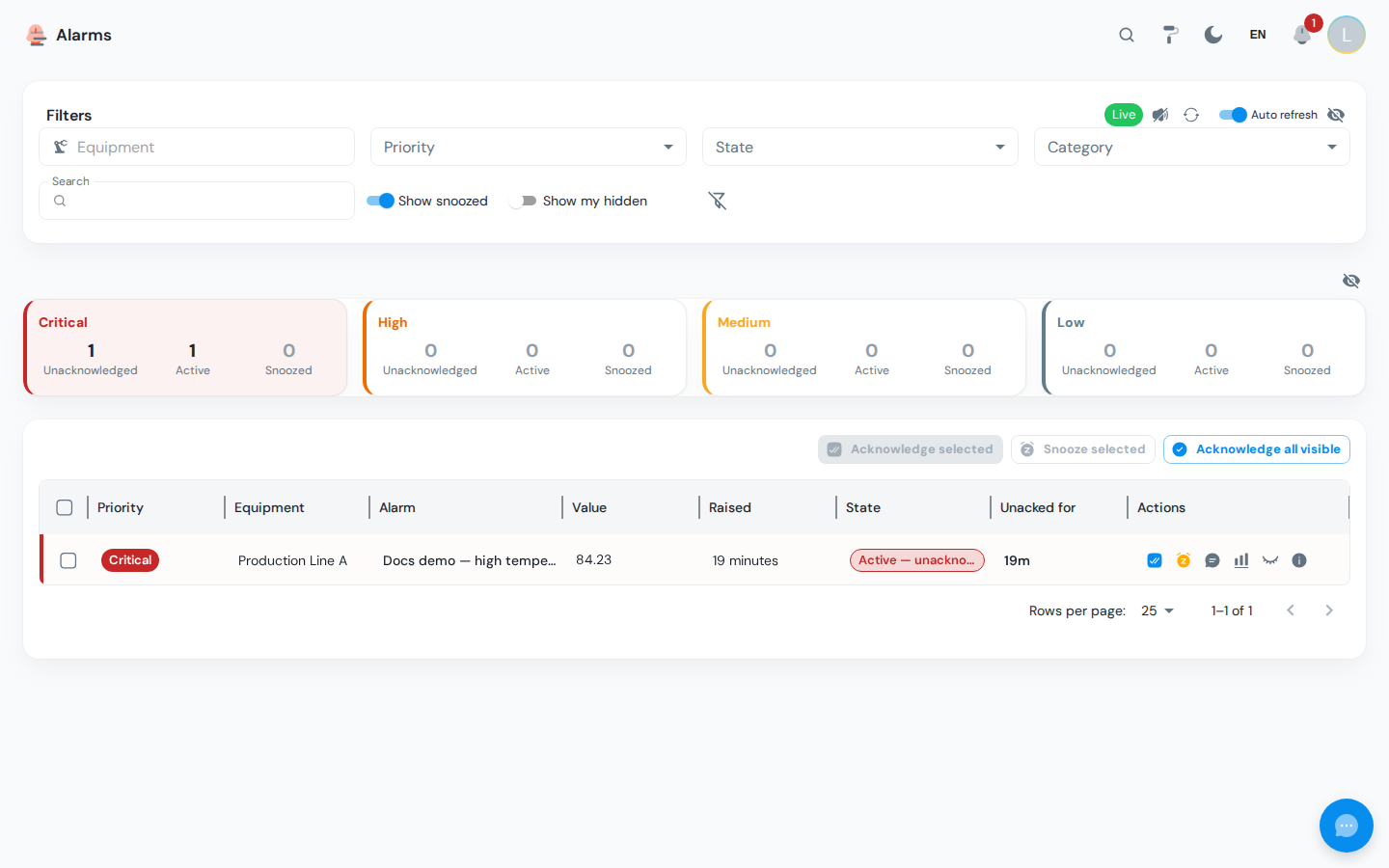
| Area | Purpose |
|---|---|
| Summary strip | One card per priority (critical, high, medium, low) with three counts: Unacknowledged, Active, Snoozed. Click a number to filter the grid on that priority and state. |
| Filters | Equipment, priority, state, category, time window, text search, Show snoozed, Show hidden. Changes apply immediately and are reflected in the URL. |
| Grid | One row per alarm occurrence, grouped so several alarms on the same tag sit together. |
| Detail drawer | Opens from the Info action: guidance texts, details and the timeline of the occurrence. An alarm that has switched on and off many times has a very long history, so the timeline shows its most recent entries and says how many exist in total, and a Re-armed N× chip says how often the condition came back while the alarm went unacknowledged. |
Filters
| Filter | Description |
|---|---|
| Equipment | The equipment picker shared with the other operator screens. Selecting a node includes its whole subtree. |
| Priority | One or more of critical, high, medium, low |
| State | Active unacknowledged, active acknowledged, returned to normal unacknowledged, snoozed, closed |
| Class | The alarm class (for example process, comms, system). Classes are configured by an administrator and each has its own colour. |
| Time window | Live (the default) shows open alarms only, newest-to-act-on first, updating as they arrive. Last 8 hours / 24 hours / 7 days and Custom range show everything that overlapped that window, closed alarms included, newest first. |
| Sort | Clearing a column header sort falls back to this. Automatic (the default) leaves the order the time window implies — most urgent first when Live, newest first in a history window. Most re-arms ranks the whole result set by how often each alarm flapped, which is how you find a chattering alarm rather than a serious one. |
| Min. re-arms | Show only alarms that came back at least this many times. 0 is no filter. Use it with a history window to answer "what flapped more than five times last night". |
| Search | Matches the alarm name, description, category, message and equipment name |
| Show snoozed | Include snoozed occurrences, which are hidden by default |
| Show hidden | Show the alarms you hid in this browser (see Hide) |
The filter card header also holds the Live pill (green while the live stream is connected), the sound toggle, Refresh and the Auto-refresh switch.
Reading history
In any window other than Live, the list deliberately holds still: the live stream and auto-refresh are paused, and the header says so. A window that kept refetching would re-anchor itself and shuffle rows under you while you read them. Press Refresh when you want the newer picture.
An alarm is one row however often it changed: raised, acknowledged and cleared are three columns of the same row, not three entries. Long windows are paged from the server, so the page footer's total is the real number of matching alarms, not the number on screen.
Grid columns
| Column | Meaning |
|---|---|
| Priority | Filled chip in the priority colour. The same colour is used in the summary strip and on the row border. Administrators set these colours, so your plant's may differ from the defaults (critical red, high orange, medium amber, low blue-grey). |
| Class | Chip in the class's own colour — what kind of problem it is, which is often the quickest read on the row |
| Equipment | Equipment path of the alarm |
| Name | Alarm name, with a ×N chatter badge when the same alarm fired three or more times in the last 24 hours |
| Value | Tag value at the moment the alarm was raised, with its unit. Empty for alarms that were not triggered by a value (for example a stale watchdog). |
| Raised | Relative time since the alarm was raised; hover for the exact timestamp |
| State | Outlined chip in the priority color for unacknowledged states, orange for snoozed, grey otherwise |
| Acknowledged | When it was acknowledged; hover for the exact time, who did it and how long it took. Empty while nobody has. |
| Cleared | When the condition went away (or, for an alarm that was closed without clearing, when it was closed). Empty while it is still standing. |
| Active for | How long the condition stood — still counting for an alarm that is still active |
| Unacked for | How long the alarm has been waiting for an acknowledgement |
| Re-arms | How many times this occurrence came back before anyone acknowledged it. A raise, a return to normal and another raise is one row with a re-arm count, not two rows — so a high number here is one alarm flapping, not several alarms. |
| Raises (24 h) | How many separate occurrences this alarm definition produced in the last 24 hours, across the whole plant. |
| Actions | The row actions described below |
Sorting
Click any column header with a sort arrow and the whole result set is reordered, not just the page you are looking at. The sort travels in the URL, so a link you paste to a colleague opens on the same ordering.
Four columns carry no sort arrow, each for its own reason:
| Column | Why |
|---|---|
| Raises (24 h) | Counted per row against the whole plant, so ordering by it would have to compute every row's count before paging. Deliberately left out. |
| Unacked for | Derived in the browser, and it reads zero once an alarm is acknowledged — so it is not the same ranking as Raised and cannot stand in for it. |
| Cleared | Shows whichever of cleared-or-closed applies, so it is two columns wearing one hat. |
| Actions | Not data. |
Four columns do not sort the way their text reads, which is deliberate:
- Priority sorts by severity, so descending is critical first — not alphabetically, which would give critical, high, low, medium.
- State sorts by position in the alarm's life, not alphabetically. Ascending is active unacknowledged, returned unacknowledged, active acknowledged, snoozed, closed — so the things still wanting attention come first.
- Class and Equipment sort by the translated name, so the order depends on your interface language. The same two alarms can swap places between English and French.
Choosing Most re-arms in the Sort filter and clicking a column header are mutually exclusive: whichever you do last wins, and the other clears, so the screen always shows the ordering it actually asked for.
Unacknowledged rows carry a left border in their priority color. Critical unacknowledged rows blink until someone acknowledges them; the blinking is disabled when your operating system asks for reduced motion.
An occurrence from your point of view
Only the transitions labeled Ack and Snooze need you; the rest follow the tag value. Hiding a row changes nothing in this flow.
Common tasks
Acknowledge an alarm
- Find the row (unacknowledged rows are the ones with a colored left border).
- Click Ack in the Actions column.
Acknowledging says "seen". An acknowledged alarm that is still active stays in the list as Active acknowledged; an alarm that already returned to normal is closed by the acknowledgement.
To acknowledge several alarms at once, tick the rows and click Ack selected, or click Ack all visible. The confirmation dialog shows how many alarms will be acknowledged.
Snooze an alarm
Snoozing (called shelving in ISA-18.2) hides an alarm from the default list for a fixed duration. The alarm is still evaluated and its history is still recorded; it simply re-appears when the snooze expires and it is still active.
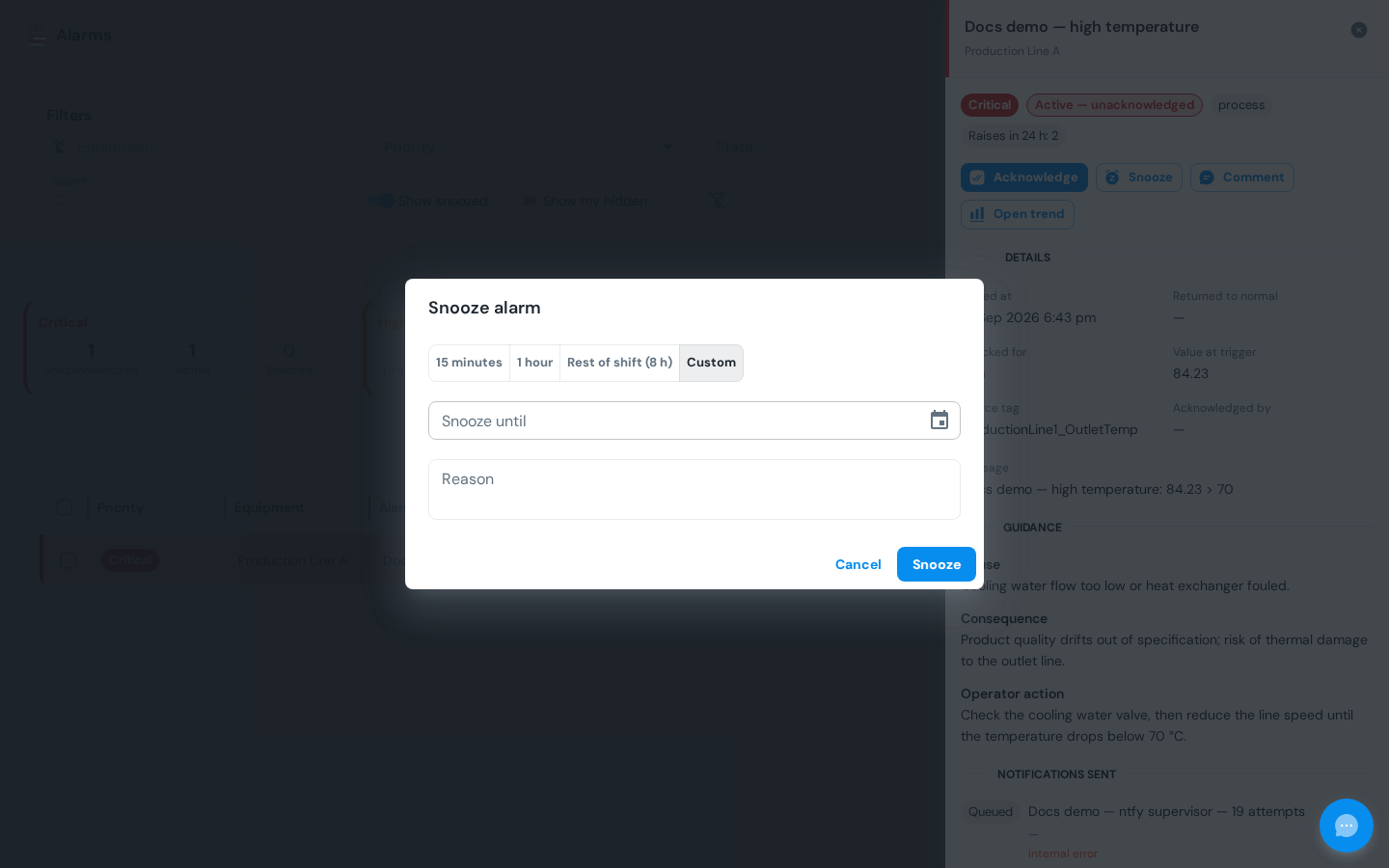
- Click Snooze on the row and choose 15 min, 1 h, Shift or Custom.
- 15 min and 1 h apply immediately. Shift (8 hours) and Custom open a dialog where you pick the duration or end time and enter a reason. The reason is mandatory for any snooze longer than one hour and is shown in the timeline.
- Click Snooze in the dialog.
A snooze can be at most 7 days. Use Snooze selected to snooze several ticked rows in one go with the same duration and reason.
To end a snooze early, enable Show snoozed in the filters and click Unsnooze on the row.
Comment on an alarm
Click Comment, type your note and save. Comments appear in the timeline of the detail drawer and are visible to everyone who can see the alarm.
Open the trend
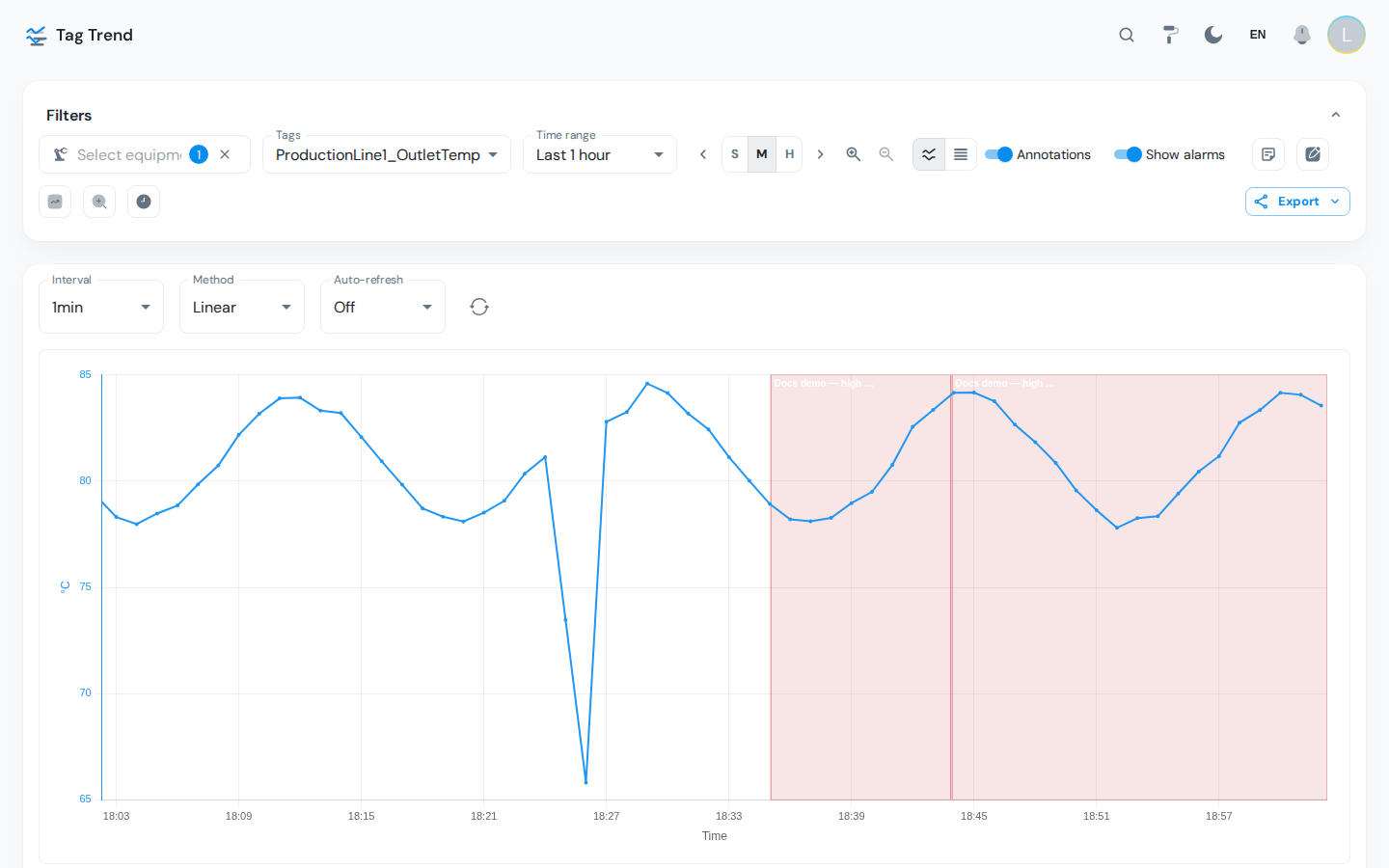
Click Open trend to jump to the tag trend screen with the time window of the alarm. The action is only available for alarms that were raised from a tag.
Hide an alarm
Click Hide to remove a row from your own list. Hiding is a client-only filter: it is stored in your browser, does not change the alarm state, and nobody else is affected. Use Show hidden to see hidden rows again, and Unhide all to clear the list.
Read the detail drawer
Click Info on a row to open the drawer.
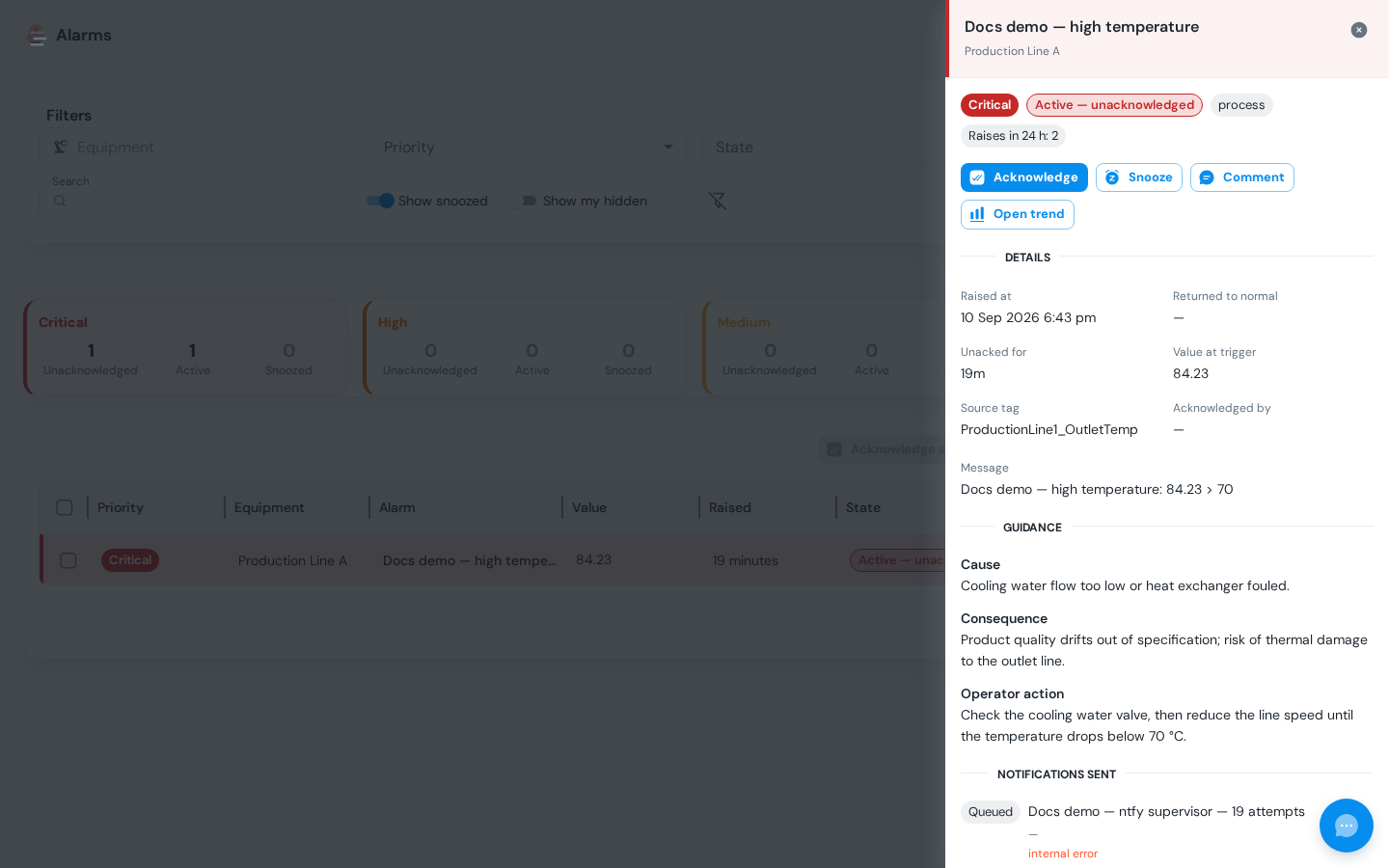
| Section | Content |
|---|---|
| Header | Alarm name, equipment, priority and state chips, category, chatter count of the last 24 hours |
| Actions | The same Ack, Snooze, Unsnooze, Comment and Open trend buttons as the grid |
| Details | Raised at, cleared at, age unacknowledged, trigger value, tag, acknowledged by, and while snoozed: snoozed until and by whom |
| Guidance | Cause, Consequence and Operator action, the three ISA-18.2 texts the admin writes for each alarm |
| Notifications sent | One line per outbound notification for this occurrence: a status chip (Queued, Sending, Sent, Failed), the channel name, N attempts when it took more than one, the time it was sent and, for a failure, the reason. No notification was sent. means no routing rule or action matched the alarm. |
| Timeline | Every event of the occurrence, newest first: set, reset, ack, snooze, unsnooze, comment, auto-ack, notification, with the user and the reason or text. An acknowledgement made from a phone shows as via ntfy: <channel name>. |
Acknowledging from your phone
When an admin has routed alarms to a phone through ntfy, the push notification carries an Acknowledge button (e-mail and chat channels get an Acknowledge: link instead). Tapping it acknowledges that one alarm without logging in; a small confirmation page opens.
- The button works for 24 hours after the notification was sent. After that it answers Invalid or expired token: acknowledge from this screen instead.
- It is single-use: it only works while the alarm is still unacknowledged. If a colleague was faster, or you tap it twice, the page says Already handled (technically a
409) and nothing changes. - It acknowledges that alarm only. A forwarded notification cannot acknowledge anything else, and the next occurrence of the same alarm gets a new button.
- The acknowledgement is recorded in the timeline as
via ntfy: <channel name>and in the audit trail, because it was made without a login. - Only Raised and Escalated notifications carry the button; cleared, acknowledged and snoozed messages are informational.
Snoozing from the phone is not available; open the Alarms screen for that.
The Timeline
The Timeline tab draws the same alarms against a time axis: one row per equipment, one bar per occurrence. The bar starts where the alarm was raised and ends where it cleared; an alarm that is still standing is drawn open-ended at the right edge, and a notch on the bar marks when it was acknowledged. The colour is the alarm's class colour, so a line of the same colour across several rows is one kind of problem spreading.
This is the view that answers what a list cannot: the order. When six machines stop within a minute of each other, the list shows you six rows sorted by priority; the timeline shows you which one went first.
Reading it
| Control | What it does |
|---|---|
| Order rows by | Plant hierarchy (the default, so rows sit where the equipment sits), First arrival (the order things went wrong — the one to use when chasing a spread), Most alarms, Most severe, or Name |
| Drag across the chart | Zoom into that span |
| Ctrl + mouse wheel | Zoom in and out around the pointer. A plain wheel scrolls the page as usual |
| Whole window | Return to the full time window |
| Overview strip | The stacked bar under the chart shows the whole window, coloured by priority. Drag on it to pick a span; click without dragging to go back to everything |
| Hover a bar | The alarm name, when it started, how long it lasted, its class and whether it was acknowledged |
| Click a bar | Opens the alarm's detail drawer, the same one the list opens |
Bursts
The panel on the right lists bursts: the same alarm reaching unusually many machines at once.
A burst is measured against that alarm's own normal rate, not a fixed count. An alarm that trickles across the plant all day is not bursting; the same alarm arriving on six machines in ten minutes is — even if a noisier alarm hits twenty machines a day without ever being interesting. A fixed threshold would flag the chatterer forever and miss the quiet alarm's one bad hour.
Click a burst to zoom to it. The rows re-order themselves by first arrival at the same time, which is what makes a spread read top to bottom.
Replay
Replay moves a playhead across the window and reveals the alarms as they arrived. A static chart shows you that six lines went down; replay shows you how fast it travelled, which is usually the thing the investigation is actually about.
| Control | What it does |
|---|---|
| Play / Pause | Start and stop. Pressing play at the end starts again from the beginning |
| Step back / forward | Move by one second of playback at the current speed — frame-by-frame reading |
| Speed | 1× to 1800×. 60× means one minute of plant time per second |
| Scrubber | Drag the playhead anywhere in the window |
| Next burst | Jump the playhead to the start of the next burst |
| Show everything | Leave replay; the chart goes back to drawing the whole window |
Playback follows the clock, not the frame rate: if the browser stutters, the playhead skips rather than running slow, so what you see at 60× really is a minute per second.
When there is too much to draw
Above roughly 20,000 occurrences the chart cannot draw every mark, and it says so instead of quietly dropping half a shift. It switches to showing where the plant was busy — a density strip per row — and asks you to narrow the filter or the time window to get the individual bars back.
Live Updates and Sound
The screen keeps a live connection to the server and updates rows as alarms are raised, cleared, acknowledged or snoozed, without a refresh. The Live pill in the filter header turns grey while the connection is down; the screen reconnects on its own with an increasing delay, and Auto-refresh re-reads the list periodically as a fallback.
The sound toggle in the filter header plays a short tone when a new critical or high alarm is raised. It is off by default, remembered per browser, and stays silent when the operating system asks for reduced motion.
The Header Bell
The bell in the top bar shows the number of unacknowledged alarms in your scope. The badge takes the color of the highest priority among them (red for critical, orange for high, yellow for medium, blue-grey for low). Opening it shows the unacknowledged alarms, newest first, each with its priority color, name, equipment and age; No unacknowledged alarm when the list is empty. Clicking an entry or View all alarms opens the Alarms screen.
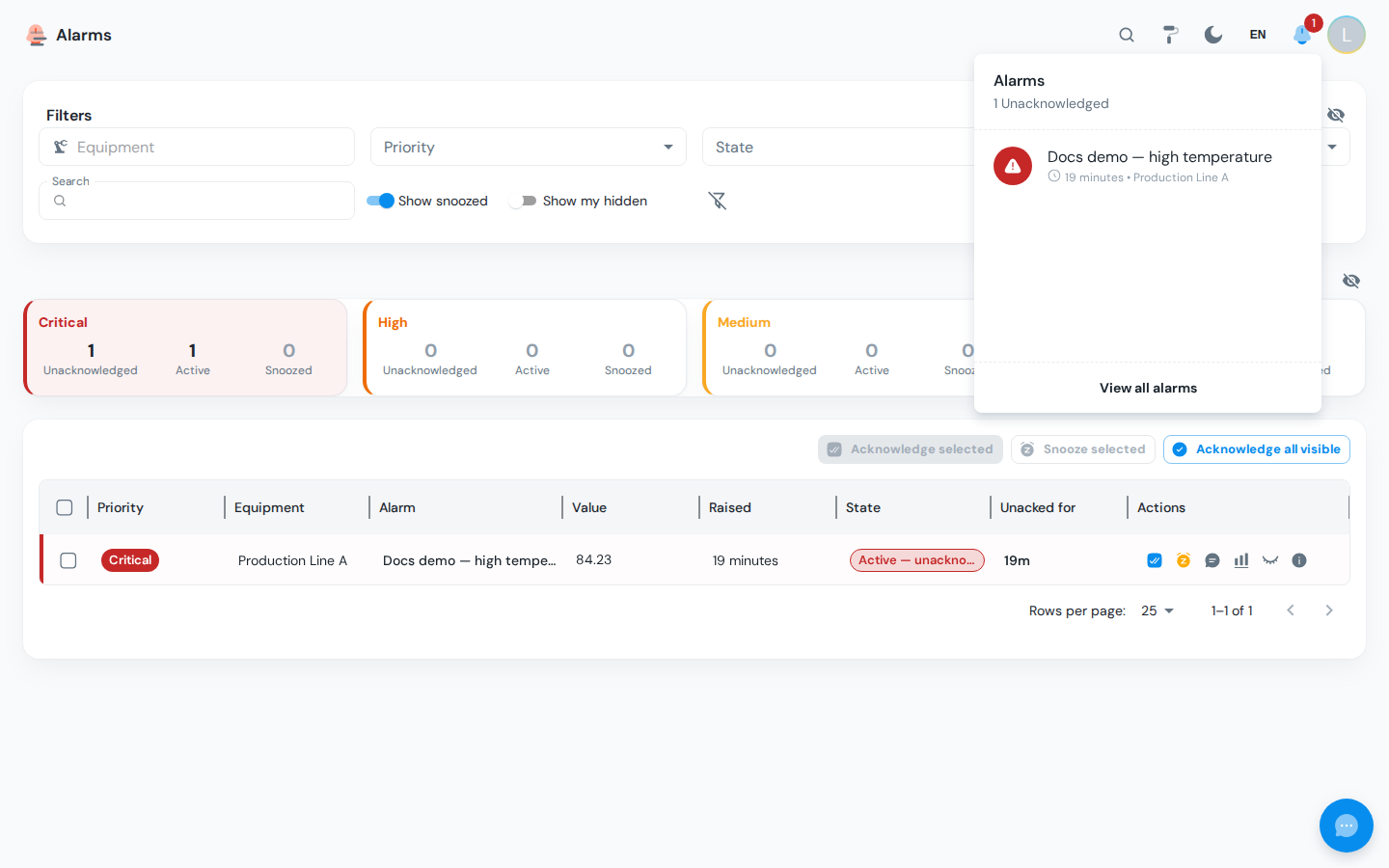
The bell updates from the same live stream as the screen, so the count changes as soon as an alarm is acknowledged anywhere. The audit feed the bell used to show lives on the Audit admin page.
Alarms on Other Screens
The Alarms screen is where alarms are worked, but two other places show them so you notice without going looking.
Alarm Dots on the Plant Overview
The plant plan — the zone layout on Production → Overview and on Operator Assignment — carries a round alarm chip in the corner of every zone that has something open, next to the OEE mini-gauges.
| Colour | The highest priority among the alarms currently open on that equipment: red for critical, orange for high, yellow for medium, blue-grey for low |
| Number | All open alarms on that equipment — unacknowledged, acknowledged, returned to normal and snoozed together — so the dot never understates what is waiting. More than 99 shows as 99+. |
| Grey dot | Every open alarm on that equipment is snoozed. There is no active priority to show, but something is still parked there, so the count stays visible in neutral grey instead of disappearing. |
| Tooltip | The breakdown behind the number, for example 2 unacknowledged, 3 active, 1 snoozed |
| Click | Opens the Alarms screen filtered to that equipment |
Equipment with nothing open draws no chip at all — no grey placeholder, no zero. A plan with no dots on it means a quiet plant, which is the point: the eye is drawn only to the zones that need it.
The dots follow the same live stream as the Alarms screen and are re-read every 30 seconds as a fallback, so they change colour as alarms are raised and acknowledged. They need perm:alarms:read and a valid licence; without either, the plan simply carries no dots.
The Active Alarms Cockpit Widget
Add Active Alarms to any Cockpit dashboard from Add widget → Operations: a compact live list of what is open right now, for a control-room screen or a supervisor's board.
- Equipment scope. By default the widget inherits the dashboard's equipment filter, so it follows the rest of the board. Switch the Equipment field to Override in the widget settings to pin it to a fixed selection — a wall display per line, for instance. An empty selection means everything in your equipment scope. There is no time range: the widget is what is open now, never a window.
- What a row shows. Priority chip, alarm name, equipment and how long ago it was raised. Unacknowledged rows are bold with a coloured left border. Rows are grouped by source and the most severe group comes first, exactly as on the Alarms screen; snoozed alarms are left out and at most 50 rows are shown. Clicking a row opens the Alarms screen with the same equipment filter.
- The live indicator. A small dot in the widget header is green while the live stream is connected (Live) and grey while it is reconnecting (Reconnecting); next to it, one pill per priority counts the open alarms of that priority in the widget's scope, and the bell icon opens the full screen. The list updates the moment something changes, with a 60-second poll as a fallback.
- Without the permission, the widget stays on the board and reads You do not have permission to view alarms. — it never fires a request that is guaranteed to be refused.
- Without a valid licence, it reads Alarms are unavailable without a valid licence. A single alarm whose own equipment is not licensed for alarming is marked in the list with a warning icon reading Alarms for this equipment are not licensed; evaluation is paused, so a quiet line is explained rather than mysterious.
Troubleshooting
| Symptom | Cause | Fix |
|---|---|---|
| The menu entry is missing or the screen says you have no permission | Your role does not have perm:alarms:read | Ask an admin to grant the permission in Access Control |
| The list is empty although alarms exist on other screens | The alarms belong to equipment outside your equipment scope, or the equipment filter excludes them | Clear the filters; if still empty, ask an admin to check your equipment scope |
| Snooze is refused | The end time is more than 7 days away, or longer than one hour without a reason | Pick a shorter duration or fill in the reason |
| The bell or the grid stops updating and the pill shows Offline | The live stream lost its connection (proxy restart, network drop) | Wait for the automatic reconnect or click Refresh; switch Auto-refresh on for a periodic fallback |
| No sound on a new critical alarm | The sound toggle is off, the browser has not received a click yet, or the operating system asks for reduced motion | Turn the toggle on, click anywhere on the page once, and check the reduced-motion setting of your operating system |
| An alarm you hid is back | Hidden alarms live in this browser only and are cleared when browser storage is cleared | Hide it again, or ask an admin to snooze or disable the alarm for everyone |
| The phone button says Invalid or expired token | The notification is older than 24 hours, or the link was altered | Acknowledge from this screen |
| The phone button says Already handled | The alarm was already acknowledged, snoozed or closed | Nothing to do |
| Notifications sent is empty for an alarm you expected on your phone | No routing rule or action covers this alarm's equipment, priority or event, or the time window is closed | Ask an admin to check Alarm Notifications |
| A zone on the plant plan shows a grey dot | Every open alarm on that equipment is snoozed, so there is no active priority to colour it with | Click the dot and switch Show snoozed on to see them |
| A zone with a known alarm shows no dot | The alarm has no equipment (a plant-wide alarm), the equipment is outside your scope, or you lack perm:alarms:read | Open the Alarms screen; plant-wide alarms are listed there but belong to no zone |
| The Active Alarms widget is empty while the Alarms screen is not | The widget's equipment scope is overridden and no longer matches the dashboard filter, or the open alarms are snoozed (the widget hides them) | Open the widget settings and set Equipment back to Inherit |
Next steps
- Alarm Lifecycle: what the states, delays and hysteresis mean
- Alarm Administration: how admins define alarms and their guidance texts
- Alarm Notifications: how alarms reach phones, mailboxes and chat rooms
Related
- Downtime Screen: the other main operator working screen
- Data Tags: the tags and limits that fast alarms are built from