Reason Trees
Reason trees are hierarchical structures that organize your reasons into navigable categories. Instead of presenting operators with a flat list of 50+ reasons, a reason tree guides them through 2–3 levels of categories to find the right cause quickly.
How reason trees work
A reason tree is a parent-child hierarchy where:
- Branch nodes are categories (e.g., "Mechanical", "Electrical")
- Leaf nodes are specific reasons (e.g., "Belt broken", "Sensor fault")
- Each node can have a loss type assignment (or inherit from its parent)
- Each node can have a color for visual identification
When an operator logs a downtime event, they:
- See the top-level categories
- Click into the relevant category
- Select the specific reason
- The loss type is automatically applied from the tree node
Managing reason trees
Navigate to Admin → OEE → Reason Trees.
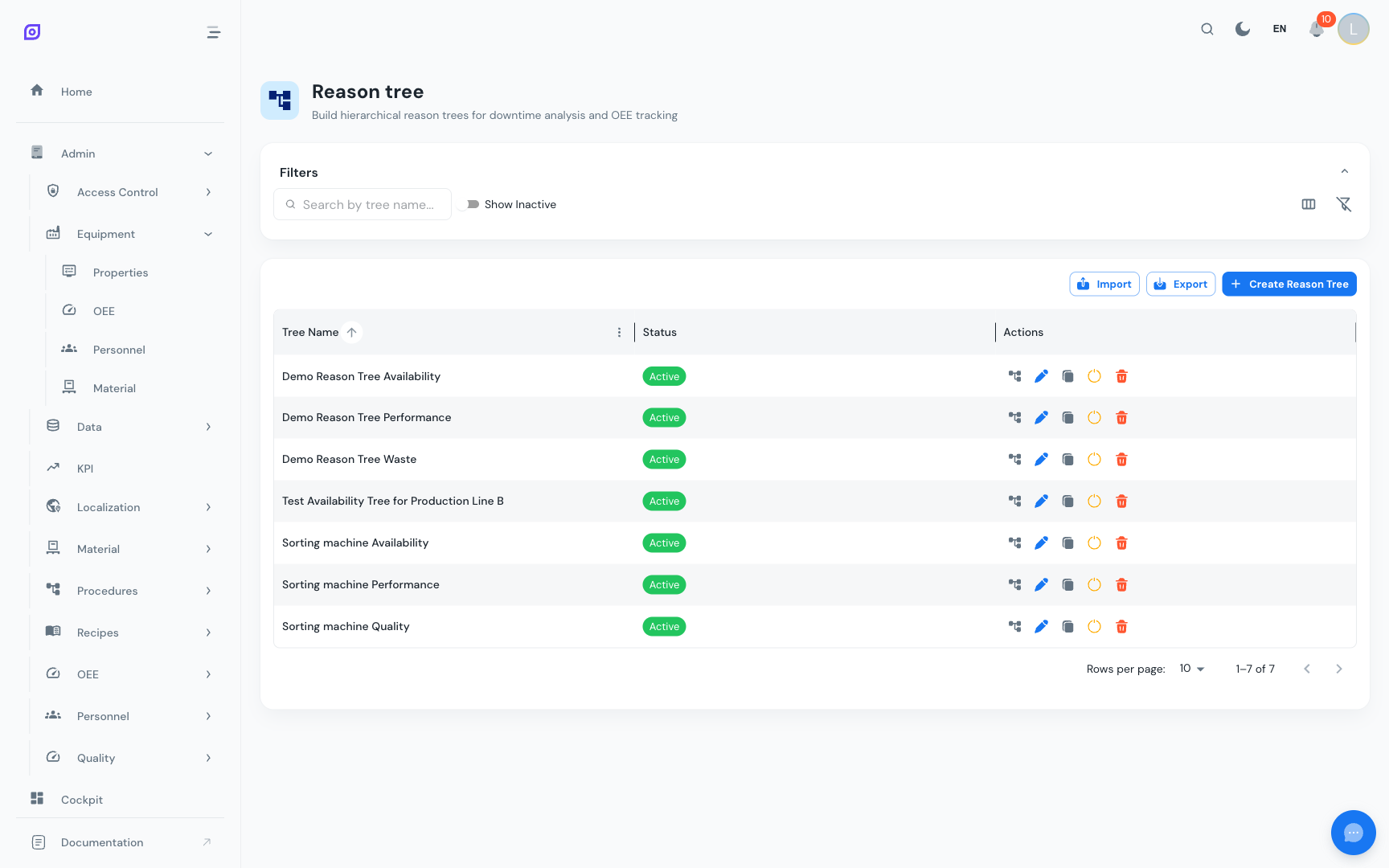
Creating a Tree
Click + Create and enter:
| Field | Required | Description |
|---|---|---|
| Description | Yes | Name of the tree (e.g., "Packaging Line Reasons") |
| Active | Yes | Whether this tree is available for assignment |
Building the Hierarchy
After creating the tree, open it to access the tree visualizer:
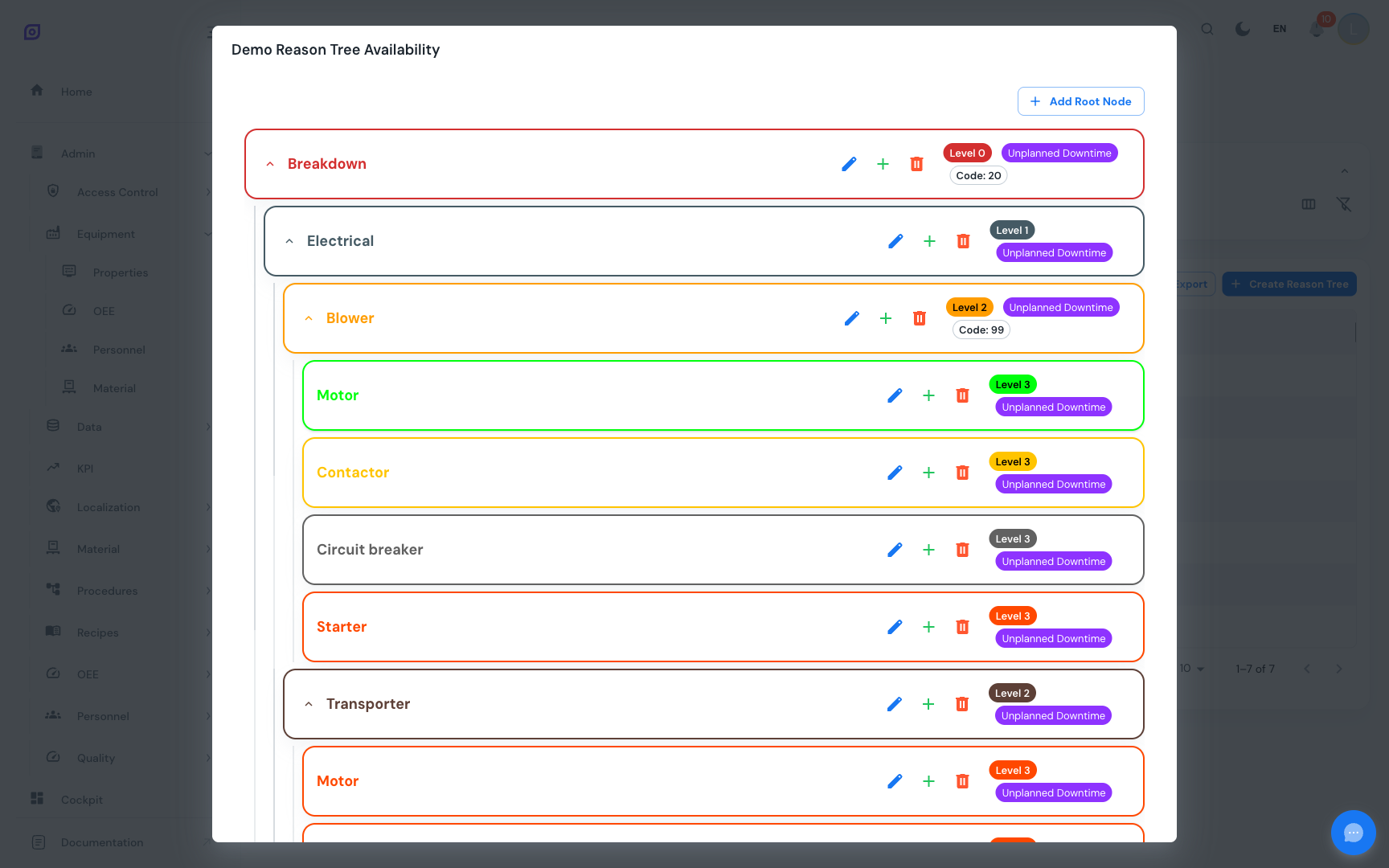
Adding nodes
Click + Add on any node to add a child:
| Field | Required | Description |
|---|---|---|
| Reason | Yes | Select from your existing reasons library |
| Loss Type | No | OEE loss type (inherits from parent if not set) |
| Color | No | Visual color for dashboards and timelines |
| Code | No | Optional identifier for integration or reporting |
Loss type inheritance
This is one of the most powerful features of reason trees:
- Assign a loss type to a branch node (e.g., "Mechanical" → Unplanned)
- All child nodes automatically inherit that loss type
- Override at any level when a child needs a different classification
The tree visualizer shows inheritance clearly:
- Direct assignment: "Loss Type: Unplanned"
- Inherited: "Loss Type: Unplanned (inherited)"
:::tip Use inheritance to save time For a tree with 50 reasons, you might only need to set loss types on 5–8 top-level categories. Everything underneath inherits automatically. :::
Color coding
Assign colors to nodes for visual distinction in:
- The reason tree visualizer
- The Downtime Timeline widget
- OEE breakdown charts
Colors are selected from a predefined palette to ensure consistency.
Duplicating a Tree
Click Duplicate on any tree to create a copy with all nodes intact. This is useful when:
- Creating a tree for a similar equipment type with minor differences
- Testing changes before applying to the production tree
- Standardizing trees across multiple plants
Import/Export
Use Export and Import for bulk operations. This supports the full tree structure including hierarchy, loss type assignments, and colors.
Multiple Trees for Different Equipment
Different equipment types often have different failure modes. You can create separate reason trees for different equipment types:
| Equipment Type | Reason Tree | Why separate |
|---|---|---|
| Packaging Lines | Packaging Reasons | Jams, seal failures, label issues |
| Mixing Tanks | Process Reasons | Temperature, viscosity, contamination |
| Conveyors | Mechanical Reasons | Belt, motor, alignment |
Assign trees to equipment through the Equipment OEE Settings.
Best Practices
Tree Depth
- 2 levels (Category → Reason) works for most plants
- 3 levels (Category → Subcategory → Reason) for complex operations
- Avoid 4+ levels: operators won't navigate that deep under time pressure
Node Count per Level
- 5–8 top-level categories: scannable at a glance
- 3–10 reasons per category: manageable selection
- If a category has 15+ children, split it into subcategories
Review Cycle
Review your reason trees quarterly:
- Which reasons are never selected? → Deactivate or merge
- Which events are classified "Other"? → Add specific reasons
- Which categories have too many items? → Split into subcategories
Next steps
- Analytics — See how reason tree data appears in OEE dashboards
- Reports — Generate reports by loss type and reason
- Reasons — Manage the reason library that feeds into trees
Prerequisites
- OEE Configuration Overview
- Introduction — get the overall picture of OpSee
Related
- OEE Fundamentals
- Equipment — complementary module