Getting Started with OEE Configuration
This guide walks you through setting up OEE tracking for your first equipment line. By the end, your operators will be able to log downtime with structured reasons, and supervisors will see OEE breakdowns by loss type.
Prerequisites
Before you begin, make sure you have:
- At least one equipment item created in OpSee
- Admin or OEE configuration permissions
Step 1: Create Loss Categories
Loss categories are optional business-level groupings. They help with reporting but are not required for basic OEE tracking.
Navigate to Admin → OEE → Loss Categories and create categories that match your plant's organization:
| Example Category | Description |
|---|---|
| Mechanical | All mechanical failures and wear |
| Electrical | Electrical faults, sensor issues |
| Process | Process-related stops (recipe changes, quality holds) |
| External | Causes outside production control |
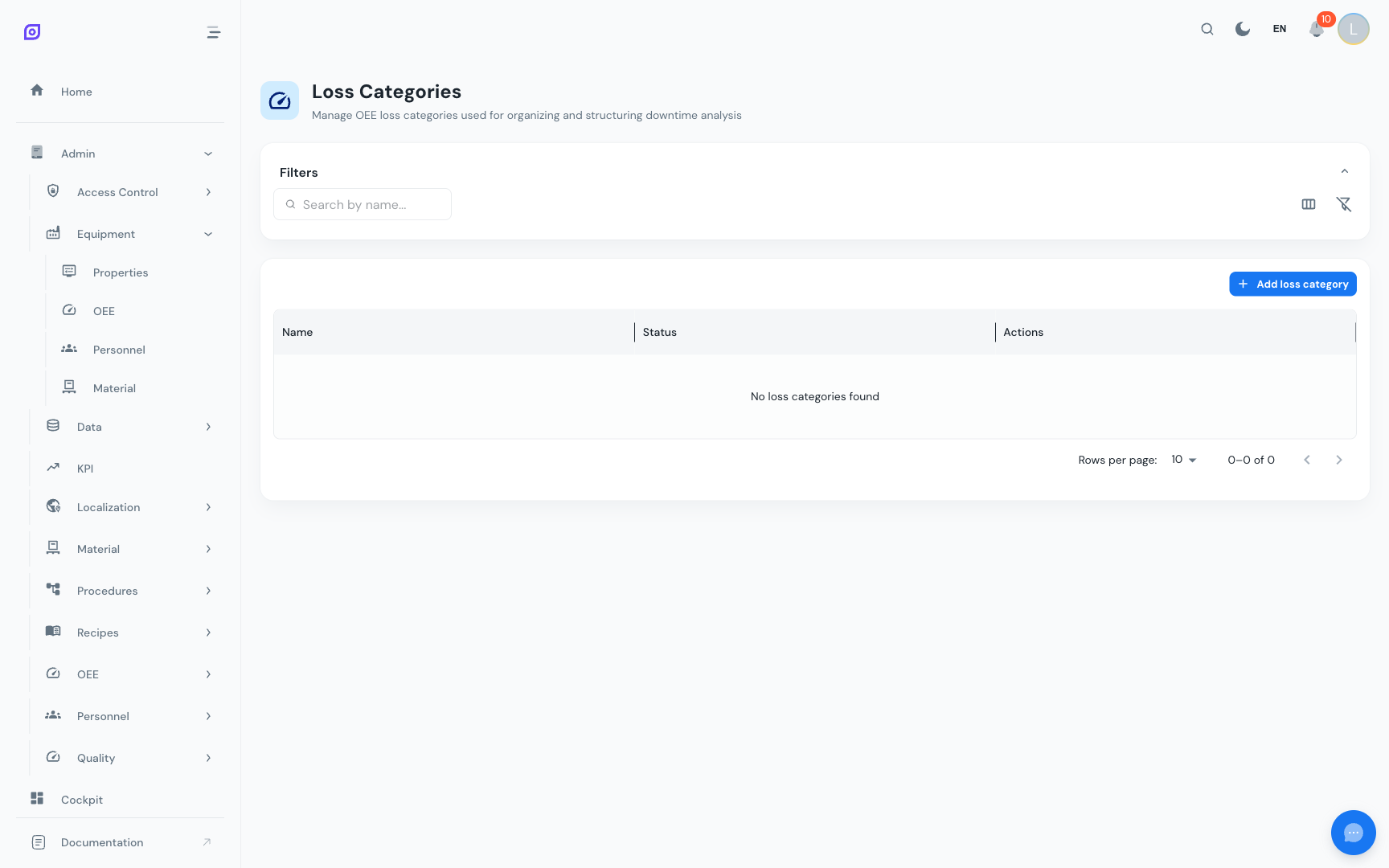
:::info Optional step If you just want to get started quickly, you can skip loss categories and come back to them later. Loss types work independently. :::
Step 2: Create Loss Types
Loss types map directly to OEE theory. Navigate to Admin → OEE → Loss Types and create types for each relevant OEE category.
A good starting set:
| Loss Type Name | OEE Category | What it covers |
|---|---|---|
| Equipment Failure | Unplanned | Breakdowns, jams, tool failures |
| Setup & Changeover | Planned | Recipe changes, material changes |
| Planned Maintenance | Planned | Scheduled maintenance windows |
| Minor Stops | Performance | Short interruptions < 5 min |
| Reduced Speed | Performance | Running below ideal cycle time |
| Startup Rejects | Quality | Defects during warmup |
| Production Rejects | Quality | Defects during stable production |
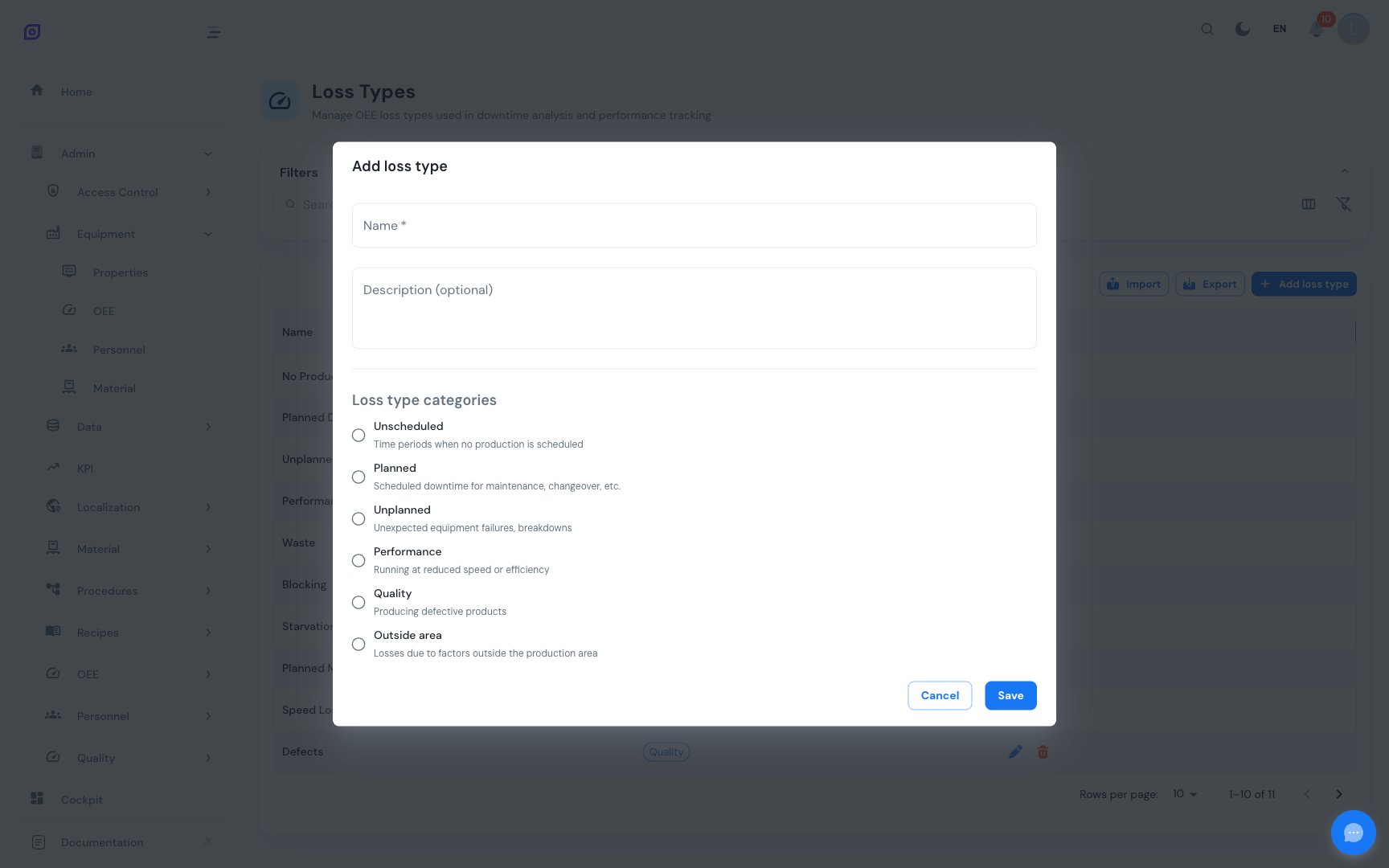
For each loss type, select the appropriate OEE category. This determines how the loss affects the OEE calculation (Availability, Performance, or Quality).
:::tip Match the Six Big Losses The loss types above map directly to the Six Big Losses. This alignment ensures your OEE calculations follow industry standards. :::
Step 3: Create Reasons
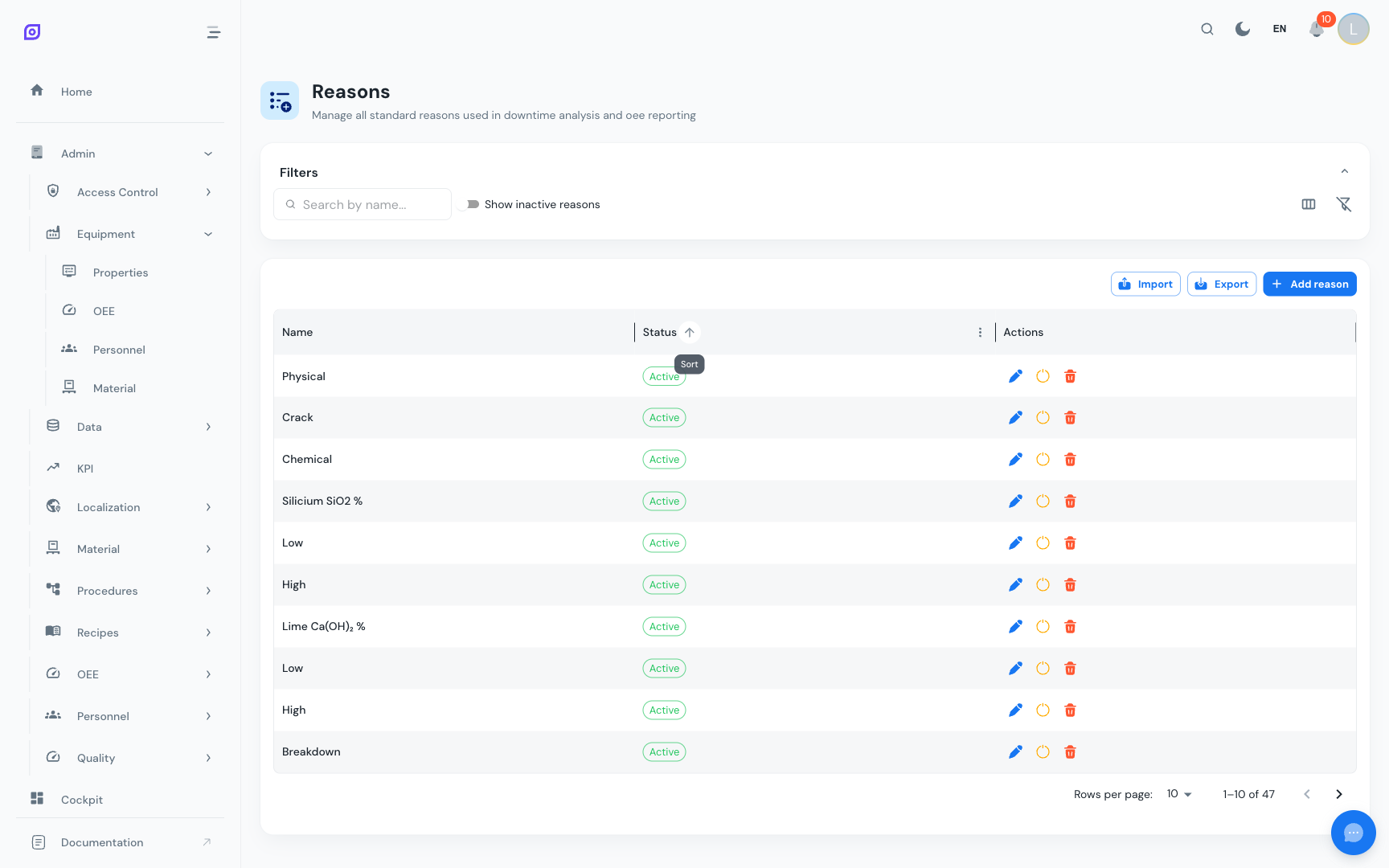
Reasons are the specific causes your operators will choose when logging downtime. Navigate to Admin → OEE → Reasons.
Create reasons that are specific enough to be actionable but general enough to be used consistently:
| Good Reasons | Too Vague | Too Specific |
|---|---|---|
| Belt broken | Machine problem | Belt #3 on conveyor C-12 torn at splice point |
| Material shortage | Waiting | Waiting for PO #12345 batch of polymer A |
| Operator break | Break | John went to lunch at 12:15 |
:::tip Aim for 15–30 reasons Studies show that 15–30 well-chosen reasons cover 90%+ of downtime events in most plants. Start with fewer and add more as operators request them. :::
Step 4: Build a Reason Tree
This is where everything comes together. Navigate to Admin → OEE → Reason Trees.
Create the Tree
Click + Create and give your tree a descriptive name (e.g., "Packaging Line Reasons" or "General Production").
Add nodes
Build a hierarchy that guides operators from broad categories to specific reasons:
📁 Mechanical Failure (Loss Type: Unplanned)
   ├── Belt broken
   ├── Bearing failure
   └── Motor overload
📁 Electrical (Loss Type: Unplanned)
   ├── Sensor fault
   └── PLC error
📁 Changeover (Loss Type: Planned)
   ├── Recipe change
   └── Material change
📁 Operator (Loss Type: Planned)
   ├── Break
   └── Training
📁 Quality Issue (Loss Type: Quality)
   ├── Out of spec
   └── Contamination
For each node:
- Select a Reason from the dropdown
- Assign a Loss Type (or let it inherit from the parent node)
- Optionally set a Color for visual distinction in dashboards
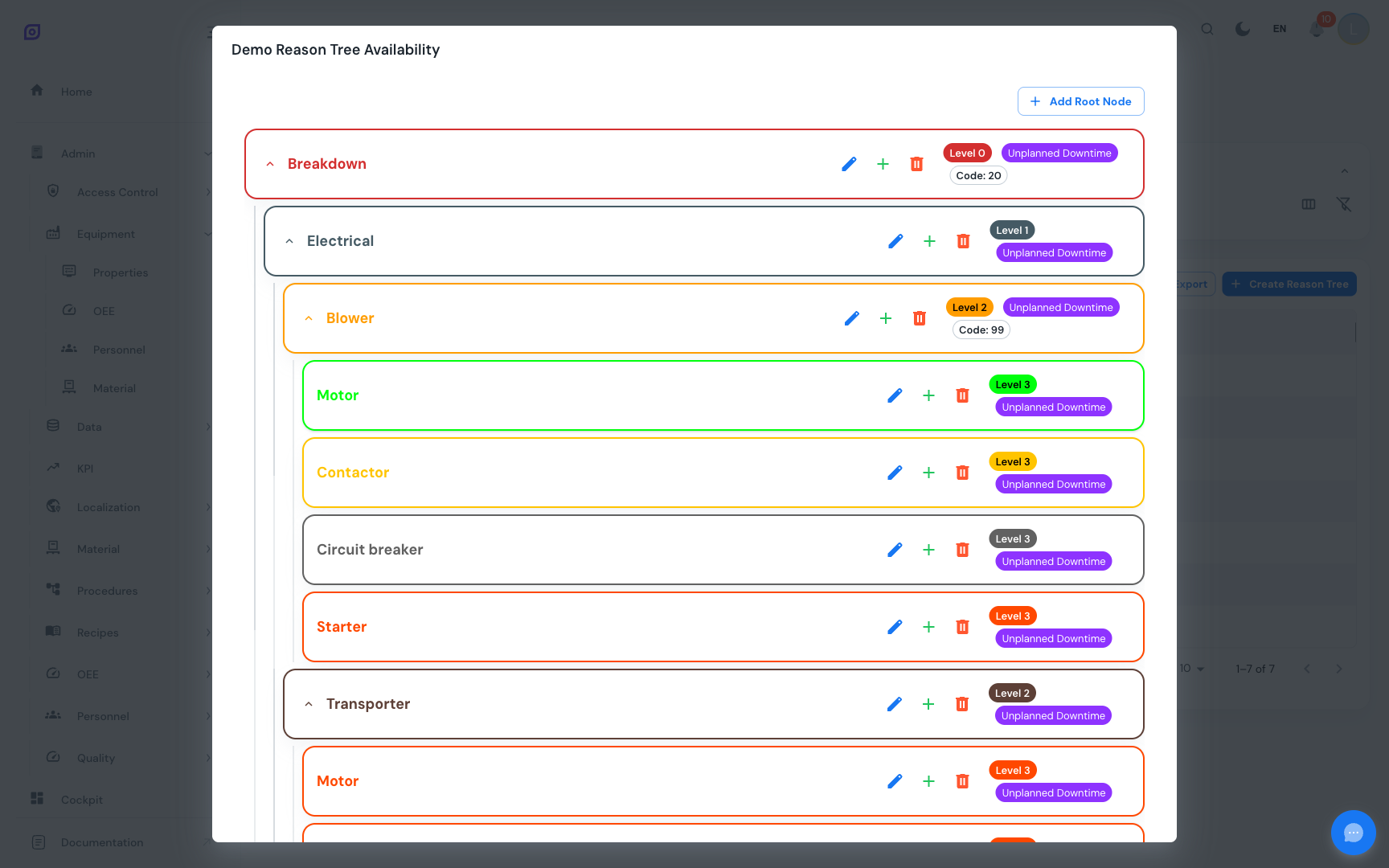
:::tip Use inheritance Assign the loss type at the top-level nodes (e.g., "Mechanical Failure" → Unplanned). All child reasons inherit this classification automatically. Only override at the leaf level when a specific reason needs a different loss type. :::
Step 5: Assign to Equipment
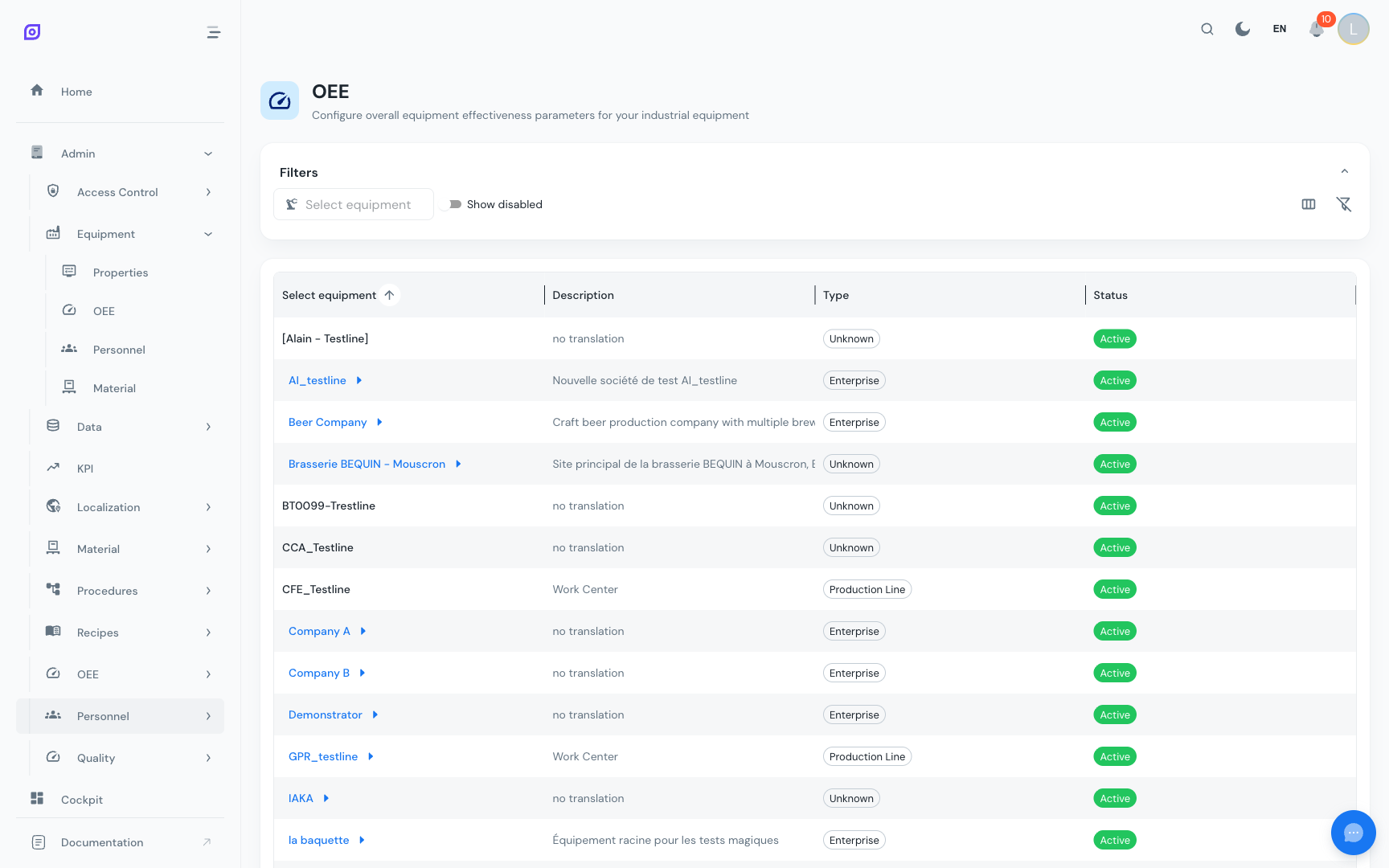
The final step connects your reason tree to your equipment. Navigate to Admin → Equipment and open an equipment item's OEE settings.
Select the reason tree that applies to this equipment. Different equipment types can use different trees — a packaging line might have different failure modes than a mixing tank.
Verify your setup
Once configured, test the setup:
- Open the Production → OEE → Downtime view
- Find a downtime event for your equipment
- Click on the event to open the reason selection
- Verify that you can navigate the reason tree and select a reason
- Check that the OEE dashboard shows the correct loss type breakdown
Next steps
- Loss Categories — Deep dive into category management
- Loss Types — Advanced loss type configuration
- Reasons — Managing your reason library
- Reason Trees — Advanced tree features (duplication, color coding, equipment type filtering)
- Analytics — View your OEE data once it starts flowing
Related
- OEE Fundamentals
- Equipment — complementary module