Material List
The Material List page displays all defined materials in a sortable, filterable data grid. It is the primary interface for day-to-day material management.
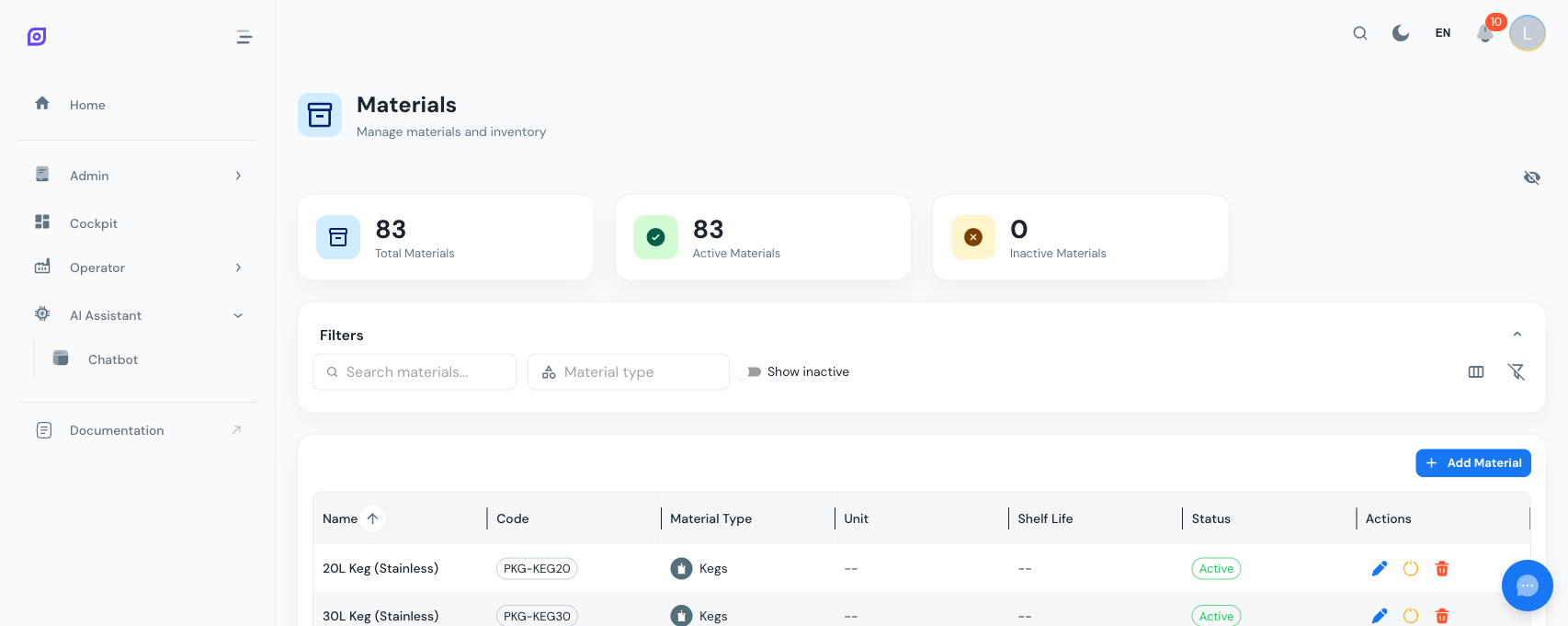
Dashboard cards
Three summary cards appear above the grid:
| Card | Description |
|---|---|
| Total Materials | Count of all materials in the system |
| Active Materials | Count of materials currently enabled |
| Inactive Materials | Count of deactivated materials |
These cards update automatically when you create, edit, or delete materials.
Data grid columns
The grid shows the following columns. Use the column visibility toggle to switch between compact and full views.
| Column | Compact | Full | Description |
|---|---|---|---|
| Icon | Yes | Yes | Avatar showing the material class icon and color |
| Name | Yes | Yes | Material name (plain text) |
| Code | Yes | Yes | Unique material code displayed as a chip |
| Material Class | Yes | Yes | Name of the assigned material class |
| Unit of Measure | Yes | Yes | UoM label (kg, L, pcs, etc.) |
| Shelf Life | Yes | Yes | Number of days, or "--" if not set |
| Status | Yes | Yes | Active (green chip) or Inactive (grey chip) |
| Description | No | Yes | Optional description text |
| Created | No | Yes | Creation date |
| Updated | No | Yes | Last modification date |
| Actions | Yes | Yes | Edit, deactivate, delete, and reactivate buttons |
Click any column header to sort the grid. The grid supports multi-column sorting -- hold Ctrl (or Cmd on Mac) and click additional headers.
Searching and Filtering
Text search
Type in the search field to filter materials by name, code, description, or material class name. The filter applies instantly as you type.
Material class filter
Click the Material Class dropdown to open a hierarchical tree selector. You can:
- Check individual classes to show only materials in those categories
- Check a parent class to automatically select all its sub-classes
- Search within the tree using the built-in search field
- Select All / Deselect All with the buttons at the top of the dropdown
- Clear the filter by clicking the "x" badge on the dropdown
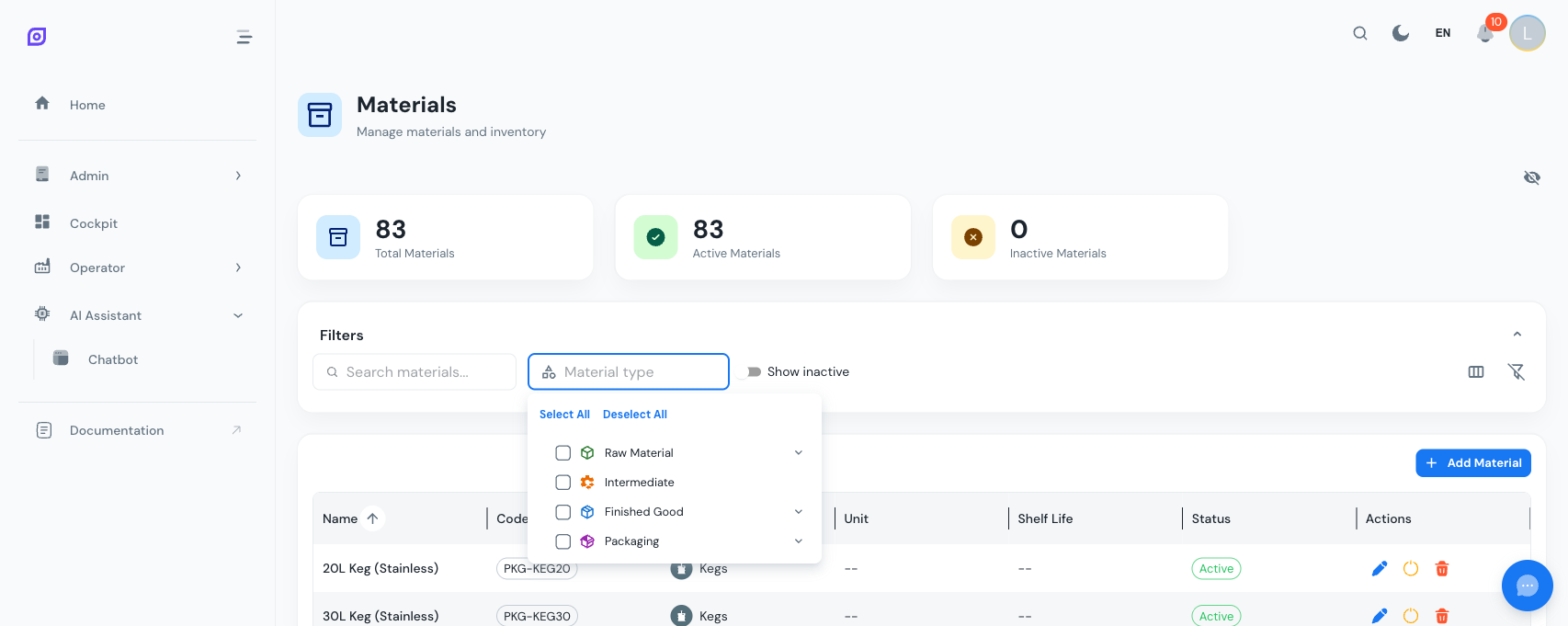
Show Inactive Toggle
By default, only active materials are shown. Enable the Show Inactive switch to include deactivated materials in the grid. Inactive rows appear with reduced opacity.
Clear Filters
Click the filter off icon (far right of the filter bar) to reset all filters, search text, and column visibility to their defaults.
Creating a Material
- Click the Add button above the grid
- Fill in the form:
- Name (required) -- the material name
- Code (required) -- a unique identifier
- Material Class (required) -- select from the dropdown
- Unit of Measure (optional) -- select from the system's UoM list
- Shelf Life (optional) -- number of days
- Description (optional) -- free text
- Active (checkbox) -- enabled by default
- Click Create
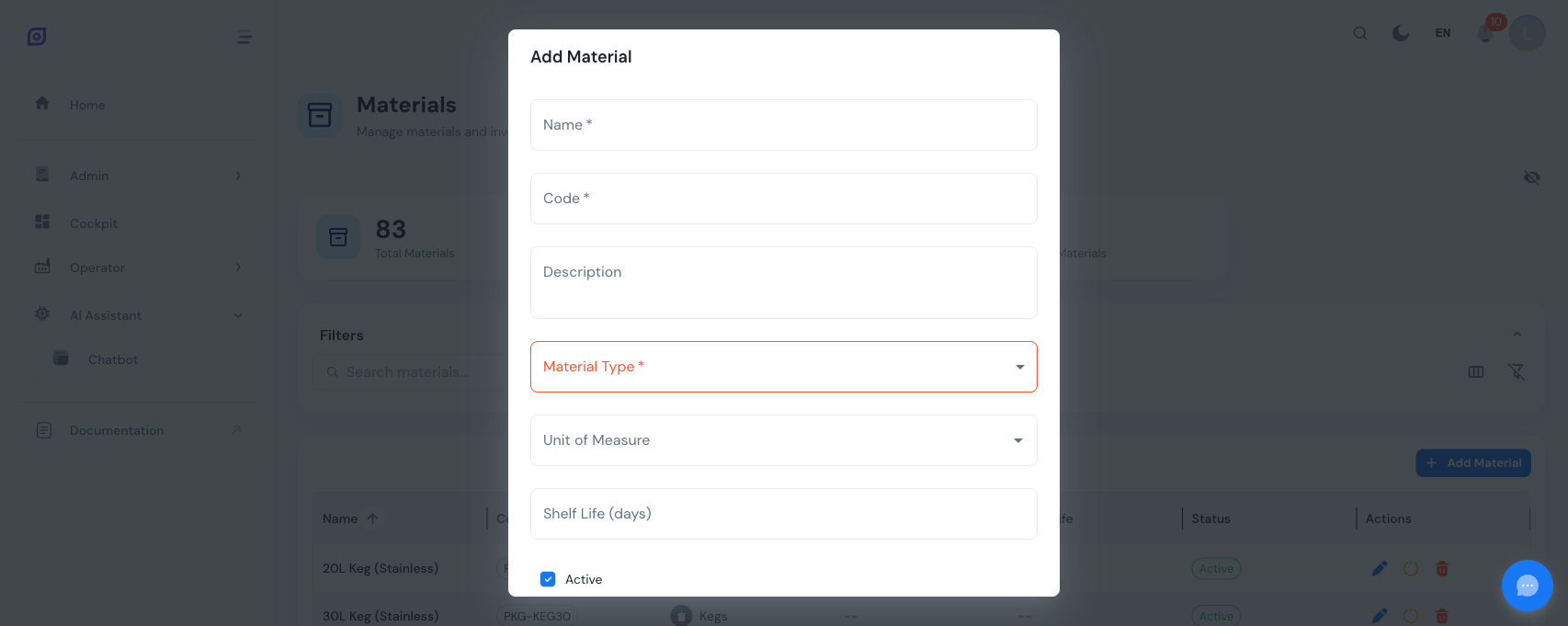
You must create at least one Material Class before you can add materials. The class dropdown only shows active classes.
Editing a Material
Click the edit button (blue pencil icon) on any row to open the edit dialog. The form is pre-filled with the current values. Modify the fields you need and click Update.
Deactivating vs. Deleting
OpSee provides two ways to remove a material:
| Action | What happens | Reversible? |
|---|---|---|
| Deactivate | Sets the material to inactive. It remains in the database but is hidden from active views. | Yes -- click the reactivate button when Show Inactive is on |
| Delete | Permanently removes the material from the database. | No |
Deletion is blocked if the material is referenced by OEE production data. Deactivate the material instead, or remove the references first.
Reactivating a Material
- Enable the Show Inactive switch in the filter bar
- Find the deactivated material (shown with reduced opacity)
- Click the reactivate button (green checkmark icon) on the row
Column Visibility
Use the column toggle icon in the filter bar to switch between:
- Compact view -- hides description, created/updated dates
- Full view -- shows all columns except the internal ID
You can also fine-tune visibility using the DataGrid's built-in Manage Columns panel (click the three-dot menu on any column header).
Prerequisites
- Material Overview
- Introduction — get the overall picture of OpSee
Next steps
Related
- Equipment Model (ISA-95)
- Equipment — complementary module