Getting Started
Follow these steps to set up your first materials in OpSee. The entire process takes about five minutes.
Prerequisites
Before you begin, make sure you have the modify_materials permission assigned to your user role. Without it, you can view materials but cannot create or edit them.
Step 1: Navigate to the Material Section
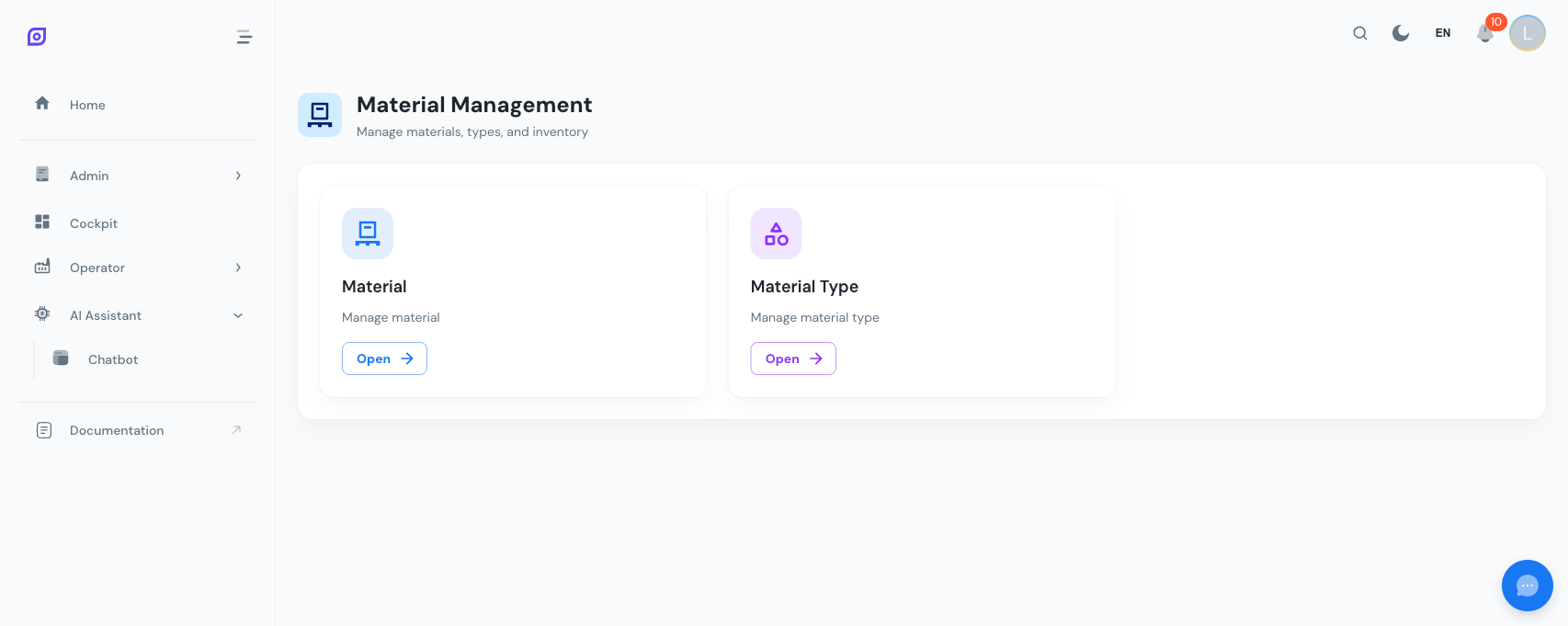
Open the main navigation menu and go to Admin > Material. You will see the Material hub page with two cards: Material List and Material Classes.
Step 2: Create a Material Class
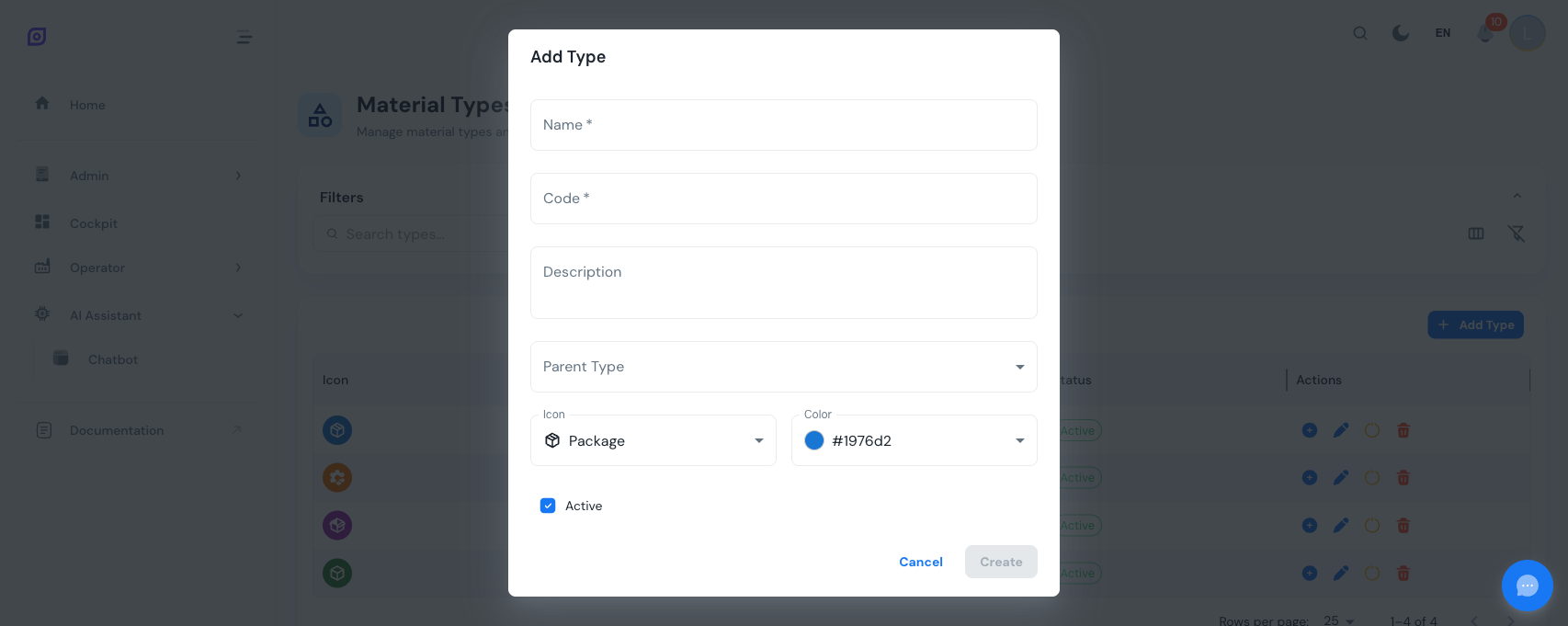
Click Material Classes to open the classes page. Material classes are categories that group related materials together.
- Click the Add button in the toolbar
- Fill in the required fields:
- Name -- a descriptive label (e.g. "Raw Materials")
- Code -- a short unique identifier (e.g. "RAW")
- Optionally set:
- Description -- additional context about this class
- Parent -- select an existing class to create a sub-category
- Icon -- choose from 10 predefined icons (package, cube, flask, grain, etc.)
- Color -- pick a color for visual distinction in the tree
- Click Create
Build your class hierarchy from the top down. Create broad categories first (Raw Materials, Finished Goods, Packaging), then add sub-categories within each.
Step 3: Create a Material
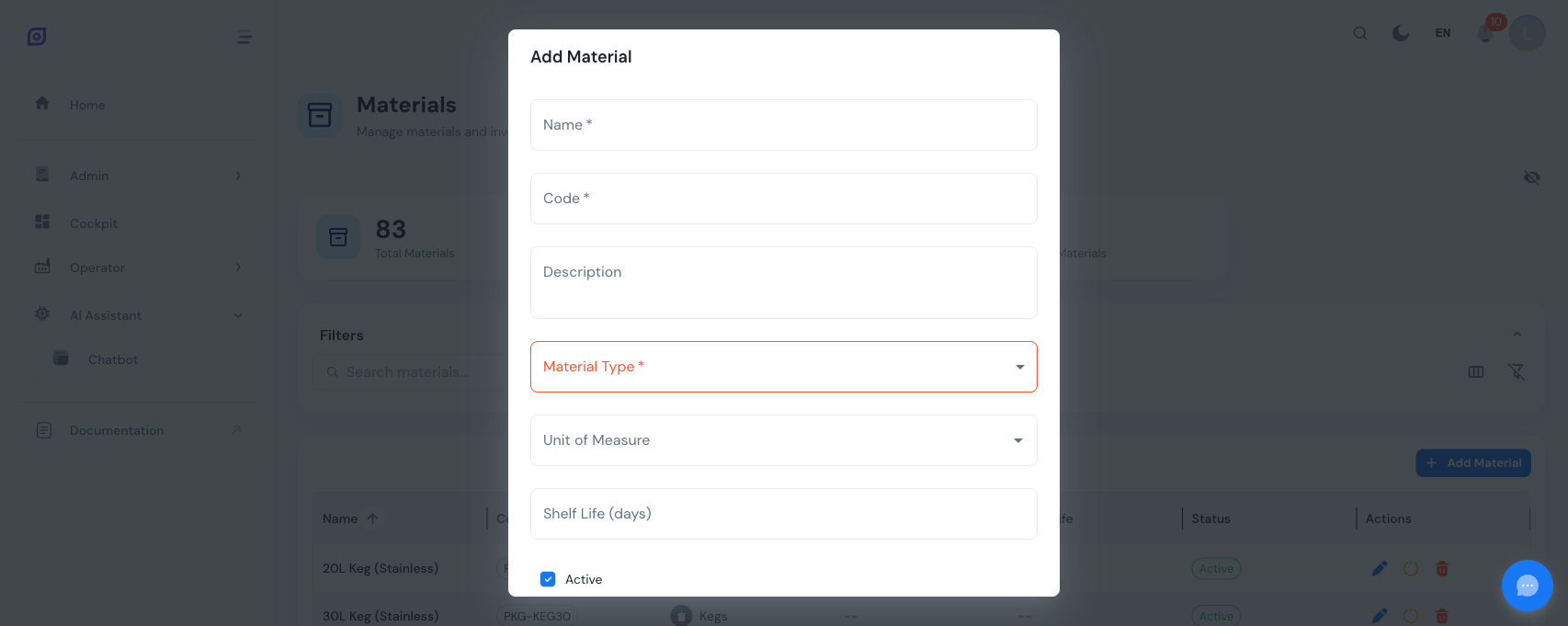
Go back to the Material hub and click Material List, then click the Add button.
- Fill in the required fields:
- Name -- the material name (e.g. "Sodium Chloride")
- Code -- a unique material code (e.g. "NACL-001")
- Material Class -- select the class you created in Step 2
- Optionally set:
- Description -- usage notes or specifications
- Unit of Measure -- select from the system's UoM list (kg, L, pcs, etc.)
- Shelf Life (days) -- for perishable materials
- Click Create
Step 4: Verify Your Material
Your new material now appears in the Material List grid. You can see its name, code, class, unit of measure, status, and shelf life at a glance.
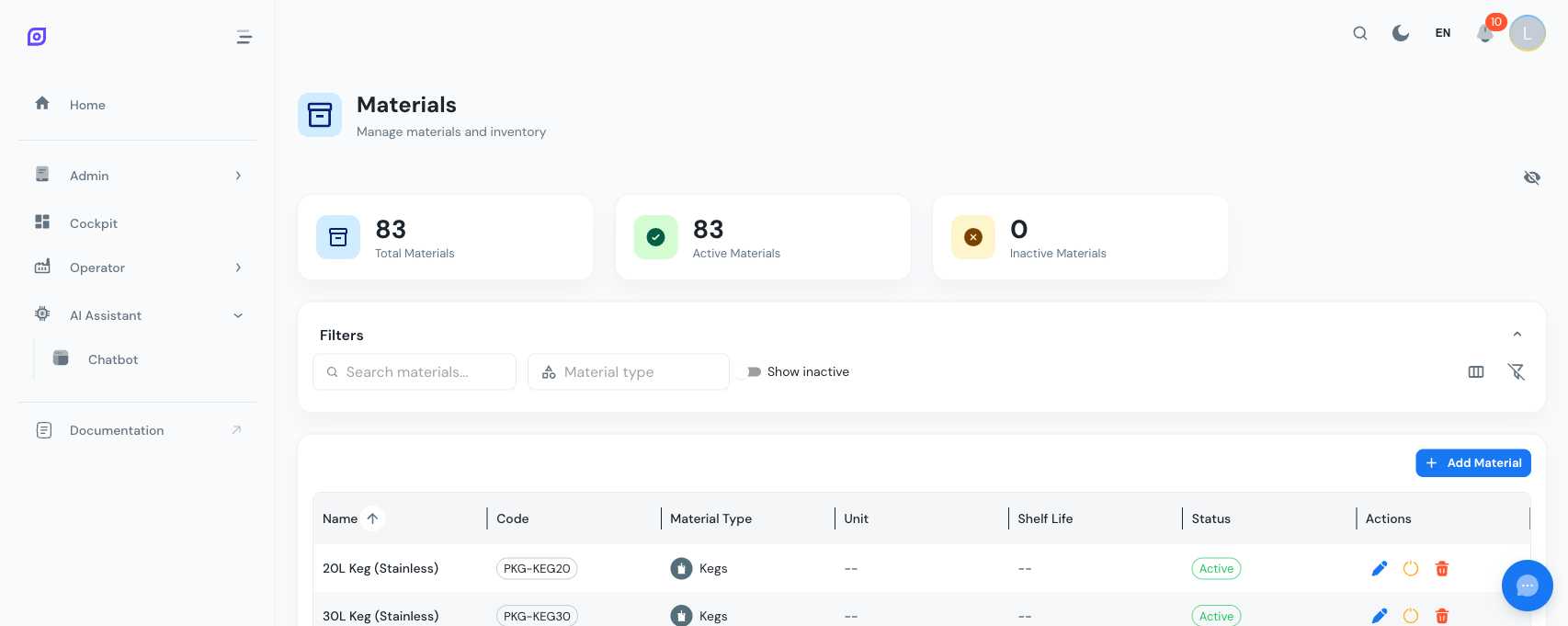
The dashboard cards at the top of the page update automatically to reflect the new totals.
Every action you take (create, edit, delete) is recorded in the Audit Trail. You can review the full history of changes to any material or material class at any time.
Next steps
| Page | What you will learn |
|---|---|
| Material List | Search, filter, edit, deactivate, and delete materials |
| Material Classes | Manage hierarchical categories, add sub-classes, customize icons and colors |
Related
- Equipment Model (ISA-95)
- Equipment — complementary module