Material Classes
Material classes are hierarchical categories used to organize materials. They follow the ISA-88 classification model, allowing you to build a tree structure of arbitrary depth -- from broad categories down to specific sub-types.
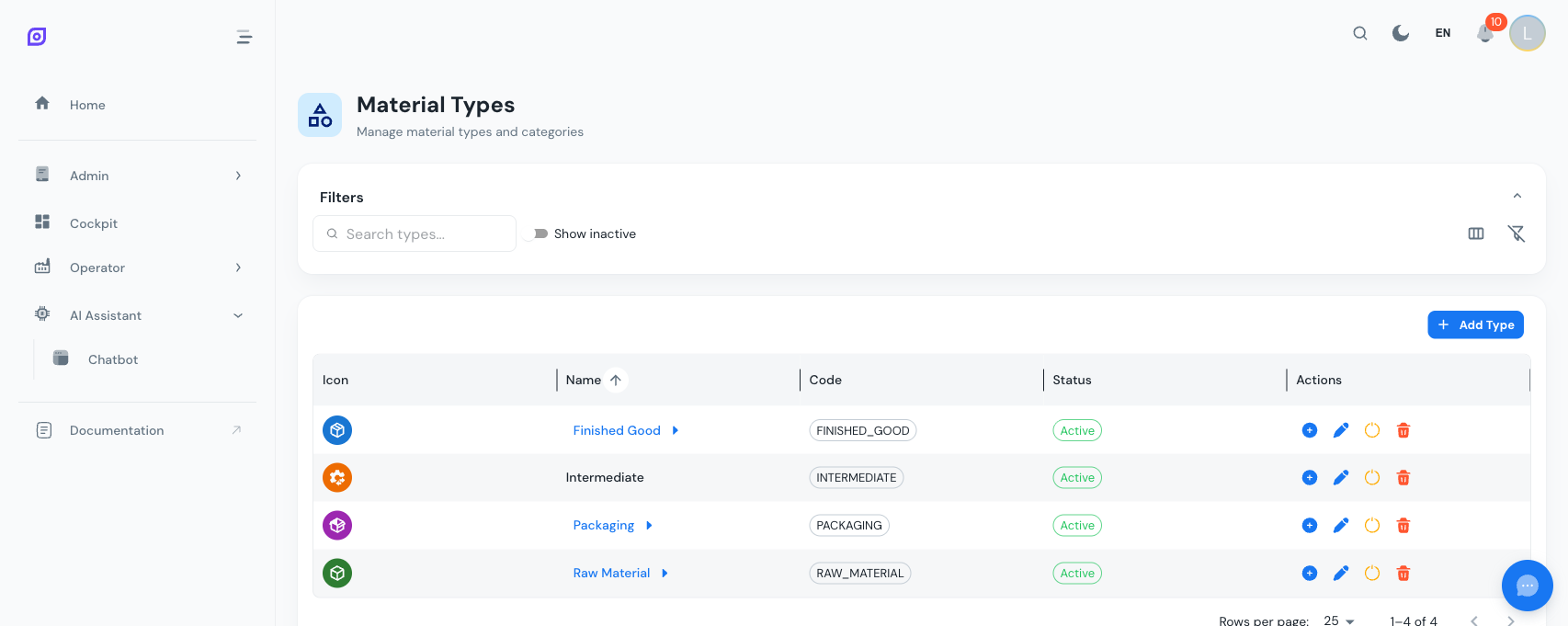
Class hierarchy
Classes support parent-child relationships. A class with children is displayed as a clickable link in the grid -- click the name to drill down into its sub-classes. A breadcrumb trail at the top of the grid lets you navigate back up the hierarchy.
Example hierarchy:
Raw Materials
  Chemicals
    Solvents
    Acids
  Natural Ingredients
    Grains
    Liquids
Finished Goods
  Beverages
  Packaged Food
Packaging
  Bottles
  Cartons
When you search by text, the grid switches to a flat view showing all matching classes regardless of hierarchy level. Clear the search to return to the hierarchical view.
Data grid columns
| Column | Compact | Full | Description |
|---|---|---|---|
| Icon | Yes | Yes | Avatar with the class icon and color |
| Name | Yes | Yes | Class name; clickable link if it has children |
| Code | Yes | Yes | Unique short code displayed as a chip |
| Status | Yes | Yes | Active (green) or Inactive (grey) chip |
| Description | No | Yes | Optional description text |
| Color | No | Yes | Color swatch circle |
| Created | No | Yes | Creation date |
| Updated | No | Yes | Last modification date |
| Actions | Yes | Yes | Add child, edit, deactivate, delete, reactivate |
Creating a Material Class
- Click the Add button in the toolbar
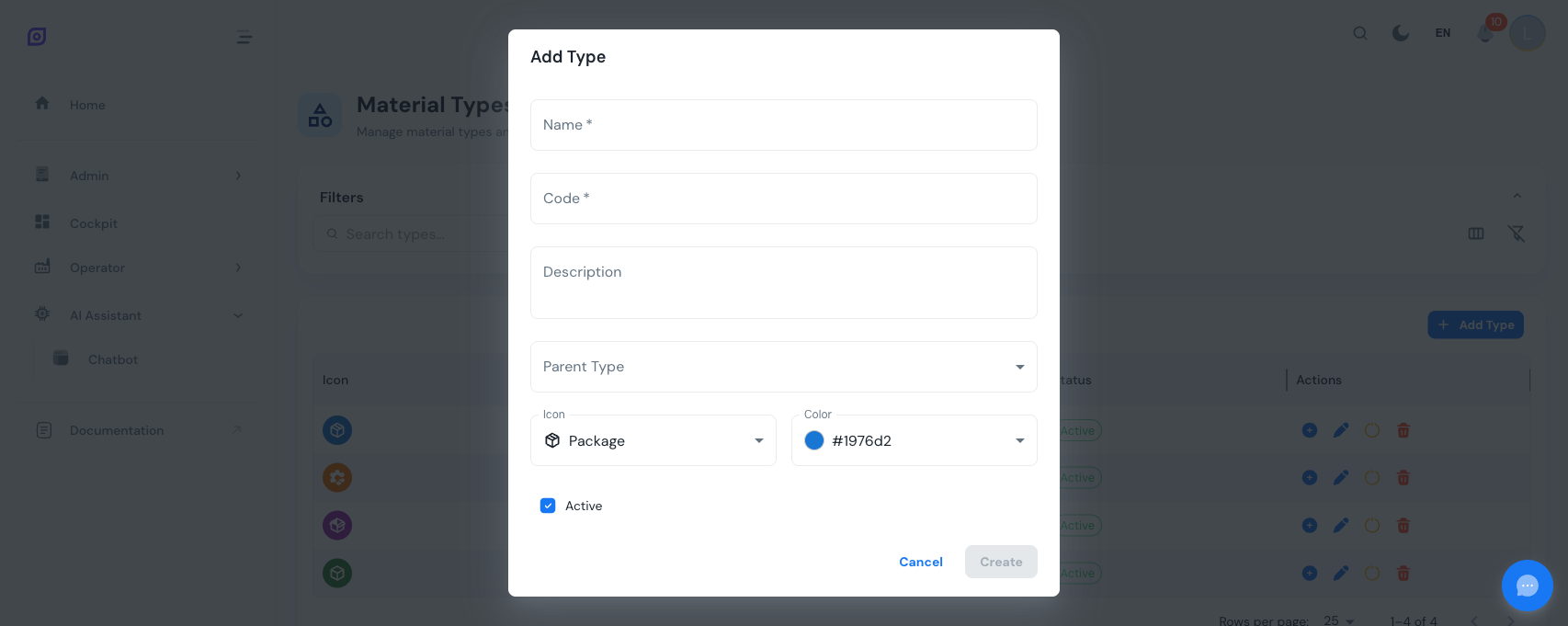
- Fill in the form fields:
| Field | Required | Description |
|---|---|---|
| Name | Yes | Display name of the class |
| Code | Yes | Unique short identifier (max 50 characters) |
| Description | No | Optional details |
| Parent | No | Select an existing class to make this a sub-category |
| Icon | No | Choose from 10 predefined icons (package, cube, flask, grain, water, molecule, leaf, tool, cog, packaging) |
| Color | No | Pick from 15 predefined colors for visual distinction |
| Active | No | Enabled by default |
- Click Create
Adding a Child Class
There are two ways to create a sub-class:
- From the toolbar: click Add -- the parent is pre-set to the current level you are viewing
- From a row: click the add child button (green plus icon) on any row -- the parent is pre-set to that specific class
Both methods open the same dialog with the parent field pre-filled.
Editing a Material Class
Click the edit button (blue pencil icon) on any row. The dialog opens with all current values pre-populated. You can change any field, including re-assigning the parent to restructure the hierarchy.
When you change a class's parent, all materials assigned to that class remain associated with it. Only the class's position in the hierarchy changes.
Deactivating vs. Deleting
| Action | What happens | Reversible? |
|---|---|---|
| Deactivate | Hides the class from active views and from the material creation dropdown. Materials already assigned keep their class reference. | Yes |
| Delete | Permanently removes the class. | No |
Deletion is blocked if the class still has materials or child classes referencing it. Reassign or delete those references first, or deactivate the class instead.
Reactivating a Class
- Enable the Show Inactive switch
- Find the deactivated class (shown with reduced opacity)
- Click the reactivate button (green checkmark icon)
Icons and Colors
Each material class can have a custom icon and color. These are displayed in the class grid and as material avatars in the Material List.
Available icons:
| Icon | Label |
|---|---|
| Package (closed) | Default icon for new classes |
| Cube | Generic item |
| Cog/Process | Process materials |
| Package (open) | Packaging |
| Flask | Chemicals |
| Grain | Granular materials |
| Water | Liquids |
| Molecule | Molecular/compound materials |
| Leaf | Organic materials |
| Toolbox | Tools and parts |
Colors are selected from a palette of 15 predefined options, ranging from blues and greens to reds and browns.
Searching and Filtering
Text search
Type in the search field to filter classes by name, code, or description. When a search is active, the hierarchical view is temporarily replaced with a flat list of all matching results.
Show inactive
Toggle the Show Inactive switch to include deactivated classes in the grid.
Column Visibility
Use the column toggle icon to switch between compact view (hides description, color, dates) and full view (shows all columns except ID).
Clear Filters
Click the filter off icon to reset all filters, search text, and column visibility to defaults.
Best Practices
- Keep codes consistent -- use a naming convention like
RAW,FIN,PKGfor top-level classes andRAW-CHEM,RAW-NATfor sub-classes - Limit hierarchy depth to 3-4 levels for usability
- Use colors to visually distinguish top-level categories at a glance
- Deactivate rather than delete classes that are no longer needed -- this preserves historical data integrity
Prerequisites
- Material Overview
- Introduction — get the overall picture of OpSee
Next steps
Related
- Equipment Model (ISA-95)
- Equipment — complementary module