Interface Overview
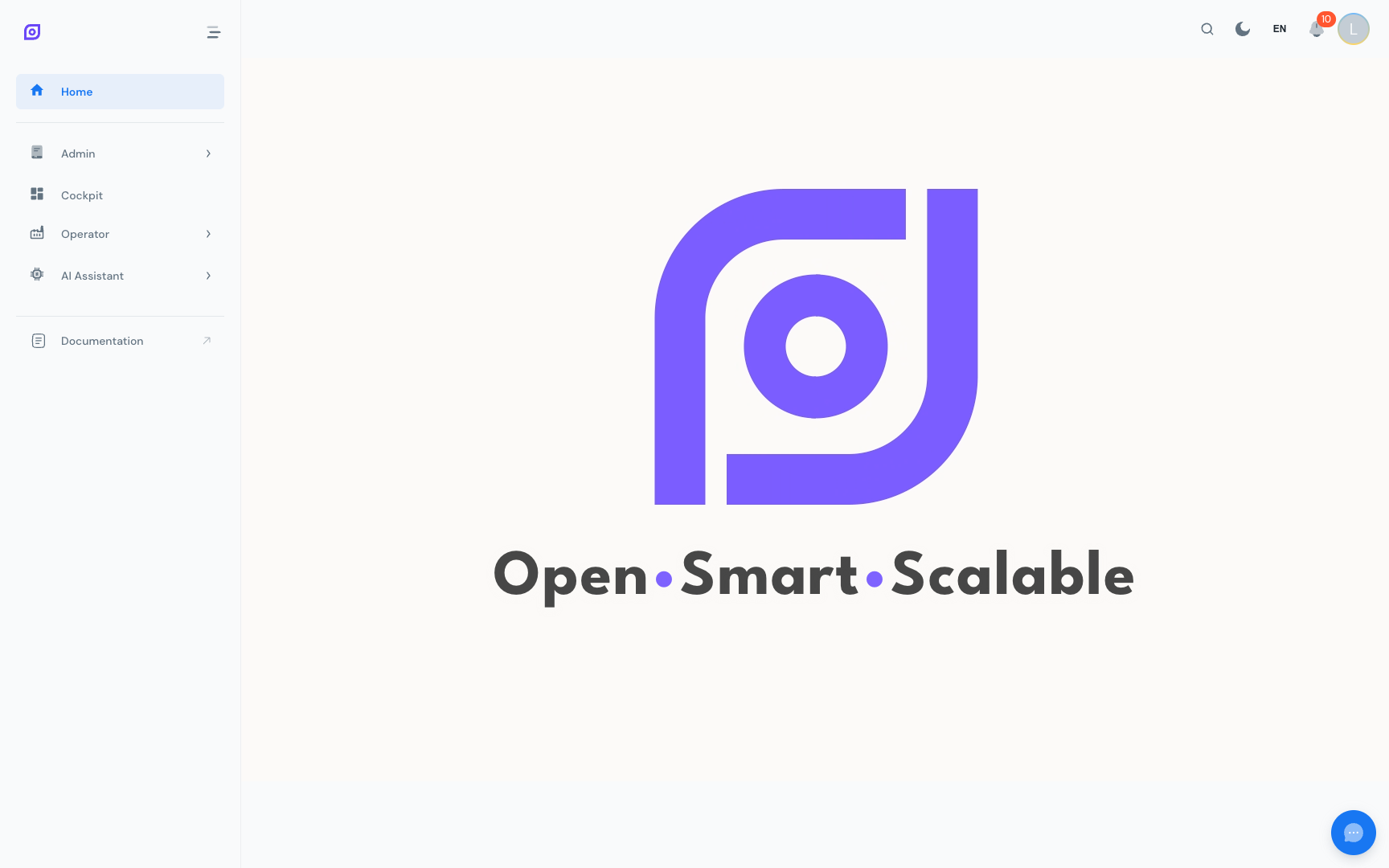
OpSee's interface is a single-page application. The layout is consistent across all modules: a collapsible sidebar on the left, a top header bar, and a main content area that changes based on the active page.
Layout map
┌─────────────────────────────────────────────────────┐
│  Header bar                              [👤] [🌐]  │
├──────────────┬──────────────────────────────────────┤
│              │                                      │
│  Navigation  │  Main content area                   │
│  sidebar     │                                      │
│              │  (changes per module)                │
│              │                                      │
└──────────────┴───────────────────────────────────[🤖]┘
Navigation sidebar
The left sidebar is the primary way to move between modules. It is dynamic: the menu tree is loaded from the database, so the items you see depend on:
- Your role: administrators see all modules; operators may only see Production and AI Assistant
- Your equipment scope: if you are limited to specific lines, the menu still shows all modules, but the data inside is filtered
Expanding and collapsing sections
Click any parent item (for example, Administration) to expand or collapse its sub-items. The sidebar remembers which sections are open across page loads by persisting the expanded state in your browser's local storage.
On mobile and small screens, the sidebar collapses into a hamburger menu. Tap it to open the drawer, then tap any item to navigate.
Collapsing the sidebar (desktop)
On desktop you can click the arrow icon at the top of the sidebar to collapse it to icon-only mode. This gives more horizontal space for wide dashboards such as the Cockpit.
Header bar
The header bar contains:
| Element | Purpose |
|---|---|
| OpSee logo | Click to go back to the Home page |
| Language selector | Switch the UI language instantly (10 languages available) |
| Profile avatar | Open your profile, change your password, or sign out |
Language selector
Clicking the globe icon shows a dropdown of all enabled languages. Selecting a language changes the entire UI immediately, with no page reload required. The choice is stored per browser session and restored automatically on your next visit.
See Language and Timezone for details on available languages and time display options.
Profile menu
Clicking your avatar (or initials if no photo is set) opens a small popup with:
- Your name and email: read-only, pulled from Keycloak
- Profile: link to the full Profile page (personal info, security, roles)
- Sign out: ends your session immediately
Main content area
The content area fills the rest of the screen. Each module has its own layout:
- Grid pages (Equipment, Personnel, Material, …): a DataGrid with filters, sorting, and column resizing
- Dashboard pages (Cockpit, Production OEE, …): cards and charts that update automatically
- Form pages (Admin configuration, …): structured forms with save/cancel
See Filtering and Searching to learn how filters work across all grid pages.
AI assistant bubble
A small chat bubble appears in the bottom-right corner of every page. Click it to open the AI assistant without leaving your current screen. The assistant panel slides in on the right side so you can read the page and chat at the same time.
See AI Assistant for full documentation.
Prerequisites
- Introduction: the overall picture of OpSee
Next steps
- First-Time Setup: if this is your first login after installation
- Common Tasks: Filtering and Searching: how to find records quickly
- Common Tasks: Roles and Permissions: what you can see and do
Related
- Glossary: definitions of every key term used in OpSee
- Session and Login: sign-in, logout, session expiry