Home
The Home page (/home) is the first screen you see after signing in. It gives you a bird's-eye view of your plant and lets you navigate to any module in one click.
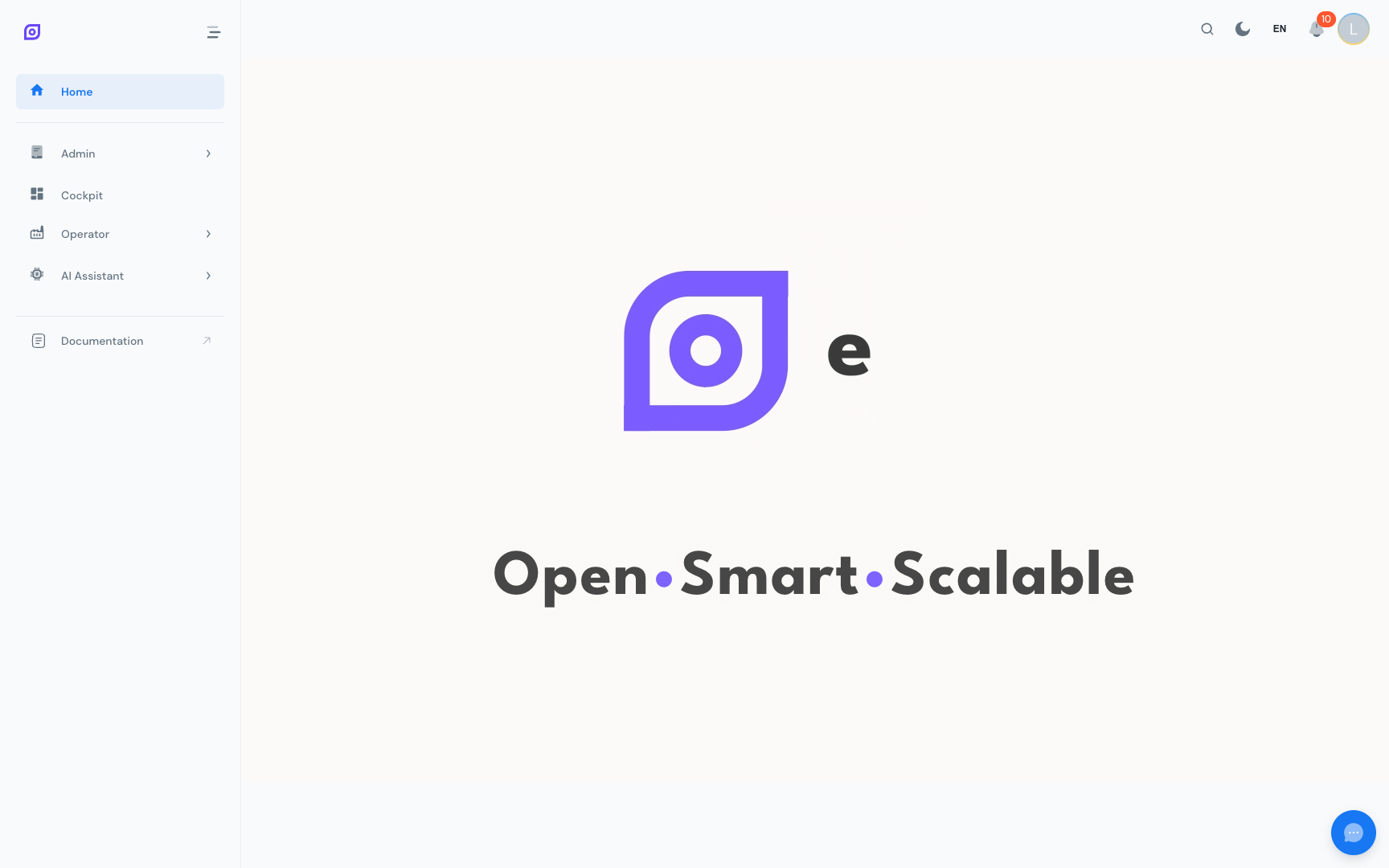
What is on the home page
The Home page has two areas:
1. Navigation cards
A grid of cards (one per module you have access to) acts as quick-launch buttons. Each card shows the module name and icon. Click any card to jump directly to that module.
The cards displayed match your menu role permissions. If you do not have access to a module, its card does not appear.
2. Embedded cockpit (/home/cockpit)
Below the navigation cards, the Home page embeds a Cockpit dashboard. This is the same widget system used in the standalone Cockpit, but surfaced here for at-a-glance monitoring without needing to navigate away.
The embedded cockpit is configured independently from the standalone Cockpit (it has its own saved layout). Use it for plant-level KPIs that should always be visible when anyone opens OpSee.
See Cockpit → Home Embed for configuration details.
Personalizing the home page
The navigation cards cannot be reordered or hidden by individual users; they reflect the administrator's menu configuration. If a module is missing, ask your administrator to assign you the corresponding menu role.
The embedded cockpit, however, is fully customizable:
- Click Edit in the cockpit toolbar
- Add, move, and resize widgets as needed
- Click Save to persist your layout
Prerequisites
- First-Time Setup: if you are setting up OpSee for the first time
- Interface Overview: understand the full page layout
Next steps
- Cockpit: build customized dashboards
- Production: start tracking OEE
Related
- Roles and Permissions: why some modules may not appear