Equipment Properties
Each equipment item has a set of core properties and, when batch management is enabled, additional classification through classes and capabilities.
Core properties
Every equipment item has the following fields:
| Property | Type | Description |
|---|---|---|
| Name | Text (required) | Display name, translated per language |
| Description | Text | Free-text description of the equipment |
| Type | Dropdown | Equipment type with hierarchy-level mapping (ISA-95 or ISA-88) |
| Parent | Dropdown | Parent equipment in the hierarchy (null for root items) |
| Icon | Dropdown | Visual icon from a predefined set (gear, pump, mixer, tank, conveyor, sensor, factory, robot, valve, motor) |
| Color | Color picker | Color code for visual identification in grids and charts |
| Status | Toggle | Active or inactive; inactive items are hidden by default |
| Batch Enabled | Toggle | Enable batch management (only available when the type is batch-assignable) |
Icons
OpSee provides 10 predefined equipment icons:
| Icon | Label |
|---|---|
| Gear | General purpose |
| Pump | Fluid handling |
| Mixer | Mixing equipment |
| Tank | Storage vessels |
| Conveyor | Material transport |
| Sensor | Measurement devices |
| Factory | Facility-level |
| Robot | Automated systems |
| Valve | Flow control |
| Motor | Drive systems |
Colors
A palette of 15 predefined colors is available. Colors help distinguish equipment visually in the hierarchy grid, charts, and dashboards.
Batch management
When an equipment's type has the Batch Assignable flag enabled, a toggle appears in the equipment form:
Enable Batch Management -- activating this switch unlocks two additional tabs in the edit dialog: Capabilities and Classes.
Batch management is designed for equipment that participates in batch-oriented production (as defined by ISA-88). If your equipment only runs continuous processes, you can leave this disabled.
Classes
Classes are reusable categories that classify equipment by function or construction. They help group similar equipment across different locations in your plant.
Class properties
| Field | Type | Description |
|---|---|---|
| Name | Text (required) | Display name (e.g., "Reactor", "Conveyor") |
| Code | Text (required) | Unique identifier code (e.g., REACTOR, CONVEYOR) |
| Description | Text | Optional description |
| Active | Boolean | Whether the class is available for assignment |
Managing classes on equipment
Open the edit dialog for a batch-enabled equipment and switch to the Classes tab:
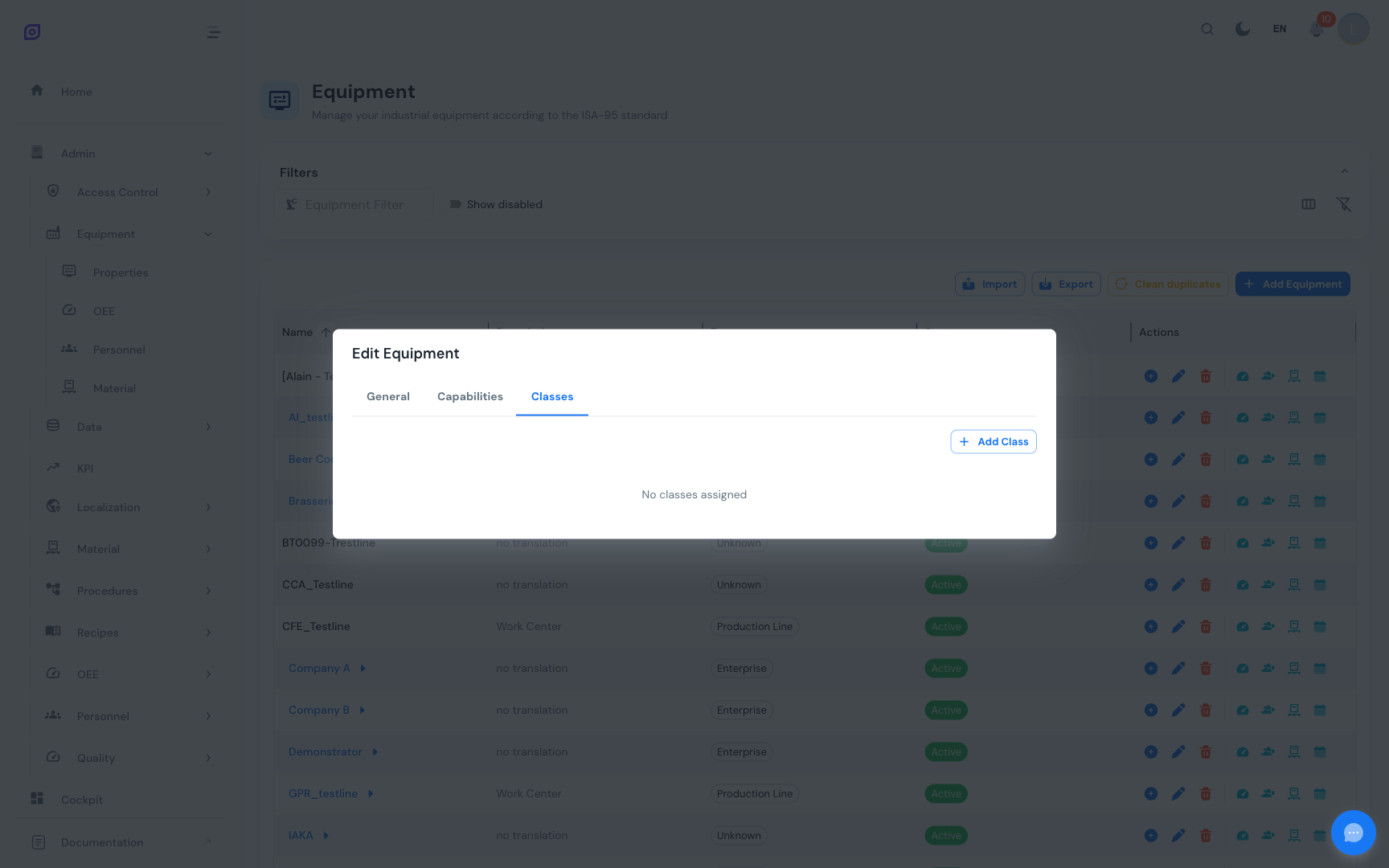 The Classes tab showing assigned classes with remove buttons, and an Add button.
- View assigned classes as chips with a remove (X) button
- Add a class by clicking the Add button, selecting from the dropdown, and confirming
- Create inline -- if the class you need does not exist, switch to the "Create new" mode within the dialog to define it on the spot
- Remove a class by clicking the X icon on its chip
Classes are managed globally in Admin > Equipment Classes. The inline creation from the equipment edit dialog is a shortcut -- the class is created globally and then linked to the current equipment.
Capabilities
Capabilities describe what an equipment can do, optionally with a measurable capacity and unit of measure.
Capability properties
| Field | Type | Description |
|---|---|---|
| Name | Text (required) | Display name (e.g., "Heat", "Mix", "Dose") |
| Code | Text (required) | Unique identifier code (e.g., HEAT, MIX, DOSE) |
| Description | Text | Optional description |
| Active | Boolean | Whether the capability is available for assignment |
Capability link properties
When assigning a capability to equipment, you also define:
| Field | Type | Description |
|---|---|---|
| Capacity | Number | The equipment's capacity for this capability (e.g., 500) |
| Unit of Measure | Dropdown | The UOM for the capacity value (e.g., kg/h, RPM, degrees C) |
Managing capabilities on equipment
Open the edit dialog for a batch-enabled equipment and switch to the Capabilities tab:
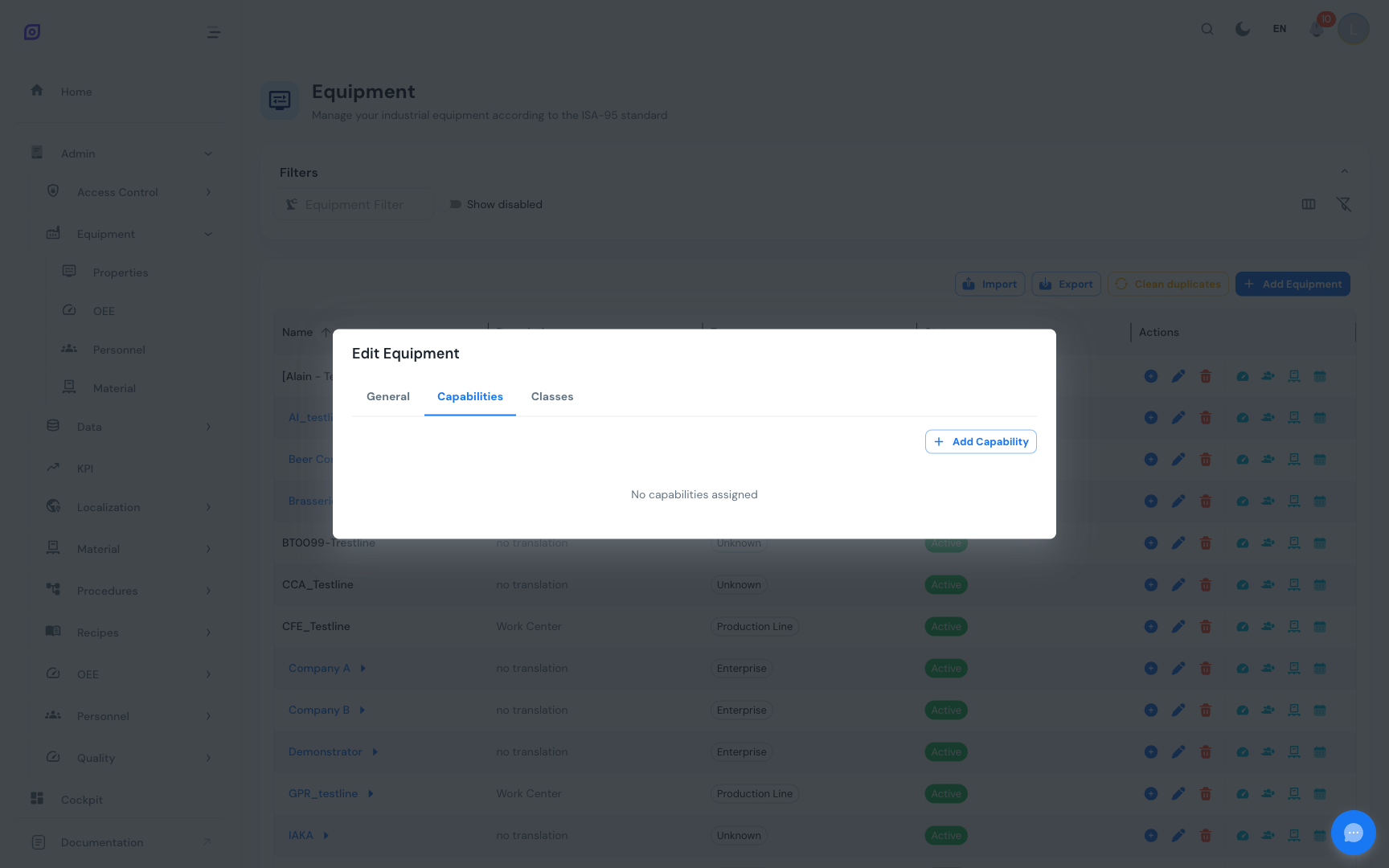 The Capabilities tab showing assigned capabilities with capacity, UOM, and remove buttons.
- View assigned capabilities as cards showing name, capacity, and UOM
- Add a capability by clicking Add, selecting from the dropdown, entering capacity and UOM, and confirming
- Create inline -- define a new capability on the spot if it does not exist
- Remove a capability by clicking its delete button
Example: Configuring a Mixer
A mixer might have these capabilities:
| Capability | Capacity | UOM |
|---|---|---|
| Mix | 500 | RPM |
| Heat | 200 | degrees C |
| Dose | 100 | kg/h |
These values are used by the Recipes module to validate that an equipment can perform the required process steps.
How properties connect to other features
- Recipes reference equipment classes and capabilities to determine which equipment can execute which recipe steps
- OEE Configuration uses the equipment's type and hierarchy position to structure reports
- Batch Management uses classes and capabilities for batch scheduling and resource allocation
Prerequisites
- Equipment Overview
- Introduction: get the overall picture of OpSee
Next steps
Related
- Equipment Model (ISA-95)
- OEE Configuration: complementary module