OEE Settings
Each equipment item can have an OEE (Overall Equipment Effectiveness) configuration that defines how OpSee calculates availability, performance, and quality metrics. This is where you bind PLC tags, set objectives, configure stop thresholds, and link reason trees.
Accessing OEE Settings
There are two ways to open the OEE configuration for an equipment:
- From the Equipment grid -- click the speedometer icon in the Actions column of any equipment row. A full-screen dialog opens with the OEE configuration view.
- From Admin > Equipment > OEE -- the dedicated OEE configuration page with filtering by equipment.
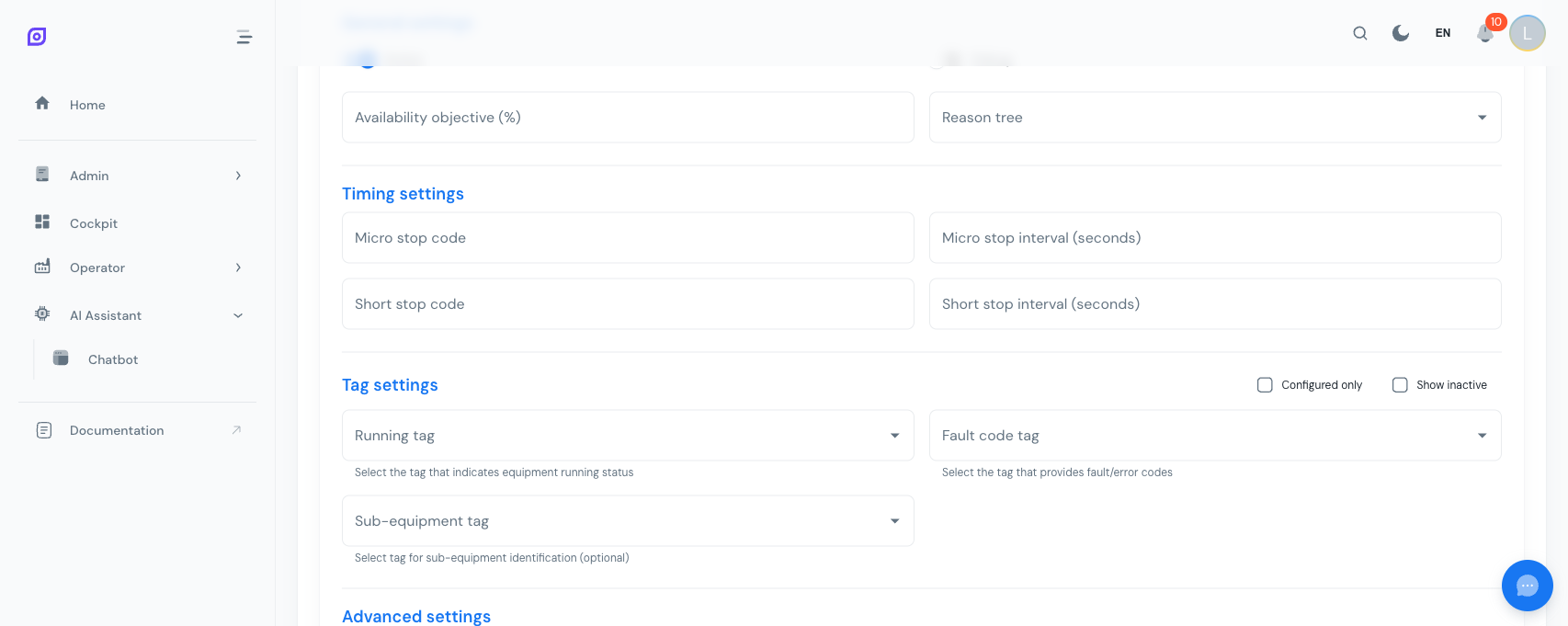
Availability configuration
The availability configuration determines how OpSee detects running, idle, and downtime states.
Configuration fields
| Field | Type | Description |
|---|---|---|
| Active | Toggle | Enable or disable OEE tracking for this equipment |
| Debug | Toggle | Enable debug logging for troubleshooting tag values |
| Tag Running | Tag selector | The PLC tag that indicates whether the equipment is running (boolean or numeric) |
| Running Value | Number | The value on that tag that means producing. Default 1 |
| Stopped Value | Number | The value that means a plain stop, with no reason code. Default 0 |
| Other values are stop codes | Toggle | When on, any other value means stopped and is used as the reason code. Default off |
| Tag Fault Code | Tag selector | The PLC tag that provides the current fault/stop reason code |
| Tag Sub-Equipment | Tag selector | Optional tag identifying which sub-equipment caused the stop |
| Reason Tree | Dropdown | The reason tree used to categorize downtime events |
| Procedure | Dropdown | The production procedure linked to this equipment |
| OEE Objective | Percentage | Target OEE percentage (e.g., 85%) |
| Availability Objective | Percentage | Target availability percentage |
Stop thresholds
OpSee distinguishes between micro-stops and short stops based on duration:
| Field | Description |
|---|---|
| Micro Stop Code | The reason code automatically assigned to stops shorter than the micro-stop interval |
| Micro Stop Interval | Duration threshold in seconds (e.g., 5s) -- stops shorter than this are classified as micro-stops |
| Short Stop Code | The reason code automatically assigned to stops shorter than the short-stop interval |
| Short Stop Interval | Duration threshold in seconds (e.g., 30s) -- stops shorter than this are classified as short stops |
Micro-stops and short stops are automatically classified using the codes you define here. This reduces operator burden -- only longer downtime events need manual reason assignment on the production floor.
Tag binding
The core of OEE tracking is binding the right PLC tags to each equipment:
Running tag
The Running Tag is a boolean or numeric signal from your PLC/SCADA system. OpSee reads this tag to determine whether the equipment is running or stopped.
How its values are interpreted is configurable, because machines do not agree on a convention. Three fields sit directly under the tag selector:
| Field | Default | Meaning |
|---|---|---|
| Running Value | 1 | The value that means producing |
| Stopped Value | 0 | The value that means a plain stop, carrying no reason |
| Other values are stop codes | Off | When on, any value that is neither of the above means stopped, and that value becomes the stop's reason code |
The defaults describe the most common wiring -- 1 = running, 0 = stopped -- so an existing configuration behaves exactly as it always has. You only touch these fields when your machine reports something else.
Inverted logic (fault bit)
Plenty of machines expose a fault or stopped bit rather than a running bit. Set Running Value to 0 and Stopped Value to 1; nothing else changes. You no longer need a calculated tag to invert the signal before OEE can use it.
Status word (one tag carries the stop reason)
Many PLCs publish a single machine-state word: one value means running, and every other value is the stop reason. Set Running Value to whatever means producing (for example 5), leave Stopped Value as the value that means a plain idle stop, and turn on Other values are stop codes.
With that on, a tick of 7 both opens the downtime and justifies it: OpSee resolves 7 against the configured reason tree and writes the whole reason path, not just the leaf. A second tag is no longer required to carry the code.
Other values are stop codes needs a Reason Tree -- there is nothing to resolve the code against without one, so the toggle stays disabled until you pick one.
If the state word changes while the machine is down (say 7 then 3), the last value before the machine restarts is the one that justifies the stop.
A code that does not exist in the reason tree never blocks anything: the downtime still closes and a warning is written to the log naming the unresolved code. The stop then falls back to the micro-stop / short-stop code if it was short enough to qualify, and is otherwise left unjustified for an operator to handle. With the toggle off, an unexpected value is refused instead -- it is skipped and logged, naming the values this equipment is configured to expect.
Fault code tag
The Fault Code Tag provides the numeric reason code when the equipment stops. OpSee maps this code to entries in the configured reason tree to categorize the downtime.
It remains available when the running tag already carries codes, and it wins: a machine with a richer fault register than its state word can use both. The order OpSee applies when a stop closes is:
- the Fault Code Tag value, if one was recorded during the stop (a
0reads as "no fault" and is ignored); - the running tag's own value, when Other values are stop codes is on;
- the micro-stop / short-stop code, if the stop was short enough to qualify.
A fault code that cannot be resolved in the reason tree falls through to the next step rather than leaving the stop unjustified.
The same three value fields tell order handling whether the line is running -- the auto-pause timer on a production order reads them too. Configuring them once here keeps downtime tracking and order handling from disagreeing about the same machine.
Sub-Equipment Tag
The optional Sub-Equipment Tag identifies which sub-component caused the stop. This is useful for complex equipment with multiple sub-systems.
Tags must be created in the Tags module before they can be assigned here. Each tag represents a signal collected from your PLC via the data collection layer (MQTT or direct OPC-UA).
Quality configuration
The quality configuration defines how OpSee records waste (reject pieces) for the equipment, and which reason tree justifies it.
| Field | Type | Description |
|---|---|---|
| Active | Toggle | Enable or disable quality tracking for this equipment |
| Debug | Toggle | Log raw tag values while you set the configuration up |
| Reason Tree | Dropdown | The reason tree used to justify waste records |
| Quality Objective | Percentage | Target quality percentage |
| Default Loss Type | Dropdown | The quality loss type given to waste records that carry none of their own |
| Justification Interval | Minutes | How the justification screen buckets waste for the operator |
| Allow Manual Entry | Toggle | Whether operators may add waste by hand on the quality screen |
Waste sources
An equipment can have several waste sources. A source is either a counter — a tag that counts rejects directly — or a zone, the stretch of line between two piece counters where rejects happen but nothing counts them. Every waste record carries the name of the source it came from, so a line that rejects at more than one point reports each separately instead of as one anonymous total.
Counters
A counter is a tag whose increments OpSee turns into waste records. Each one is a counter tag whose increments OpSee turns into waste records, and each record carries the name of the counter it came from — so a line that rejects at more than one point (an eject gate at the filler, a camera at the packer, a manual bin) reports each of them separately instead of one anonymous total.
| Field | Description |
|---|---|
| Name | What operators see on every waste record from this counter (e.g. Filler eject gate). Must be unique within the equipment |
| Tag | The counter tag. It must use the Counter / Differential transformation, so OpSee reads increments rather than a cumulative total |
| Loss Type | The quality loss type given to this counter's records. Leave empty to use the configuration's default loss type |
| Active | Whether OpSee ingests this counter. Pausing a counter stops new records; the existing ones stay |
Add, edit and delete sources from the Waste sources list in the quality configuration. A few things worth knowing:
- Counters are read independently, each with its own position in the tag history, so adding a second counter never disturbs the first one's records.
- The loss type must be a quality loss type — OpSee refuses a loss type from the availability or performance categories.
- A tag that a waste counter uses cannot be deleted while the counter exists. Remove the counter first.
- Waste that no counter sees (a reject bin emptied by hand, for instance) is entered manually on the quality screen; those records show as Manual rather than a counter name.
Give sources the name the people on the floor use for the machine or the station, not the tag name. The name is what appears on every waste record and in the justification screens.
Zones: waste between two counters
Some lines have no reject counter at all. They have piece counters at several points, and the rejects happen in between — pieces leave the filler but fewer arrive at the packer, and the difference is waste. A zone measures that difference.
A zone cannot simply subtract one counter from the other. The gap between two counters is buffer plus rejects: when the downstream machine stops for twenty minutes, the accumulation table fills with two hundred perfectly good pieces, and a plain subtraction would report two hundred rejects that do not exist, then negative waste while the table drains. The totals would even out, but the operator has already been shown a lie.
So a zone counts waste only when the line between the two counters is empty. At that moment, and only then, the gap is purely rejects — there is nowhere else for the missing pieces to be.
| Field | Description |
|---|---|
| Upstream tag / Downstream tag | The two counter tags bounding the zone. Both must use the Counter / Differential transformation, and they must be different tags |
| Position | Whether the zone sits upstream or downstream of the equipment's production counter. This changes the OEE arithmetic — see Where the waste sits below |
| Max waste per settlement | A plausibility limit. A settlement that would write more than this is recorded as an anomaly and writes nothing, so a counter reset cannot inject thousands of phantom rejects. Leave empty for no limit |
Triggers
A trigger is the event that tells the zone the line is empty. A zone with no triggers never writes anything — the form warns you about this, because it is the easiest way to misconfigure the feature.
| Trigger | Fires on |
|---|---|
| Tag edge | A boolean tag going high or low — a line-empty photocell, an accumulation-table-empty signal |
| Alarm | An alarm definition being raised — use one that means the line is empty |
| Operator | The Line empty button on the quality screen |
Every trigger means the same thing: the stretch of line between the two counters is empty right now. That is the only moment at which the gap between the counters is purely rejects, with nothing hidden in the buffer — so it is the only moment at which a zone can honestly count.
A trigger that fires while the line is still running will record the accumulation table as scrap. Point a zone only at signals you would be willing to stake a quality figure on — a confirmed vide-ligne, not an order change or a machine restart.
Baselining
A zone activated while its buffer already holds pieces would under-report forever, so a new zone writes nothing until it is baselined. That happens automatically at its first exact event, or immediately if you use the line is empty now in the zone editor — an assertion that the stretch between the two counters is physically empty at that moment. If it is not true, the zone under-reports until the next exact event corrects it.
Re-pointing either tag drops the zone back to un-baselined, because its running totals belong to the old pair of counters.
What a zone does not tell you
Between one empty line and the next, a zone has no waste figure. Not zero — unknown.
That is deliberate. The gap between the two counters at any other moment is buffer plus rejects, and nothing can separate them: when the packer stops for twenty minutes the accumulation table takes two hundred perfectly good bottles, and a figure calculated then would report them as scrap. So OpSee waits until the line is empty and the gap means something.
The practical consequence is that a zone's waste appears in steps, at each vide-ligne, and is attributed to that moment rather than spread across the period it accumulated in. On a line that empties a few times a day, zone waste is a per-vide-ligne figure, not a live one.
Where the waste sits
A reject upstream of the production counter never reached that counter, so it was never counted as produced. Subtracting it from the counter's total would charge the loss twice — once to performance, once to quality. OpSee therefore adds upstream waste to the started piece count rather than removing it from the good count:
started = produced + upstream waste     performance = started / theoretical
good    = produced - downstream waste   quality     = good / started
OEE itself is unchanged by upstream waste — it was always lost, and the arithmetic now says so in the right place. Set Position correctly, or a real loss lands in the wrong OEE component.
A zone and a counter must not see the same rejects. If a reject bin sits inside a zone, its contents are already in the zone's gap — entering them by hand as well counts them twice.
Reason trees
A reason tree is a hierarchical structure of downtime categories and reasons. Each OEE configuration links to one reason tree that defines the available stop reasons for that equipment.
Reason trees are managed in Admin > Reason Trees. Common structures include:
Production Reasons
├── Planned Downtime
│   ├── Changeover
│   ├── Planned Maintenance
│   └── Break
├── Unplanned Downtime
│   ├── Mechanical Failure
│   ├── Electrical Failure
│   └── Supply Issue
└── Speed Loss
    ├── Reduced Speed
    └── Minor Stop
Procedures
Linking a procedure to the OEE configuration connects the equipment to a defined production process. This enables:
- Automatic phase tracking during production runs
- Performance calculations based on expected cycle times
- Integration with the Procedures module
Best practices
- Set realistic objectives -- start with your current OEE baseline and set incremental targets. An 85% OEE objective is world-class for most industries.
- Tune stop thresholds -- adjust micro-stop and short-stop intervals based on your equipment's behavior. Too low, and operators get flooded with events. Too high, and you miss real issues.
- Use debug mode during setup -- enable the Debug toggle while configuring tags. It logs raw tag values so you can verify correct binding before going live.
- One reason tree per equipment type -- equipment of the same type usually shares the same failure modes. Create a reason tree per type rather than per individual equipment.
- Map fault codes early -- work with your automation team to define fault code mappings before deployment. The cleaner your fault codes, the more accurate your OEE reports.
Prerequisites
- Equipment Overview
- Introduction: get the overall picture of OpSee
Next steps
Related
- Equipment Model (ISA-95)
- OEE Configuration: complementary module