Import / Export
OpSee supports bulk import and export of equipment data through Excel files (.xlsx). This is useful for initial setup, migration from other systems, backup, and bulk updates.
Accessing import / export
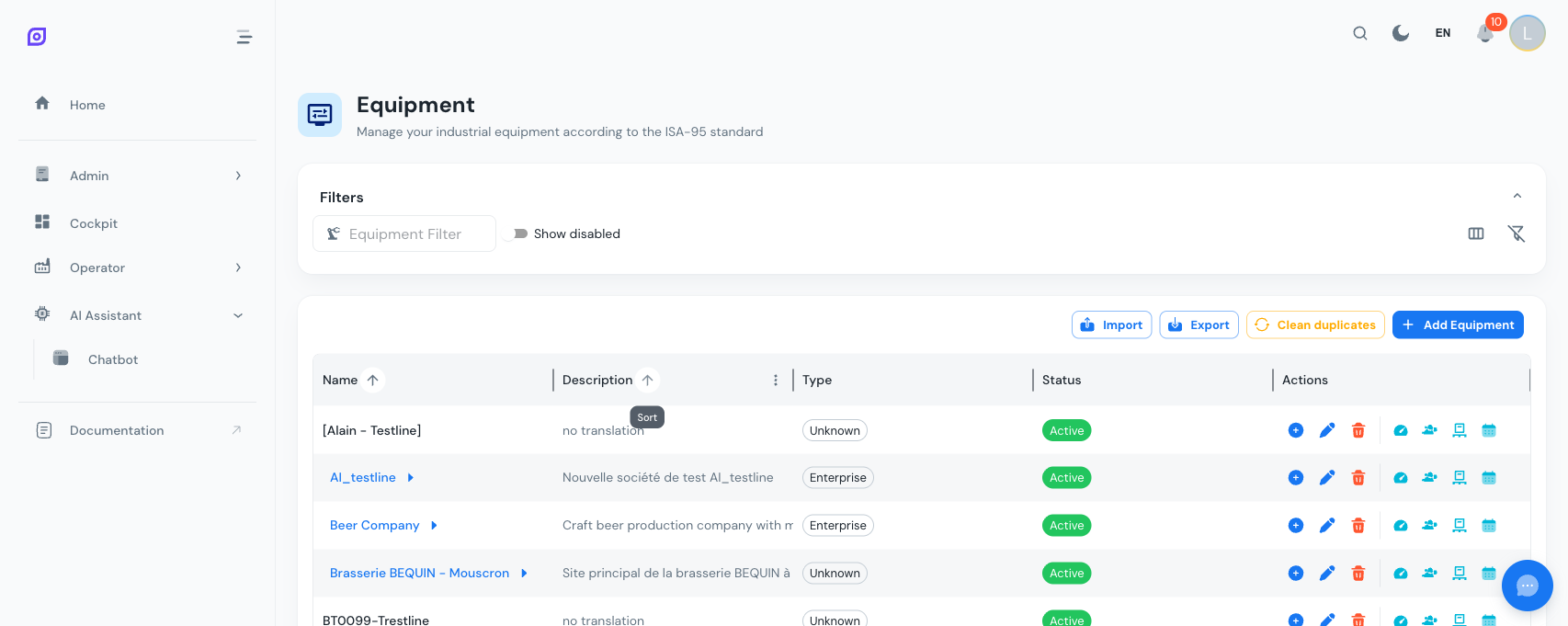
In the equipment grid toolbar, two buttons are available:
| Button | Icon | Description |
|---|---|---|
| Import | Upload | Open the import dialog to upload an Excel file |
| Export | Download | Open the export dialog to download equipment as Excel |
Exporting equipment
Steps
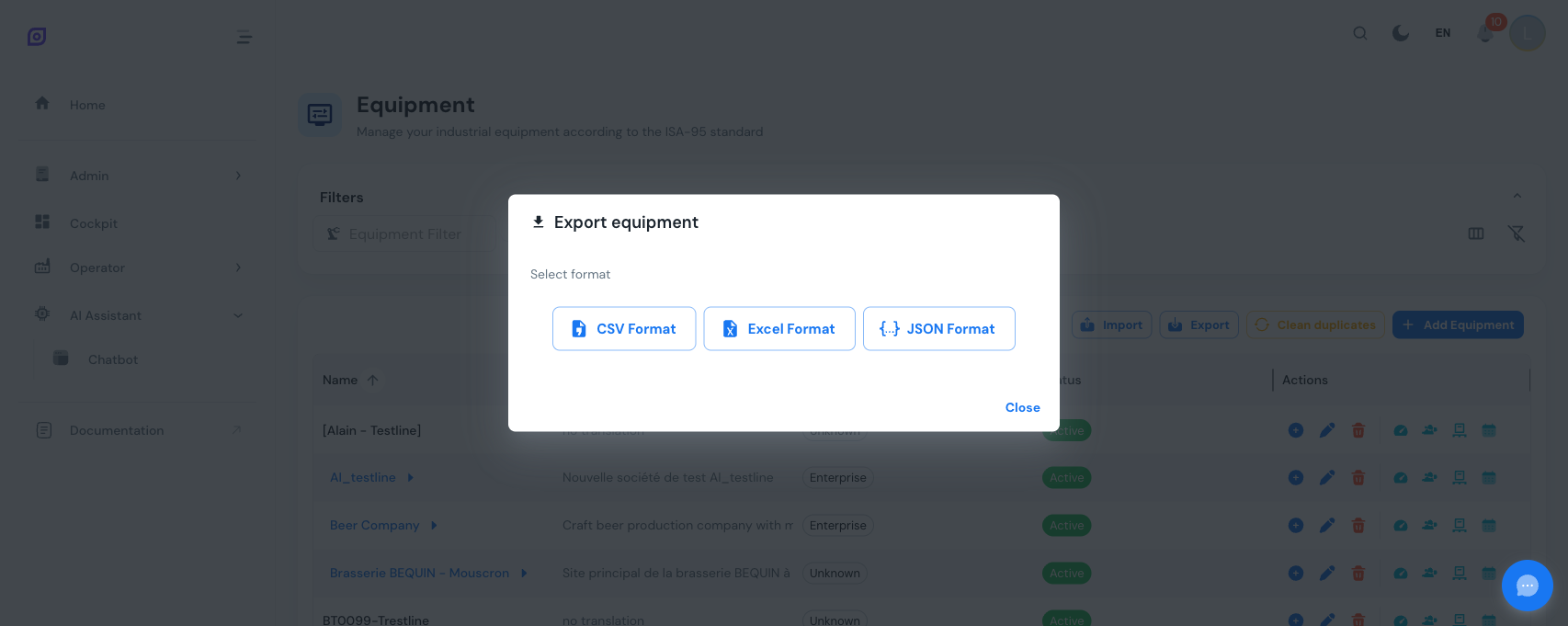
- Click the Export button in the toolbar
- In the export dialog, configure options:
- Filename -- the default filename is pre-filled with a translated name; customize if needed
- Include Disabled -- toggle to include inactive equipment in the export (off by default)
- Click Export
An Excel file downloads to your browser with all equipment matching the selected options.
Exported columns
The Excel file contains the following columns:
| Column | Description |
|---|---|
| ID | Equipment ID (read-only, used for updates) |
| Name | Equipment name |
| Description | Equipment description |
| Parent ID | ID of the parent equipment |
| Type ID | ID of the equipment type |
| Type Name | Equipment type name (read-only, for reference) |
| Icon | Icon identifier (e.g., mdi:cog) |
| Color | Color hex code (e.g., #1976d2) |
| Enabled | Active status (true/false) |
Export your current equipment before making bulk changes. This gives you a backup you can restore from if needed.
Importing equipment
Steps
- Click the Import button in the toolbar
- In the import dialog, upload an Excel file (.xlsx)
- OpSee validates the file and shows a preview of the data
- Review the preview and confirm the import
- Equipment items are created or updated based on the data
File format
The import file must follow the same column structure as the export. The easiest way to get the correct format is to export first, modify the file, and re-import.
Import behavior
| Scenario | Behavior |
|---|---|
| Row has no ID | A new equipment item is created |
| Row has an existing ID | The existing equipment is updated |
| Row has an unknown ID | An error is reported for that row |
| Required field (Name) is empty | An error is reported for that row |
Validation
Before processing, OpSee validates:
- Required fields -- Name must be present
- Parent references -- Parent IDs must refer to existing equipment
- Type references -- Type IDs must refer to existing equipment types
- Duplicate detection -- warns if the import would create duplicates
Import operations are logged in the Audit Trail. Each created or updated equipment generates an audit entry with the user, timestamp, and the old/new values.
Template
If you are starting from scratch without any equipment to export, you can create a blank Excel file with the correct column headers:
| ID | Name | Description | Parent ID | Type ID | Type Name | Icon | Color | Enabled |
|---|---|---|---|---|---|---|---|---|
| Filling Line 1 | Main filling line | 1 | 5 | Unit | mdi:cog | #1976d2 | true | |
| Mixer A | Primary mixer | 1 | 5 | Unit | mdi:mixer | #2e7d32 | true |
Leave the ID column empty for new equipment. OpSee will assign IDs automatically. The Type Name column is ignored during import -- only Type ID is used.
Clean duplicates
If an import creates duplicate equipment (same name, parent, and type), use the Clean Duplicates button in the toolbar. This tool:
- Groups equipment by name, parent ID, and type ID
- Identifies groups with more than one entry
- Keeps the oldest item (lowest ID) and permanently deletes the rest
- Reports how many duplicates were removed
Clean Duplicates performs a hard delete on duplicate entries. This cannot be undone. Always export your equipment first as a backup before running this tool.
Best practices
- Export before import -- always create a backup export before bulk importing.
- Use export as template -- export existing equipment to get the correct file structure, then add new rows.
- Small batches -- for large plants, import in batches (e.g., per area) to make it easier to review and troubleshoot.
- Verify parent IDs -- ensure parent equipment exists before importing child items. Import top-level items first, then children.
- Clean up after import -- run the Clean Duplicates tool after bulk imports to catch any accidental duplicates.
Prerequisites
- Equipment Overview
- Introduction: get the overall picture of OpSee
Next steps
Related
- Equipment Model (ISA-95)
- OEE Configuration: complementary module