Equipment Hierarchy
OpSee models your plant as a tree of equipment items, following the ISA-95 / ISA-88 physical model. Each item has a type that determines its role in the hierarchy, and optionally a parent that places it within the tree.
Parent-Child Structure
Every equipment item can have:
- Zero or one parent -- top-level items have no parent and appear at the root of the grid.
- Zero or more children -- items with children display a clickable name that lets you drill down.
There is no hard limit on the depth of the hierarchy. You can nest as many levels as your plant requires.
Equipment types
Types are reusable definitions that categorize equipment. Each type has:
| Field | Description |
|---|---|
| Name | Display name (translated per language) |
| Hierarchy Level | The physical model level this type represents (ISA-95 for Enterprise/Site/Area, ISA-88 for Process Cell and below) |
| Batch Assignable | Whether equipment of this type supports batch management |
Hierarchy levels
The seven standard physical model levels are available, split between ISA-95 (top three) and ISA-88 (bottom four):
| Level | Standard | Purpose | Typical Examples |
|---|---|---|---|
enterprise | ISA-95 | The entire organization | Company name |
site | ISA-95 | A physical location | Factory, warehouse, campus |
area | ISA-95 | A functional zone within a site | Production hall, packaging area |
process_cell | ISA-88 | A coordinated group of units | Filling line, batch reactor train |
unit | ISA-88 | A single machine performing a complete process | Filler, mixer, oven |
equipment_module | ISA-88 | A functional sub-component of a unit | Dosing head, heating jacket |
control_module | ISA-88 | A sensor, actuator, or low-level controller | Valve, temperature probe, motor |
The hierarchy level on a type is informational. OpSee does not enforce that a "Site" must be a child of an "Enterprise". You are free to organize your hierarchy however makes sense for your operations.
Creating types
Types can be created in two places:
- Admin > Equipment Types page -- manage all types centrally with full CRUD.
- Inline from the equipment form -- when creating or editing equipment, the Type dropdown has an "Add new type" option at the bottom. This opens a quick dialog to create a type without leaving the form.
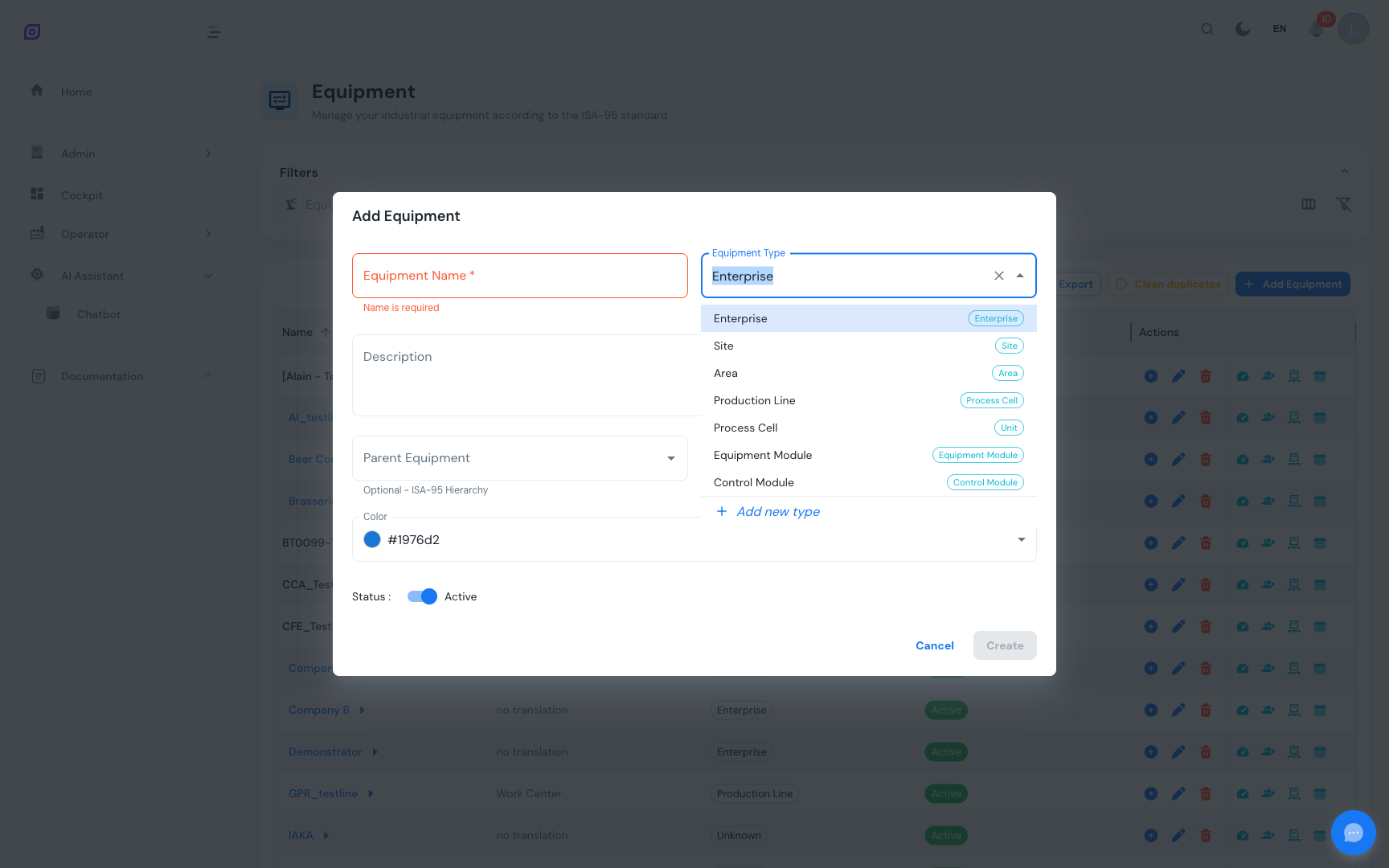 The inline type creation option at the bottom of the Type dropdown.
Batch-assignable types
When a type is marked as Batch Assignable, equipment of that type can opt into batch management. This unlocks:
- Capabilities tab in the edit dialog -- define what the equipment can do (e.g., Heat to 200C, Mix at 500 RPM)
- Classes tab in the edit dialog -- classify the equipment (e.g., Reactor, Conveyor, Packaging)
- Integration with the Recipes module for batch-oriented production
See Properties for details on capabilities and classes.
Navigating the Hierarchy
Drill-Down Navigation
The equipment grid shows only one level at a time. Items with children display their name as a blue clickable link with a right-arrow icon. Click to drill down.
Breadcrumb trail
A breadcrumb trail appears above the grid showing the path from root to the current level. Click any segment to jump back.
| Action | Result |
|---|---|
| Click a blue equipment name | Drill down to show its children |
| Click a breadcrumb segment | Jump to that level |
| Click Home | Return to the root level |
| Press browser Back | Go to the previous level |
| Press browser Forward | Go to the next level |
The breadcrumb navigation uses the browser's history API. This means Back and Forward buttons work naturally, just like navigating between web pages.
Equipment filter
At the root level, use the Equipment Filter dropdown in the filter bar to narrow the grid to specific equipment. The filter supports:
- Hierarchical search -- type a name and matching items expand their parent chain automatically
- Multi-select -- check multiple items; a badge shows the count
- Select All / Deselect All -- bulk toggle
- Clear button -- reset the filter in one click
When a filter is active and you are at the root level, the grid shows a contextual breadcrumb indicating the ancestor path of the filtered items.
The equipment filter only applies at the root level. Once you drill down into a specific equipment, all children of that parent are shown regardless of the filter.
Show disabled equipment
By default, disabled (inactive) equipment is hidden. Toggle Show Disabled in the filter bar to reveal them. Disabled items appear with reduced opacity and a strikethrough name.
You can restore a disabled equipment by clicking the green "activate" icon that appears in the Actions column when Show Disabled is on.
Best practices
- Start top-down -- create your enterprise or site first, then work down to areas and units.
- Use meaningful types -- assign the correct ISA-88 level to each type so that reports and filters behave consistently.
- Keep names unique within a parent -- while OpSee allows duplicate names, unique names within each level make navigation clearer.
- Use the Clean Duplicates tool -- if duplicates exist (e.g., from bulk imports), the toolbar button detects and removes them automatically.
- Disable instead of delete -- soft-deleting equipment preserves all historical data. Only hard-delete when you are certain the data is no longer needed.
Prerequisites
- Equipment Overview
- Introduction: get the overall picture of OpSee
Next steps
Related
- Equipment Model (ISA-95)
- OEE Configuration: complementary module