Getting Started
Follow these steps to create your first equipment and start building your plant hierarchy. The entire process takes under five minutes.
Step 1: navigate to Equipment
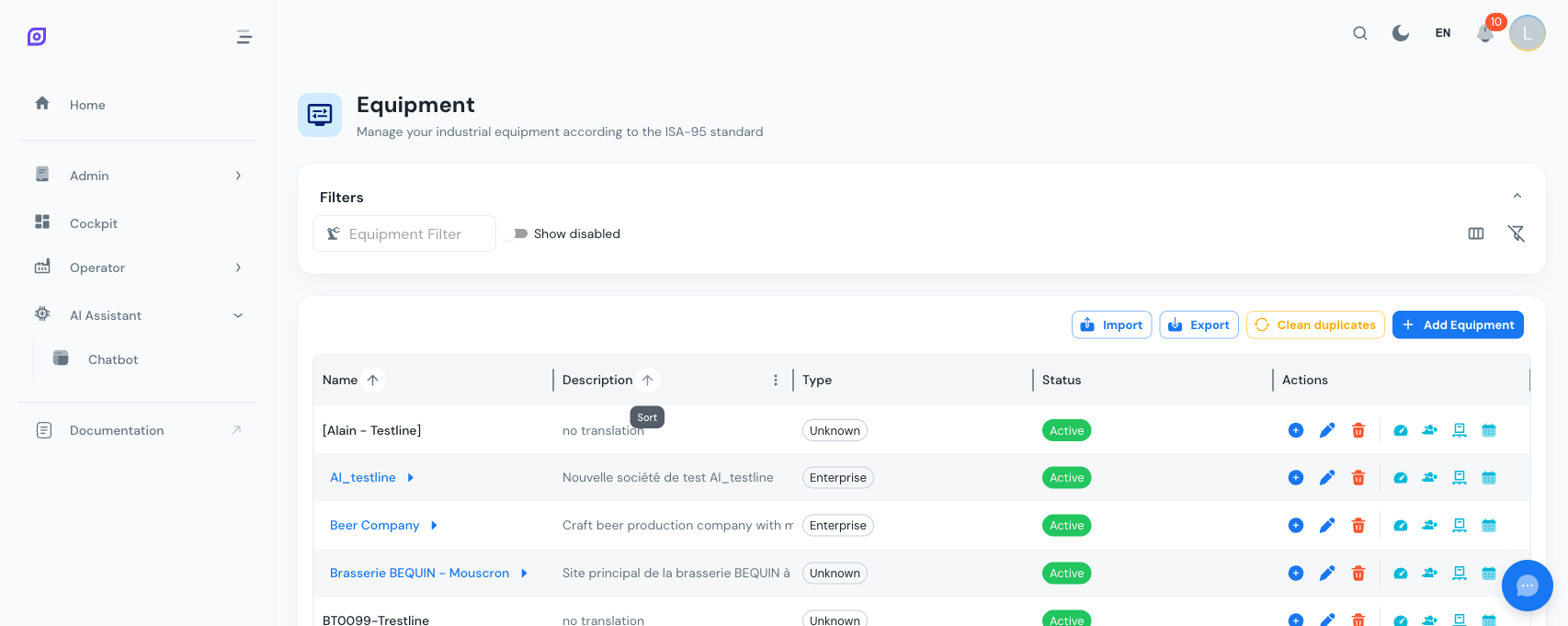
Open the main navigation menu and go to Admin > Equipment. You will see an empty data grid with a toolbar at the top.
Step 2: add your first equipment
Click the Add Equipment button in the top-right toolbar. A dialog opens with a form.
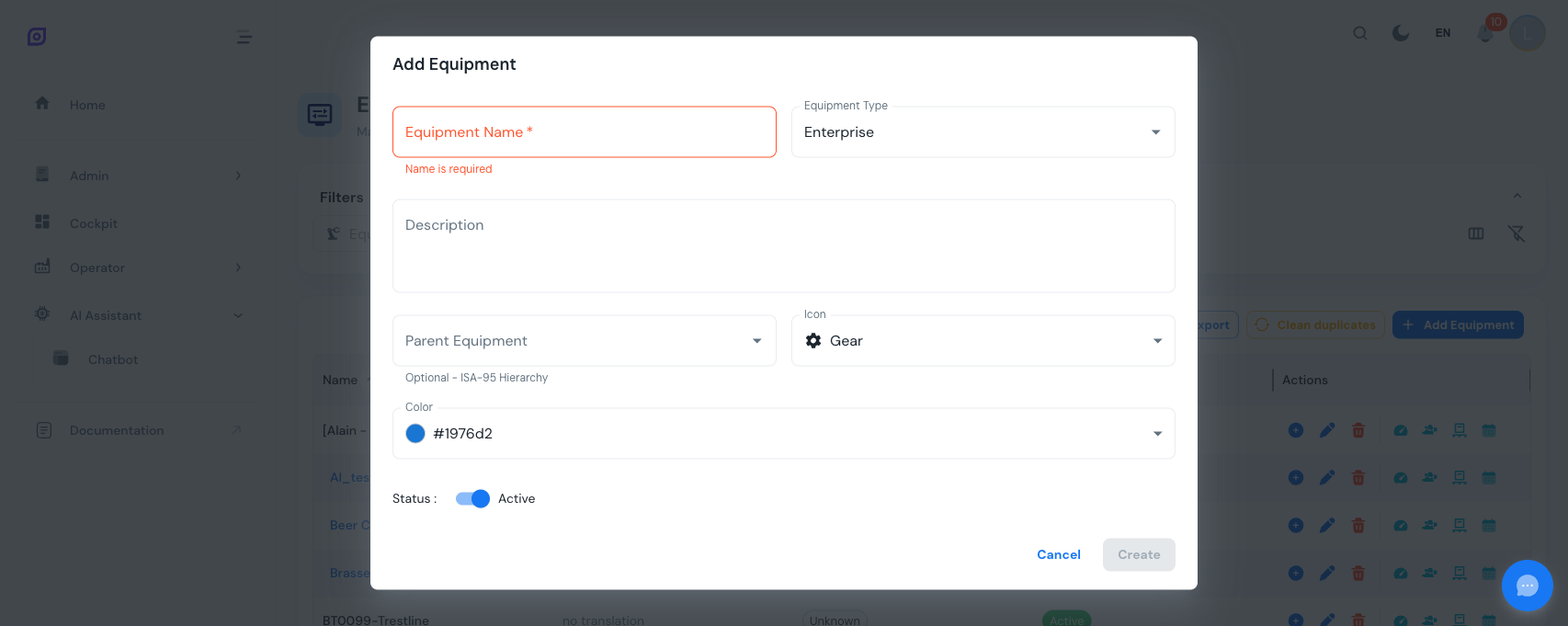
Fill in the basic information:
| Field | Description | Required |
|---|---|---|
| Name | A descriptive name for this equipment (e.g., "Brussels Factory") | Yes |
| Type | The equipment type, mapped to a hierarchy level (e.g., "Site", which is ISA-95) | Yes |
| Description | Optional free-text description | No |
| Parent | The parent equipment in the hierarchy (leave empty for top-level items) | No |
| Icon | Visual icon for display in the grid (gear, pump, factory, etc.) | No |
| Color | Color code for visual identification | No |
| Status | Active or inactive toggle | No |
Click Create to save. The equipment appears in the grid.
You can create a new equipment type directly from the Type dropdown. Click the "Add new type" option at the bottom of the list to open an inline creation dialog without leaving the form.
Step 3: build the hierarchy
Now add child equipment. There are two ways:
Option A: use the "Add child" button
In the grid, find your top-level equipment and click the + (create child) icon in the Actions column. The create dialog opens with the parent already pre-selected.
Option B: select the parent manually
Click Add Equipment and use the Parent dropdown to choose the parent. The dropdown shows all existing equipment with their type and icon.
Repeat until you have built at least two levels, for example:
Brussels Factory (Site)
  └── Packaging Hall (Area)
       ├── Filling Line 1 (Unit)
       └── Filling Line 2 (Unit)
Step 4: navigate the hierarchy
Equipment items that have children display their name as a clickable blue link with an arrow. Click the name to drill down into that level.
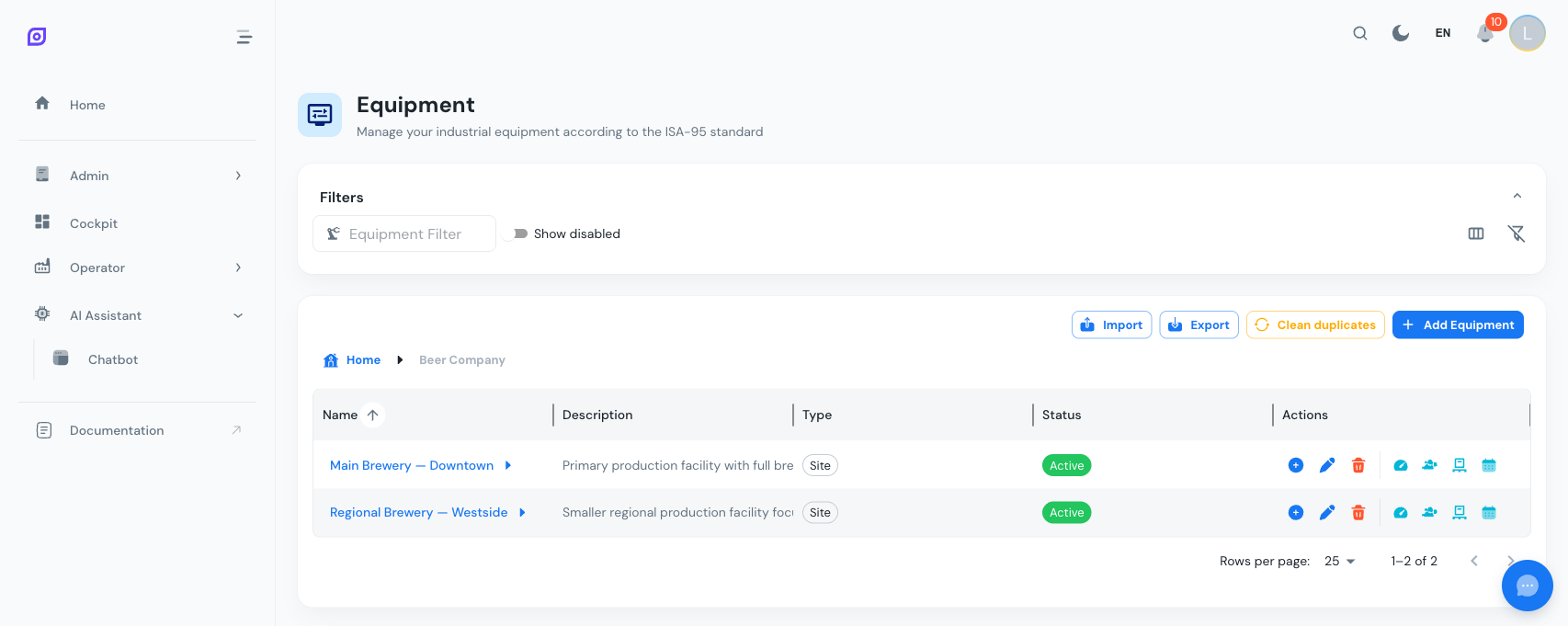
A breadcrumb trail appears above the grid. Click any breadcrumb segment to jump back to that level, or click Home to return to the root.
The breadcrumb integrates with your browser's Back and Forward buttons. Press Back to return to the previous hierarchy level, just like navigating web pages.
Step 5: edit equipment properties
Click the pencil (edit) icon on any equipment row. The edit dialog opens with tabs:
- General -- name, type, description, parent, icon, color, status
- Capabilities -- measurable capabilities like Heat, Mix, Dose (only visible when batch management is enabled)
- Classes -- classification tags like Reactor, Conveyor (only visible when batch management is enabled)
The Capabilities and Classes tabs only appear when the equipment's type has batch management enabled and the equipment itself has the batch toggle switched on. See Properties for details.
Step 6: configure additional settings
Each equipment row has four additional action buttons (after the divider):
| Icon | Action | Description |
|---|---|---|
| Speedometer | OEE | Configure availability tags, objectives, reason trees, and procedures |
| People | Personnel | Assign operators and personnel roles |
| Pallet | Material | Link materials with production rates |
| Calendar | Schedule | Set production schedules and shift patterns |
Each opens a full-screen dialog with the relevant configuration view. See OEE Settings and Assignments for details.
Next steps
- Understand the hierarchy model -- learn about types, hierarchy levels (ISA-95 / ISA-88), and best practices
- Configure OEE settings -- bind tags and set targets for OEE calculations
- Import equipment in bulk -- use Excel to create many items at once
Prerequisites
- Equipment Overview
- Introduction: get the overall picture of OpSee
Related
- Equipment Model (ISA-95)
- OEE Configuration: complementary module