Assignments
Equipment items can be linked to materials, qualified operators, and schedules. These assignments define what an equipment processes, who is allowed to run it, and when it runs.
Accessing assignments
From the equipment grid, each row has action buttons after the divider:
| Icon | Action | Opens |
|---|---|---|
| Pallet | Material | Material assignment dialog |
| People | Qualified operators | Qualified operator list dialog |
| Calendar | Schedule | Schedule configuration dialog |
Each opens a full-screen dialog scoped to the selected equipment. You can also access these through their dedicated admin pages:
- Admin > Equipment > Material
- Admin > Equipment > Qualified operators
- Admin > Equipment > Schedule
Material assignments
Material assignments define which materials can be processed on an equipment and at what rate.
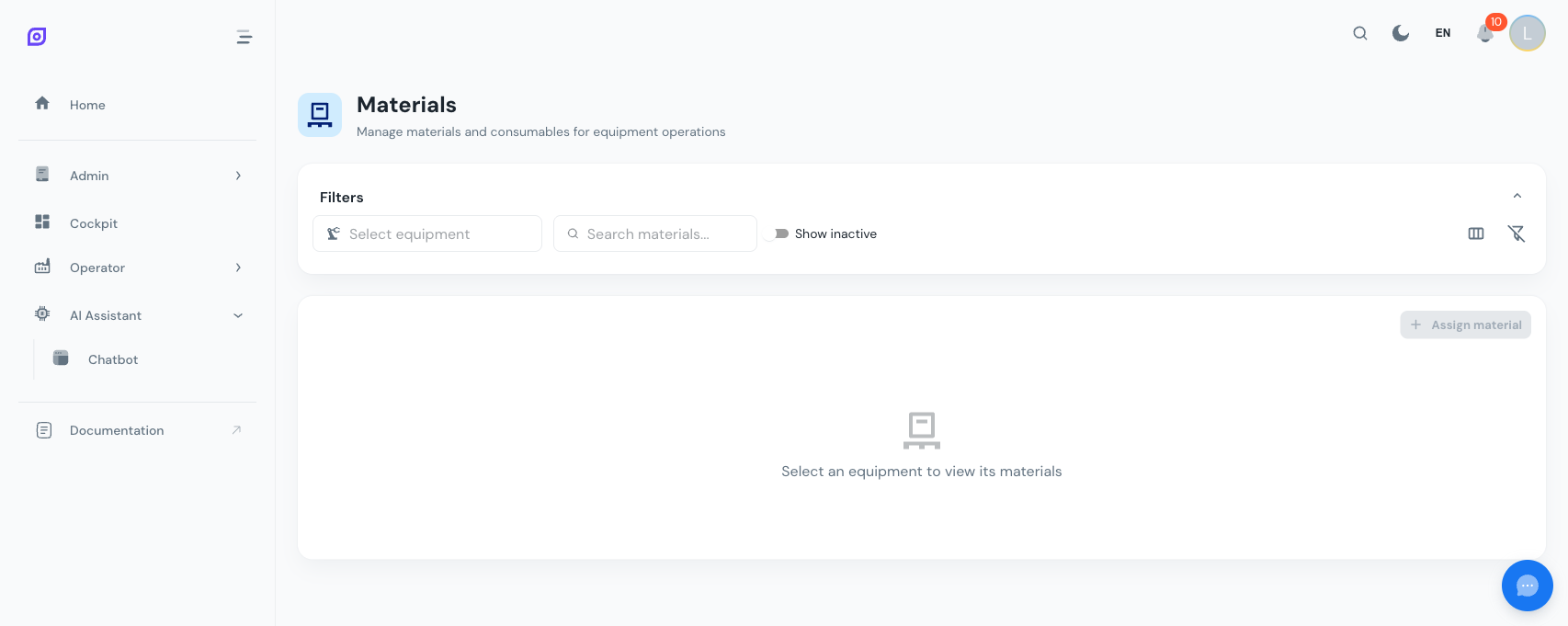
Material link properties
| Field | Type | Description |
|---|---|---|
| Material | Dropdown | The material to link (from the Material master data) |
| Production Rate | Number | Expected production rate for this material on this equipment |
| Rate UOM | Dropdown | Unit of measure for the rate (e.g., units/hour, kg/min) |
| Active | Toggle | Enable or disable this assignment |
How material assignments are used
- OEE Performance -- the production rate is used to calculate performance OEE. Actual output divided by expected output based on the rate.
- Recipe Validation -- recipes reference materials; the assignment confirms which equipment can process which material.
- Production Dashboards -- material assignments appear in the OEE dashboards for context on what is being produced.
An equipment can have multiple material assignments. This is common for flexible production lines that switch between products. Only one material is typically active at a time during production.
Managing material assignments
- Click the Pallet icon on an equipment row
- The dialog shows all current material links in a data grid
- Click Add to link a new material
- Select the material, enter the production rate and UOM
- Toggle the Active switch to enable or disable assignments
- Changes are saved immediately
Qualified operators
The qualified operator list names the operators who are allowed to run an equipment item, with a role such as operator, technician or maintenance. It has no time dimension: it is a standing list, not a roster.
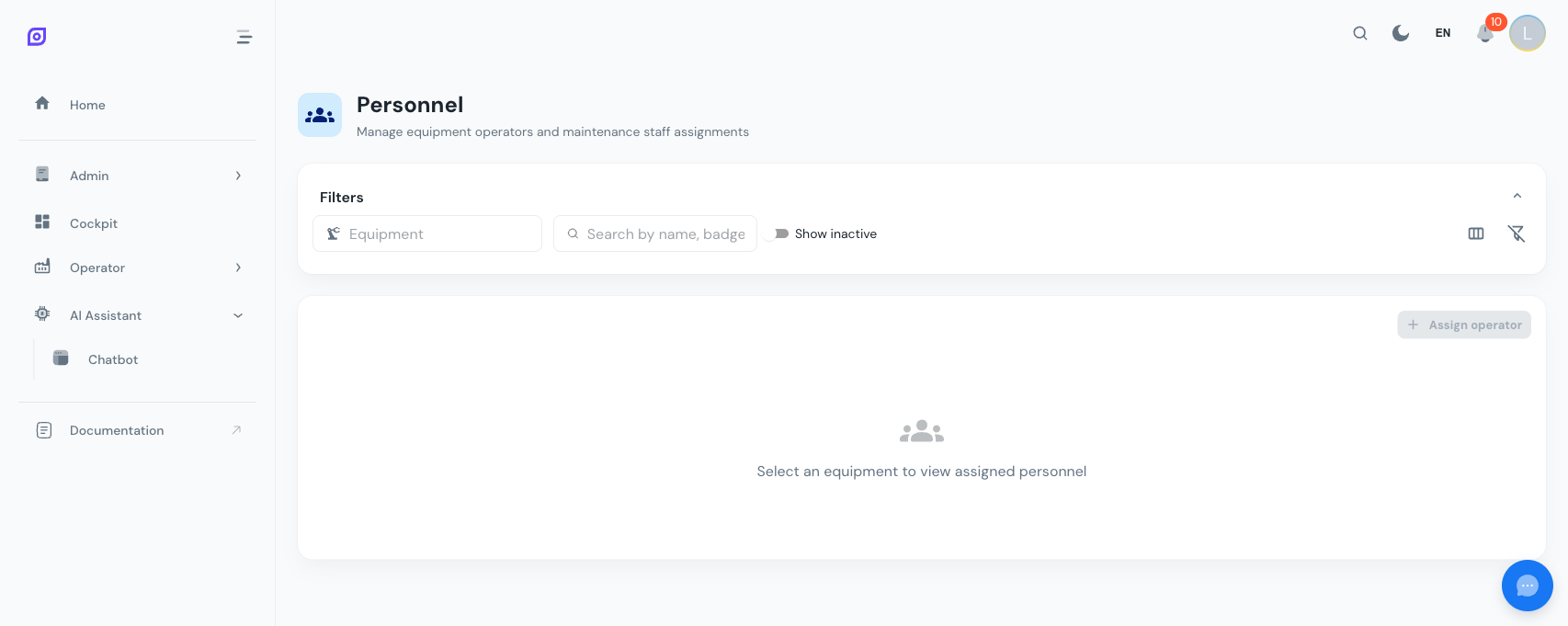
How the qualified operator list is used
- Operator Assignment -- when a supervisor places an operator on this equipment who is not on the list, the Operator Assignment board shows a warning. The placement is still allowed. Equipment without a list never triggers the warning.
- Downtime justification -- the operator picker on downtime actions groups its candidates, and the qualified list is the second group. It offers first the operators who were actually placed on the equipment while it was down, taken from the Operator Assignment board; the qualified list follows as a fallback for stops with no placement recorded, such as historical data or an unplanned line. Tick Show all operators to reach anyone else.
It does not put anyone on the machine. Who is actually at which machine during a shift is recorded on the Operator Assignment board; which crew is on shift comes from the schedule.
Managing the list
- Click the People icon on an equipment row
- The dialog shows the current list
- Add an operator with a role, deactivate one temporarily, or remove one
- Changes take effect immediately
Operators must be created in the Personnel module before they can be added to a list.
Schedule configuration
Linking a schedule tells OpSee when this equipment is expected to run. The schedule itself -- its shift windows and the crew on each -- is built on the Schedules page; this dialog only says which one applies to this equipment.
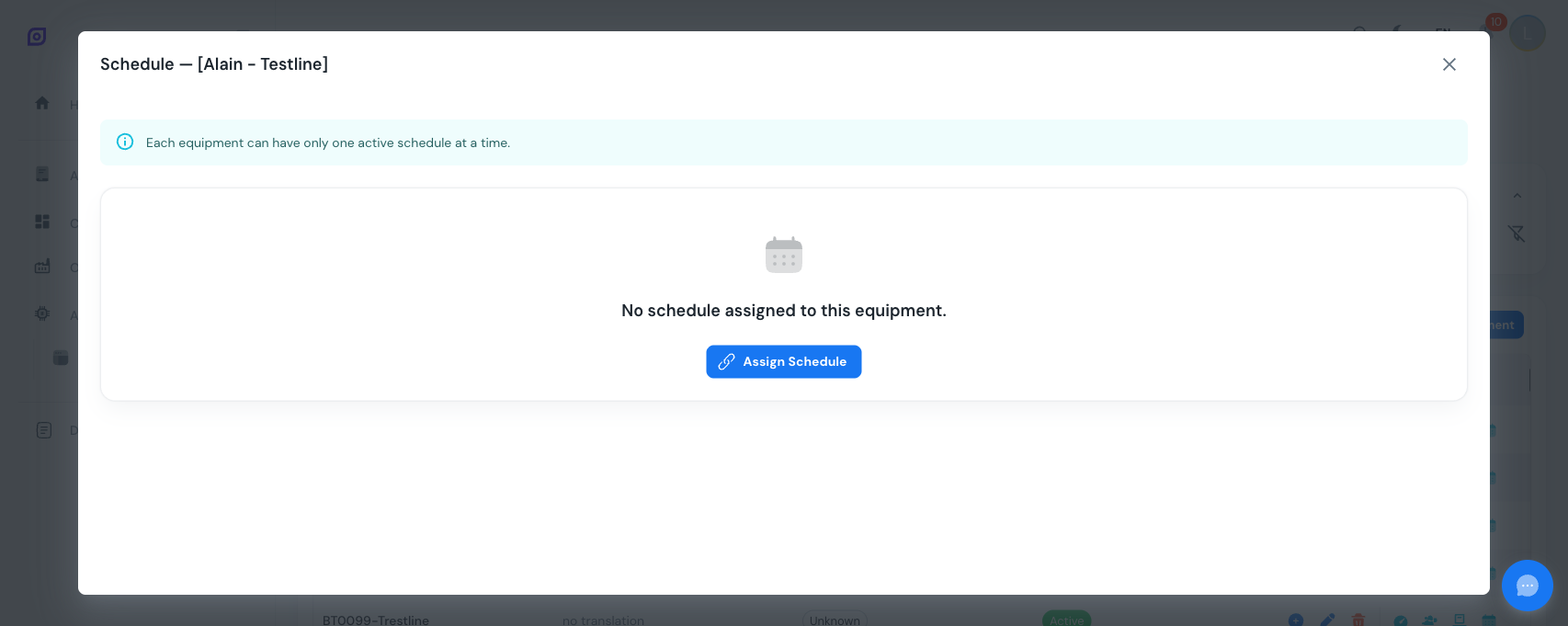
How schedules are used
- Operator Assignment -- the board resolves each lane's shift window, and the crew in its "On duty" group, from the schedule that covers that machine
- Production order segments -- when a segment opens it is stamped with the shift and crew the schedule shows on duty at that instant. If no schedule covers the machine then, the segment records no shift and no crew rather than guessing one.
- Unscheduled time -- a stop outside every shift window can be counted as unscheduled rather than as downtime, but only where you have switched unscheduled classification on for that equipment. It is off by default, and until it is on, an out-of-shift stop counts as ordinary downtime.
Managing schedules
- Click the Calendar icon on an equipment row
- Assign a schedule, or unlink the one that is there
- Use Go to schedule to open the schedule itself and edit its entries
- Changes take effect immediately for future calculations
Assignment overview
The following diagram shows how assignments connect equipment to other modules:
Best practices
- Assign materials before going live -- OEE performance calculations depend on production rates. Without material assignments, performance metrics will be incomplete.
- Keep the qualified operator list current -- add new operators when they are trained on a machine and remove those who leave, so the warning on the Operator Assignment board stays meaningful.
- Link schedules at the level that fits -- you do not need one schedule per machine. A schedule linked to a line or an area covers everything below it, and the nearest link wins; give a machine its own only when it genuinely runs different hours.
- Review inactive assignments periodically -- deactivated material links and qualified operator entries accumulate over time. Audit them quarterly to keep the system clean.
Prerequisites
- Equipment Overview
- Introduction: get the overall picture of OpSee
Next steps
Related
- Equipment Model (ISA-95)
- OEE Configuration: complementary module