Session and Login
OpSee uses Keycloak as its identity provider. Authentication is handled through OAuth2; you sign in once and OpSee manages the session automatically.
Signing in
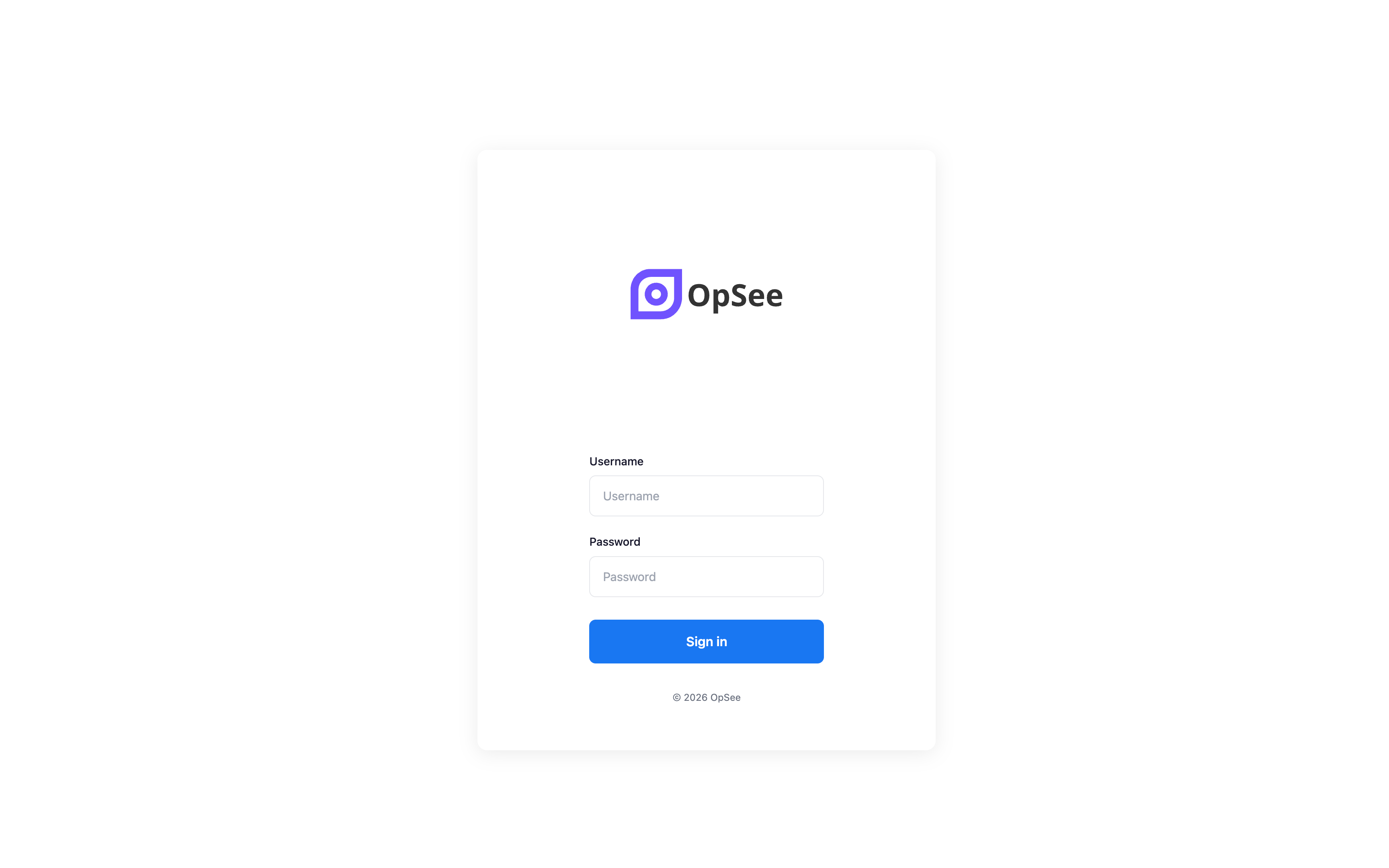
When you navigate to OpSee for the first time (or after your session has expired), you land on the sign-in page.
- Click Sign in with OpSee
- You are redirected to the Keycloak login page
- Enter your username and password
- You are redirected back to OpSee, fully authenticated
:::info Single Sign-On If your organization uses SSO (SAML, LDAP, or social login configured in Keycloak), you may be signed in automatically when you visit OpSee from within the company network, with no password prompt. :::
Signing out
To sign out:
- Click your profile avatar in the top-right corner of the header
- Select Sign out
Your session is terminated immediately and you are redirected to the sign-in page.
:::warning Sign out on shared devices On shared computers (shop-floor terminals, kiosks), always sign out when you are done. OpSee sessions persist in the browser until you explicitly sign out or the session token expires. :::
Session expiry
OpSee sessions have a configurable expiry set by your Keycloak administrator (typically 8 hours for operator sessions, longer for admin sessions).
When your session expires:
- OpSee detects the expired token on the next API call
- You are redirected to the sign-in page automatically
- After signing in, you are returned to the page you were on
Any unsaved form data may be lost if your session expires mid-edit. Save your work frequently.
Password reset
Passwords are managed in Keycloak. If you need to reset your password:
- On the Keycloak sign-in page, click Forgot password?
- Enter your email address
- Follow the reset instructions sent to your email
If your organization uses LDAP or Active Directory, password resets must be done through your IT department; Keycloak in federated mode does not manage the passwords directly.
Account locked
If your account is locked after too many failed sign-in attempts, contact your IT administrator to unlock it in Keycloak.
Prerequisites
- Interface Overview — understand the header and profile menu
Next steps
- Roles and Permissions — what you can do after signing in
- Language and Timezone — set your preferred language
Related
- Administration → Access Control — user management (admin only)