Roles and Permissions
OpSee uses Keycloak for identity and access management. What you can see and do is decided by three things your administrator assigns to your account. This page explains how they fit together.
Three things decide your access
| Layer | Controls | Example |
|---|---|---|
| Business roles | A bundle of capabilities for a job function | Operator, Supervisor, Technician |
| Permissions | The individual actions/pages a capability unlocks | "View OEE", "Edit production orders" |
| Equipment scope | Which equipment's data you can see | Only Line 2, or all equipment |
You almost always get your permissions by holding one or more business roles — each role is simply a pre-packaged set of permissions. An administrator can also grant a single extra permission directly for a one-off need.
Menu visibility follows your permissions automatically: you see a page in the sidebar if you hold the permission that page requires. There is no separate "menu role" to assign.
Business roles
A business role packages the permissions a job function needs. The built-in roles:
| Business role | Typical user | Grants (summary) |
|---|---|---|
| Admin | Plant admin / integrator | Everything — every permission and all equipment. |
| Operator | Shop-floor operator | View dashboards & data, assign OEE reasons, view production orders, edit Kaizen. |
| Supervisor | Line / shift supervisor | Operator + edit OEE records & config, manage production orders, dispatch, schedules, personnel, export data. |
| Technician | Maintenance / controls | View data + configure equipment, tags, data sources and calculations, import/export. |
| Quality | Quality manager | View data + edit OEE records & config, run analysis, export data. |
| Planner | Production planner | View data + manage production orders, dispatch, schedules, recipes and materials. |
| Viewer | Read-only account | View dashboards, equipment, tags, trends, OEE, cockpits, recipes, materials and Kaizen boards, and use the AI assistant — all read-only. Cannot change anything, anywhere. |
Viewer is the only built-in role that grants no write of any kind. Every other role — including Operator, the next narrowest — can change something: Operator assigns OEE reasons, starts and completes its orders, and edits Kaizen cards. Use Viewer for someone who should see the plant but never alter it: a plant manager, a visiting auditor, a customer demo login, or a wall-mounted display.
Equipment scope is separate from the role. A Viewer sees only the equipment they are also granted scope for, exactly like every other role.
The AI assistant is included and is still read-only: each of its tools checks the same permissions as the rest of the app, so a Viewer can ask it questions but it cannot change anything on their behalf.
An administrator can also customize these roles or create new ones in the Access Control UI.
:::info Managed by your administrator Users cannot self-assign roles. All assignments are done by an administrator in Administration → Access Control → Users. :::
Permissions
Under the hood, every capability is a permission named
perm:<area>:<action> — for example perm:oee:read (view OEE) or
perm:production-orders:write (edit production orders). There are ~50 of them
across areas like Equipment, OEE, Production, Tags, Trend, Personnel, System and
Access control.
You normally never touch these individually — your business role bundles the right ones. Administrators can browse the full list, and exactly which API each permission unlocks, on the Administration → Access Control → Permissions page.
Equipment scope
Equipment scope limits all production data (OEE, downtime, sensor values,
orders) to specific equipment. It is assigned as equipment:* roles:
| Assignment | You can see |
|---|---|
| All equipment | Every equipment node, including any added later |
equipment:company-a:antwerp | Only the Antwerp site (and everything under it) |
equipment:company-a:antwerp:line-2 | Only Line 2 at Antwerp |
| (none) | No equipment data |
A site or line grant automatically covers everything beneath it. A user scoped to Line 2 sees the same pages as everyone else, but only Line 2's data — other lines never appear.
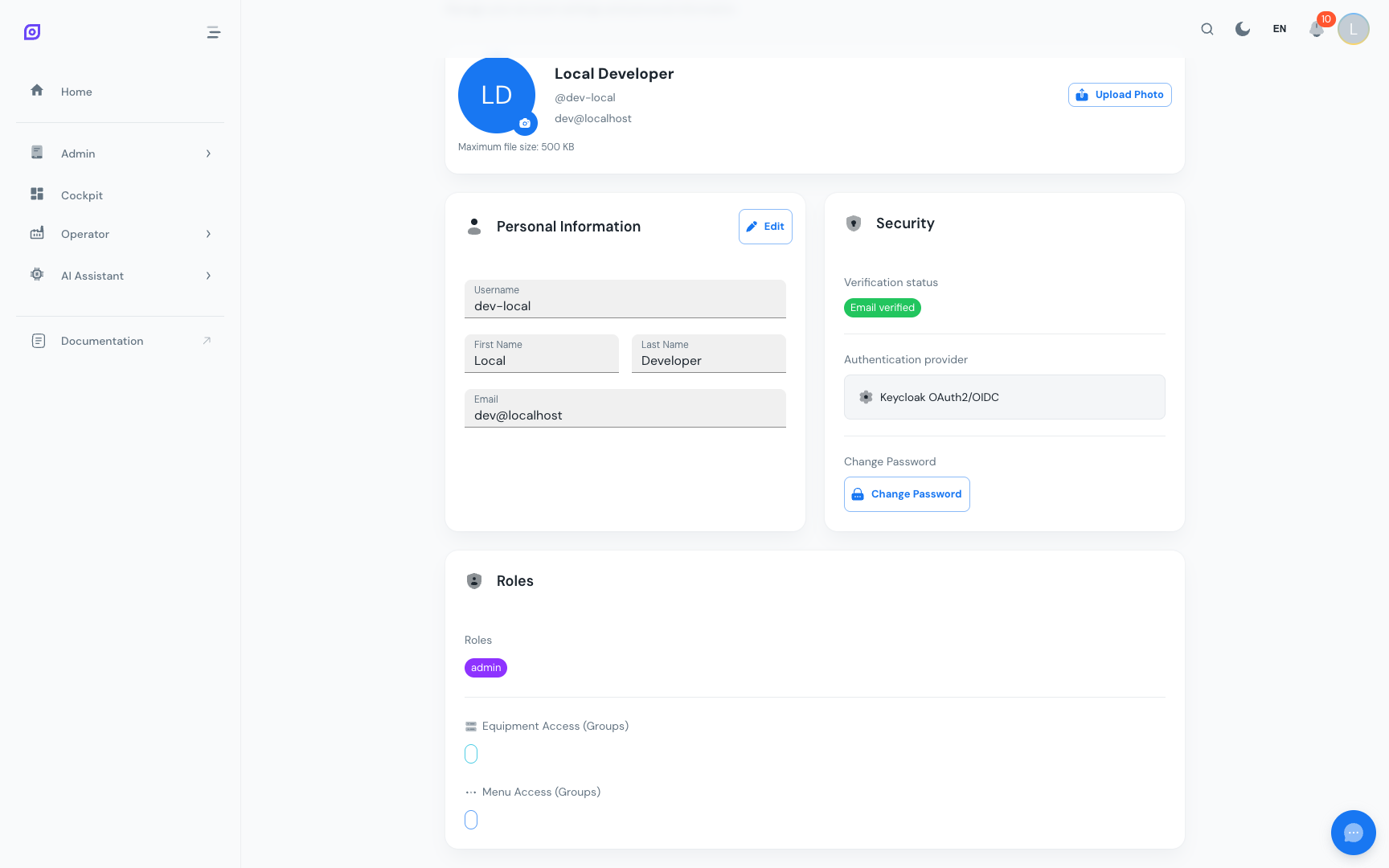
Seeing your own permissions
To see what you currently hold:
- Click your profile avatar in the top-right corner
- Select Profile
- Scroll to the Roles & Permissions card
The card shows your business roles, your effective permissions (grouped by area), and your equipment scope.
Common configurations
| User type | Typical setup |
|---|---|
| Plant admin | Admin business role (everything) |
| Supervisor | Supervisor role + equipment:company-a:site-x |
| Operator | Operator role + equipment:company-a:site-x:line-y |
| Maintenance | Technician role + relevant equipment scope |
| Planner | Planner role + broad equipment scope |
| Plant manager, auditor, wall display | Viewer role + the equipment scope they should see |
Troubleshooting
I can't see a module in the sidebar — your roles don't include the permission that page requires. Ask your administrator to add a role (or the specific permission) that grants it.
I see the module but no data — you have no equipment scope, or your scope doesn't cover the equipment you expect. Check your profile's Roles & Permissions card, or ask your administrator.
I can see a page but can't edit — viewing and editing are separate
permissions (e.g. perm:oee:read vs perm:oee:write). Your role grants the read
but not the write; ask for the role/permission that includes editing.
Prerequisites
- Interface Overview — understand the navigation sidebar
Next steps
- Session and Login — sign in and manage your session
- Administration → Access Control — manage users and roles (admin only)
Related
- Authorization — the technical model behind this page: how permissions are enforced, in depth
- Authentication — how OpSee establishes who you are
- Glossary — definitions of every key term used in OpSee