Language and Timezone
Changing the UI Language
OpSee supports up to 10 languages. The available languages depend on what your administrator has enabled in the Localization settings.
To change the language:
- Click the language selector (globe icon) in the top-right header
- Select your preferred language from the dropdown
- The entire interface switches immediately, with no page reload needed
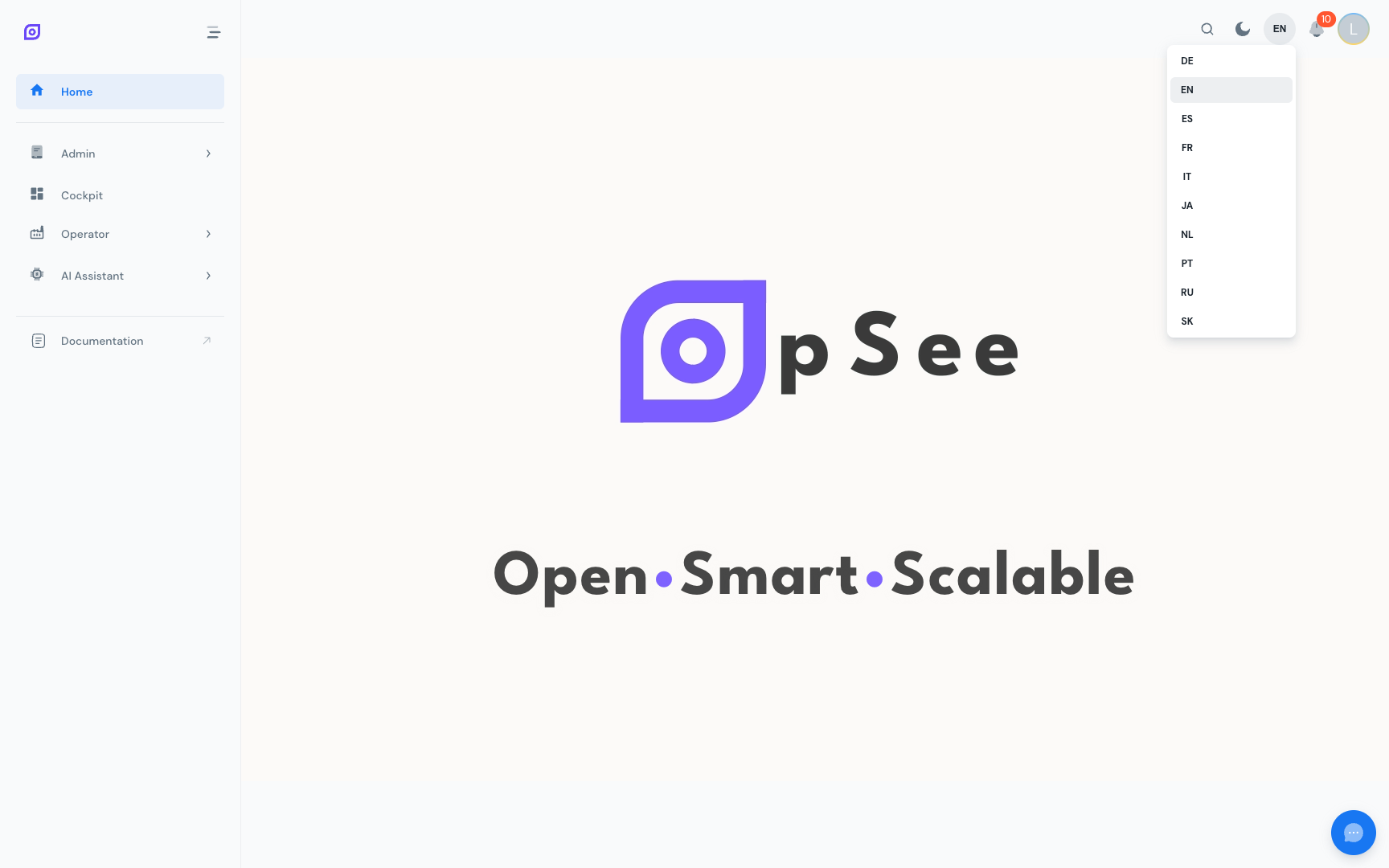
Your language choice is saved in your browser's local storage and restored automatically on your next visit.
Available languages
| Language | Code |
|---|---|
| English | en |
| French | fr |
| German | de |
| Spanish | es |
| Italian | it |
| Dutch | nl |
| Portuguese | pt |
| Japanese | ja |
| Slovak | sk |
| Russian | ru |
If a language is not visible in the dropdown, your administrator has not enabled it yet. Refer them to Administration → Localization → Languages.
Translation coverage
Most of the OpSee interface is fully translated into all 10 languages. A small number of technical labels (sensor tag names, raw database values) always appear in English regardless of language setting.
Dates and Times
OpSee displays dates and times in your browser's local timezone. There is no separate timezone setting in the application; OpSee uses the timezone of the device you are on.
Date formats follow the selected language's conventions:
| Language | Date format example |
|---|---|
| English | Jun 15, 2025, 14:30 |
| French | 15 juin 2025, 14:30 |
| German | 15. Jun. 2025, 14:30 |
| Japanese | 2025年6月15日 14:30 |
Important for multi-site plants
If operators work in different timezones (for example, a plant in New York and a plant in Amsterdam both using the same OpSee server), each operator's browser shows times in their local timezone. The database always stores timestamps in UTC.
Units of Measure
Units of measure (kg, t, L, pieces, …) are configured globally in Administration → Localization → Units of Measure. The unit system (metric / imperial) cannot be changed per user — it is a plant-wide setting.
See Localization — Units of Measure for administration details.
Prerequisites
- Interface Overview — find the language selector in the header
Next steps
- Session and Login — manage your session
Related
- Administration → Localization — enable languages, manage translations (admin only)