Filtering and Searching
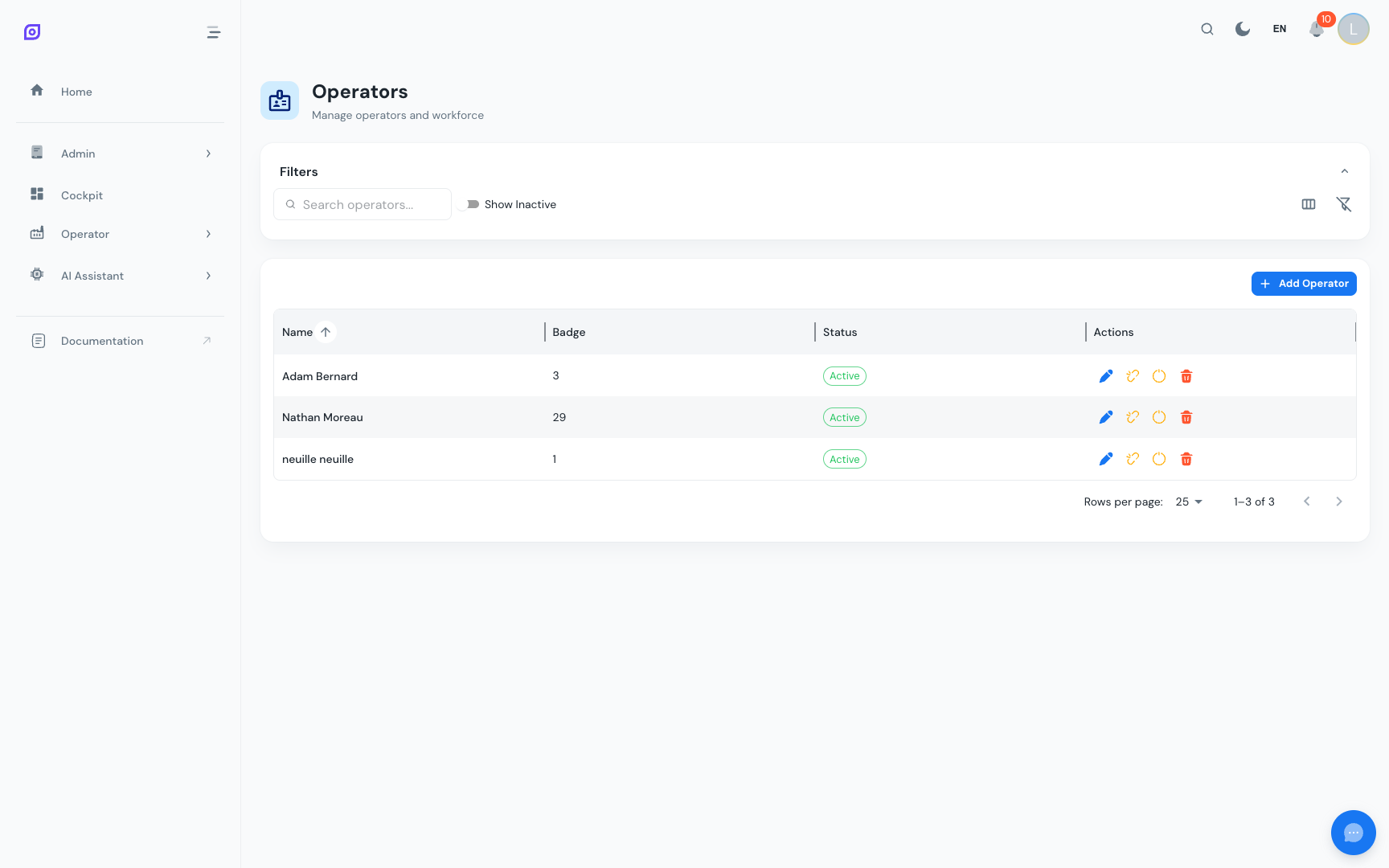
Most pages in OpSee display data in a DataGrid: a table with built-in filtering, sorting, and column management. This page explains how those features work and how to save your view with a browser bookmark.
Filter bar
Grid pages typically have a filter bar above the table. Filters vary by module but commonly include:
- Date range: a start/end date picker (default is often "last 7 days" or "today")
- Equipment selector: narrow results to one line or machine
- Status chips: toggle between states (e.g., Validated / Unvalidated)
- Text search: live search across key text fields
Click Clear (or the × on individual filter chips) to reset filters to their defaults.
Filters are in the URL
Every filter you set is reflected in the browser's address bar as query parameters. For example:
/production/oee/downtime_op_screen?equipment=42&from=2025-06-01&status=unvalidated
This means:
- You can bookmark any filtered view and return to exactly the same state later
- You can share a link with a colleague and they will see the same filtered data
- The back button works as expected; going back restores the previous filter state
:::tip Useful for recurring views If you check the same line's unvalidated events every morning, bookmark that filtered URL and it becomes a one-click shortcut. :::
Column sorting
Click any column header to sort the table by that column. Click again to reverse the sort order. The sort indicator (▲ / ▼) shows the current direction.
Column resizing
Drag the divider between two column headers to resize columns. OpSee remembers your column widths per page across browser sessions; your layout persists even after closing the tab.
Column visibility
On pages with many columns, some are hidden by default to keep the view clean. Look for a Columns button or a settings icon near the top-right of the grid to toggle column visibility.
Quick search
Some grids include a text input that performs a live search as you type. The search matches across multiple fields (name, code, description) without needing to press Enter.
No results
If the grid is empty, check:
- Date range: extend it if you expect older data
- Equipment filter: make sure the right item is selected
- Your permissions: you only see equipment your role allows. See Roles and Permissions
Prerequisites
- Interface Overview — understand the page layout first
Next steps
- Import / Export — bulk operations on grid data
Related
- Roles and Permissions — why some records may be hidden