Widget Reference
The Cockpit provides 45 widgets organized in the Add Widget catalog by job, not by data source: Operations, Justification, Trends, and System. The dialog opens on the Operations tab, and a search field at the top filters widgets by name across all four groups at once. Each widget falls into one of five types:
| Type | Description | Example |
|---|---|---|
| Gauge | Radial gauge for a single percentage metric | OEE Gauge |
| KPI | Single metric card with icon, value, and trend indicator | Total Events, MTTR |
| Chart | Doughnut, bar, or line visualization | Loss Types, Daily Activity |
| Table | Sortable, paginated DataGrid with column management | Downtime Events, Audit Log |
| Timeline | Horizontal or vertical time-based multi-lane visualization | Downtime Timeline, Justification Timeline |
Widget types at a glance
 A KPI widget displays a single metric with an icon, color badge, and value.
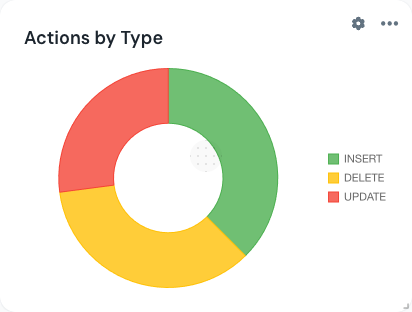 A Chart widget renders data as a doughnut, bar, or line chart with a compact legend.
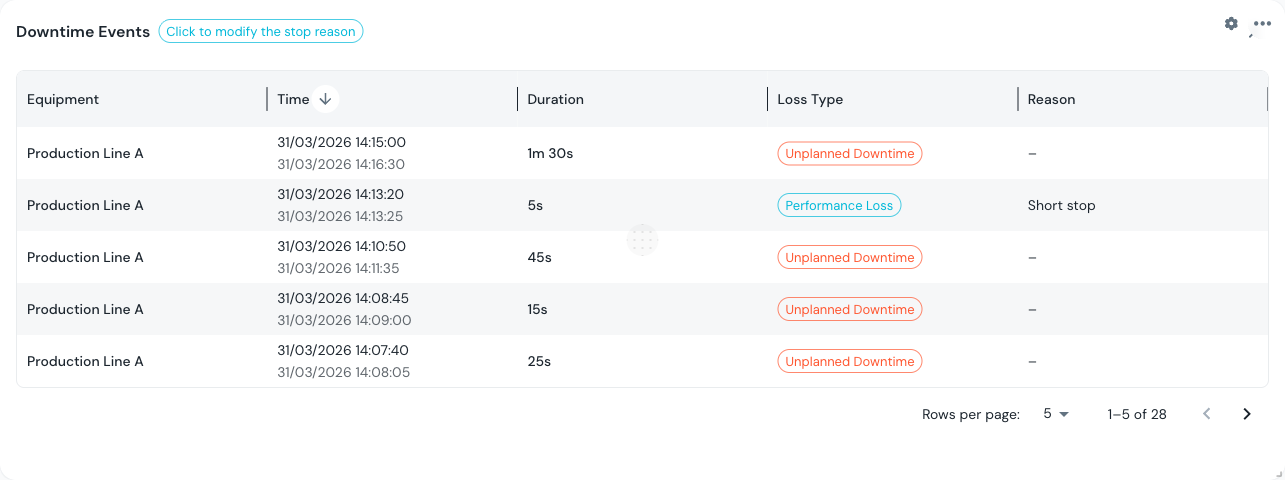 A Table widget provides a full DataGrid with sorting, pagination, and column management.
:::info Single-equipment widgets The operator tiles (Machine State, Produced vs Target, Day Progress, Recent Downtime) and the OEE dashboard charts (Production Trend, Activity Trend, Time Waterfall, Actual vs Nominal, Time Breakdown) are single-line screens underneath. If your filter selects more than one piece of equipment, these widgets use the first selected equipment only -- pick a single unit, either globally or through a per-widget override, to avoid ambiguity. :::
Operations (27 widgets)
Operations widgets cover what the line is doing right now: OEE, downtime, quality, production orders, and the single-line operator board. Most require an equipment selection.
Gauge
| Widget | Default Size | Requires Equipment | Description |
|---|---|---|---|
| OEE Gauge | 3 x 3 | Yes | Radial gauge for a single OEE-family percentage (Availability, Performance, Quality, or overall OEE). Add four side by side for the full breakdown. |
KPI Cards
| Widget | Default Size | Requires Equipment | Description |
|---|---|---|---|
| Total Events | 3 x 2 | Yes | Number of downtime events in the selected period. |
| Total Downtime | 3 x 2 | Yes | Cumulative downtime duration. Supports duration format override. |
| Equipment Count | 3 x 2 | No | Number of equipment items included in the current filter. |
| Validation Rate | 3 x 2 | Yes | Percentage of downtime events that have been validated by an operator. |
| MTTR | 3 x 2 | Yes | Mean Time To Repair. Supports duration format override. |
| MTBF | 3 x 2 | Yes | Mean Time Between Failures. Supports duration format override. |
Charts
| Widget | Type | Default Size | Requires Equipment | Description |
|---|---|---|---|---|
| Rate Segments | Bar + table | 6 x 6 | Yes | Production rate broken into segments by material/idle, with an aggregate chip above a scrollable table. |
| Loss Pareto | Bar | 6 x 5 | Yes | Pareto chart of downtime causes ranked by cumulative impact. |
| Loss Types | Doughnut | 4 x 3 | Yes | Distribution of downtime by loss category (Planned, Unplanned, Setup, Idle). |
| Top Reasons | Bar | 6 x 4 | Yes | Bar chart of the most frequent downtime reasons, ranked by occurrence. |
| OEE History | Bar | 6 x 4 | Yes | Historical OEE per day (or period) over the selected time range. |
| Production Trend | Line | 6 x 4 | Yes (first equipment) | Cumulative actual vs. nominal production over the shift, shared with the OEE dashboard's Production Trend chart. |
| Activity Trend | Bar | 6 x 4 | Yes (first equipment) | Running state and production increments over time, shared with the OEE dashboard. |
| Time Waterfall | Bar (stacked) | 6 x 4 | Yes (first equipment) | Time breakdown from total calendar time down to valuable operating time, shared with the OEE dashboard. |
| Actual vs Nominal | Bar | 6 x 4 | Yes (first equipment) | Actual production quantity against the ideal/nominal quantity for the period. |
Tables
| Widget | Default Size | Requires Equipment | Description |
|---|---|---|---|
| Downtime Events | 12 x 6 | Yes | Full DataGrid of downtime events with start/end times, duration, reason, and validation status. |
| Production Orders | 6 x 4 | Yes | List of production orders for the selected equipment, with status and quantities. |
| Time Breakdown | 6 x 4 | Yes (first equipment) | Table view of the nine time-breakdown components behind the OEE waterfall. |
| Quality Events | 12 x 6 | Yes | Read-only DataGrid of quality (waste/scrap) records, fed by the same data as the justification widgets. |
Timelines
| Widget | Default Size | Requires Equipment | Description |
|---|---|---|---|
| Downtime Timeline | 12 x 4 | Yes | Horizontal multi-lane timeline showing running/down states per equipment. See the dedicated Timeline page for details. |
| Quality Timeline | 12 x 4 | Yes | Read-only vertical timeline of quality events (scrap, rework, unjustified waste). |
Operator board tiles
Single-line tiles mirroring the /production/kpi operator screen. All four use the first selected equipment when more than one is filtered.
| Widget | Default Size | Description |
|---|---|---|
| Machine State | 3 x 2 | Current running/stopped state and elapsed time in that state. |
| Produced vs Target | 3 x 2 | Pieces produced against the shift target, with a progress bar. |
| Day Progress | 3 x 2 | Progress through the local calendar day. No equipment, time range, or refresh interval -- it ticks on its own clock. |
| Recent Downtime | 6 x 4 | Compact list of the most recent downtime events for the equipment. |
Alarms
| Widget | Default Size | Requires Equipment | Description |
|---|---|---|---|
| Active Alarms | 6 x 4 | No | Live list of the alarms open on the selected equipment, most severe first: priority chip, name, equipment and age, with unacknowledged rows emphasised. The header counts the open alarms per priority and shows whether the live stream is connected; a click opens the Alarms screen with the same equipment filter. Up to 50 rows, snoozed alarms excluded. Needs perm:alarms:read and a valid licence. |
The widget consumes only the equipment selection and the refresh interval -- there is no time range, because the list is what is open right now. Equipment inherits the dashboard filter unless you override it per widget. See Alarms Screen for what it shows when the permission or the licence is missing.
Justification (4 widgets)
Justification widgets surface downtime and waste that still need a reason attached, and let you attach one without leaving the cockpit.
Justification Timeline
The Justification Timeline (12 x 4) is the cockpit's one writable widget. It shares its rendering core with the OEE dashboard's Justification section, so both look and behave identically.
- Click a downtime stop or a waste item on the timeline (or grid) to open the reason panel -- the Reason Selection panel for downtime stops (requires the
oee:annotatepermission) or the Quality Reason panel for waste items (requiresoee:write). Without the permission, no panel is mounted and no write request is ever attempted. - Kiosk mode (
?kiosk=1) always forces the widget read-only, regardless of permissions, and shows an "open justification screen" link that deep-links to the full justification page carrying the current equipment and time window. - An unjustified badge on the card header shows the count of stops/waste items still missing a reason, and is hidden entirely when the count is zero.
- Split by equipment: when the widget's filter covers more than one equipment unit, a toggle splits the timeline into one lane group per equipment.
- Timeline / grid toggle: switch between the horizontal timeline view and a tabular grid view. Both the split and the view mode are remembered per widget instance.
Justification KPI tiles
| Widget | Default Size | Description |
|---|---|---|
| Produced | 3 x 2 | Total pieces produced across the filtered equipment selection. |
| Rejects | 3 x 2 | Total rejected/scrapped pieces across the filtered equipment selection. |
| Unjustified | 3 x 2 | Count of downtime and waste records still missing a reason, cropped to the current time window. Supports duration format override (used in its detail popup). |
Unlike the MTTR/MTBF KPI tiles, which read only the first selected equipment, the justification KPI tiles aggregate the entire equipment selection -- matching the full justification page.
Trends (1 widget)
| Widget | Type | Default Size | Requires Equipment | Description |
|---|---|---|---|---|
| Tag Trend | Line | 6 x 4 | Yes | Real-time line chart of tag values over time. Select an equipment item to see its associated tags and plot their trends. |
Tag Trend per-widget options
Each Tag Trend instance can be tuned from its widget settings, independent of every other Tag Trend widget on the dashboard:
| Option | Effect |
|---|---|
| Tags | Choose specific tags to plot (limited to the tags available on the widget's effective equipment). Leave empty to auto-pick. |
| Number of tags | When auto-picking, how many tags to plot (1-8, default 3). |
| Statistics | Overlay a moving average and a +/-2 sigma band on each series. |
| Quality bands | Overlay Tag Quality bands (single-tag charts only). |
| Legend table | Show a legend/statistics table under the chart. |
System (13 widgets)
System widgets cover platform-level data: the audit trail and the material master. None require an equipment selection.
Audit (10 widgets)
Charts
| Widget | Type | Default Size | Description |
|---|---|---|---|
| Actions by Type | Doughnut | 4 x 3 | Breakdown of audit actions (Insert, Update, Delete) as a doughnut chart. |
| Daily Activity | Line | 6 x 4 | Line chart showing the number of audit actions per day over the selected time range. |
| Top Tables | Bar | 6 x 4 | Horizontal bar chart of the most frequently modified database tables. |
KPI Cards
| Widget | Default Size | Description |
|---|---|---|
| Total Actions | 3 x 2 | Total number of audit log entries in the selected period. |
| Unique Users | 3 x 2 | Count of distinct users who performed actions. |
| Unique Tables | 3 x 2 | Count of distinct tables that were modified. |
| Most Active User | 3 x 2 | Username of the user with the highest number of actions. |
Tables
| Widget | Default Size | Description |
|---|---|---|
| Most Active Users | 12 x 6 | DataGrid listing each user with their action count, sorted by activity. |
| All Tables Activity | 12 x 6 | DataGrid listing each modified table with action counts. |
| Audit Log | 12 x 6 | Full audit log DataGrid with timestamp, user, action, table, and details. |
Material (3 widgets)
| Widget | Type | Default Size | Description |
|---|---|---|---|
| Total Materials | KPI | 3 x 2 | Total count of materials in the system. |
| Active Materials | KPI | 3 x 2 | Count of materials with an active status. |
| Inactive Materials | KPI | 3 x 2 | Count of materials that are currently inactive. |
Customization options by type
Every widget supports these common customizations:
- Title override: rename any widget instance
- Per-widget time range: inherit from global or set a custom range
- Per-widget refresh interval: inherit or override with a custom interval
Additional customization depends on the widget type:
| Capability | KPI | Chart | Table | Timeline |
|---|---|---|---|---|
| Color override | Icon badge color | Data series colors | -- | -- |
| Icon override | Yes (200k+ Iconify icons) | -- | -- | -- |
| Data labels | -- | Yes (show values on chart) | -- | -- |
| Duration format | If duration-based | -- | -- | -- |
| Column management | -- | -- | Yes (resize, hide, sort) | -- |
| View mode | -- | -- | -- | 1h / 4h / 8h / 24h (Downtime Timeline); timeline/grid (Justification Timeline) |
| Color mode | -- | -- | -- | Validation / Loss type |
Widgets marked Requires Equipment: Yes display a prompt when no equipment is selected. Set equipment through the global filters or through a per-widget override in the widget settings dialog.
Prerequisites
- Cockpit Overview
- Introduction: get the overall picture of OpSee
Next steps
Related
- OEE Fundamentals
- Production: complementary module