Downtime Timeline
The Downtime Timeline is the most advanced widget in the Cockpit. It renders a horizontal multi-lane chart showing running and down states for each piece of equipment over time, giving operators an immediate visual overview of production interruptions.
What the timeline shows
Each horizontal lane represents an equipment unit. Within each lane, colored bars indicate downtime events. The bar's length corresponds to the event duration, and its position on the time axis shows when it occurred. Gaps between bars represent running (productive) time.
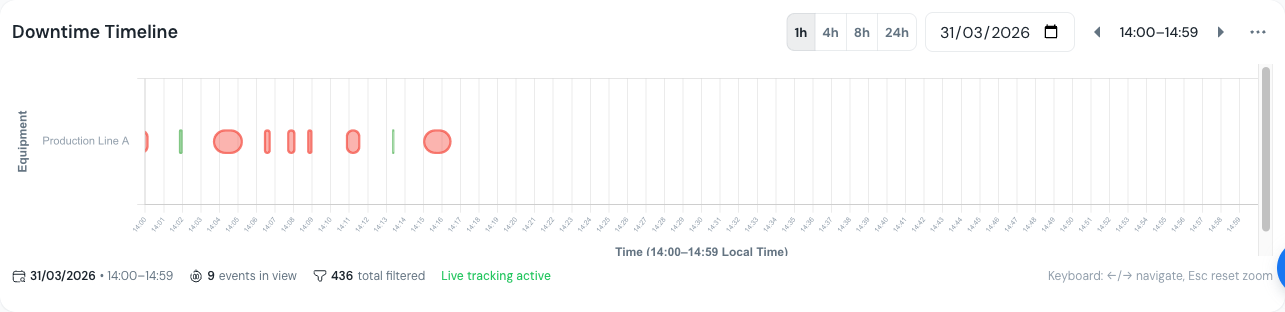 The Downtime Timeline showing multiple equipment lanes with colored downtime bars over a full shift.
Time window toggles
Switch between predefined time windows using the toggle buttons in the widget header.
| Window | Best for |
|---|---|
| 1h | Detailed view of the last hour: ideal for investigating recent events |
| 4h | Half-shift monitoring with enough detail to spot patterns |
| 8h | Full shift overview to see the complete picture |
| 24h | Daily production summary for shift handover reports |
The time window determines how much history is visible at once. Narrower windows show more detail per event; wider windows reveal patterns across the day.
Color modes
Toggle between two color schemes to highlight different aspects of your downtime data. Switch color modes using the toggle button in the widget header.
By validation status
- Green = Validated events (confirmed and categorized by an operator)
- Orange = Unvalidated events (pending review and classification)
Use this mode to answer: "What still needs attention from the team?"
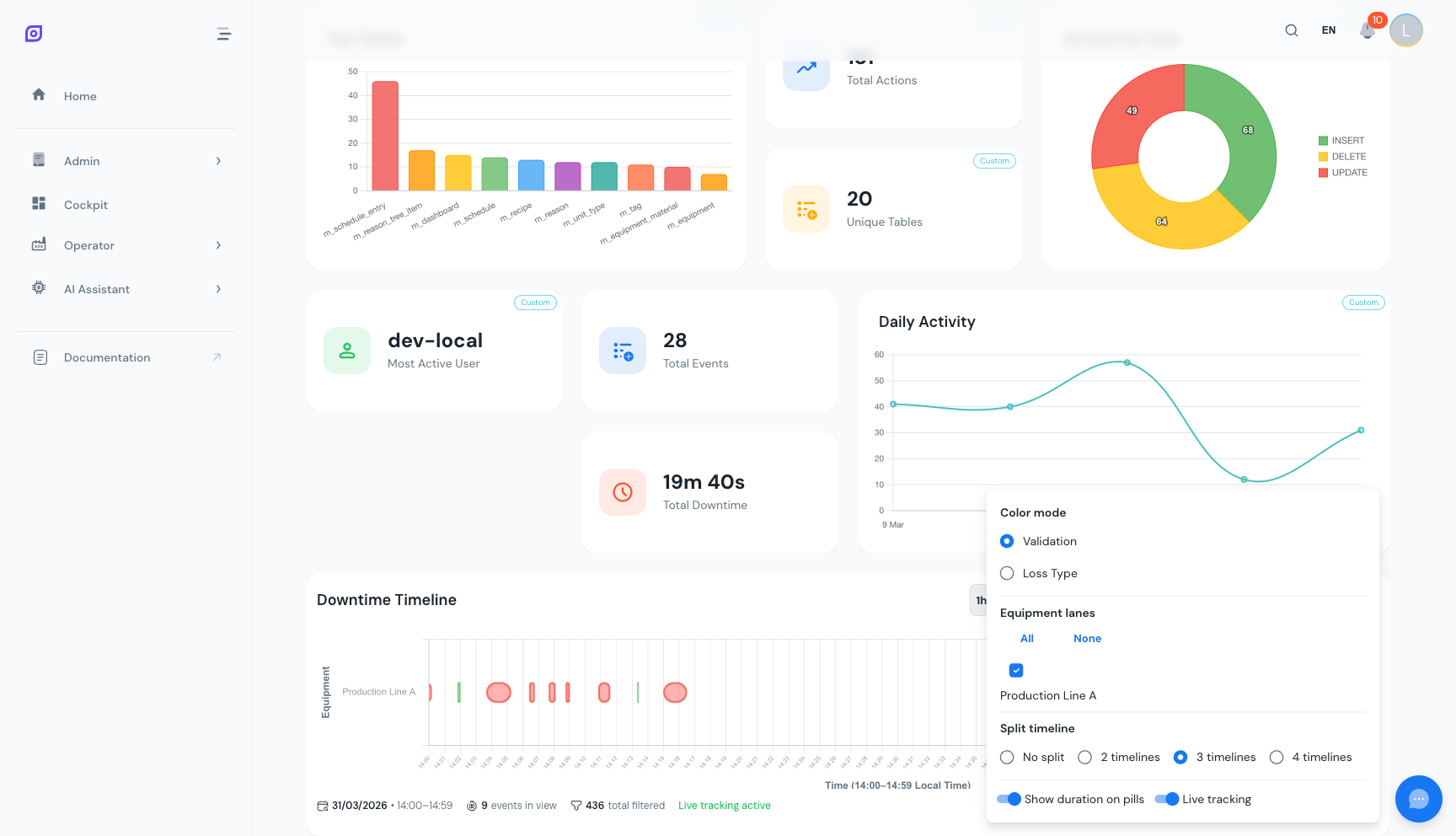 Validation color mode: green bars are validated events, orange bars still need operator review.
By loss type
- Red = Unplanned downtime (breakdowns, failures)
- Blue = Planned downtime (scheduled maintenance)
- Yellow = Setup and changeover
- Grey = Idle time (no production scheduled)
Use this mode to answer: "What categories are causing the most production loss?"
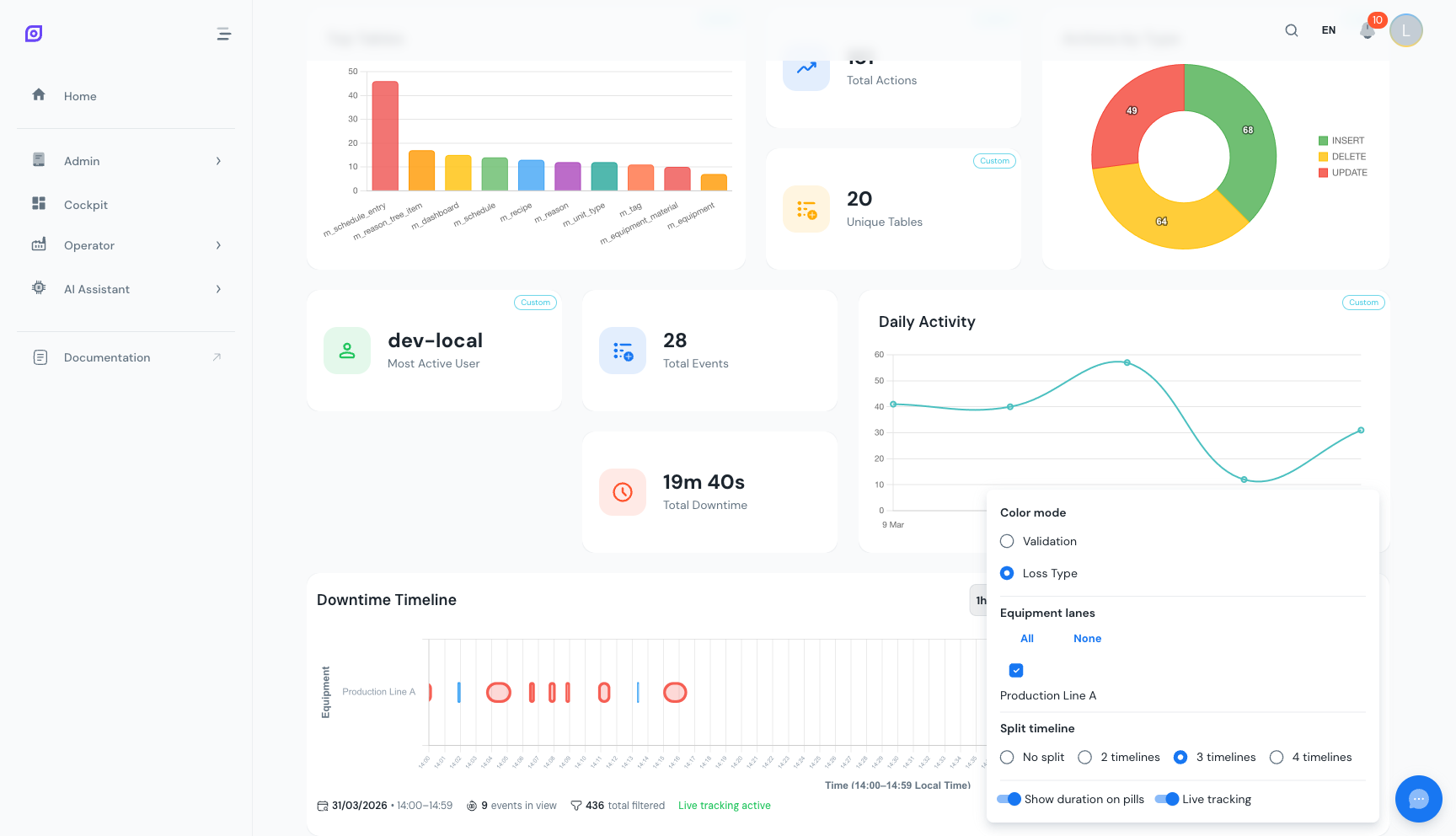 Loss type color mode: red for unplanned downtime, blue for planned, yellow for setup, grey for idle.
Zoom and brush
Click and drag horizontally across the timeline to zoom into a specific time range. The cursor changes to a crosshair during the drag operation. The view narrows to show only the selected window with greater detail.
To reset the zoom:
- Click the reset button in the widget header
- Or select a different time window toggle (1h, 4h, 8h, 24h), which resets to that window
When the timeline is split into multiple chunks (see below), each chunk has its own independent zoom. This lets you zoom into a specific time range on one equipment lane while keeping the full view on others.
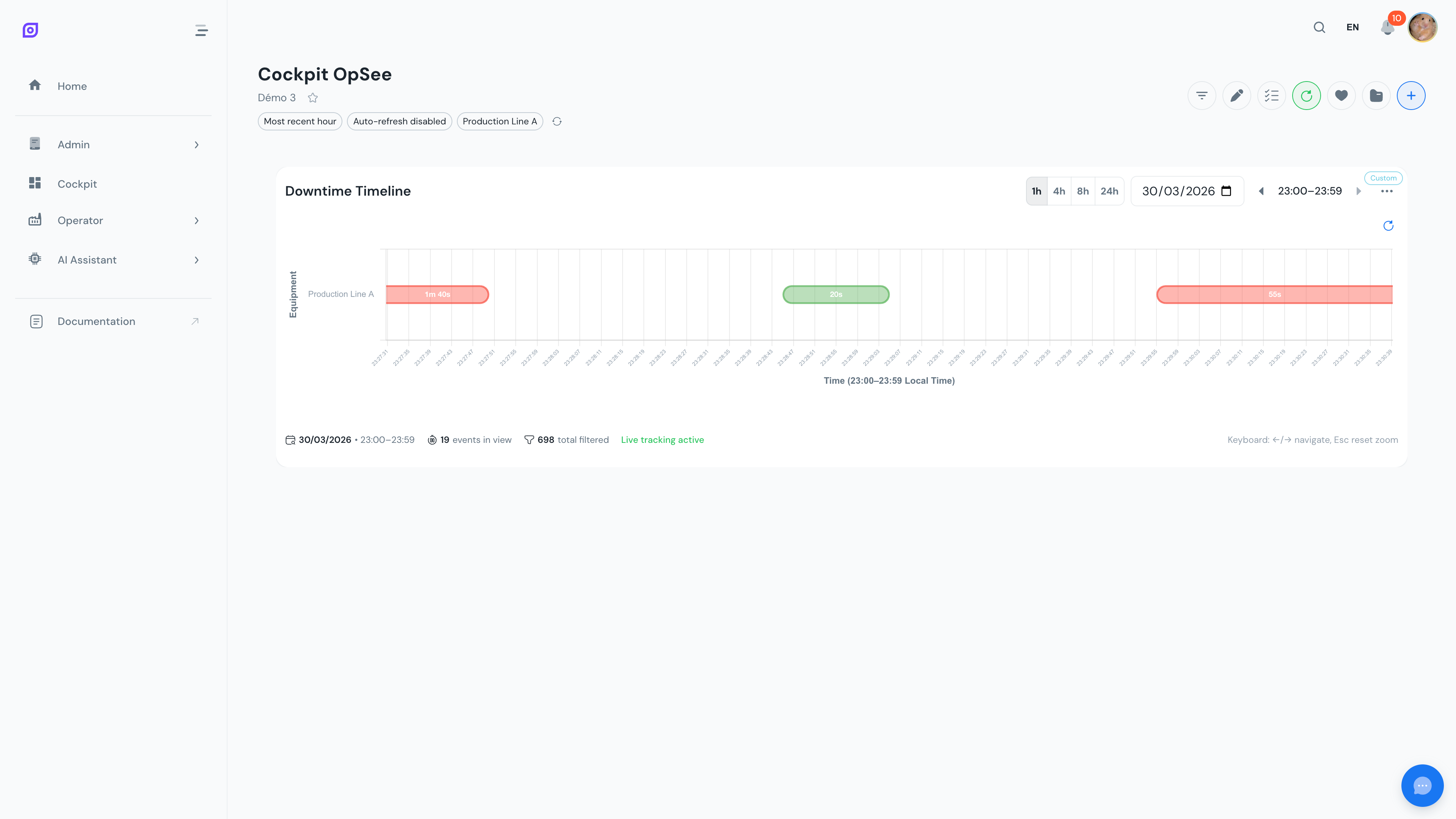 A zoomed-in view of the timeline after brushing a specific time range.
Split view by equipment
Toggle split view to display one dedicated row per equipment unit. This separates overlapping events and makes it easier to compare downtime patterns between production lines.
- Combined view (split off): All equipment on a single compact lane. Best when monitoring a single line or when screen space is limited.
- Split view (split on): One row per equipment unit. Best when comparing multiple lines side by side.
Adjust the split count to control how many horizontal chart chunks are stacked vertically. For example, with 6 equipment units and a split count of 2, each chunk shows 3 equipment lanes. This helps when monitoring many lines without excessive horizontal scrolling. Each chunk has its own independent zoom controls.
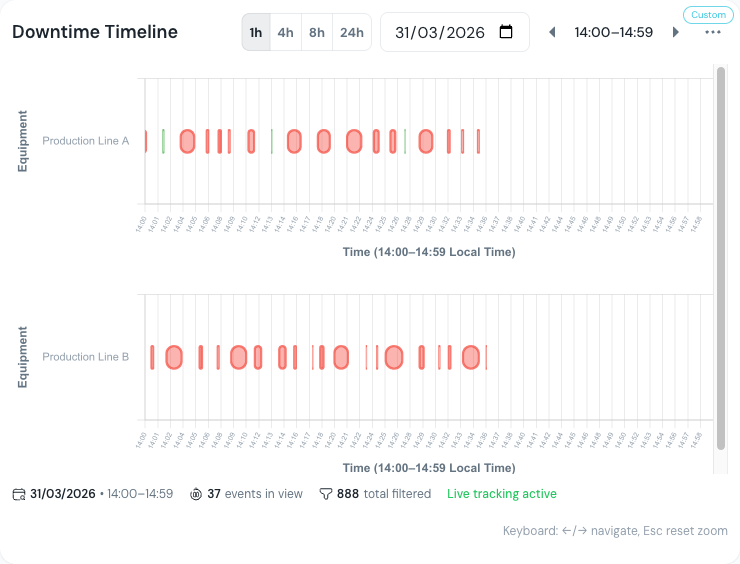 Split view mode: one dedicated row per equipment unit, making it easy to compare downtime patterns across lines.
Equipment selection
Control which equipment appears in the timeline through two methods:
- Global equipment filter: the timeline inherits the equipment selection from the Cockpit's global filters
- Widget-level override: open the widget settings (gear icon in edit mode) to set a specific equipment selection just for this timeline
The timeline also stores its own selected equipment list in its settings (timelineSelectedEquipments), allowing you to toggle individual lanes on or off without changing the global filter.
Only selected equipment units render rows in the visualization. This keeps the timeline focused on the lines that matter for your current monitoring task.
Duration labels
Toggle Show duration to display the duration directly on each downtime bar (e.g., "45 min", "2h 15m"). This is useful for quickly assessing event severity without clicking for details. The format respects the global or per-widget duration format setting.
Auto-follow mode
Enable auto-follow to keep the current time ("now") pinned at the right edge of the timeline. The view scrolls automatically as time progresses. This is ideal for:
- Wall-mounted monitoring displays in the control room
- Shift supervisor screens that always show the latest events
- Any scenario where the dashboard runs unattended
Disable auto-follow when you need to scroll back and investigate historical events.
Click for event details
Click any downtime bar to see its details in a popover. The popover shows:
- Equipment name
- Reason code and description
- Start and end time
- Duration
- Loss type category
- Validation status
Use this to quickly identify and investigate specific events without leaving the dashboard or navigating to the full downtime screen.
The timeline requires at least one equipment unit selected through the global filters or a widget-level override. Without equipment selection, the widget displays a configuration prompt.
Combine the timeline with KPI widgets (Total Events, Total Downtime, MTTR) in a single dashboard. Place KPI cards at the top for summary metrics and the full-width timeline below for the visual context. This gives both the numbers and the patterns at a glance.
Next steps
- Configure filters -- set the time range and equipment for the timeline
- Customize the widget -- change colors and apply bulk settings
- Back to widget reference -- explore all 24 available widgets
Prerequisites
- Cockpit Overview
- Introduction: get the overall picture of OpSee
Related
- OEE Fundamentals
- Production: complementary module