Layout & Edit Mode
The Cockpit uses a responsive 12-column grid system. Widgets snap to grid positions, making it easy to build clean, aligned dashboards without pixel-level adjustments.
Enter and exit edit mode
Click the Edit button in the toolbar to enter edit mode. The grid becomes visible and each widget shows drag and resize handles.
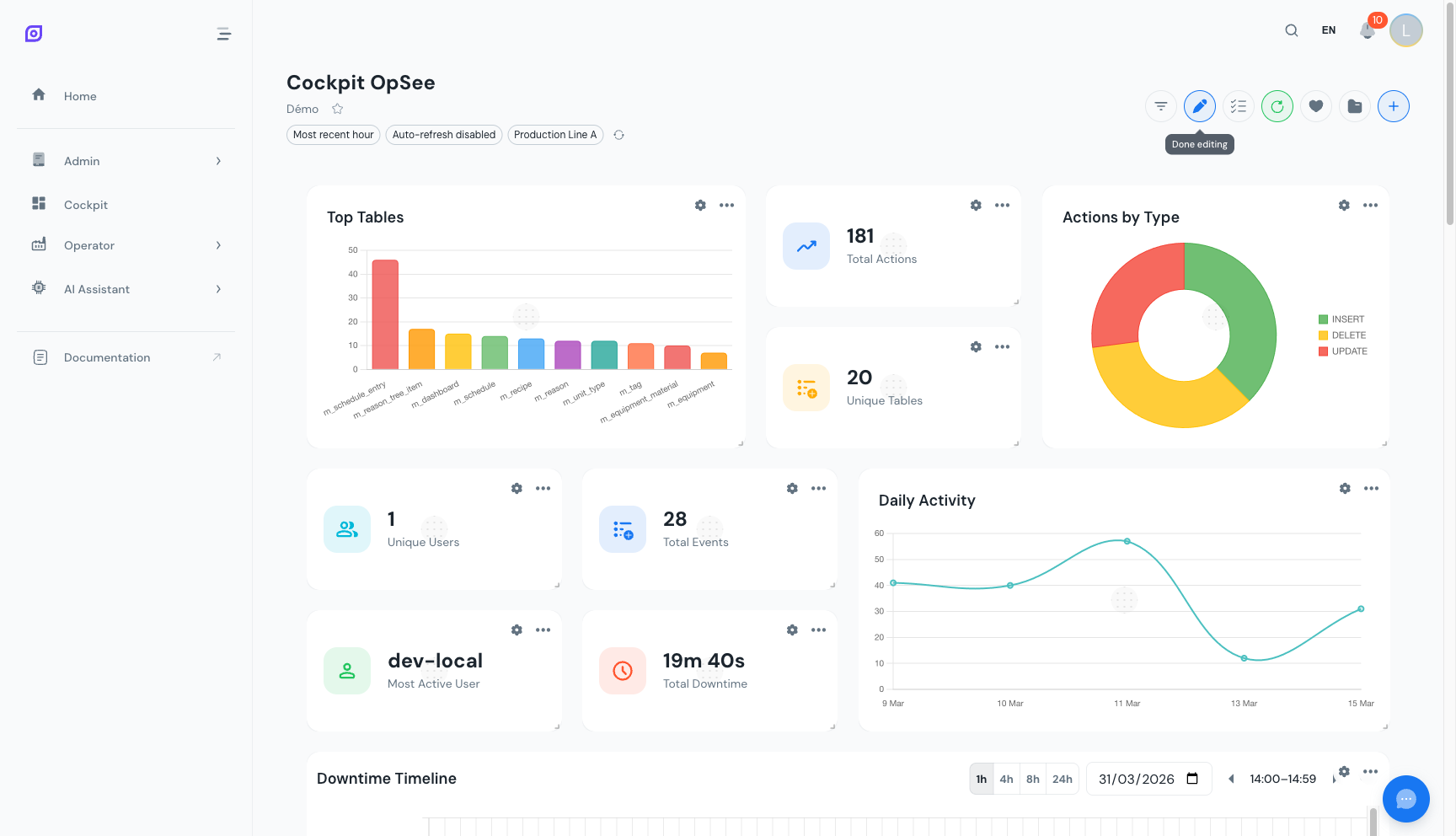 Edit mode activated. Drag handles appear at the top of each widget and resize handles at the bottom-right corner.
Click Edit again to exit edit mode and lock widget positions. Exiting edit mode does not save the dashboard: until you click Update or Save as..., an Unsaved changes chip stays next to the dashboard name, and OpSee asks before you leave the page. See Unsaved changes.
Drag and drop to reposition
Grab a widget by its drag handle (top area) and move it to a new position on the grid. Other widgets shift automatically to make room. Release the widget to drop it in place.
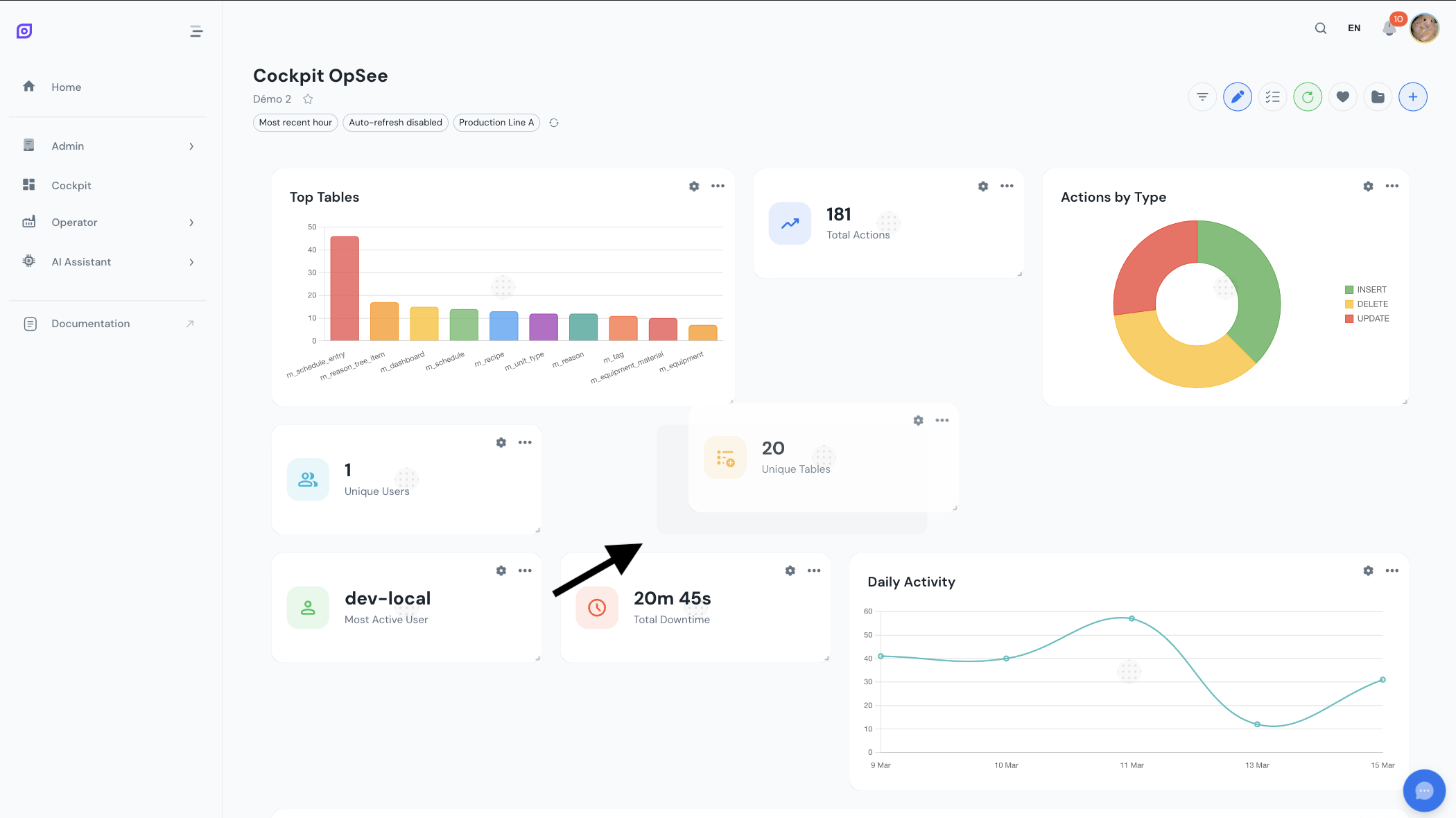 Dragging a widget to a new grid position. A placeholder shows where the widget will land when released.
Resize widgets
Drag the bottom-right corner handle of a widget to change its size. Widgets snap to valid column widths and row heights based on their type constraints.
 The resize handle at the bottom-right corner of a widget. Drag it to adjust width and height within the allowed constraints.
Size constraints
Each widget type has predefined allowed widths on the 12-column grid. Heights can be adjusted within minimum and maximum bounds.
| Widget Type | Allowed Widths (columns) | Default Size | Min Height |
|---|---|---|---|
| KPI Cards | 3, 4, or 6 | 3 x 2 | 2 rows |
| Doughnut Charts | 3, 4, 6, or 12 | 4 x 3 | 3 rows |
| Bar Charts | 3, 4, 6, or 12 | 6 x 4 | 3 rows |
| Line Charts | 4, 6, or 12 | 6 x 4 | 3 rows |
| DataGrid Tables | 6 or 12 | 12 x 6 | 4 rows |
| Timeline | 6 or 12 | 12 x 4 | 3 rows |
KPI cards at 3 columns fit four across a row -- ideal for a summary row at the top of a dashboard. Charts at 6 columns fit two side by side. DataGrid tables default to full width for maximum readability.
Vertical compaction
The grid uses vertical compaction. When you move or remove a widget, all widgets below shift upward to fill any gaps. This keeps the dashboard compact without empty rows between widgets.
Add all your widgets first, then enter edit mode to rearrange them in a single session. This is faster than repositioning after each addition.
Adding multiple widgets at once
When you open the Add Widget dialog, you can add widgets one at a time or in bulk. After adding a widget, the dialog stays open so you can browse and add more. Each new widget is placed at the next available position on the grid automatically.
Use this to quickly populate a new dashboard. Open the Add Widget dialog, add all the KPI cards you need, then add your charts and tables. Close the dialog and enter edit mode to arrange everything in one go.
Grid breakpoints
The Cockpit adapts to different screen sizes. On large screens, the full 12-column grid is available. On smaller screens, the column count reduces automatically:
| Screen Size | Columns |
|---|---|
| Large (desktop) | 12 |
| Medium (tablet landscape) | 12 |
| Small (tablet portrait) | 6 |
| Extra small (phone landscape) | 4 |
| Minimal (phone portrait) | 2 |
Widgets reflow to fit the available columns. A 6-column chart on a 6-column screen takes the full width automatically.
Next steps
- Configure filters -- set time ranges, equipment, and refresh intervals
- Save your layout -- persist your arrangement as a named configuration
Prerequisites
- Cockpit Overview
- Introduction: get the overall picture of OpSee
Related
- OEE Fundamentals
- Production: complementary module