Getting Started
Follow these five steps to build your first Cockpit dashboard. The entire process takes less than two minutes.
:::tip Faster: start from a template Don't want to add widgets one by one? Click New dashboard and pick a starter template instead of Blank -- see Start from a template for what each one includes. The empty canvas on a brand-new dashboard offers the same templates. A template arrives fully wired to the global filter bar (no per-widget overrides), so jump straight to Step 5 to save it under your own name. The steps below build a dashboard from scratch instead. :::
Step 1: navigate to the Cockpit
Open the main navigation menu and click Cockpit. You will see an empty dashboard with the toolbar at the top.
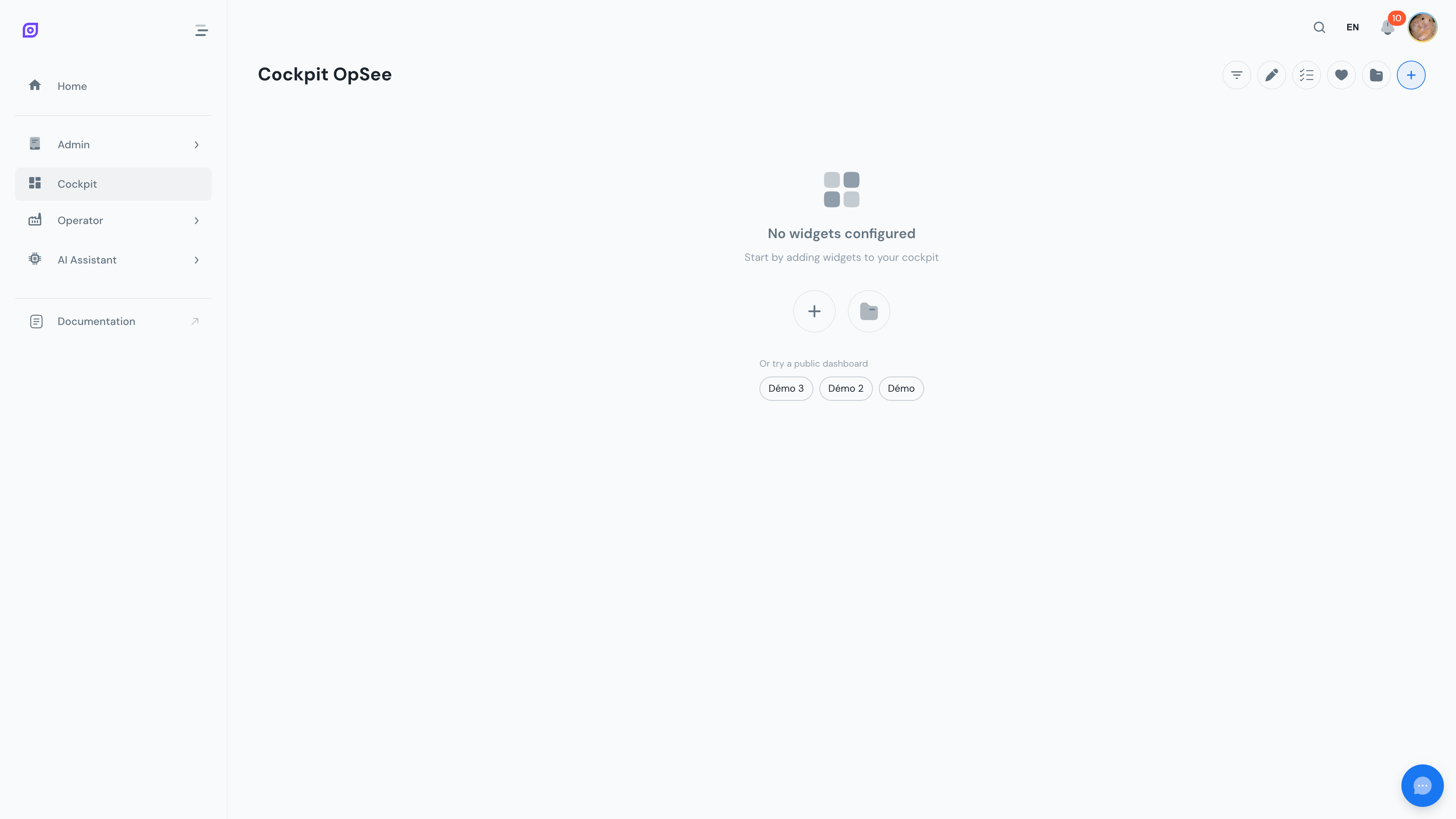 The empty cockpit. The toolbar contains all the actions you need: add widgets, edit mode, filters, save, and load.
Step 2: open the Add Widget dialog
Click the "+" button in the toolbar. The Add Widget dialog appears with tabs for each widget group: Operations, Justification, Trends, and System. It opens on the Operations tab, and a search field at the top filters widgets by name across every group.
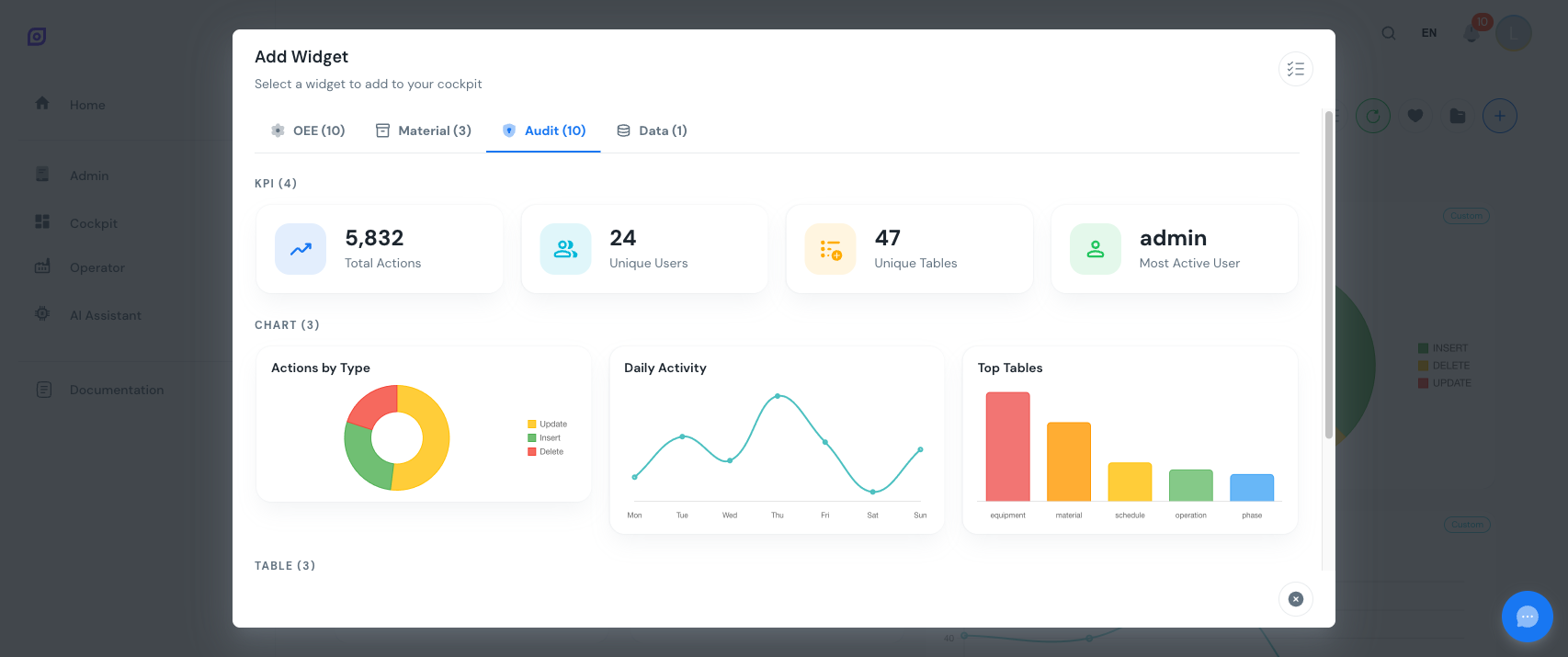 The Add Widget dialog. Browse widgets by group using the tabs at the top, or search by name.
Step 3: browse groups and select a widget
Click a group tab to explore the available widgets, or type in the search field to jump straight to one. Each widget card shows a preview, its name, and its type (KPI, Chart, Table, Timeline, or Gauge). Click a widget card to see more details.
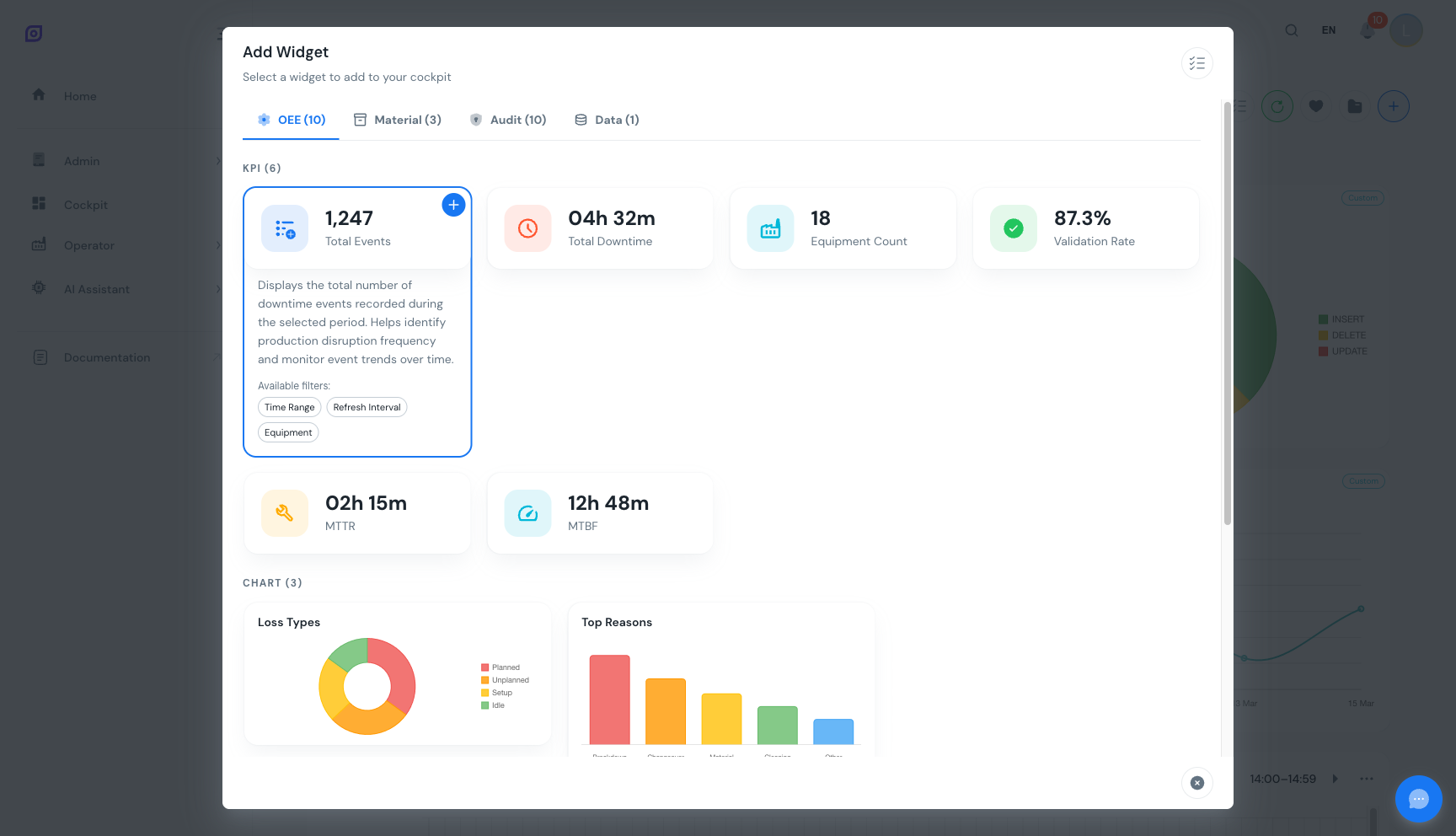 Selecting a widget in the OEE category. The preview shows sample data to help you choose.
Step 4: add widgets to your dashboard
Click Add to place a widget on your dashboard. Repeat the process to add more widgets. Each widget appears at the next available position on the grid.
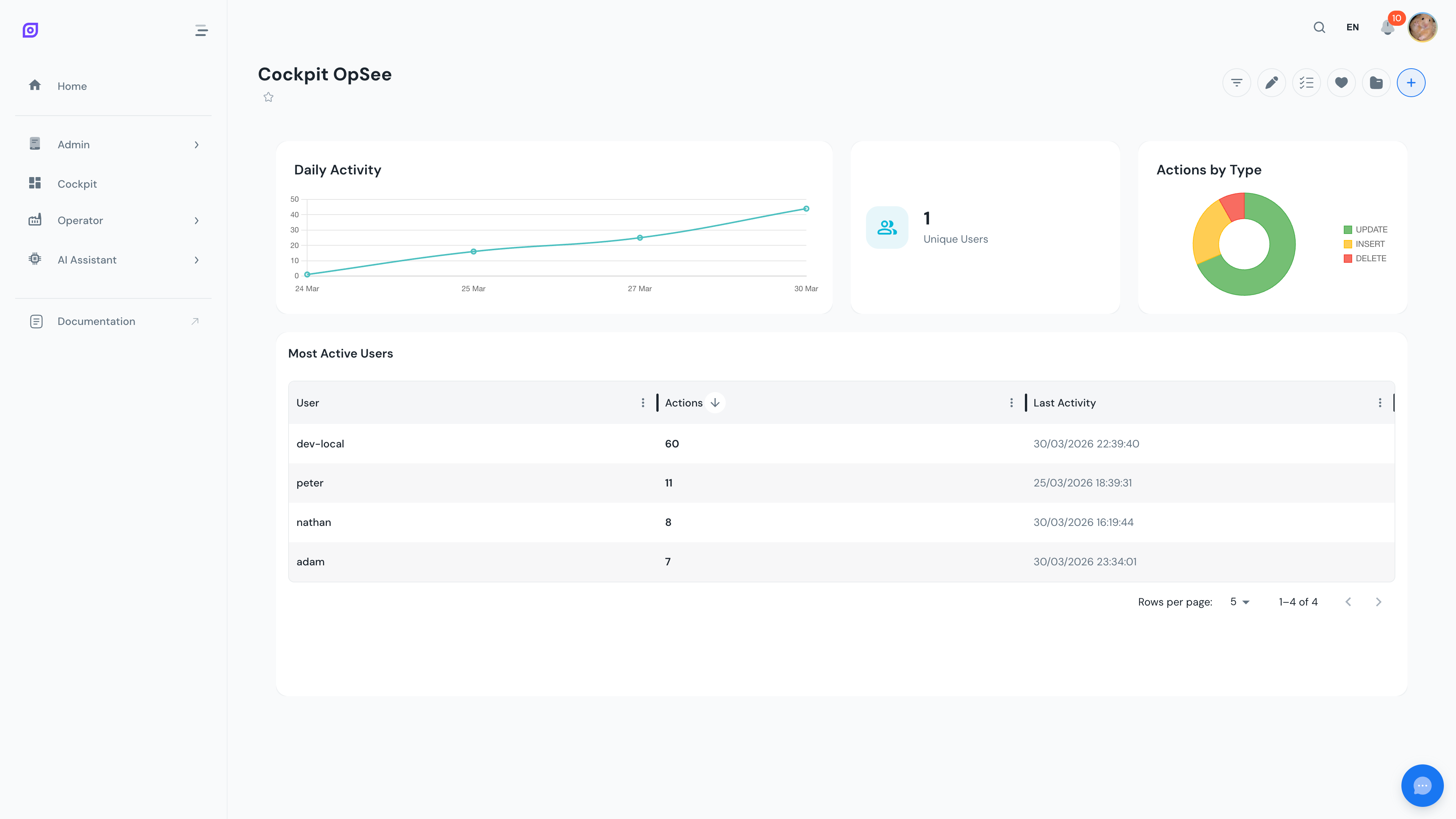 A dashboard with KPI cards, a doughnut chart, a bar chart, and a data table working together.
You can add the same widget type multiple times with different settings. For example, place two "Total Downtime" KPI cards filtered to different equipment lines for a side-by-side comparison.
Step 5: save your configuration
Click the Save button in the toolbar. Give your dashboard a name and an optional description, then click Save.
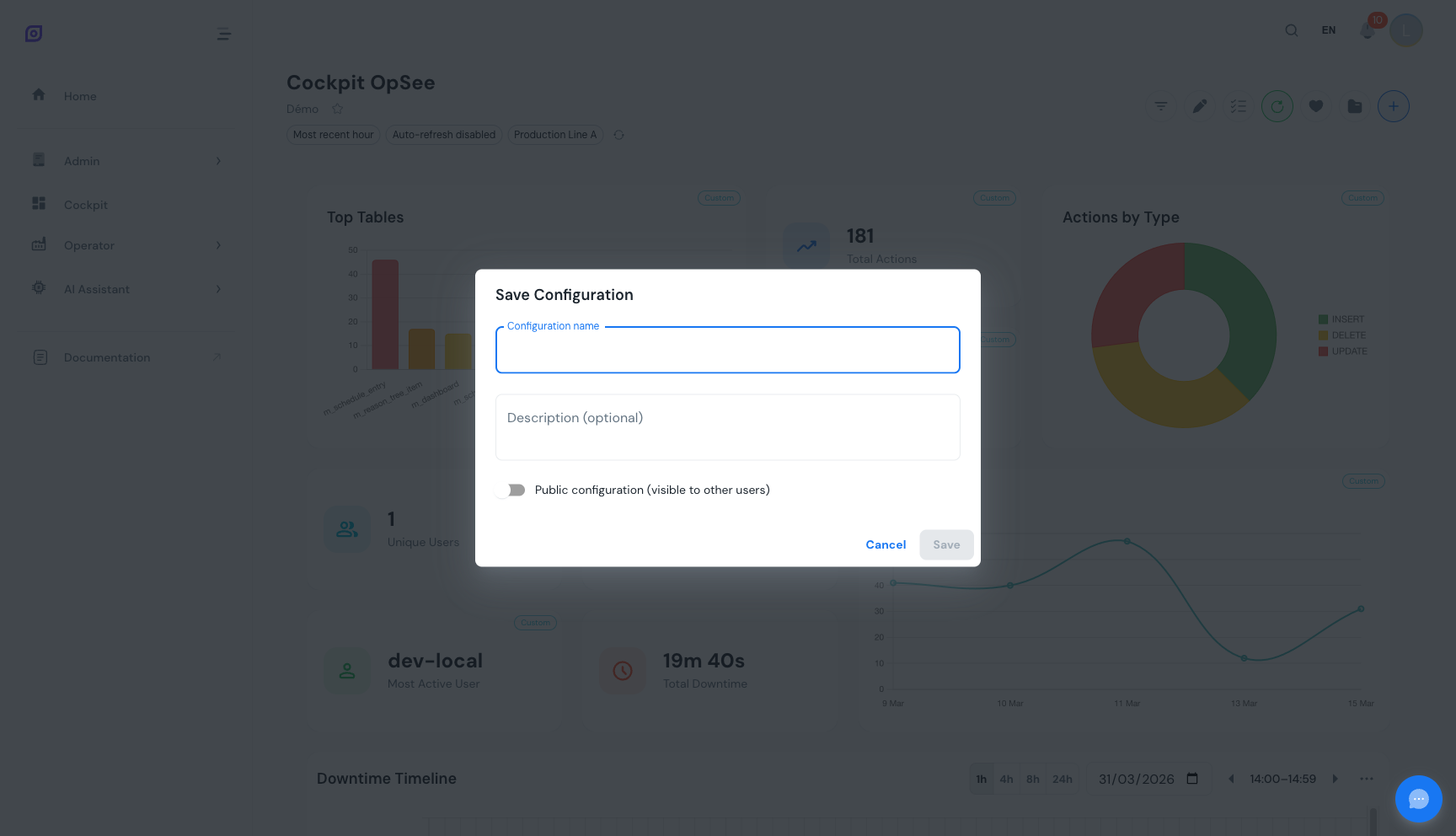 The Save dialog. Choose a name that describes the purpose of this dashboard layout.
Your dashboard is now persisted. The next time you open the Cockpit, it will reload automatically with all widgets, positions, and settings intact.
Made a mistake? If you accidentally delete a widget, an undo notification appears at the bottom of the screen. Click Undo within 10 seconds to restore it.
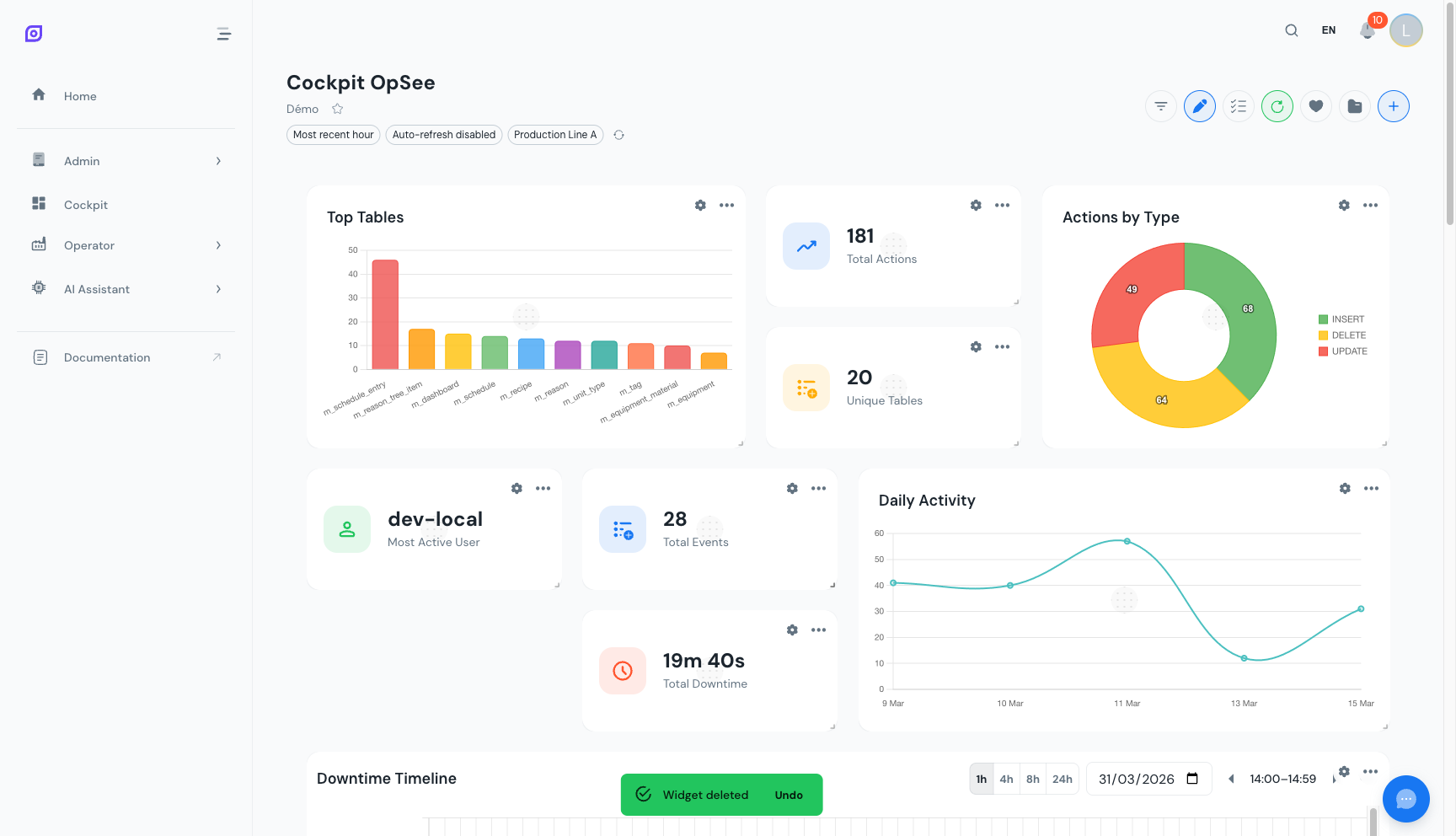 The undo snackbar gives you a 10-second window to recover accidentally deleted widgets.
Next steps
- Arrange your layout -- learn to drag, resize, and reorder widgets
- Configure filters -- set time ranges, equipment, and refresh intervals
- Explore all widgets -- see the full catalog of 44 available widgets
Prerequisites
- Cockpit Overview
- Introduction: get the overall picture of OpSee
Related
- OEE Fundamentals
- Production: complementary module